
Set up the patient and system document templates and the template notes staff use for clinical notes, emails and SMS.
Who it is for: practice managers and administrators.
In this guide:
- Create and edit patient letter templates
- Manage system document templates
- Write template notes for quick clinical notes
- Group template notes into favourites
1. Create and edit patient letter templates
You can create, edit, copy, archive and restore the templates staff use for patient letters and documents.
Why this matters Referral letters, treatment plan letters, consent forms, payment plan agreements and appointment letters all start from a template. Good templates save time, carry your branding and make sure required wording, such as the risks and alternatives needed for valid consent after the Montgomery ruling, is never left out.
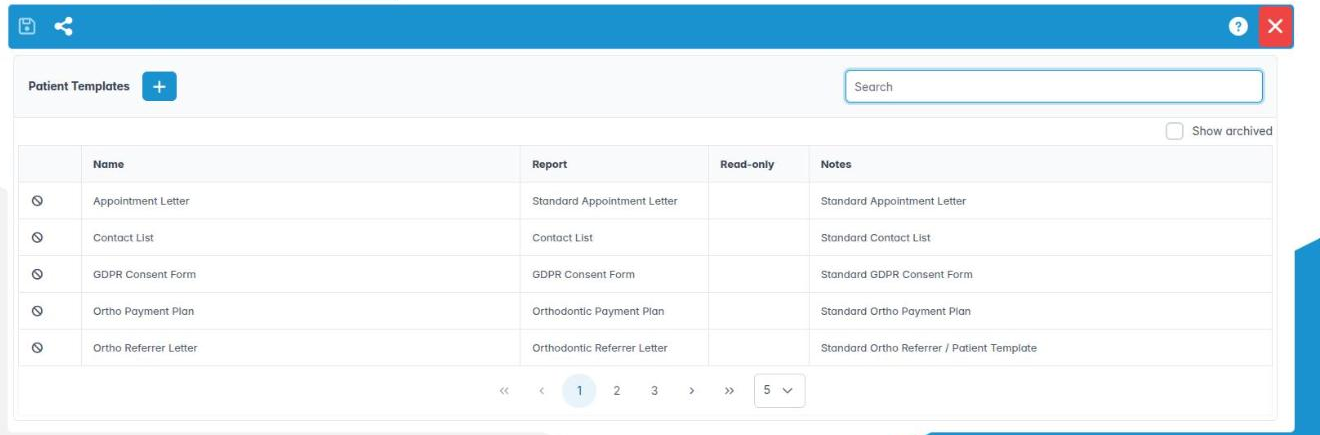
Where to find it Utilities › Patient Templates. The table shows Name, Report (the template type), Read-only and Notes; use Search to filter.
How to
- Click Create Patient Document Template.
- Choose the Template Type, for example Standard Patient Letter Template, Standard Referrer / Patient Template, Patient Consent Form Template or Standard Treatment Plan Template. Existing templates of that type are listed above.
- Enter the Document Template Name and any Notes. Tick Create as read-only if documents made from it should start locked (good for consent forms).
- Click Create Template.
- Double-click the template to open it in the document editor and write the content, including merge fields.
- Right-click a template for Edit Template (name, notes and read-only), Copy Template (make a variant) or Archive Template. Archiving asks Archive this patient template? It stays in the practice’s records and can be shown again with “Show archived”.
- Tick Show archived to see archived templates, greyed and tagged Archived. Right-click one and choose Restore Template to bring it back.
- Click Save.
Good to know
- Templates are archived, never deleted: an archived template is no longer offered for new documents, and documents already made from it are unchanged.
- Some built-in templates cannot be archived; Archive Template is greyed out for them.
- An archived template can’t be opened from the list. Restore it first.
- Assign Patient Document Template on the toolbar is not available yet.
- Use Copy Template to make a version for each clinician rather than editing the shared one.
2. Manage system document templates
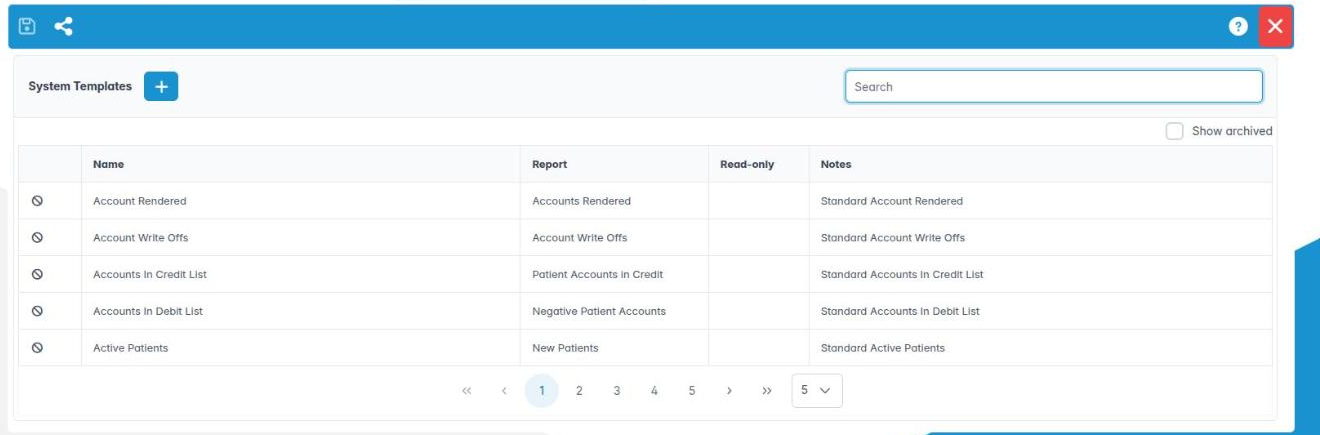
You can maintain the practice-wide system templates such as FP17(DCO), invoices and statements.
Why this matters System templates produce the documents the system generates itself, such as invoices, statements, payment plan schedules and treatment plan printouts. They are shared by everyone, so changes need care and a test print.
Where to find it Utilities › System Templates. Needs Edit System Templates (AID_EditSystemTemplates).
How to
- Click Create System Document Template.
- Fill in Document Template Name, Notes, Template Type and, if needed, Create as read-only.
- Click Create Empty Template to start from a blank document, or choose a file under External Template Details and click Use External Template to upload your own Word template.
- Double-click the template to open and edit it.
- Right-click for Edit Template, Copy Template or Archive Template, then Save.
- To bring back an archived template, tick Show archived, right-click it and choose Restore Template.
Good to know
- Copy a template and edit the copy, so you can go back if something goes wrong.
- Archiving keeps the template in the practice’s records; it is just no longer offered.
- After editing, produce a test invoice or plan for a test patient before your team uses it.
- Assign System Document Template on the toolbar is not available yet.
- Only give Edit System Templates to the person who looks after the practice’s paperwork.
3. Write template notes for quick clinical notes
You can create reusable note templates that staff insert into notes, emails and SMS.
Why this matters Clinical notes must be contemporaneous, accurate and complete, as the GDC expects. Template notes give clinicians and nurses a consistent starting point, for example an examination note with soft tissues, BPE, caries risk and the treatment options discussed, or a post-extraction advice note, which they then edit for the patient in front of them.
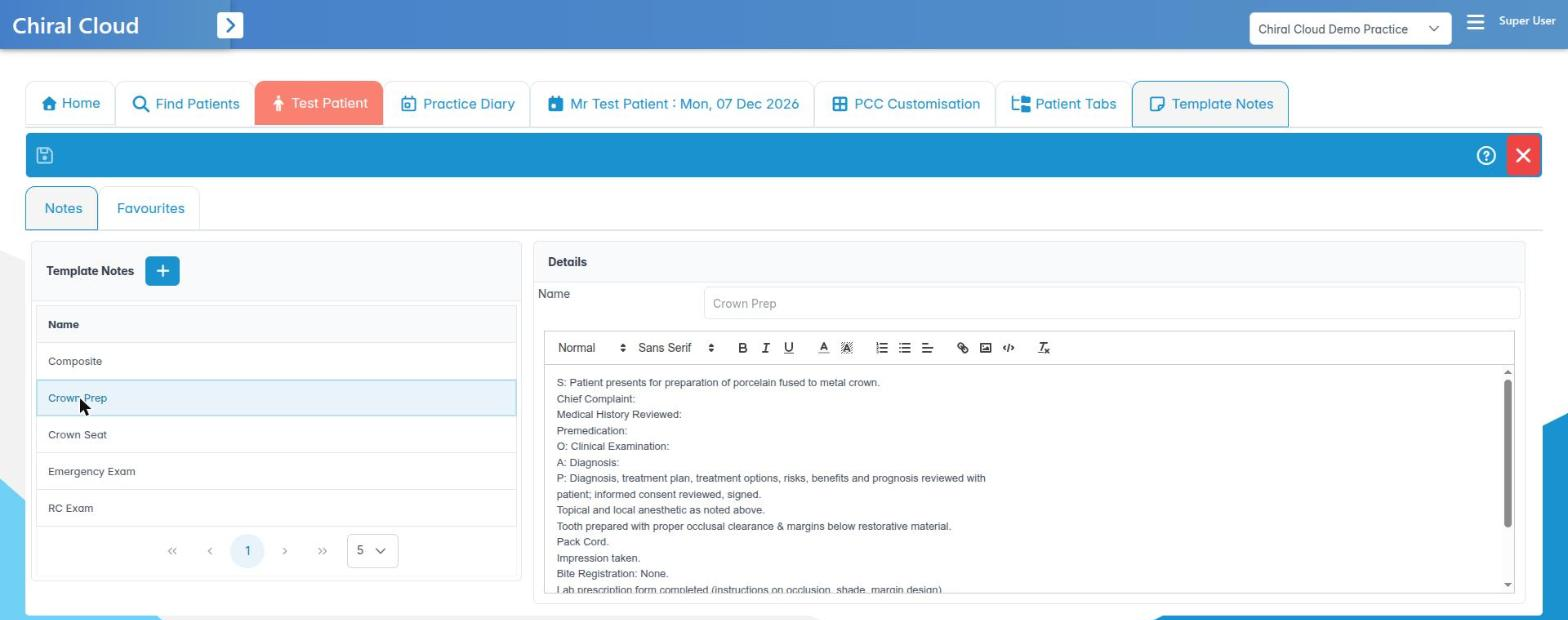
Where to find it Utilities › Template Notes, the Notes tab. Needs Edit Templates Notes (AID_EditTemplateNotes).
How to
- Click + (Add Template Notes).
- Enter a Name, for example “Exam – adult routine”.
- Write the Content in the editor. You can use bold, lists and headings.
- Click OK. Select a note to preview it in Details.
- Right-click to Edit Template Note, Copy Template Note (start a variant) or Delete Template Note.
- Click Save.
Good to know
- Staff pick these from the Insert template drop-down in patient notes, appointment comments, emails and SMS. Picking copies the text; it never links the note to the template.
- Merge fields like
{PATIENT_FIRST_NAME}are filled in only in emails and SMS; in clinical notes they stay as typed, so avoid them in note templates. - Templates are a starting point: remind clinicians to edit them, not just paste.
More detail: Template notes.
4. Group template notes into favourites
You can create favourite lists of template notes for each team or job.
Why this matters A practice can build up dozens of template notes. Favourite lists group the ones a particular team uses, such as hygiene notes, sedation notes or orthodontic review notes, so they are easier to find and manage.
Where to find it Utilities › Template Notes, the Favourites tab.
How to
- Click + (Create New Template Note Favourite).
- Enter a Description and Code.
- In Template Note Favourite Members, use Code Search to find notes and move them to Actual.
- Click OK, then Save.
- Select a favourite to see its members listed by Name.
- Right-click to Edit Template Note Favourite or Delete Template Note Favourite.
Good to know
- Name favourites by job (“Hygiene”, “Sedation”) rather than by person, so they survive staff changes.
- Deleting a favourite does not delete the template notes in it.