Configure diary behaviour and colours, invoice numbering, charting, email and Esendex SMS, recall and reminder defaults, and the wording of standard messages.
Who it is for: practice managers and administrators.
In this guide:
- Choose how the diary behaves
- Give each clinician a diary colour
- Set invoice numbering and accounting options
- Choose charting options and tooth numbering
- Connect your email and Esendex SMS accounts
- Set default reminder and recall rules
- Edit the wording of standard emails, SMS and reports
1. Choose how the diary behaves
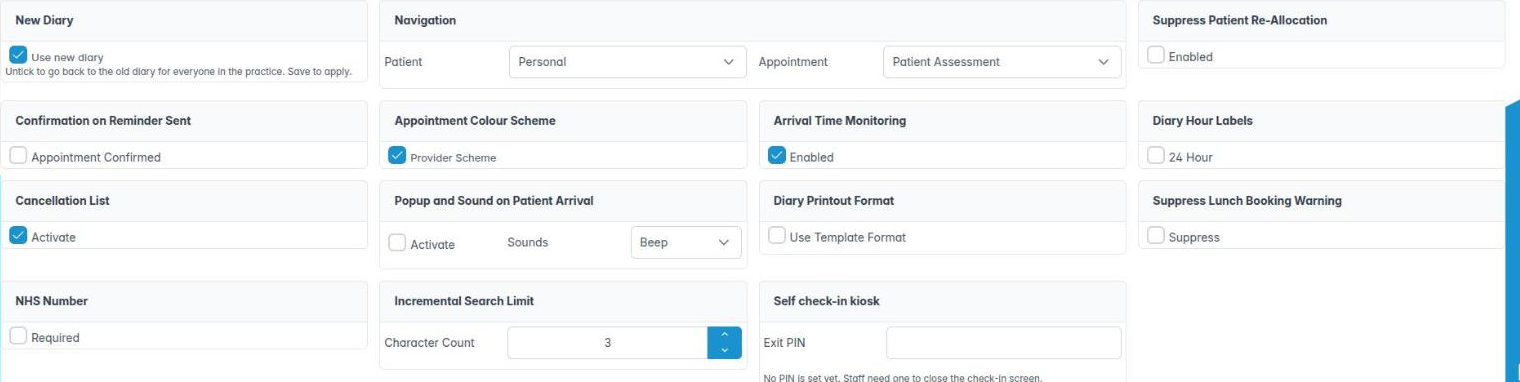
You can set navigation, colour scheme, arrival alerts and other diary behaviour.
Why this matters Small diary settings change how every member of the team works all day: which tab opens when you double-click a patient, whether arrivals beep, whether the NHS number must be entered. Agree them as a team.
Where to find it Preferences › Diary Settings. Needs Diary Preferences (AID_PREF_DIARY).
The settings
- Navigation – which tab opens first for a Patient (for example Summary) and an Appointment (for example Treatments).
- Appointment Colour Scheme – tick Provider Scheme to colour appointments by clinician; untick to colour by appointment type.
- Arrival Time Monitoring › Enabled – tracks how long patients wait after arriving.
- Popup and Sound on Patient Arrival › Activate, with Sounds (Beep, Bells, Chime) – alerts the clinician when their patient arrives.
- Cancellation List › Activate – keeps a list of patients wanting an earlier slot.
- Confirmation on Reminder Sent › Appointment Confirmed – marks an appointment confirmed once its reminder goes.
- Suppress Patient Re-Allocation, Suppress Lunch Booking Warning, Diary Hour Labels (24 Hour), Diary Printout Format (Use Template Format) and Incremental Search Limit (Character Count).
- NHS Number › Required – makes the NHS number mandatory when adding a patient.
- Checkin Pad › Exit PIN – the 4 to 6 digit PIN staff use to close the self check-in kiosk. It is never shown once saved.
- Click Save.
Good to know
- A half-typed PIN never replaces a working one.
More detail: Diary settings.
2. Give each clinician a diary colour
You can pick the colour used for each clinician’s appointments.
Why this matters If the diary is coloured by clinician (the Provider Scheme on Diary Settings), each clinician’s colour is how reception spots their appointments at a glance across a busy multi-surgery diary. Pick colours that are easy to tell apart, including for colleagues with colour blindness.
Where to find it Preferences › Diary Colour Selection. It is available to anyone who can open Preferences.
How to
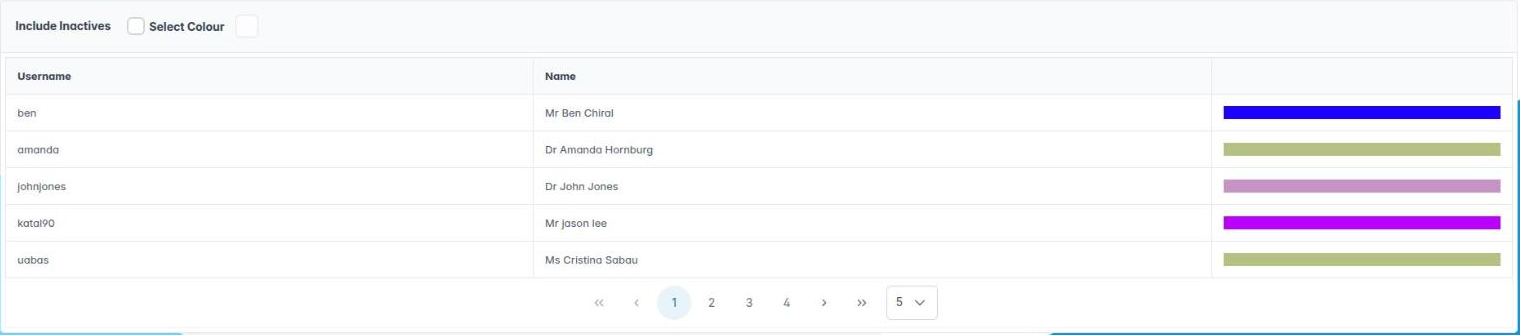
- The table lists staff with Username, Name and a colour swatch. Tick Include Inactives in the header to show inactive staff too.
- Click a person.
- Click Select Colour and choose their colour.
- Repeat for each clinician, then click Save.
Good to know
- The same colour can be set when you add the user (the colour picker in Miscellaneous).
- Colours only show in the diary when Provider Scheme is ticked on Diary Settings; otherwise appointment type colours are used.
- Avoid very pale colours; dark text is hard to read on them.
More detail: Diary colour selection.
3. Set invoice numbering and accounting options
You can set the number prefixes, year end and invoicing preferences.
Why this matters Every invoice, receipt, credit note, adjustment and refund gets a number with a prefix. Clear prefixes make it easy for you and your accountant to tell documents apart and to match them to bank statements. The year end month controls yearly reports.
Where to find it Preferences › Accounting. Needs Account Prefix Preferences (AID_PREF_ACCPREFIXES).
How to
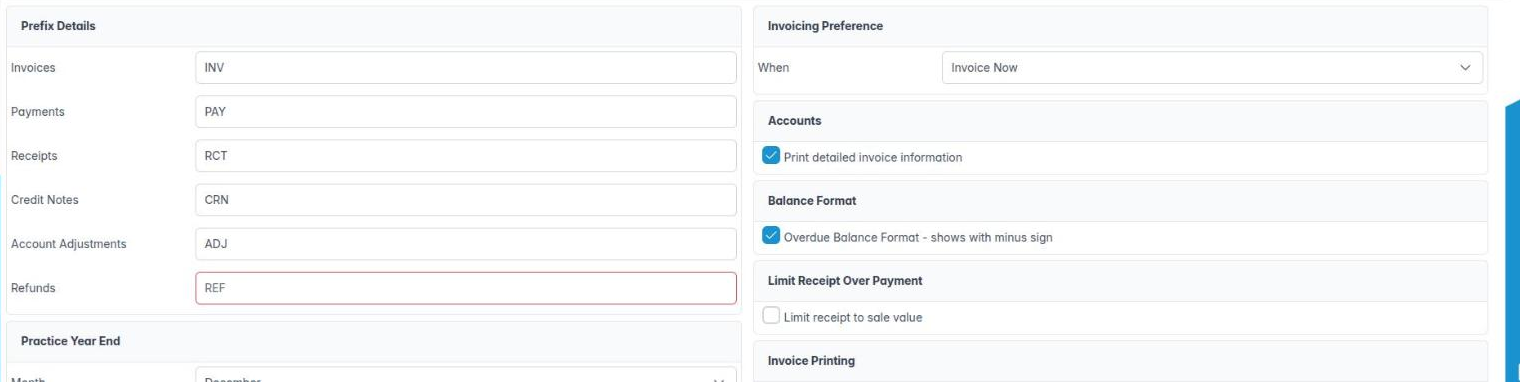
- In Prefix Details, set prefixes for Invoices, Payments, Receipts, Credit Notes, Account Adjustments and Refunds (for example INV, PAY, REC, CRN, ADJ, REF).
- In Practice Year End, choose the Month your financial year ends.
- In Invoicing Preference, choose When: Invoice Now (each charge is invoiced as it is completed) or Invoice Schedule (charges are collected and invoiced later, for example with Patients › Invoice Bulk Issue).
- Set the options: Print detailed invoice information, Overdue Balance Format – shows with minus sign, Limit receipt to sale value and Print invoice as statement on issue and overdue account report.
- Click Save.
Good to know
- Decide prefixes before go-live and do not change them mid-year.
- Practices with Upload Payment Reconcilliations also see Quick Books Payment Import, which maps spreadsheet columns (password, starting row, date, amount, name, account) for Utilities › Upload Payments.
More detail: Accounting.
4. Choose charting options and tooth numbering
You can switch charting tools on and choose the tooth numbering scheme.
Why this matters Clinicians chart every examination. The numbering scheme must match how your team writes and reads tooth notation, or notes and referral letters become confusing. UK practices use the Palmer-style quadrant notation shown here as British.
Where to find it Preferences › Charting Systems. Needs Charting Systems (AID_PREF_CHARTING).
How to
- In Charting Systems – Enabled, tick what you use:
– Dental Charting – shows or hides the dental chart (existing work and treatment) for the practice.
– Perio Charting – six-point pocket charts. - In Tooth Numbering Scheme, choose Schemes: British, American or European (FDI two-digit).
- In New Charting, leave Use new charting ticked. That gives everyone the current dental chart with the Tooth Dial, and the current perio chart. Unticking it goes back to the old charts for the whole practice.
- Click Save.
Good to know
- If you refer to hospitals that use FDI notation, your letters still follow this setting, so check with clinicians before changing it.
- Turning a charting tool off hides it but does not delete charts already recorded.
More detail: Charting systems.

5. Connect your email and Esendex SMS accounts
You can enter the practice’s outgoing email server and its own Esendex SMS account.
Why this matters Reminders, recalls, invoices and mail shots go out by email and SMS. Email can be sent through your own mail server. SMS goes through the practice’s own Esendex account: you pay Esendex for your texts, and the sender name patients see is yours.
Where to find it Preferences › Email Account Settings (Email Account Preferences, AID_PREF_EMAIL) and Preferences › Esendex (Esendex SMS Preferences, AID_PREF_ESENDEX).
How to – email
- In Email Settings – Sending, enter the SMTP Server Address from your email provider.
- Tick SMTP Authentication if your server needs a login, then enter Username and Password.
- Click Save, then send yourself a test from a patient record.
How to – Esendex
- Open an account with Esendex if you do not have one.
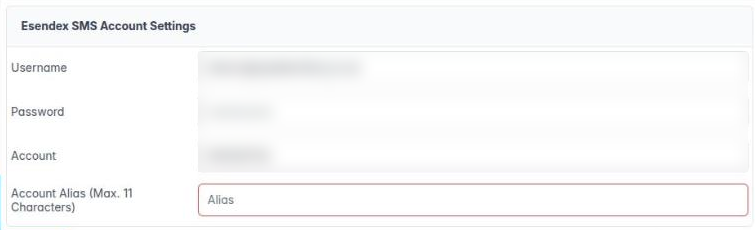
- In Esendex SMS Account Settings, enter the Username, Password and Account reference from Esendex.
- Enter an Account Alias (Max. 11 Characters). This is the sender name on patients’ phones, for example “SmileDent”.
- Click Save.
Good to know
- Use a practice mailbox, not someone’s personal email.
- Keep an eye on Reports › SMS Limits and your Esendex credit balance.
- Mail shots skip patients who have not given GDPR marketing consent.
More detail: Esendex.

6. Set default reminder and recall rules
You can set when reminders go, the default recall gaps, booking confirmations and what to ask patients on booking.
Why this matters Reminders cut failed appointments (FTAs); recalls bring patients back for check-ups at the interval their dentist chose. These defaults apply across the practice, so a small change here affects hundreds of messages.
Where to find it Preferences › Recalls & Reminders. Needs Recall & Reminder Preferences (AID_PREF_RECALLS_REMINDERS).
How to
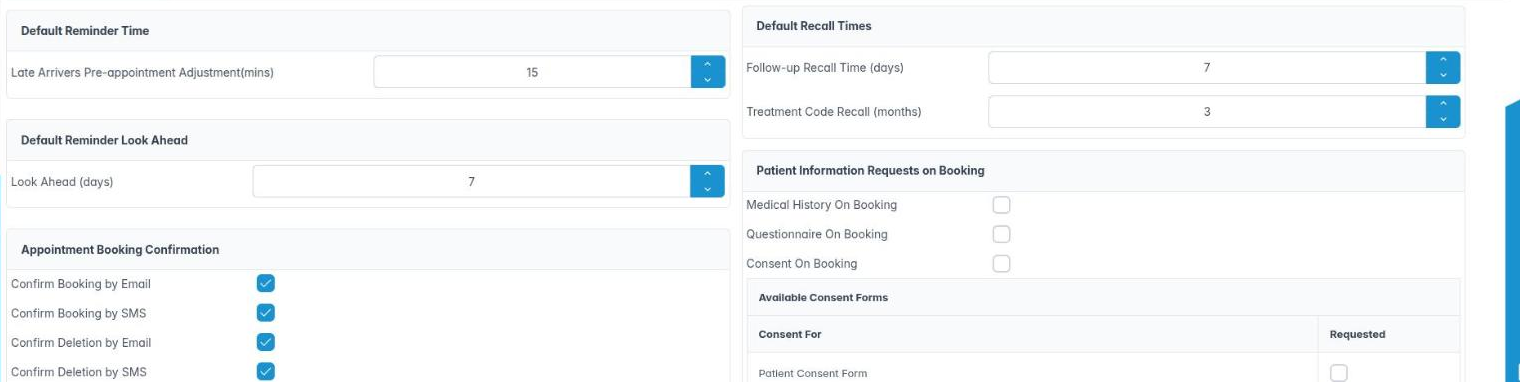
- Default Reminder Time › Late Arrivers Pre-appointment Adjustment(mins) – asks known late arrivers to come this many minutes early.
- Default Reminder Look Ahead › Look Ahead (days) – how far ahead reminders are prepared.
- Appointment Booking Confirmation – tick to send confirmations by email or SMS when an appointment is booked, deleted or rescheduled (Confirm Booking by Email, Confirm Booking by SMS, Confirm Deletion by Email/SMS, Confirm Rescheduling by Email/SMS).
- Default Recall Times – Follow-up Recall Time (days) (how long before a follow-up if a patient does not respond) and Treatment Code Recall (months) (the default when a treatment code triggers a recall).
- Patient Information Requests on Booking – tick Medical History On Booking, Questionnaire On Booking and Consent On Booking to send these forms automatically; in Available Consent Forms tick which consent forms are Requested.
- Click Save.
Good to know
- Recall intervals per patient type are set in Housekeeping › Recall Types.
- Asking for medical history at booking keeps it current before every visit.
More detail: Recalls reminders.
7. Edit the wording of standard emails, SMS and reports
You can change the text of the practice’s standard messages and insert merge fields.
Why this matters Reminder texts, recall emails, invoice covering notes and statements all use stored wording. Putting them in your practice’s voice, and checking the details are right, makes messages look professional and reduces calls from confused patients.
Where to find it Preferences › Reports / Emails / SMS. Available to anyone who can open Preferences.
How to
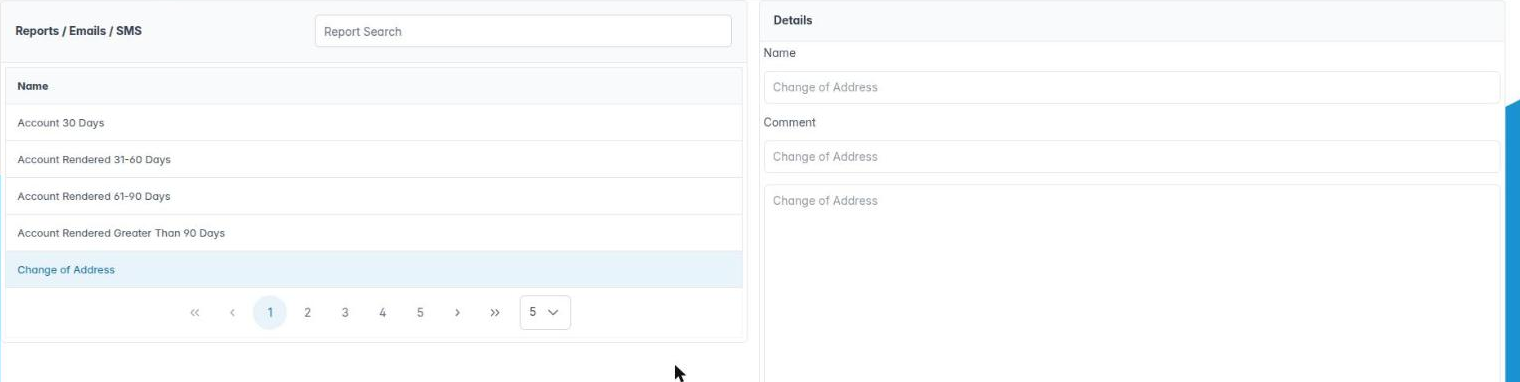
- Type in Report Search to find a text, for example “reminder”. The left table lists them by Name; the right side previews the selected one.
- Right-click the text and choose Edit Report Text.
- Change the wording. Use Insert field to drop in merge fields such as the patient’s first name, appointment date and time or practice telephone; they look like
{PATIENT_FIRST_NAME}and are filled in when the message is sent. - Click OK, then Save on the Preferences toolbar.
Good to know
- Email texts open in a formatted editor; SMS and printed texts use plain text.
- Keep SMS short: long messages use more than one credit.
- Do not include clinical details in a text or email; a mobile may be read by someone else.
- A field that cannot be filled for that message is left as written, so always send yourself a test.
More detail: Reports emails sms.