
Set up treatment codes and fees for NHS, private or mixed practice, group them into cost centres and favourites, and tailor assessment forms.
Who it is for: practice managers and administrators.
In this guide:
- Find your way round Housekeeping
- Plan your treatment codes for NHS, private or mixed
- Add and edit a treatment code
- Group treatment codes into cost centres
- Build treatment and existing work favourites
- Customise assessment forms
1. Find your way round Housekeeping
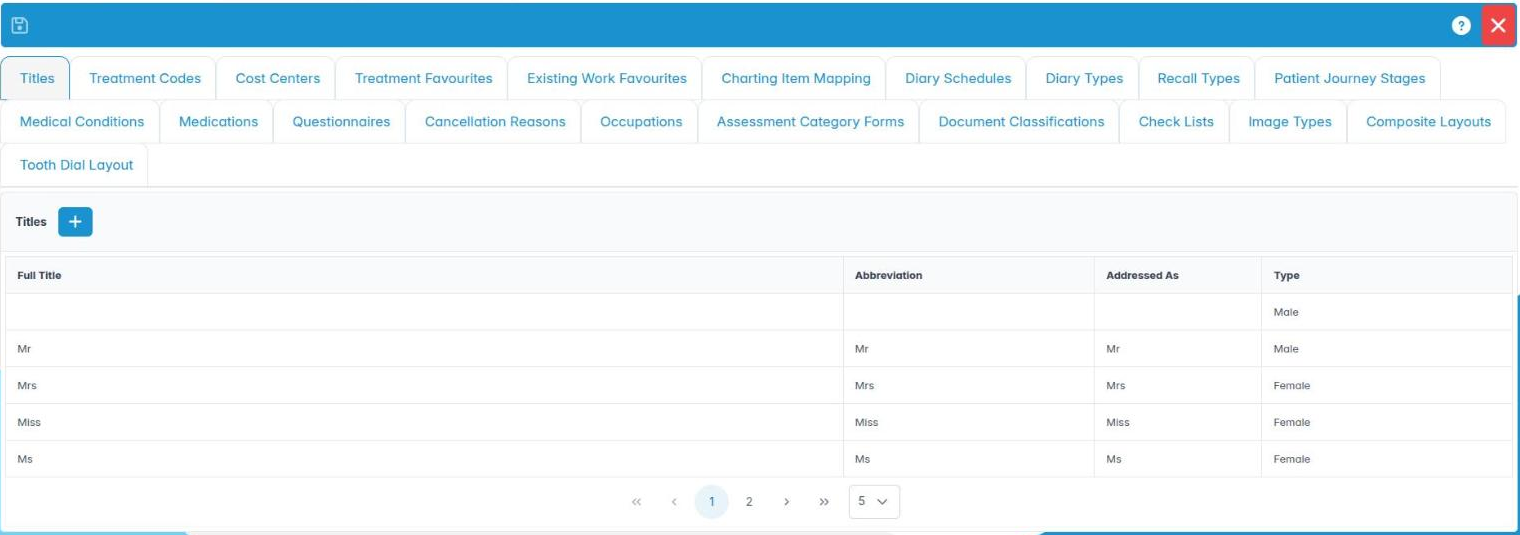
You can open Housekeeping, move between its sections, save, and get help for each section.
Why this matters Housekeeping holds the practice’s lists: treatment codes and fees, appointment types, recall types, medical conditions, document categories and more. Almost every drop-down staff use comes from here, so it is worth setting up carefully before go-live and keeping tidy afterwards.
Where to find it Utilities › Housekeeping. You need House Keeping (AID_HouseKeeping). Some sections need their own capability too, for example Treatment Codes (AID_HK_TREATMENT_CODES), Cost Centres (AID_HK_COST_CENTRES) or Clinician Schedules (AID_HK_CLINICIANS_SCHEDULES); a section you cannot use is simply not shown.
How to
- Open Utilities › Housekeeping. The tabs run from Titles to Composite Layouts.
- Most sections work the same way: a + button adds an entry, and right-clicking an entry offers Edit and Delete.
- Make your changes. Save lights up once something has changed.
- Click Save, or Save & Exit to save and close. If you close with unsaved changes you are asked whether to save them.
- Knowledge Base opens the help for the current section.
Good to know
- Check Lists, Image Types and Composite Layouts save each change as soon as you click OK or Save in that section, rather than through the toolbar.
- Diary Schedules saves each working pattern as you save its dialog.
- Prefer Archived or Inactive to deleting anything that has already been used.
- Charting Item Mapping currently shows an empty panel.
More detail: House keeping.
2. Plan your treatment codes for NHS, private or mixed
You can decide how to structure treatment codes and fees for your type of practice.
Why this matters Every item charted or added to a treatment plan is a treatment code. The code carries the fee, the colour on the chart, what NHS claim item it maps to and whether it triggers a recall. A clear code list is the foundation of accurate estimates, invoices and NHS claims.
NHS practices Under the NHS England contract, patients pay a banded charge (Band 1, 2, 3 or urgent), not per item. Your codes still record each item for the clinical record and the FP17, and the NHS Code on each code tells ChiralCloud what to report, for example Scale and Polish, Radiographs, Endodontic treatment, or the NHS Other Treatment Band 1/2/3 catch-alls. Band charges themselves are set by the Department of Health and change each April; keep the band charge codes in step with the current patient charge revision.
Private practices Each code carries your own fee, your fee scale. Use clear descriptions patients will understand on estimates. Discount codes (a percentage off) let you apply loyalty or family discounts.
Mixed practices Keep NHS and private versions of items that can be done either way, for example “Composite filling (private)”, and use the description or code prefix to tell them apart. This avoids putting a private fee on an NHS course of treatment or the reverse.
Good to know
- Decide a code naming scheme before you start, for example “EX01”, “RCT02”.
- Group codes into Cost Centers to report income by type of work.
- Archive old codes rather than deleting them.
3. Add and edit a treatment code
You can create a treatment code with its fee or discount, NHS code, chart item and triggers.
Why this matters The details on a treatment code decide what is charged, how it looks on the chart, what goes on the NHS claim and whether the patient is put on recall afterwards.
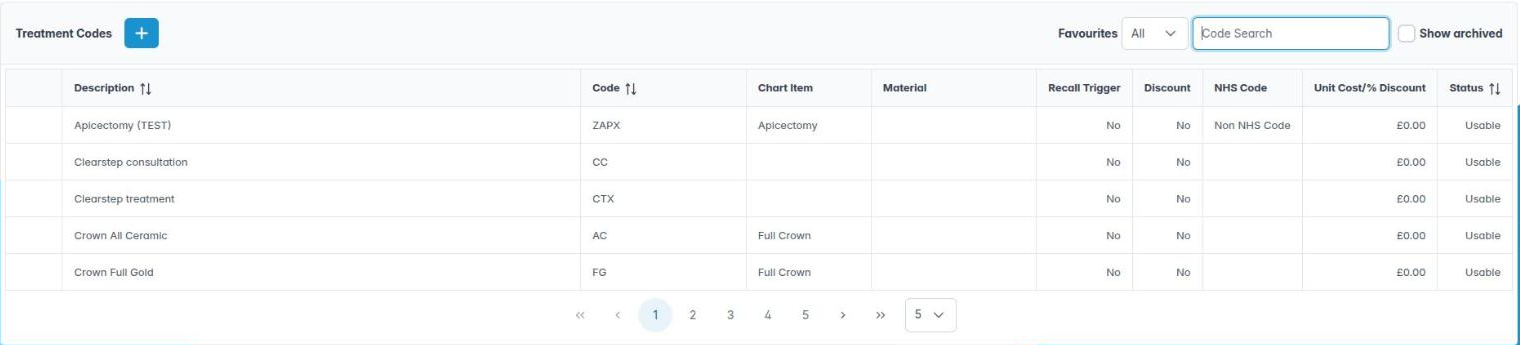
Where to find it Utilities › Housekeeping › Treatment Codes. Needs Treatment Codes (AID_HK_TREATMENT_CODES).
How to
- Use Code Search, the Favourites drop-down and Include Archived to find codes. Columns include Description, Code, Chart Item, Material, Recall Trigger, Discount, NHS Code, Unit Cost/% Discount and Status.
- Click + (Create New Treatment Code), or right-click a code and choose Edit Treatment Code.
- In Treatment, enter Description and Code, and choose a Material and NHS Code (leave Non NHS Code for private items).
- Pick a Color for the chart, and enter the (£) Unit Code fee. Tick Discount Code to make it a percentage instead: the box becomes (%) Discount.
- Tick Treatment Start or Treatment End where the item starts or completes a course, and Recall Trigger if completing it should set a recall.
- In the right-hand panel, search with Item Search and click the charting item it draws. Right-click and choose Remove Charting Item to clear it.
- Click OK, then Save.
Good to know
- OK stays greyed out until there is a code, a description and a valid fee.
- Tick Archived to retire a code; it stays on old records.
- Delete Treatment Code asks you to confirm and should only be used for codes never used.
More detail: Treatment codes 2.
4. Group treatment codes into cost centres
You can create cost centres and choose which treatment codes count towards each.
Why this matters Cost centres let you see income by type of work: hygiene, implants, orthodontics, cosmetic, NHS. The Reports › Revenues › Cost Centers report adds up income per cost centre, which helps you price, plan and decide where the practice is busy or quiet. Mixed practices often keep NHS and private income in separate cost centres.
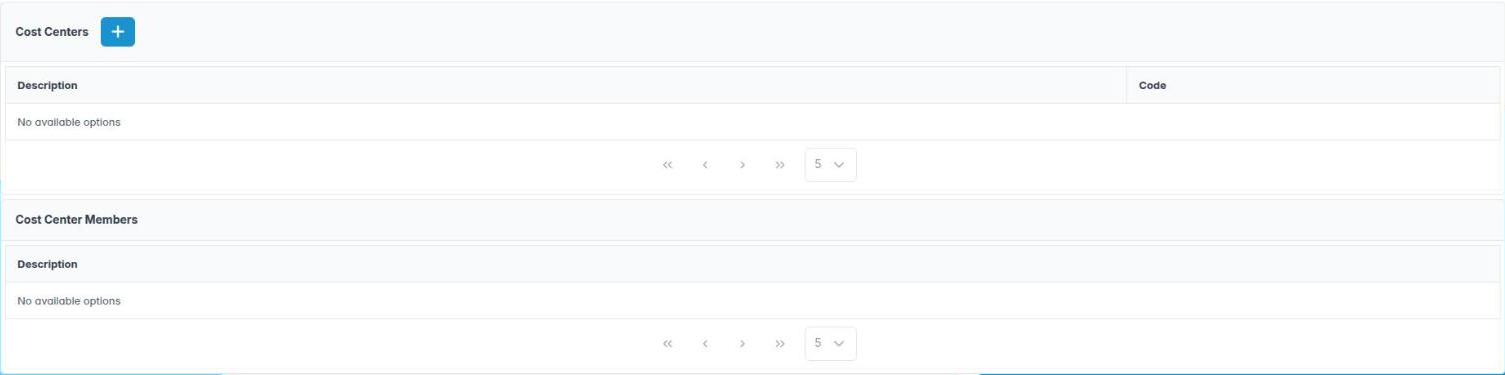
Where to find it Utilities › Housekeeping › Cost Centers. Needs Cost Centres (AID_HK_COST_CENTRES).
How to
- Click + (Create New Cost Center).
- Enter a Description (for example “Hygiene”) and a short Code.
- In Cost Center Members, move the treatment codes that belong to it from Possible to Actual.
- Click OK, then Save.
- Select a cost centre in the table to see its members listed underneath in Cost Center Members.
- Right-click a cost centre and choose Edit Cost Center to change it, or Delete Cost Center to remove it (you are asked to confirm).
Good to know
- Set up treatment codes first; cost centres are made from them.
- A treatment code should normally sit in only one cost centre, or income will be counted twice in the report.
- Agree the cost centre list with your accountant or principal.
More detail: Housekeeping cost centers.
5. Build treatment and existing work favourites
You can create short lists of common codes so clinicians chart faster.
Why this matters A practice may have hundreds of codes, but each clinician uses a few dozen every day. Favourites put those few at the top when charting and planning, so clinicians and nurses spend less time searching. Existing work favourites do the same for recording what is already in the mouth at a new patient exam.
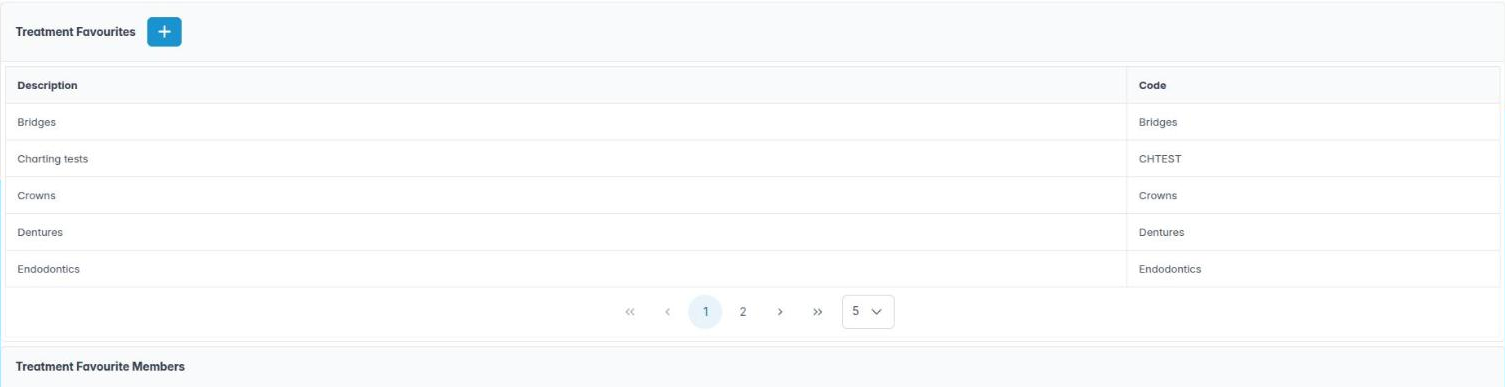
Where to find it Utilities › Housekeeping › Treatment Favourites and Existing Work Favourites.
How to – treatment favourites
- Click + (Create New Treatment Favourite).
- Enter a Description (for example “Hygienist”) and Code.
- In Treatment Favourite Members, move the codes you want into Actual.
- Click OK, then Save. Selecting a favourite shows its members with Chartable and Description columns.
- Right-click to Edit Treatment Favourite or Delete Treatment Favourite.
How to – existing work favourites
- Click + (Create New Existing Work Favourite), enter Description and Code, choose Existing Work Favourite Members, then OK and Save.
- Right-click to Edit Existing Work Favourite or Delete Existing Work Favourite (you are asked Are you sure you want to delete this existing work favourite?).
Good to know
- Give each clinician their own favourite list on their user record (Favourite List).
- One list per job type (dentist, hygienist, therapist, orthodontist) is usually enough.
More detail: Housekeeping treatment favorites.
6. Customise assessment forms
You can add, edit, reorder and remove the items on each assessment category form.
Why this matters Assessment forms structure clinical assessments, such as a periodontal, orthodontic, implant or X-ray justification assessment, so that the same questions are asked every time. Consistent assessments support good record keeping, which the GDC expects, and the IR(ME)R requirement to justify every radiograph.
Where to find it Utilities › Housekeeping › Assessment Category Forms. Needs Assessment Categories (AID_HK_ASSESSMENT_CATEGORIES).
How to
- In the Categories header, choose a category from Select a Category: Patient, Orthodontic, Endodontic, Periodontic, Paediatric, Implant, Prosthodontic, Botox, FacialAesthetic or XrayJustification.
- In Items, click + (Add Category Item).
- Enter a Name, the Report Text used when the assessment is written up, and a Color. Click OK.
- Select an item and use Up and Down to reorder it.
- Right-click an item to Edit Category Item or Delete Category Item.
- Click Save.
Good to know
- The same capability also controls Document Classifications.
- Ask your clinicians to agree the wording; the report text appears in clinical notes and letters.
More detail: Housekeeping assessment category forms.
