
The three diary views, moving between dates, reading appointments, colours and columns, searching for free slots, printing and day notes.
Who it is for: practice managers and administrators, clinicians, dental nurses, receptionists.
In this guide:
- Choose the right diary view
- Move around the diary by day, week and month
- Read what an appointment is telling you
- Understand why a clinician’s column looks the way it does
- Find the next free slot of the right type
- Adjust the view and print the day list
- Leave a note on a diary day
- Set the order of clinician columns
1. Choose the right diary view
You can open the Practice Diary, a Clinician Diary or the Practice Week Diary and know when to use each.
Why this matters. The appointment book is the screen you will use most. ChiralCloud gives you three ways to look at it. Picking the right one saves a lot of scrolling, especially on a busy day with several surgeries running.
Where to find it. Open the Diary menu in the left sidebar. The same diaries are also on the Practice Control Centre buttons.
How to
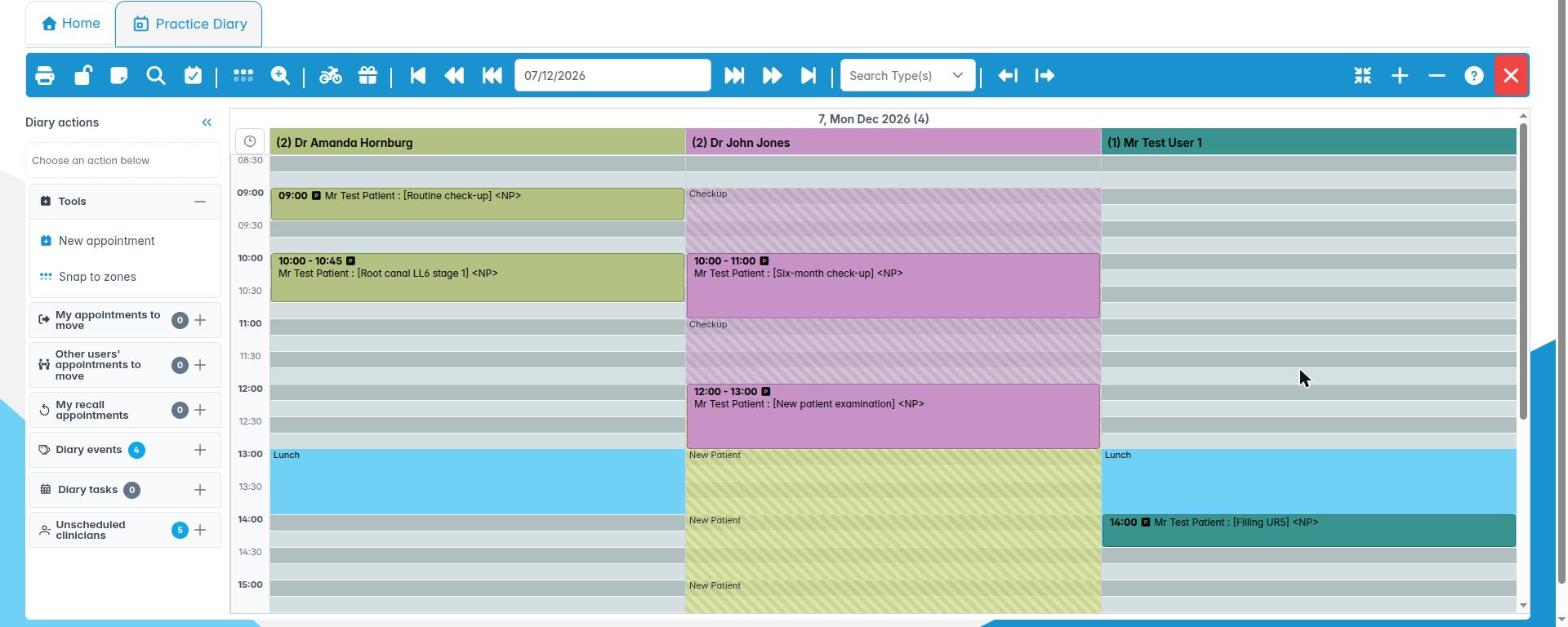
- Choose Practice Diary to see one day with a column for every clinician who is working. Reception mostly works here.
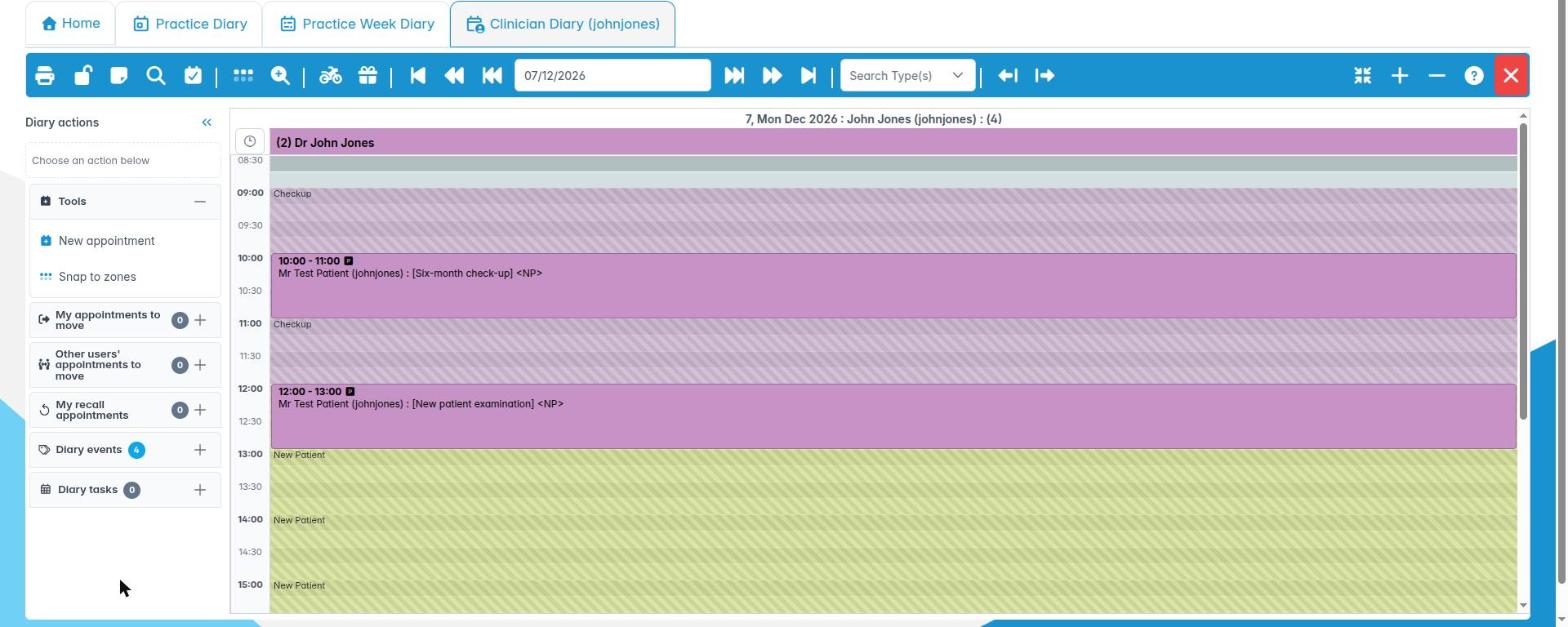
- Choose Clinician Diary to see one person’s day. A Clinicians list opens first. Search by name, then pick the clinician and click OK (double-clicking a row works too). The tab is called Clinician Diary (username), so you can have several open at once.
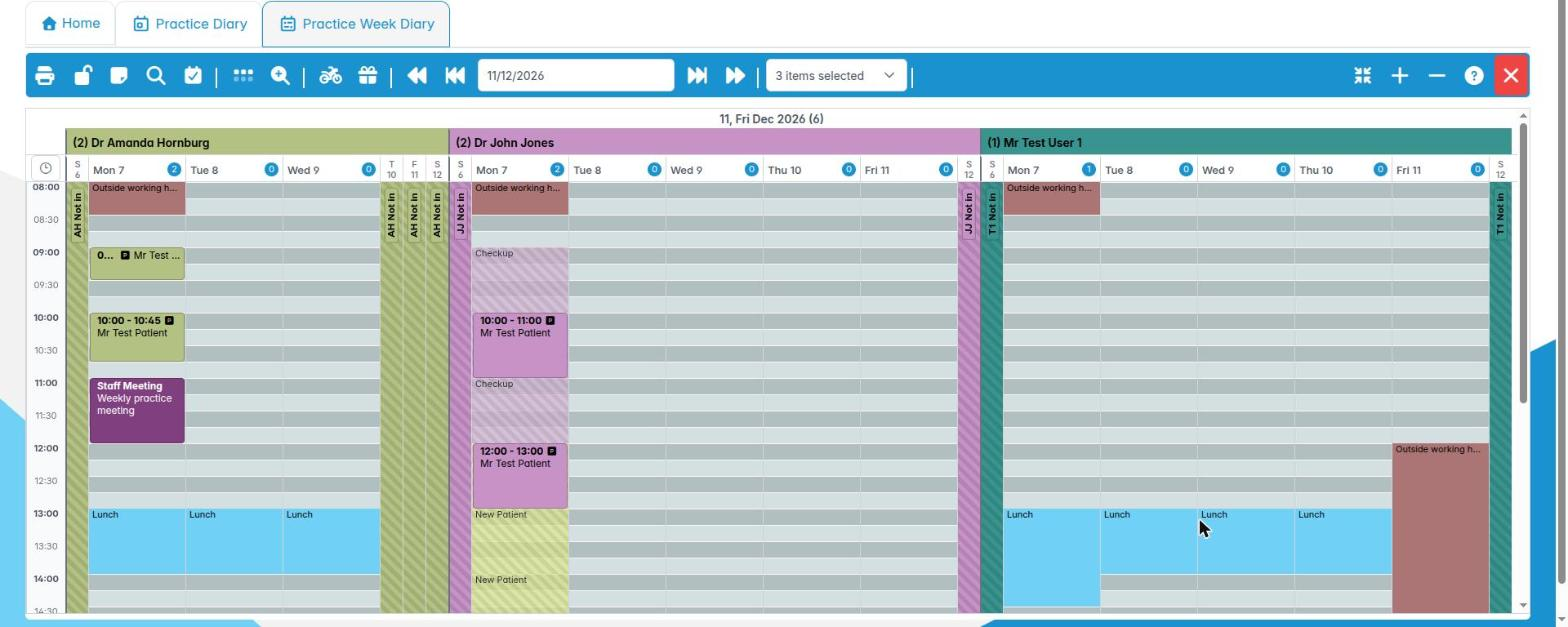
- Choose Practice Week Diary to see a whole week for the practice. Use it to plan ahead, for example to find a morning when the hygienist and the dentist are both free.
- Each diary opens as its own tab. To close it, click Save & Exit at the right-hand end of the toolbar.
Good to know
- Dentists, hygienists, therapists and nurses usually keep their own Clinician Diary open all day. Reception keeps the Practice Diary open.
- If you leave a diary tab and come back, it remembers the date and settings you were using.
- In the week view you can double-click an appointment to jump to that day in the Practice Diary.
- The toolbar’s Knowledge Base button opens the help article for the diary you are looking at.
More detail: The practice diary.
2. Move around the diary by day, week and month
You can get to any date quickly and jump between the week and day views.
Why this matters. Patients ask for “the same time in six months” or “next Tuesday afternoon”. The toolbar takes you there in a click or two, so you are not scrolling while the patient waits on the phone.
Where to find it. It is the toolbar across the top of every diary, in the middle section.
How to
- Use Back a day and Forward a day to step one day at a time. These are only in the day diaries.
- Use Back a week / Forward a week and Back a month / Forward a month for bigger jumps. For example, use the month buttons six times for a six-monthly check-up.
- To go straight to a date, click the date box between the arrows. Type a date as dd/mm/yy, or pick one from the calendar using the month and year lists.
- The day heading shows the date and a number in brackets. That is how many weeks away the date is, which helps when a patient asks for “about three weeks’ time”.
- In the Practice Week Diary, double-click an appointment to open that day in the Practice Diary. You can also right-click it, or a diary event, and choose Practice Day Diary.
- Right-click an empty part of a column in the week view and choose Practice Day Diary to open that day.
Good to know
- If you clear the date box by mistake, the diary stays on the day it was showing. It does not jump back to today.
- Day notes for the date you land on pop up in the top corner. See Leave a note on a diary day.
More detail: The practice diary.

3. Read what an appointment is telling you
You can read an appointment’s colour, icons and highlights at a glance.
Why this matters. A good receptionist can glance at the book and see who is here, who is in the chair, who is NHS and who still has lab work due back. ChiralCloud packs all of that into each appointment block.
Where to find it. Look at any appointment in a diary. Hover the mouse over it for the tooltip.
How to read it
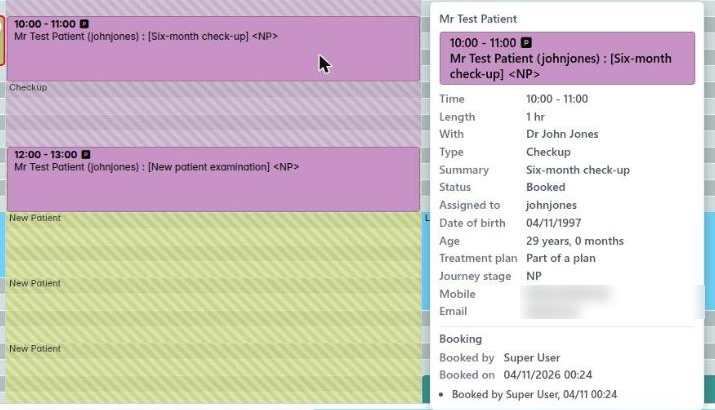
- Block colour is the appointment type’s colour. A practice can use the Provider Scheme instead (Preferences › Diary Settings › Appointment Colour Scheme), and then each clinician has their own colour. The appointment you last clicked has a red border.
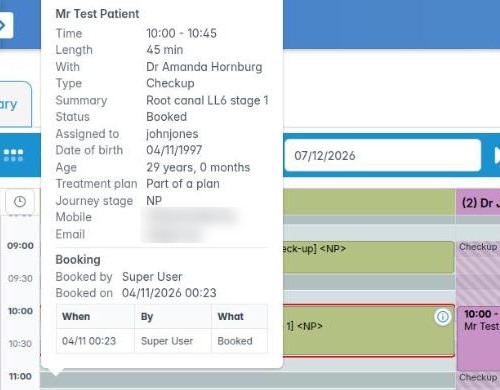
- Text shows the patient’s name, their known as name in brackets, the clinician they are assigned to, the appointment summary in [square brackets] and their patient journey stage in <angle brackets>.
- Icons on the left: an NHS logo for NHS patients or a P square for private patients, a green flag once the appointment is confirmed, and a lab icon when external work is required.
- Highlight behind the name: green means arrived, yellow means in the surgery, light blue means checked out.
- Tooltip: the time they checked in (or –), their name, the summary and their date of birth.
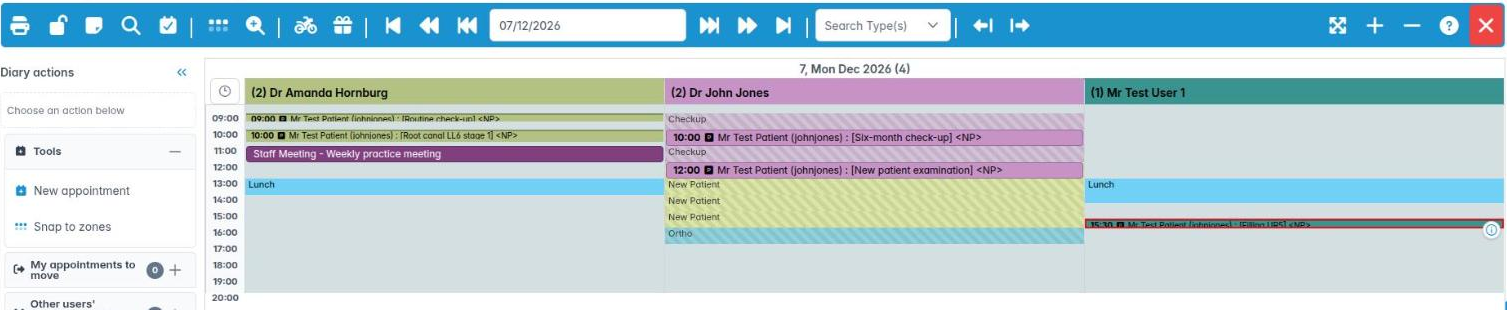
- The column header shows how many appointments the clinician has that day, then their name. A * means the clinician was scheduled just for today. A padlock means their login is locked.
Good to know
- The slot background tells you about the clinician’s day too: light blue is lunch, dark red is outside their working hours, and grey stripes are bookable time.
- Grey-hatched areas are booking zones. See Use booking zones to book the right type.
More detail: The practice diary.
4. Understand why a clinician’s column looks the way it does
You understand how diary schedules set working hours, lunch and zones, and where they are changed.
Why this matters. Each clinician’s column in the diary comes from their diary schedule. The schedule sets which days they work, their hours, their lunch break, any time off, and the booking zones that reserve time for particular treatments. If a column is missing or the hours look wrong, the schedule is usually the reason, not the diary.
Where to find it. Administrators manage schedules in Utilities › Housekeeping › Diary Schedules. Six training videos on that page cover working patterns, time off, booking zones, the week overview and copying from another clinician.
How to check a column
- No column for a clinician today? Either their schedule says they don’t work today, or they have time off. They will appear under Unscheduled Clinicians in the diary palette.
- Dark red slots are outside their working hours. Light blue slots are their lunch break.
- Holiday and time-off blocks show in the column. Right-clicking them does nothing, because they are managed in the schedule.
- Grey-hatched coloured areas are booking zones, such as a block of new patient exams or an urgent slot kept free each morning. Hide Zoning / Show Zoning on the toolbar turns them off and on.
Good to know
- Receptionists can add a clinician for one day without changing their schedule (see Cover a clinician’s absence or add an extra session). A permanent change needs the Housekeeping permission.
- Many practices keep one or two urgent slots per clinician each day. NHS practices are expected to give urgent access, so check your practice’s rules before booking routine work into them.
More detail: Housekeeping clinicians schedules.
5. Find the next free slot of the right type
You can search the diary for the next or previous slot of a given type, and use Find available slot.
Why this matters. “When is the hygienist’s next 30-minute slot?” is one of the most common questions on the phone. You don’t need to page through weeks. The diary can search for you.
Where to find it. It is on the toolbar of the Practice Diary and Clinician Diary.
How to: search by type
- Open Search Type(s) and tick one or more appointment or event types, such as a hygiene zone or a new patient exam.
- Click Next Event Type to jump forward to the first date that has one, or Prev Event Type to go back. A message names the clinician and gives the date and time, for example “The first available on Tue, 4 Nov 2025, start time 09:30 – 10:00”. If nothing matches you will see No Match.
- To search for one clinician only, right-click their column header and choose Next Event Type or Previous Event Type. You still need to have ticked types first.
How to: Find available slot
- Click Find available slot (the calendar-tick icon). The window stays open while you use the diary.
- Pick the Clinician, a Preferred date and one or more Appointment types. The search runs automatically. It looks two weeks either side of the date and never shows past slots.
- The results show Date, Start, End (Dur) and Type. Use Previous week / Next week to shift the search.
- Double-click a result to open that day in the Practice Diary, then book it as usual.
Good to know
- Find available slot searches booking zones, so it only works for clinicians whose schedule has zones.
More detail: The practice diary.
6. Adjust the view and print the day list
You can zoom, compact, hide patient names and print day lists for the surgery.
Why this matters. Each clinician wants a printed day list. Reception might want the whole day on one screen. And when patients can see your screen at the desk, you need to hide their details. All of this is on the toolbar.
Where to find it. It is on the diary toolbar. The view buttons are at the right-hand end.
How to
- Hide patient details replaces every name with x’s, which is handy when the screen faces the waiting room. Click Show patient details to bring them back.
- Compact View squeezes appointments so more of the day fits. Expand View goes back.
- Increase Time Slot Size and Decrease Time Slot Size zoom the time grid in and out.
- Print day view (or Print Week view in the week diary) prints the diary. If the practice has turned on Use Template Format (Preferences › Diary Settings › Diary Printout Format), you get one printed day list per clinician instead of a picture of the screen.
- To print one clinician’s list, right-click their column header and choose Print Day List.
- In the Practice Week Diary, use Select Clinician(s) to show only the clinicians you pick.
Good to know
- Day lists contain patient names and treatments, which is personal data under UK GDPR. Don’t leave them on the reception desk, and shred them at the end of the day.
- The palette down the left-hand side can be collapsed. See Book an appointment from an empty slot.
More detail: The practice diary.
7. Leave a note on a diary day
You can add a day note that pops up for everyone who opens that date.
Why this matters. Some things affect a whole day: “Fire alarm test at 10:00”, “Dr Shah running 20 minutes late”, “Lab courier collecting early”. A diary note pops up for everyone who opens that day, so nobody misses it.
Where to find it. On the diary toolbar, click Create a diary note (the sticky-note icon).
How to
- Go to the day the note is for, then click Create a diary note.
- In Add Diary Note, type a Subject. This is the heading of the pop-up.
- Choose a Type. Info shows as a blue pop-up, Warning as amber and Action as red. Save red for things someone has to do.
- Write the note in the editor. You can use Insert template to drop in one of the practice’s template notes where the cursor is.
- Click OK. You need both a subject and some text before OK will work.
Good to know
- The notes for a day pop up in the top corner whenever someone opens or moves to that date. They stay until you close them.
- Closing a pop-up only hides it for you. The note stays on the day.
- Keep notes about a particular patient on that patient’s appointment (Edit Type / Comment) or in their record, not as a day note that everyone sees.
More detail: The practice diary.
8. Set the order of clinician columns
You can set the left-to-right order of clinician columns for the whole practice.
Why this matters. Reception reads the book from left to right. Most practices put clinicians in surgery order, or dentists first and then hygienists and therapists. The Diary Sort Order sets that order for everyone in the practice.
Where to find it. Click Diary › Diary Sort Order in the left sidebar.
How to
- Open Diary › Diary Sort Order. A Providers list shows every active clinician.
- Click a name, then use the arrow buttons beside the list to move it up or down. You can also drag names into place.
- Click Close to save the new order. Cancel leaves it as it was.
- Close and reopen any diary tab you already had open, so it picks up the new order.
Good to know
- Here Close saves your changes. In most other places Close just shuts the window.
- Only active users with the Clinician role are listed. Nurses and reception never get a diary column.
- A clinician scheduled just for the day with Schedule Provider still appears, shown with a *.
- This affects everyone in the practice, so agree the order with the practice manager first.
More detail: Diary sort order.