
Move, resize and rebook appointments, cancel with reasons and late cancellation charges, handle FTAs, delete mistakes, edit notes and cover clinician absence.
Who it is for: practice managers and administrators, clinicians, dental nurses, receptionists.
In this guide:
- Move an appointment by dragging it
- Change the time or length of an appointment
- Rebook an appointment to another day using the move list
- Cancel an appointment with a reason
- Handle a patient who fails to attend
- Delete an appointment booked by mistake
- Change the type, summary or notes on an appointment
- Cover a clinician’s absence or add an extra session
1. Move an appointment by dragging it
You can drag an appointment to a new time and choose whether the patient is told.
Why this matters. Small changes on the same day are common. The dentist is running late, a patient asks to come 15 minutes earlier, or two appointments need to swap. On a desktop computer, the quickest way is to drag the appointment.
Where to find it. Any diary, using a mouse.
How to
- Point at the appointment, press and hold the mouse button, then drag it up or down its column to the new time.
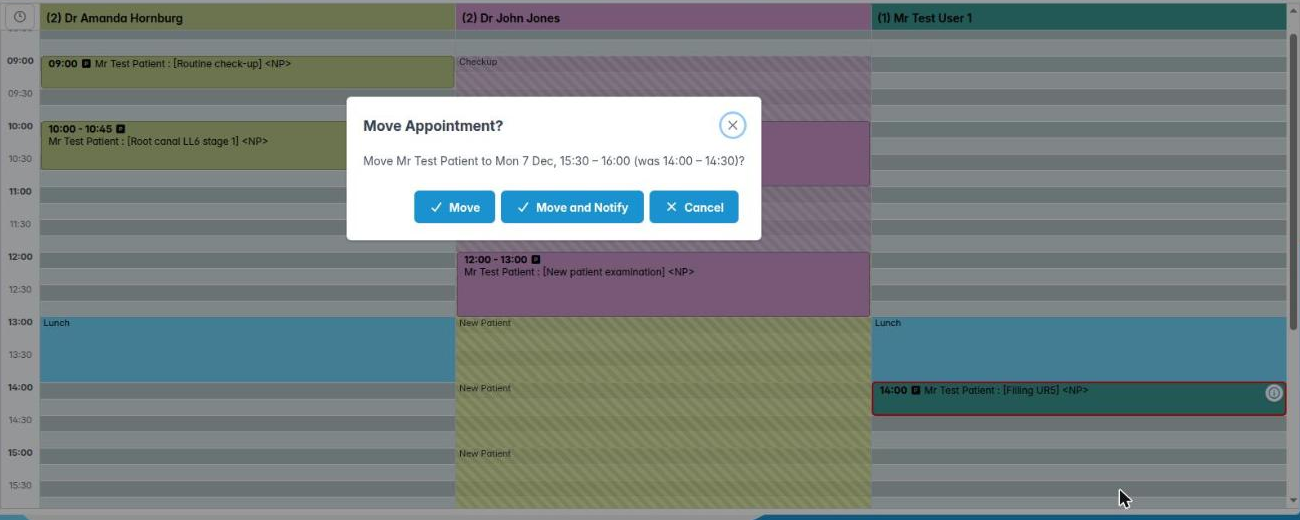
- Let go. Move Appointment? asks “Are you sure you want to move this appointment?”.
- Click Move to move it quietly, Move and Notify to move it and send the patient a rescheduling message, or Cancel to put it back.
Good to know
- Move and Notify only works if your practice has turned on Confirm Rescheduling by Email or by SMS (Preferences › Recalls & Reminders › Appointment Booking Confirmation). Otherwise it is greyed out.
- Always tell the patient about a time change, either with Move and Notify or by phone. If they turn up at the old time, that’s the practice’s fault, not theirs.
- Diary events (meetings, blocked time) can be dragged too. They ask Move Diary Event and only have Yes / No.
- Dragging doesn’t work on an iPad or other touch screen. A long press opens the menu instead, so use Change Time or Move Appointment (see the next steps).
- A drag changes the time, not the clinician. To give the appointment to another clinician, use Move Appointment and the move list, or Reassign Provider Slot for a whole day.
More detail: The practice diary.
2. Change the time or length of an appointment
You can nudge an appointment earlier or later, or change its length, from the right-click menu or by dragging its edge.
Why this matters. “Can you add ten minutes for an extra filling?” or “Move her 15 minutes later”. Small changes like these are faster from the right-click menu. They are also the only way to make them on a touch screen.
Where to find it. Right-click an appointment, or long-press it on a tablet. The same two submenus are on diary events too.
How to change the time
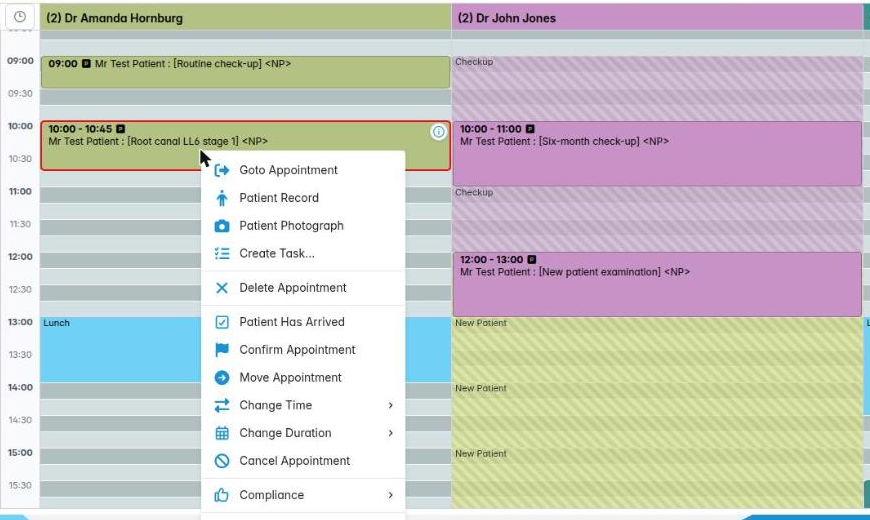
- Right-click the appointment and point at Change Time.
- Pick an earlier option at the top (1 hr earlier down to 5 mins earlier) or a later one underneath (5 mins later up to 1 hr later). The length stays the same.
- Confirm in Move Appointment? with Move or Move and Notify.
How to change the length
- Right-click and point at Change Duration.
- Choose a length from 5 mins to 2 hrs. The current length is marked (current) and greyed out. The start time stays the same.
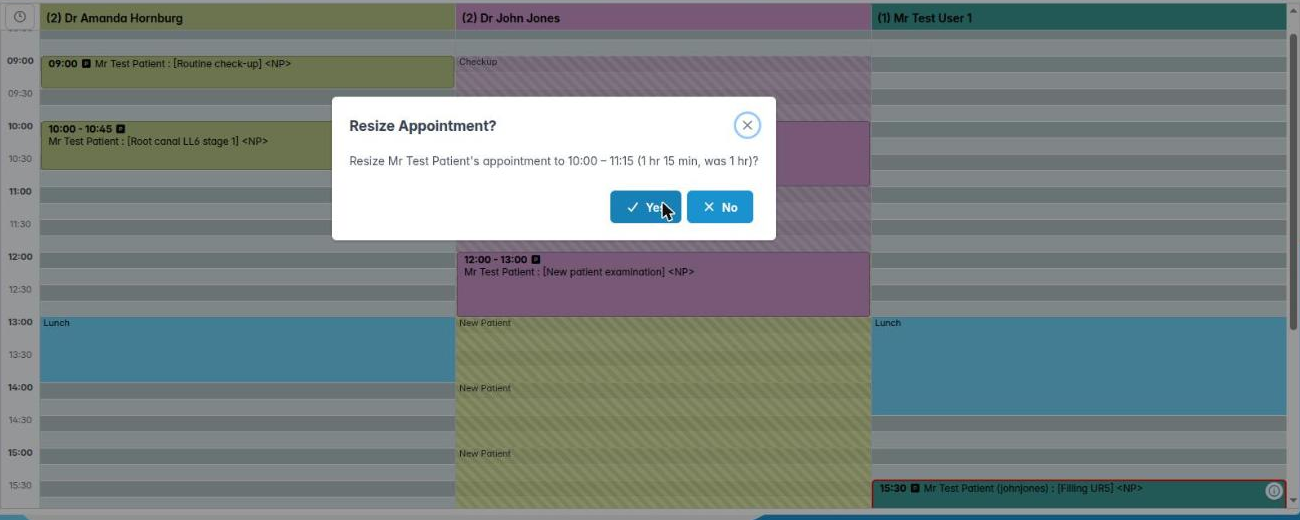
- Confirm in Resize Appointment? (“Are you sure you want to resize this appointment?”) with Yes.
On a desktop you can also drag the bottom edge of an appointment up or down. The same Resize Appointment? question appears. For diary events you’ll see Resize Diary Event.
Good to know
- Changing the time or length doesn’t check for clashes, so look before you confirm.
- If a length isn’t in the list, for example 25 minutes, it is shown first as “(current)” so you can see what you are changing from.
More detail: The practice diary.
3. Rebook an appointment to another day using the move list
You can take an appointment out of the diary, find a new day and put it back without losing its details.
Why this matters. When a patient wants a different week, or a clinician is off sick and a whole session needs rebooking, you need somewhere to park appointments while you find new times. That is the move list. The appointment keeps its patient, type, notes and treatments.
Where to find it. Right-click an appointment and choose Move Appointment. Parked appointments wait in the palette under My appointments to move.
How to
- Right-click the appointment and choose Move Appointment. Confirm with Move, or Move and Notify to tell the patient it is being rescheduled.
- The appointment leaves the diary and appears under My appointments to move, showing the patient, the clinician’s username and the length. Hover over it for a moment to see its status, summary, clinician and original time.
- Go to the new date with the toolbar or Find available slot.
- Click the appointment in the move list, then click a free slot in any clinician’s column. It goes back into the diary with its original length.
Tidying the move list. Right-click an entry:
- Delete appointment from Move deletes that appointment completely.
- Delete all appointment(s) from Move deletes everything in your list.
Good to know
- Appointments parked by colleagues appear under Other user appointments to move. Anyone can place them.
- Don’t leave appointments in the move list. Until they are put back, the patient has no appointment and won’t get a reminder.
- A heading ending in + means the closed group has entries in it.
More detail: The practice diary.
4. Cancel an appointment with a reason
You can cancel an appointment, record who cancelled and why, and add a late cancellation charge where policy allows.
Why this matters. Cancellations are part of everyday life at the desk. Recording the reason properly shows whether it was the patient’s choice or the practice’s. It feeds the cancellation reports, and it lets you apply your late cancellation policy fairly and the same way every time.
Where to find it. Right-click the appointment and choose Cancel Appointment.
How to
- Right-click and choose Cancel Appointment.
- Click a reason in the list. The Type column shows whether it is a Practice Reason (such as clinician sick) or a Patient Reason (such as unwell or work).
- Add any detail in the comment box, for example “Called 08:15, child unwell, will ring back”.
- If your policy allows a charge, choose one from Select a Cancellation Charge. Only treatment codes set up as cancellation charges appear.
- Click OK. OK works once a reason is chosen.
Late cancellations: NHS and private
- Most practices ask for 24 or 48 hours’ notice. Follow your written policy.
- NHS patients in England can’t be charged for late cancellations or missed appointments. Never add a charge to an NHS course. Record it, and follow your practice’s NHS attendance policy instead.
- Private patients can be charged, or lose their deposit, if your terms say so and the patient agreed to them in advance.
Good to know
- A cancelled appointment leaves the diary but stays in the patient’s history. Use Delete Appointment only for mistakes.
- Offer a new appointment while the patient is on the phone.
- The ones the practice has to set up: cancellation reasons in Housekeeping › Cancellation Reasons, and charges as treatment codes.
More detail: The practice diary.
5. Handle a patient who fails to attend
You know how a missed appointment is recorded in ChiralCloud and how to follow it up.
Why this matters. Failed-to-attend (FTA) appointments waste clinical time that another patient could have used. Following them up consistently is fair to patients. It also protects the practice’s NHS contract activity and its private income.
How ChiralCloud records an FTA. There is no “Mark FTA” button. If an appointment is left in the diary and never marked Patient Has Arrived, it counts as a failed-to-attend once the day has passed. It then appears in Reports › Non Attendance › Weekly FTAs.
How to
- If a patient hasn’t arrived, try to contact them. They may just be running late.
- If they don’t come, leave the appointment where it is. Don’t cancel or delete it. That would hide the FTA from the report.
- Add a note with Edit Type / Comment, for example “FTA – phoned 09:20, no answer”.
- Each week, open Weekly FTAs. Use Back a week / Forward a week, right-click a patient and choose Show this patients summary, and contact them to rebook. You can show, print or download the list from the toolbar.
NHS and private
- NHS: in England, patients can’t be charged for missed appointments. Your practice policy may say that after repeated FTAs a patient is not offered further routine NHS appointments. Record each FTA and the contact you made.
- Private: a missed-appointment fee or lost deposit can apply if the patient agreed to your terms.
Good to know
- If a patient you marked as arrived actually left, use Patient Has Not Arrived to undo it.
More detail: The practice diary.
6. Delete an appointment booked by mistake
You can tell the difference between deleting and cancelling, and delete an appointment safely.
Why this matters. Deleting is not the same as cancelling. A cancellation keeps a record that the patient had an appointment and why it didn’t go ahead. A deletion removes the appointment as if it was never booked. Use delete only for genuine mistakes, such as the wrong patient, a double booking or a test booking.
Where to find it. Right-click the appointment and choose Delete Appointment.
How to
- Make sure this really is a mistake. If the patient asked to cancel, or didn’t turn up, don’t delete it. Use Cancel Appointment, or leave it as an FTA.
- Right-click the appointment and choose Delete Appointment.
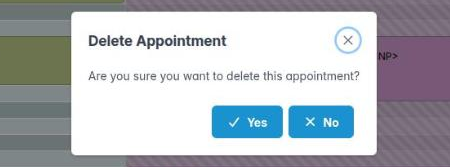
- Delete Appointment asks “Are you sure you want to delete this appointment?”. Click Yes to delete it, or No to keep it.
- The appointment disappears from every open diary straight away.
Good to know
- If the appointment already has treatments or charges, it may be refused. Deal with the treatments in the appointment editor first.
- If your practice has turned on Confirm Deletion by Email or by SMS (Preferences › Recalls & Reminders), the patient is told that the appointment has been removed. Phone them first if that would confuse them.
- Deleting an appointment from the move list (Delete appointment from Move) does the same thing.
More detail: The practice diary.
7. Change the type, summary or notes on an appointment
You can update an appointment’s type, summary and comment, and see who booked it and when.
Why this matters. Plans change. An exam becomes an exam and scale, or a patient tells you they need a longer visit because they’re nervous. Keeping the type and notes accurate keeps the diary colours, the reports and the clinician’s expectations right.
Where to find it. Right-click an appointment and choose Edit Type / Comment.
How to
- Right-click and choose Edit Type / Comment. The window is titled Appointment : (summary).
- Change the Type if needed. The colour in the diary changes to match.
- Change the Summary, which is the text shown in the diary block.
- Add to or change the comment. Insert template adds one of the practice’s template notes to the end.
- Check Booked By and Booked On if you need to know who made the booking and when. Both are read-only.
- Click OK to save, or Cancel.
Good to know
- Keep comments factual and professional. Patients can ask to see their records under UK GDPR, and that includes diary comments.
- Use the comment for practical notes: “Wheelchair user”, “Prefers afternoons”, “FTA 12/03 – phoned”. Medical alerts belong in the medical history.
- Changing the type doesn’t change the length. Use Change Duration for that.
- Clinicians can change the same details from the appointment editor.
More detail: The practice diary.
8. Cover a clinician’s absence or add an extra session
You can put a clinician in the diary for one day, take them out again, and move a whole column to someone else.
Why this matters. When a dentist is off sick, their patients either need moving to a colleague or rebooking. When a locum covers, or a hygienist does an extra session, they need a column for just that day. You can do all of this from the diary without changing anyone’s permanent schedule.
Where to find it. In the Practice Diary: use the Unscheduled Clinicians palette group, and right-click a clinician’s column header.
Add a clinician for today
- Open Unscheduled Clinicians and right-click the clinician’s name.
- Choose Schedule Provider. They get a column for this day only, shown with a * before their name.
Remove a one-day column. Right-click a header marked * and choose Unschedule Provider.
Move a whole column to another clinician
- Right-click the absent clinician’s column header and choose Reassign Provider Slot.
- In Reassign Provider Slot from : (name), search for and pick the clinician taking over. Both working and unscheduled clinicians are listed. Click OK (or double-click).
- Confirm Confirm Reassign Provider Slot with Yes. All of that day’s appointments move across. An unscheduled clinician gets a column for the day automatically.
Good to know
- Patients expecting a particular dentist should be told about the change. Some will prefer to rebook.
- Permanent changes, such as new working days, holidays or zones, are made in Housekeeping › Diary Schedules and need the Housekeeping permission.
More detail: Housekeeping clinicians schedules.