
Maintain referrers and GPs, see referred patients, and write referral letters with images using templates.
Who it is for: practice managers and administrators, clinicians, dental nurses, receptionists.
In this guide:
- Find a referrer and keep the list tidy
- Add a referrer or a GP
- Update a referrer and see their referred patients
- Write a referral letter from a template
- Send radiographs and images to a referrer
1. Find a referrer and keep the list tidy
You can search the referrer list, open a referrer and mark referrers active or inactive.
Why this matters: referrers are the dentists, specialists, hospitals and GPs who send patients to you, or to whom you refer. An up-to-date list means letters go to the right person and address, and your practice can see where new patients come from.
Where to find it: Referrers › Find Referrers. You need the Referrers permission.
How to
- Choose how to search: Search by surname, Search by first name, Search by organisation, Search by job description, Search by address, or Show all.
- Type in the box (for example Surname). Results appear as you type, showing First Name, Last Name, Organisation, Type, Telephone, Email and Status.
- Double-click a referrer, or right-click and choose Show Details, to open them.
- When a referrer retires or moves, right-click and choose Mark as inactive referrer. Choose Mark as active referrer to bring them back. Inactive referrers stay on old records but are not offered for new ones.
- Click Download referrers list for a spreadsheet of the list.
- Click Add Referrer to create a new one.
- Save & Exit to close.
Good to know
- The Knowledge Base button opens the help for this screen.
- Don’t delete and re-add referrers: mark them inactive so history is kept.
More detail: Find referrer.
2. Add a referrer or a GP
You can create a new referrer or general practitioner with the required details.
Why this matters: you will write to referrers and GPs about shared patients, for example to tell a GP about a suspicious lesion, or to confirm a specialist referral. Correct details are essential to keep that information secure (UK GDPR: send personal data only to the right recipient).
Where to find it: Referrers › Add Referrer or Referrers › Add GP.
How to
- Open Add Referrer (for a dentist, specialist or other professional) or Add GP (for the patient’s general medical practitioner).
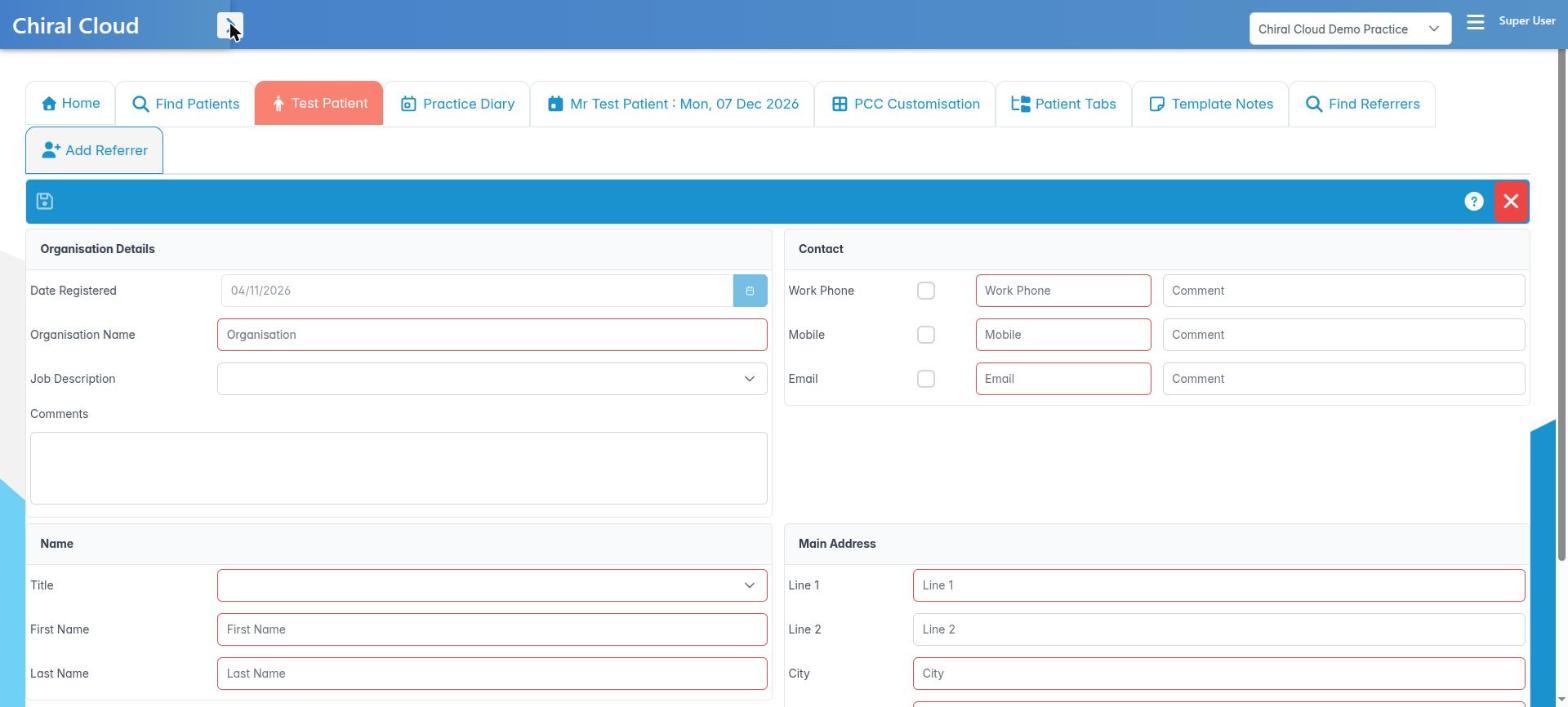
- Fill in the organisation (Organisation Name, Job Description, Date Registered, Comments), and/or the person’s Title, First Name and Last Name.
- Add contact details. Work Phone is required, plus Email for secure letters.
- Complete the Main Address, including the postcode (required).
- Save with the toolbar button. You’ll see a confirmation, Referrer Successfully Created, or a warning such as Duplicate referrer / Duplicate General Practitioner or Referrer name already exists if they are already on the list.
- Save & Exit.
Good to know
- You need either a full name (title, first and last name) or an organisation name, plus work phone and postcode, before you can save.
- Use the referrer’s secure (for example NHSmail) address for clinical letters.
- If you leave with unsaved changes you’ll be asked The form has been modified, save these changes?
More detail: Add a new referrer.
3. Update a referrer and see their referred patients
You can edit a referrer’s details and list the patients linked to them.
Why this matters: when a specialist moves practice, or you want to send an update to everyone a referrer has sent you, the referrer record tells you which patients are linked. It also helps the practice see which referrers are most active.
Where to find it: open a referrer from Find Referrers. It has two tabs: Personal and Referred Patients.
How to
- On Personal, update the organisation, name, contact details and Main Address.
- Click Save. If you close with unsaved changes, Save Resource asks whether to save them (Yes / No).
- Open Referred Patients to see each Patient and when they were Registered On.
- Double-click a patient, or right-click and choose Open Patient Summary, to open their record.
- Save & Exit.
Good to know
- A patient’s referrer is set on the patient record (Personal tab, Referred By – Independent, Patient or Provider; and General Practitioner), or when the appointment is first booked.
- The Knowledge Base button opens the help for the tab you are on.
4. Write a referral letter from a template
You can create a referral letter to a specialist or GP from the appointment using a template.
Why this matters: a good referral letter gets the patient seen by the right service at the right time. Specialist dental referrals in England are increasingly made through the NHS e-Referral Service (e-RS) or a regional referral management system, using the local referral form. Suspected head and neck cancer must go on the 2-week-wait (urgent suspected cancer) pathway. Whatever the route, you should keep a copy of the letter in the patient’s record, and tell the patient why they are being referred.
Where to find it: Create Referrer / Patient Document on the appointment editor toolbar (also on the patient record toolbar).
How to
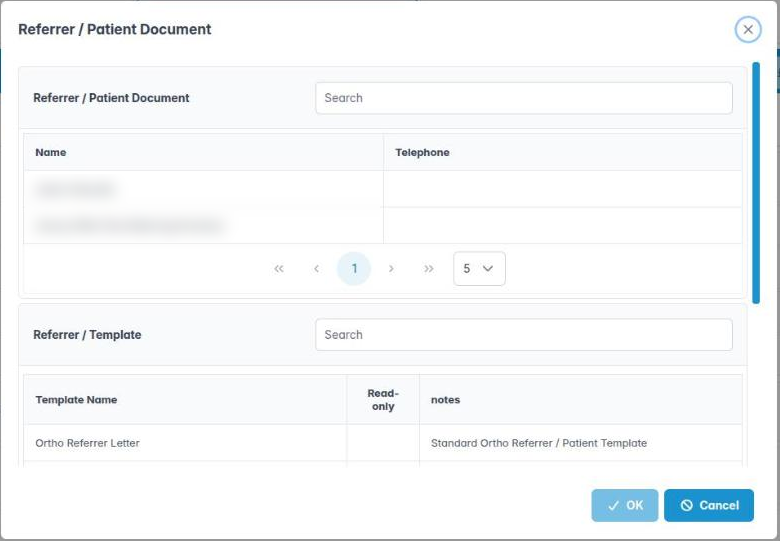
- Click Create Referrer / Patient Document. The Referrer / Patient Document dialog opens.
- In the referrer list (with a Search box), choose the recipient. The patient’s own referrer is selected for you if one is set.
- In Referrer / Template, choose a template, such as the Standard Referrer / Patient Template or the Standard Ortho Referrer / Patient Template.
- Under Document Details, give it a Document Name and Notes.
- Click OK. The letter is created in Documents, where you can review and edit it.
- Include the reason, urgency, relevant history and medication, radiographs (with reports), and what you are asking for.
Good to know
- For e-RS or a referral portal, attach the letter or copy its content into the portal form. Record the referral and its route in the notes.
- Your administrator sets up templates in Utilities › Patient Templates.
More detail: Patient documents.
5. Send radiographs and images to a referrer
You can attach selected images to an existing referral letter and email it securely.
Why this matters: specialists need to see your radiographs. Sending good-quality images with the referral avoids unnecessary repeat exposures for the patient, which is an IR(ME)R principle (keep doses as low as reasonably practicable), and speeds up triage.
Where to find it: the Images tab in the appointment editor.
How to
- Open the Images tab and select the images to send.
- Choose Send to referrer as document attachment.
- Select Referrer Document opens, listing the patient’s referral letters (Document, Created On, Notes, with a Search box). Pick the letter these images go with.
- Click OK. Email Preview shows the email content.
- Check the recipient, wording and attachments, then click OK to send. If the button reads OK (…) with a missing item, fix that first.
Good to know
- Only send to a verified secure address. Patient images are personal health data under UK GDPR.
- Write the referral letter first; this step attaches images to it.
- Record in the notes which images you sent and when.
More detail: Patient images.