Capture radiographs, record each exposure with IR(ME)R justification and quality grade, record sedation episodes to IACSD standards and audit both with the compliance reports.
Who it is for: practice managers and administrators, clinicians, dental nurses.
In this guide:
- Capture or upload radiographs and images
- Record a radiograph with justification and quality grade
- Record a conscious sedation episode
- Audit radiograph quality with the XRay reports
- Review sedation activity with the Sedation reports
1. Capture or upload radiographs and images
You can bring x-rays and photos into the patient’s record from the appointment.
Why this matters: a radiograph that is not stored against the patient is not part of the record, and cannot be shown to the next clinician, a specialist or a defence organisation. Capture images from the appointment so they are linked to the visit and the patient.
Where to find it: the appointment editor toolbar.
How to
- Connect To X-Ray Software – opens Connect to X-Ray Software. Choose the XRay Software and Provider, then click Connect (or double-click the row). Your imaging software opens for this patient. Images taken there come back to ChiralCloud.
- Scan Patient Image – opens Scan Patient Image. Choose a Scanner and click Scan (or double-click it). Use this for scanned paper documents or film.
- Upload Patient Image / XRay / PDF – pick a file from your computer, for example an image exported from the sensor software or a CBCT report from a referral centre.
- Open the Images tab to check the image is there and has the right image type.
- Then record the exposure in Patient Xray History (next step).
Good to know
- The X-ray software link needs your practice’s x-ray gateway to be set up. Speak to your administrator if no software is listed.
- Check the patient’s name and date of birth in the imaging software before you expose. Wrong-patient imaging is an IR(ME)R incident.
- Image editing and composites are covered in the documents and images module.
More detail: Patient images.
2. Record a radiograph with justification and quality grade
You can record every exposure with its justification, quality grade and any repeats.
Why this matters: the Ionising Radiation (Medical Exposure) Regulations 2017 (IR(ME)R) require every exposure to be justified by an IR(ME)R practitioner and the clinical evaluation recorded. Radiographs must be quality graded and audited. FGDP guidance (Selection Criteria for Dental Radiography) is a grading of Excellent, Acceptable or Unacceptable, with unacceptable images below a set percentage. This record is your evidence.
Where to find it: Appointment Treatments › expand XRay & Sedation History. The left half is Patient Xray History.
How to
- Click the add button (Add New Patient Xray Record). The Add Patient XRAY Record dialog opens.
- Choose Taken By and Taken On.
- Choose the XRay Type: BiteWing, Periapical, Occlusal, Panoramic, Cephalometric or CBCT.
- Choose the Image Quality: Excellent, Acceptable or Unacceptable.
- Choose the Justification (the clinical reason, for example caries diagnosis or periapical assessment).
- If you chose Unacceptable, the Unacceptable Radiographs section opens. Enter Number of Repeats, Nature Of Deficiency (for example cone cut) and Cause Of Deficiency (for example positioning).
- Click OK, then Save.
Good to know
- Write the clinical evaluation (your report of what the image shows) in the clinical notes.
- Right-click a record to Edit XRAY Record or Delete XRAY Record (confirm Are you sure you want to delete this record?).
3. Record a conscious sedation episode
You can record a sedation episode with ASA grade, technique, scores and recovery.
Why this matters: the Intercollegiate Advisory Committee for Sedation in Dentistry (IACSD, 2020) standards require a contemporaneous sedation record for every case, including pre-sedation assessment (ASA), the technique and drugs, monitoring, the depth of sedation, operating conditions and recovery, and that a trained second person is present. The team must also log cases for training and audit.
Where to find it: XRay & Sedation History panel, right-hand side: Patient Sedation History.
How to
- Click the add button (Add New Patient Sedation Record). Add Patient Sedation Record opens.
- Administered By, Administered On.
- Administered As – your role: Observer, An Assistant, The person providing the Sedation or The person carrying out the Dental Treatment.
- Assisted By – the second appropriately trained person.
- ASA – for example Normal healthy patients (ASA I) or Patients with mild systemic disease (ASA II).
- Sedation Technique – Intravenous Sedation, Inhalation Sedation, Oral Sedation or Transmucosal.
- Operating Conditions (Good, Fair, Poor, Impossible), Scoring (from Anxious, restless or both to No response to stimulus), Recovery (Normal, Rapid, Prolonged) and Feedback.
- Duration (H(s), M(s)) and 02 Percentage for inhalation sedation.
- Click OK, then Save.
Good to know
- Record drug names, doses, batch numbers and monitoring readings in the clinical notes.
- Right-click a record to Edit Sedation Record or Delete Sedation Record.
4. Audit radiograph quality with the XRay reports
You can run the XRay Summary and XRay Report to audit grading, types and repeats.
Why this matters: IR(ME)R and your radiation protection file require regular audit of image quality and of justification. The NRPB/FGDP target is at least 95% of radiographs graded acceptable or better, and no more than 5% unacceptable (or your local target). These reports give you the numbers without counting by hand, and evidence for CQC.
Where to find it: Compliance › XRay Reports, then XRay Summary or XRay Report.
How to
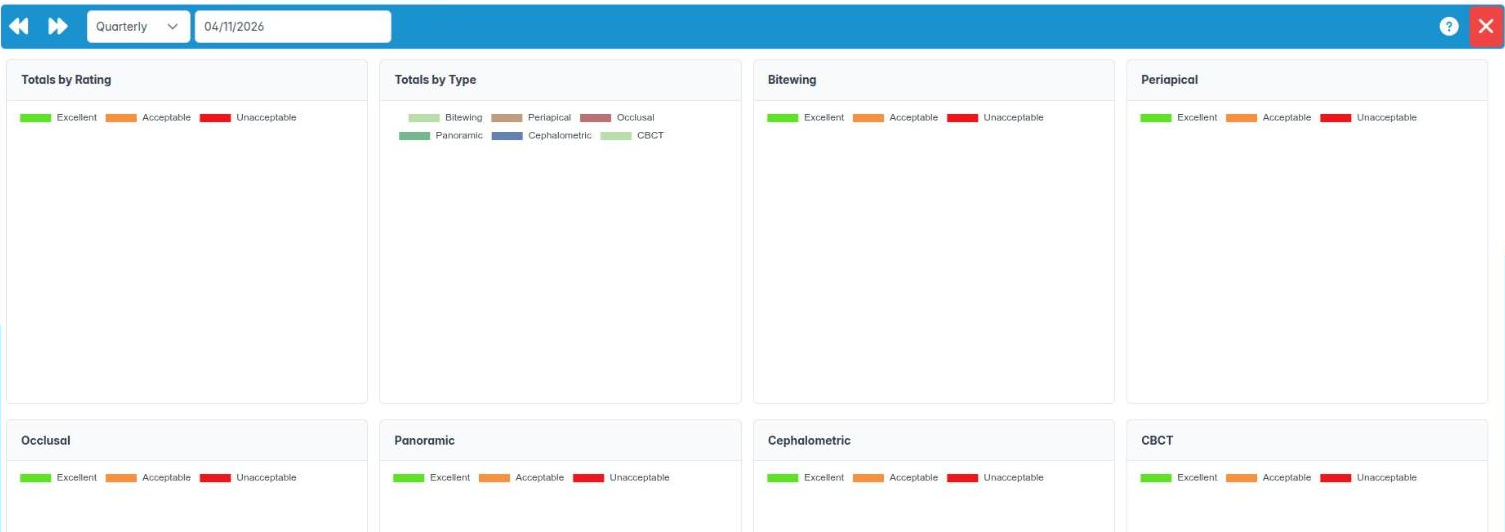
- Open XRay Summary. Choose the period in the interval drop-down: Weekly, Monthly, Quarterly, Biannual or Yearly.
- Use Back a {period} and Forward a {period} to move through time.
- Read Totals by Rating and Totals by Type, then each type’s panel (bitewing, periapical, occlusal, panoramic, cephalometric, CBCT).
- Open XRay Report for the detail: Taken On, Taken By, Patient, Type, Rating, Repeats, Nature and Cause. The toolbar shows running totals (BW, PA, OC, PAN, CM, CBCT).
- Right-click a row and choose Show this patients summary to open that patient.
- Use Download {period} Excel File to keep a copy for your radiation protection file.
- Save & Exit to close.
Good to know
- Discuss unacceptable images, and their causes, at team meetings and record the actions.
- The totals on the toolbar are information only; clicking them does nothing.
5. Review sedation activity with the Sedation reports
You can run the Sedation Summary and Sedation Report for audit and logbooks.
Why this matters: IACSD standards expect sedation teams to audit their outcomes (operating conditions, recovery, adverse events, patient feedback) and to keep logs of cases for continuing training. These reports pull that together from the sedation records.
Where to find it: Compliance › Sedation Report, then Sedation Summary or Sedation Report.
How to
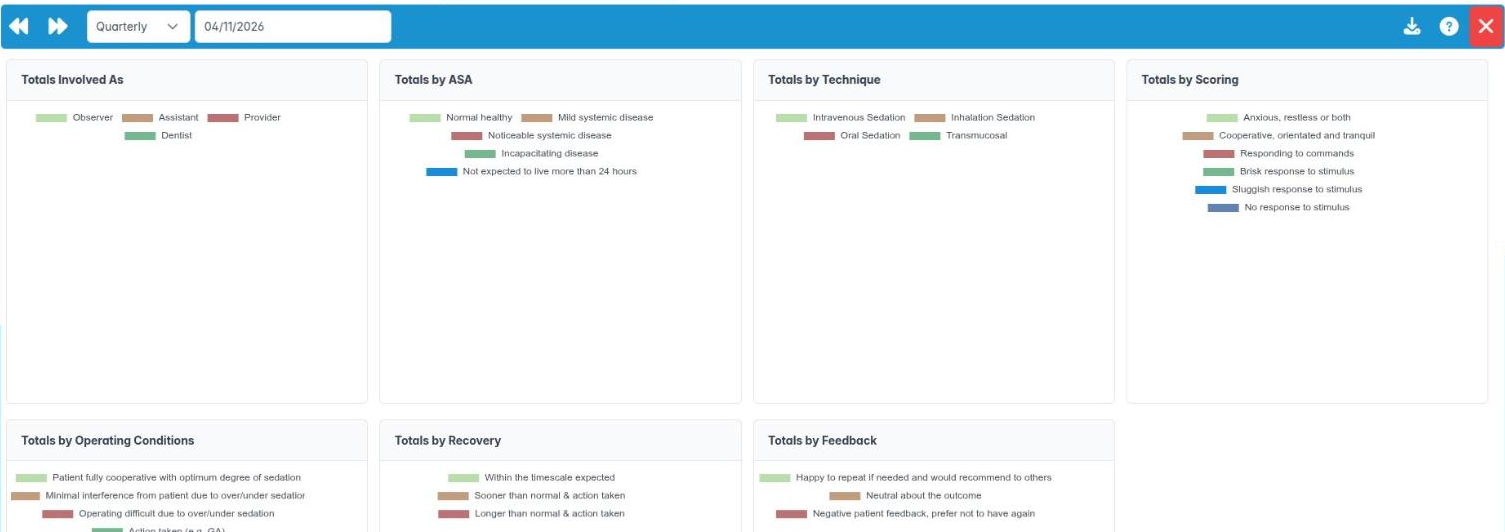
- Open Sedation Summary. Pick Weekly or Monthly in the interval drop-down, and move with Back a {period} and Forward a {period}.
- Read the totals panels: by role (Administered As), by ASA, Totals by Technique, by scoring, by operating conditions, by recovery and by feedback.
- Open Sedation Report for case-by-case detail: On, Administered By, Patient, ASA, Tech, Scoring, Conditions, Recovery and Feedback.
- Right-click a row for Patient Details (in the report) or Show this patients summary (in the summary) to open the patient.
- Use Download {period} Excel File for your audit or logbook.
- Save & Exit.
Good to know
- Prolonged or rapid recoveries, and Poor or Impossible operating conditions, should each have a note explaining what happened and what action was taken.
- Keep exported files securely: they contain patient data.