
Organise staff into account groups for billing, order clinicians in the diary, review who signed in, and book live training.
Who it is for: practice managers and administrators.
In this guide:
- Set up account groups for income and billing
- Put clinicians in order in the diary
- Check who signed in and when
- Book a ChiralCloud training session
1. Set up account groups for income and billing
You can create account groups, choose a principal and decide which staff belong to each.
Why this matters An account group is a bucket that patient charges, invoices and payments are booked to. Practices use them to keep money apart: an associate’s private income for their share report, a separate company for implants, or an NHS and a private ledger. Reports such as Weekly Share and Yearly Share split income by account group, so getting this right before you take payments saves painful corrections later.
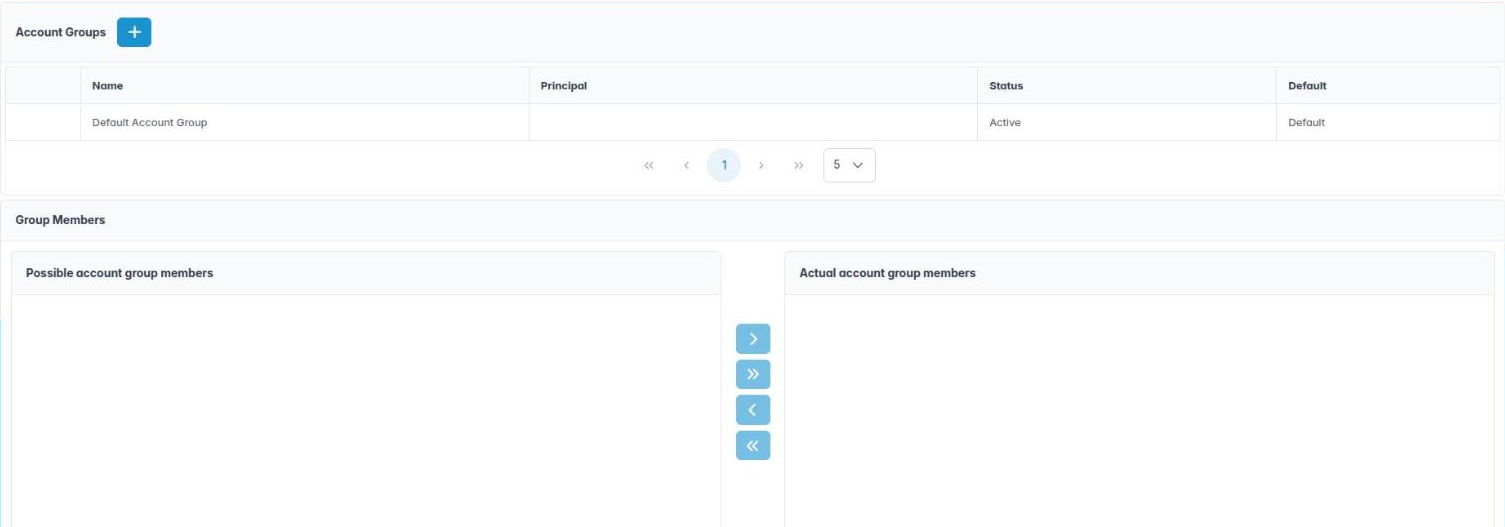
Where to find it Users › Account Groups. The page is in two parts: Account Groups at the top and Group Members underneath.
How to
- Click the + button (Create New Account Group).
- Enter a Name, pick the Principle (the clinician or owner the group belongs to), set the Status and a Color, then click OK.
- To change a group later, right-click it and choose Edit Account Group.
- Select a group, then in Group Members move staff from Possible account group members to Actual account group members.
- Click Save (or Save & Exit).
Good to know
- One group is marked Default in the table. Every new user is added to it automatically.
- Each patient account tab on the patient record is per account group, so patients may show more than one account.
- Check with your accountant before splitting groups: the split should match how the business is set up legally.
- Device logins (tablet, kiosk) are not offered as members.
2. Put clinicians in order in the diary
You can choose the left-to-right order of clinician columns in the Practice Diary.
Why this matters Reception staff find their way round the Practice Diary by where each clinician sits. A sensible order, such as by surgery number or with hygienists grouped together, makes booking quicker and reduces mistakes, especially in a busy multi-surgery practice.
Where to find it Diary › Diary Sort Order. It opens as a small window over whatever you are doing.
How to
- Open Diary › Diary Sort Order. The Providers list shows every clinician in the current order.
- Select a clinician and use the arrow buttons beside the list to move them up or down. You can also drag them.
- Repeat until the list matches the order you want across the diary.
- Click Close to save the new order, or Cancel to leave it as it was.
- Reopen the Practice Diary to see the columns in their new order.
Good to know
- The order is the same for everyone at the practice.
- Only clinicians appear in the list; receptionists and nurses do not have diary columns.
- New clinicians appear at the end of the list until you move them.
More detail: Diary sort order.
3. Check who signed in and when
You can search the login history for a user and date range and read why each session ended.
Why this matters If a record is changed unexpectedly, a patient complains, or you suspect a shared password, you need to know who was signed in. Login History is the practice’s own audit of every staff session, which supports your UK GDPR accountability duties and any CQC or ICO enquiry.
Where to find it Users › Login History. You need the House Keeping permission (AID_HouseKeeping).
How to
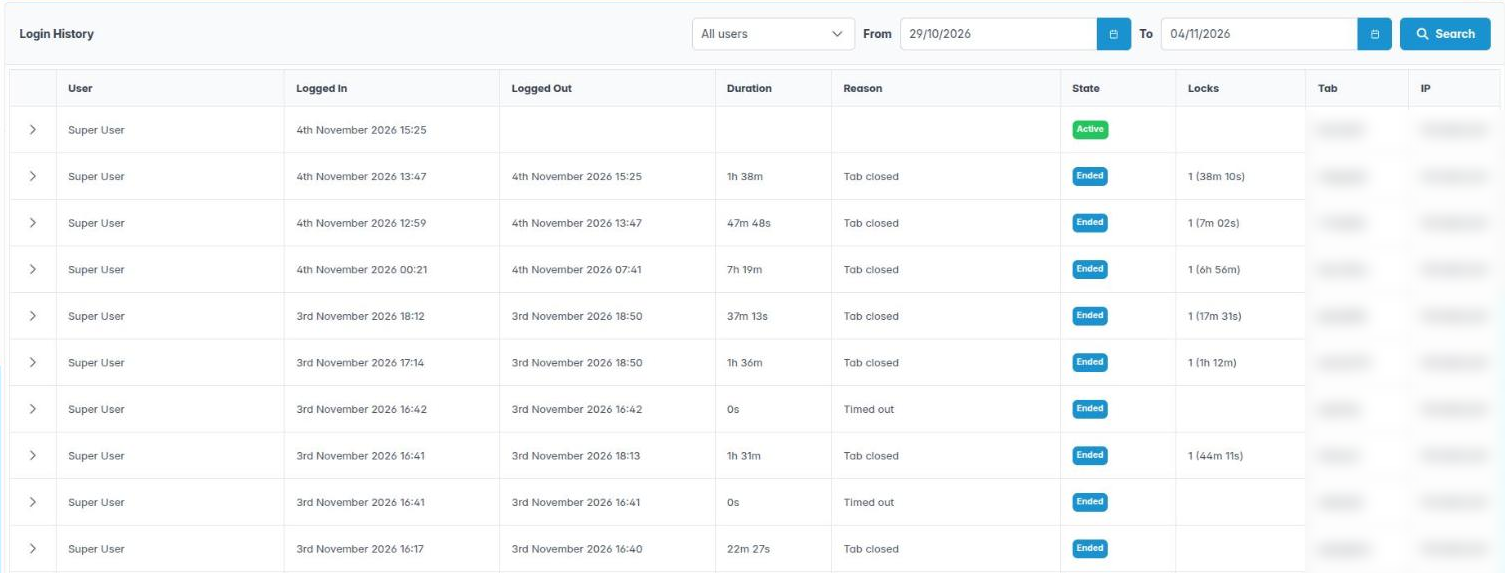
- Pick a user in the drop-down, or leave All users.
- Set From and To. The page opens on the last seven days.
- Click Search.
- Read the columns: User, Logged In, Logged Out, Duration, Reason, State, Locks, Tab and IP.
- Expand a row with the arrow on the left to see each time the screen was Locked and Unlocked and For how long.
What the Reason means
- Logged out – the person used Logout.
- Logged out by administrator or Logged in elsewhere – they were signed out remotely.
- Session expired, Timed out or Tab closed – the session ended without a logout.
- Switched practice – they moved to another practice in your group.
Good to know
- Each browser tab is its own row.
- Repeated Tab closed or Timed out is a hint that staff walk away without locking; remind them to lock the screen.
4. Book a ChiralCloud training session
You can book online training for yourself or a new member of staff.
Why this matters New starters pick up the system fastest with a short guided session on the jobs they do every day. Booking it through ChiralCloud puts it straight into the Chiral Systems training calendar, and you can line it up for a new member of staff’s first week alongside these ChiralAcademy modules.
Where to find it Users › Book Training. You need the Add New System User permission (AID_AddUser).
How to
- Open Users › Book Training. A Book Training window shows the online booking calendar.
- Choose a date and a free time.
- Enter the name and email of the person to be trained, and a note about their role and what they would like to cover (for example, “new receptionist, diary and payments”).
- Confirm the booking. A confirmation and joining link are emailed.
- Click Close to return to ChiralCloud.
Good to know
- Make sure the trainee’s login exists before the session, so they can follow along in their own account.
- For whole-team training, book one session and share the link.
- Finishing the relevant ChiralAcademy modules first makes a live session more useful.