
Understand how roles give a starting set of capabilities, tailor each person’s access in User Capabilities, and keep access to the minimum each job needs.
Who it is for: practice managers and administrators.
In this guide:
- Understand roles and capabilities
- Change what one person can do
- Change a role’s starting set
- Use sensible capability sets for each role
- Apply least privilege for GDPR
1. Understand roles and capabilities
You can explain how a role’s defaults become a person’s own capabilities, and why changing a role later does not change existing staff.
Why this matters What a person can do in ChiralCloud is decided by capabilities: individual permissions such as Add New Patient, Issue Refunds or House Keeping. Menus, tabs and buttons a person lacks the capability for are simply hidden. Understanding where those capabilities come from avoids the most common set-up surprise.
How it works
- Each role (Administrator, Clinician, Nurse, Receptionist and the device roles) has a default set of capabilities.
- When you add a user, ChiralCloud copies their role’s default set onto that person. From then on the person has their own list.
- If you later change a role’s defaults, only users created after the change get the new set. Existing users keep exactly what they had.
- If you change a person’s role on their Personal tab, their own list is reset to the new role’s defaults, and any individual changes are lost.
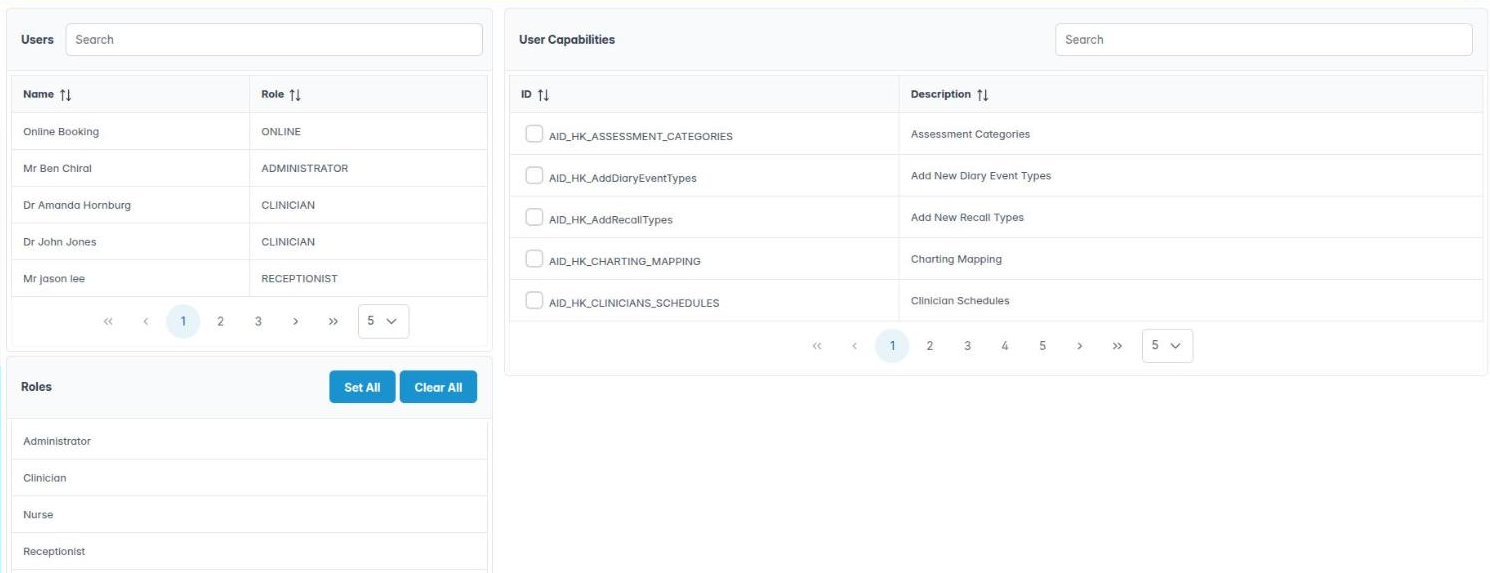
- To change what an existing person can do, edit that person in Utilities › User Capabilities.
An example You take Issue Refunds off the Receptionist role. Your two existing receptionists can still issue refunds. The receptionist you add next month cannot. To stop the existing two, untick it on each of them.
Good to know
- You need Change User Capabilities (
AID_AlterActivites) to open the screen. - Changes take effect next time the person signs in, because capabilities are read at login.
More detail: User capabilities.
2. Change what one person can do
You can tick and untick individual capabilities for one member of staff and save them.
Why this matters People’s jobs rarely match a role exactly. A senior nurse may run the recall list; a receptionist may be trusted with refunds; an associate dentist should not see the practice’s whole income. Setting capabilities per person lets you give each person what their job needs and nothing more.
Where to find it Utilities › User Capabilities, the Users panel on the left. You need Change User Capabilities (AID_AlterActivites).
How to
- Type in the Search box above Users to filter by name, then click the person. Each row shows Name and Role.
- The User Capabilities panel on the right now shows every capability with a tick for those they hold. Columns are ID and Description.
- Use the Search box in that panel to find a capability by ID or wording, for example “refund”.
- Tick or untick each capability.
- Click Save on the toolbar. If you close with unsaved changes you are asked whether to save them.
Good to know
- Set All and Clear All (in the Roles panel header) apply to whichever user or role is selected. Clear All on a user removes everything, including access to screens they need; use it with care.
- Changes are seen at the person’s next sign-in.
- Keep a short note of any person who differs from their role’s defaults; it makes audits easier.
More detail: User capabilities.
3. Change a role’s starting set
You can change the default capabilities a role hands to new users, knowing it will not touch existing users.
Why this matters If you take on staff regularly, getting each role’s defaults right means every new login starts correctly and you are not fixing permissions one by one. It is also how you put a practice-wide policy in place for the future, such as “receptionists cannot write off balances”.
Where to find it Utilities › User Capabilities, the Roles panel under Users.
How to
- Click a role in Roles, for example Receptionist. The right-hand panel now shows that role’s defaults.
- Tick or untick capabilities, or use Set All / Clear All.
- Click Save.
- Now go through existing staff with that role in the Users panel and make the same change on each, if you want it to apply to them too.
Good to know
- This is the step people miss: role changes only affect users created afterwards. Capabilities were copied to each existing user when they were created.
- Device roles (Tablet Only User, Check-in Kiosk, Online Booking User) are restricted by the servers anyway; leave their defaults alone.
- Do not give the Receptionist or Nurse role Change User Capabilities: whoever holds it can give themselves anything.
More detail: User capabilities.
4. Use sensible capability sets for each role
You can choose a starting set of capabilities for administrators, clinicians, nurses and receptionists.
Why this matters Starting from a sensible set saves time and avoids gaps such as a nurse who cannot record medical history, or a receptionist who can delete appointments after the day has passed.
Suggested starting points (adjust to your practice)
- Administrator – everything, including Change User Capabilities, Add New System User, House Keeping, all Preferences capabilities (Practice Detail Preferences, Diary Preferences and so on), all reports, Invoice Voiding, Issue Refunds, Make Account Adjustments, Recalculate Patient Balances, Reset another user’s authenticator app. NHS practices add UDA Claims and UDA management.
- Clinician – Add New Patient, Edit / Delete Patient Notes, the medical history and assessment edit capabilities, Enable Consent Form Editing, Referrers Menu, Laboratories. NHS performers add UDA Claims; associates who should see only their own claims get
AID_NHS_SHOW_ONLY_MY_CLAIMS. Usually no money-adjusting or user capabilities. - Nurse – Add New Patient, medical history edits, Laboratories, and the sedation assistant capability if they assist with sedation. No financial or user management.
- Receptionist – Add New Patient, Referrers Menu, Add New Referrers, Issue Payment Plan Installments, the daily cash reports. Consider leaving out Issue Refunds, Invoice Voiding, Make Account Adjustments and Written Off Accounts unless they are trusted with them.
Good to know
- Give practice-wide settings (Housekeeping, Preferences, templates) only to the one or two people who look after the system.
- Review sets when someone’s job changes, not just when they join.
More detail: User capabilities.
5. Apply least privilege for GDPR
You can explain why staff should have only the access their job needs and how to keep it that way.
Why this matters Under UK GDPR, health records are special category data. The practice, as data controller, must take “appropriate technical and organisational measures” to protect them. Giving each person only the access their job needs (least privilege) is one of the simplest such measures. It limits the damage if a login is misused, and it is something the ICO, the CQC (under the Well-led and Safe questions) and Cyber Essentials all look for. The GDC also expects you to keep patient information confidential.
What good looks like
- Every person has their own login. No shared reception logins.
- Each person’s capabilities match their current job.
- Only one or two trusted people hold Change User Capabilities, Add New System User and House Keeping.
- Money-changing capabilities (refunds, voids, adjustments, write-offs) are held by as few people as practical.
- Leavers are made inactive on their last day.
- Two-step sign-in is switched on for the practice.
A simple routine
- Each quarter, open Users › Find Users, tick Include Inactives and check every active login is someone who still works there.
- Spot-check a few people in User Capabilities.
- Glance at Users › Login History for out-of-hours or unexpected sessions.
- Record the review in your information governance log or Data Security and Protection Toolkit evidence.
Good to know
- Hidden menus are a convenience, not the protection: the servers also refuse calls a user is not allowed to make.
More detail: User capabilities.