
Enter the practice’s details and sites, choose portal and tablet options, set two-step sign-in and screen lock, opening hours and NHS contracts.
Who it is for: practice managers and administrators.
In this guide:
- Find your way round Preferences and save changes
- Enter your practice details and portal options
- Set two-step sign-in and screen lock for the practice
- Add the sites you work from
- Set opening days, hours and the diary slot size
- Record your NHS contracts
1. Find your way round Preferences and save changes
You can open Preferences, move between its tabs and save safely.
Why this matters Preferences hold the settings that shape the whole practice: name and address on every letter, diary hours, invoice numbering, how SMS and email are sent. A change here affects everybody, so it pays to know how saving works before you start.
Where to find it Preferences in the left-hand menu. Each tab is controlled by its own permission, so you only see the tabs you are allowed to change. For example Practice Detail Preferences (AID_PREF_PRACTICE_DETAILS) shows Practice Details and Practice Locations; UDA management (AID_UDAMANAGER) shows NHS Registration.
How to
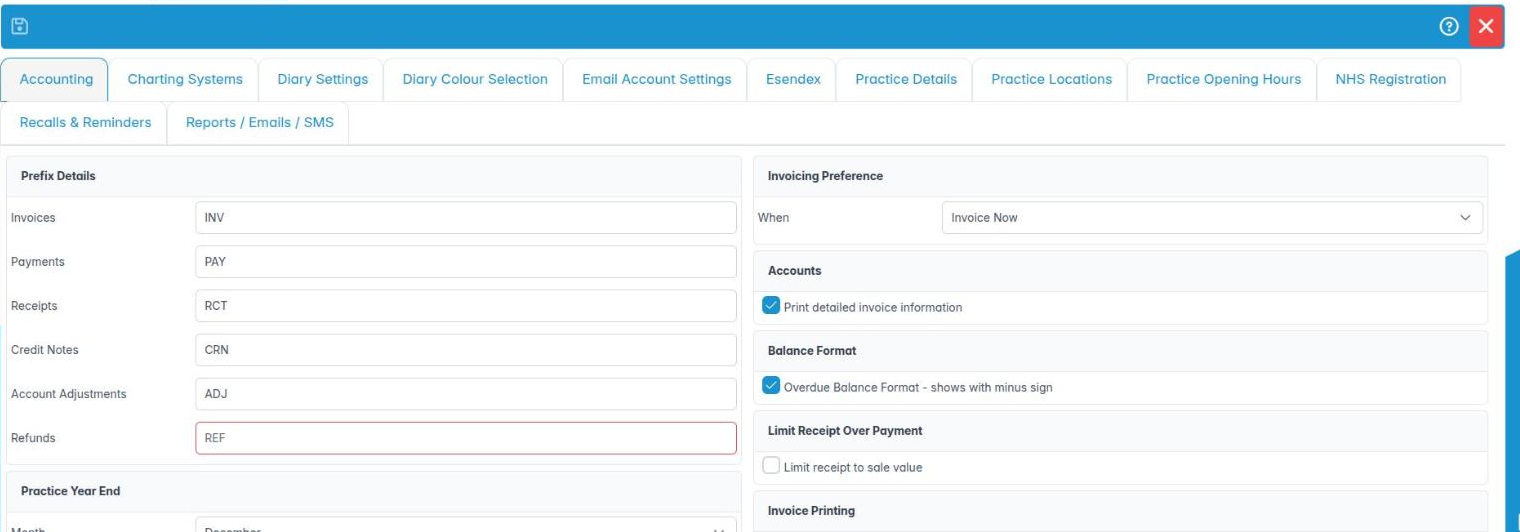
- Open Preferences. The tabs are Accounting, Charting Systems, Diary Settings, Diary Colour Selection, Email Account Settings, Esendex, Practice Details, Practice Locations, Practice Opening Hours, NHS Registration, Recalls & Reminders and Reports / Emails / SMS.
- Make your changes on any number of tabs. The Save button lights up once something has changed.
- Click Save to save everything and stay on the page, or Save & Exit to save and close.
- If you close with unsaved changes, you are asked whether to save them. Choose Yes to keep them.
- Knowledge Base opens the help article for the tab you are on.
Good to know
- All tabs are saved together, so you can work across several before saving.
- Some settings (for example the inactivity lock) only take effect when staff next sign in.
- Make one set of changes at a time and tell the team, so nobody is surprised by a new diary layout on Monday morning.
More detail: Practice details.
2. Enter your practice details and portal options
You can set the practice name, address and contacts and choose what patients see on the portal and tablet.
Why this matters The practice name, address, phone and email are merged into every letter, invoice, email and SMS, and shown on the patient portal. The portal and tablet switches decide what patients can do themselves, which can save reception a lot of time.
Where to find it Preferences › Practice Details. Needs Practice Detail Preferences (AID_PREF_PRACTICE_DETAILS).
How to
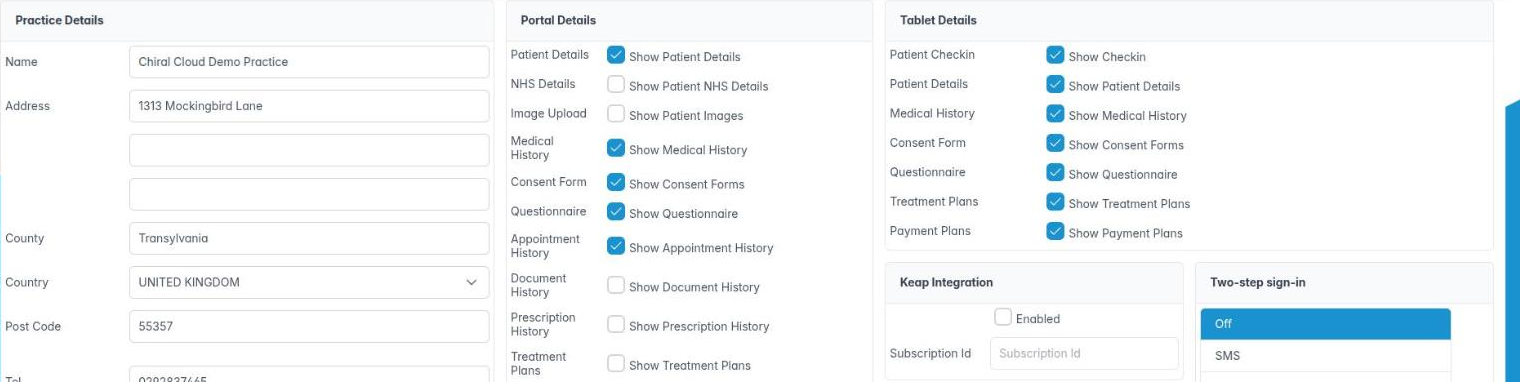
- In Practice Details enter the Name, Address, County, Country, Post Code, Tel., Fax., Email and Web Site. Use the email patients should reply to.
- In Portal Details, tick what patients may see or do online: Show Patient Details, Show Patient NHS Details, Show Patient Images, Show Medical History, Show Consent Forms, Show Questionnaire, Show Appointment History, Show Document History, Show Prescription History, Show Treatment Plans, Show Payment Plans, Show Online Booking and Show Video Conferencing.
- In Tablet Details, tick what the practice tablet offers: Show Checkin, Show Patient Details, Show Medical History, Show Consent Forms, Show Questionnaire, Show Treatment Plans, Show Payment Plans.
- Click Save.
Good to know
- Show Video Conferencing also adds Online › Video Appointments to the menu.
- Only switch on portal items your team is ready to support; for example, if Show Online Booking is on, make sure clinicians are set as Bookable Online.
- The Keap Integration panel (Enabled, Subscription Id) is only for practices using Keap marketing.
More detail: Practice details.
3. Set two-step sign-in and screen lock for the practice
You can choose the practice’s two-step sign-in rule, inactivity lock and a few practice-wide display options.
Why this matters Reception PCs are often left unattended and passwords get shared. A practice-wide two-step sign-in rule and an automatic screen lock are two of the strongest protections you can switch on, and both support your UK GDPR, Cyber Essentials and Data Security and Protection Toolkit obligations.
Where to find it Preferences › Practice Details, lower panels.
How to
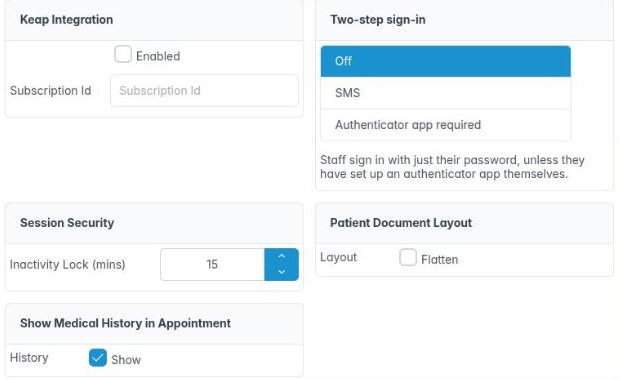
- In Two-step sign-in, choose:
– Off – password only, unless someone has set up an app themselves.
– SMS – a 6-digit code is texted to the person’s mobile after their password.
– Authenticator app required – everyone must use an authenticator app. Anyone without one is made to set it up at their next sign-in. A warning explains this before you save. - In Session Security, set Inactivity Lock (mins). After that many idle minutes the screen locks and needs the password again.
- Patient Document Layout › Flatten shows patient documents as one flat list rather than in folders.
- Show Medical History in Appointment › Show adds a medical history tab to the appointment editor.
- Defaul PAR Scroes sets default Pre and Post PAR scores for orthodontic claims.
- Click Save.
Good to know
- Tablets and check-in kiosks keep using text message codes whatever you choose.
- Make sure every staff member has a mobile number on their account before choosing SMS.
- Ten to fifteen minutes is a common inactivity lock in surgeries.
More detail: Two step sign in guide.
4. Add the sites you work from
You can add, edit and remove practice locations and mark them on-site or off-site.
Why this matters Many practices work from more than one place: a branch surgery, a sedation suite, a care home visited for domiciliary care. Locations let you give each user a default site, show the right address on letters and keep NHS contract sites straight.
Where to find it Preferences › Practice Locations. Needs Practice Detail Preferences.
How to
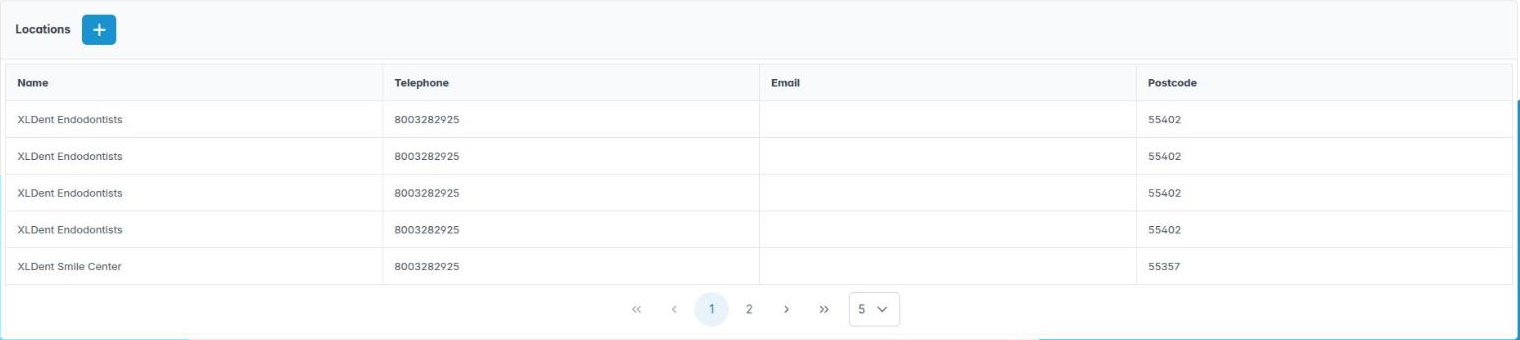
- Click Add Location.
- In Location Details enter a Name and Short Address. Tick Use Practice Address if it is the main building.
- Set Status to Active or Inactive and Type to On-Site or Off-Site, and add any Notes.
- In Address Details enter the address, Tel. and Email if it is a different building.
- Click OK, then Save on the Preferences toolbar.
- To change a location, right-click it and choose Edit Location. To remove one, choose Delete Location and confirm.
Good to know
- The table shows Name, Telephone, Email and Postcode.
- Set each user’s Default Location on their Personal tab afterwards.
- Make a location Inactive rather than deleting it if it has been used in the past.
More detail: Practice locations.
5. Set opening days, hours and the diary slot size
You can set which days the practice opens, its hours and the diary’s time slot.
Why this matters Opening hours frame the diary: they decide which hours show and where the practice’s closed time is shaded. The slot duration is the smallest unit of time you can book, and every appointment type and working pattern is measured in it, so choose it before you set up schedules.
Where to find it Preferences › Practice Opening Hours. Needs Practice Opening Hours (AID_PREF_PRACTICE_HOURS).
How to
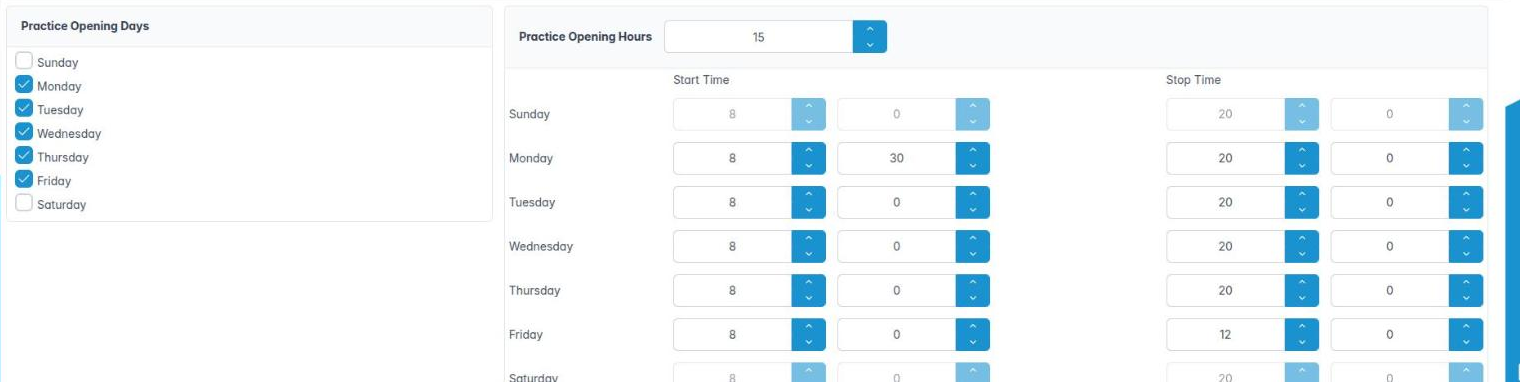
- In Practice Opening Days, tick the days you open: Sunday to Saturday.
- In the Practice Opening Hours panel header, set the slot duration (hover for Set the diary slot duration (minutes)). Five, ten or fifteen minutes is typical.
- For each open day, set the Start Time and Stop Time hours and minutes. The minute boxes step by the slot size.
- Click Save.
Good to know
- Clinicians’ own working hours are set in Housekeeping › Diary Schedules; these are the outer limits for the building.
- Changing the slot size after appointments and schedules exist can leave them off-grid. Decide it at go-live.
- Late-evening or Saturday sessions need the day ticked here as well as in the clinician’s pattern.
More detail: Practice hours.
6. Record your NHS contracts
You can add the practice’s NHS contracts so performers and claims count against the right one.
Why this matters Each NHS contract (GDS for general dental services, PDS for orthodontic or other personal dental services) has a contract number and a site. Every FP17 or FP17O must be sent against the right contract, and your UDA or UOA delivery is measured contract by contract at year end. Getting this wrong can mean claims rejected by the NHSBSA or activity counted on the wrong contract.
Where to find it Preferences › NHS Registration. Needs UDA management (AID_UDAMANAGER).
How to
- In NHS Contracts, click Add Contract.
- Enter a Description (for example “GDS main site”), the Site, the Location and the Contract No. exactly as shown on your contract.
- Click OK, then Save on the Preferences toolbar.
- Right-click a contract and choose Edit Contract to correct it, or Delete Contract to remove one that was added in error.
- Then open each NHS clinician’s UDA Management tab and link them to the contract.
Good to know
- The table columns are Name, Site, Location and Contract No..
- Keep old contracts if historic claims used them.
- Your contract and performer details also appear on the NHS Dental Services Portal (which replaced Compass).
More detail: Nhs registration.
