
Find a patient’s balance in the right account group, read the history, and produce documents and statements.
Who it is for: practice managers and administrators, receptionists.
In this guide:
- Open a patient’s account and pick the right account group
- Read an account history and its balance
- Show, print or email an invoice, receipt or other account item
- Produce an account statement for a patient
- Understand family billing groups and the principal payer
1. Open a patient’s account and pick the right account group
You can open the Account tab, choose the correct account group and spot any active payment plans.
Why this matters Most UK practices collect money for more than one “pot”. A mixed practice may hold NHS patient charges, private fees and a self-employed associate’s own takings separately, and a practice with a hygienist or implant surgeon working on a revenue share may give them their own group too. In ChiralCloud each pot is an account group, and a patient has a separate running account in every group. Looking in the wrong group is the most common reason a receptionist tells a patient they owe nothing when they do.
Where to find it Patients › Find Patients, open the patient, then the Account tab.
How to
- Open the Account tab. Across the top you will see the Active Payment Plans bar, and beneath it one tab per account group (for example Practice, Dr Shah, Hygiene).
- Click the account group tab you need. Its transactions and its balance load on their own; the other groups are untouched.
- Expand Active Payment Plans to see any accepted plan: Treatment Plan, First Installment, Plan Total, Deposit, No. Of Installments, No. Un-Issued and Un-Issued Balance.
- To jump to the full plan, right-click a plan row and choose Show Payment Plan.
Good to know
- The balance box at the right of each group’s header is for that group only. Check every group before saying an account is clear.
- Only plans with the status Accepted appear in Active Payment Plans. Proposed, suspended or finished plans are in Patient Payment Plans on the patient toolbar.
- Account groups are set up by an administrator under Users › Account Groups.
More detail: Account history.
2. Read an account history and its balance
You can read the debit, credit and balance columns, show the full history and hide zero transactions.
Why this matters Patients often ask “what do I owe and what was it for?”. You need to read the account quickly and explain it in plain words, and you need to know when the history on screen is only part of the story.
Where to find it Patient record › Account tab › the account group’s tab, for example Default Account Group.
How to
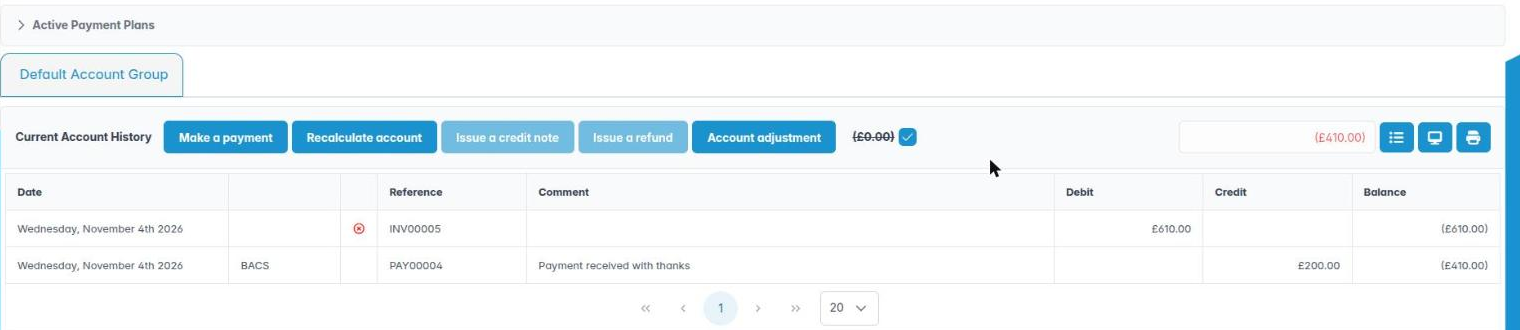
- Read the table from oldest to newest. Each row shows the Date, the payment method (for example CASH, CC, Tabeo or Stripe), its Reference number, a Comment, then Debit, Credit and the running Balance. The small icon on an invoice shows whether it is paid or unpaid.
- Debit is mostly money the patient owes (invoices), but refunds show under Debit too. Credit shows payments, credit notes and credit adjustments. A receipt shows in both Debit and Credit.
- The box at the top right of the panel shows the group’s balance. When the patient owes money it turns red and the amount is shown in brackets, for example (£300.00).
- The panel title reads Current Account History or Full Account History. Click the list-icon button just right of the balance box to switch between them; the full history includes items already settled.
- The box beside (£0.00) is ticked by default, which hides zero-value transactions (for example an NHS exempt course with no charge). Untick it to show them; tick it again to hide them.
- Use the paginator under the table to move through long histories, or show 10, 20 or 100 rows at a time.
Good to know
- An exempt NHS patient (for example under 18, pregnant, or on a qualifying benefit) still gets a £0.00 receipt for the course. Hiding zero transactions makes their account easier to read but does not delete anything.
- If a balance looks wrong after a correction, an administrator can use Recalculate account (see the corrections module).
More detail: Account history.
3. Show, print or email an invoice, receipt or other account item
You can open any account item as a PDF, print it, or email it to the patient after previewing.
Why this matters Patients claim treatment back from insurers such as Denplan, Simplyhealth or their employer’s cash plan, and they ask for copies of receipts and invoices. Being able to send the exact document from the account, rather than retyping it, keeps your records consistent with what the patient holds.
Where to find it Patient record › Account tab › right-click any row in the account history.
How to
- Right-click the row. The menu depends on the item type:
– Invoice: Show Invoice, Print Invoice, Email Invoice
– Receipt: Show Receipt, Print Receipt, Email Receipt
– Payment: Show Payment, Print Payment, Email Payment
– Credit note: Show Credit Note, Print Credit Note, Email Credit Note
– Refund: Show Refund, Print Refund, Email Refund
– Adjustment: Show Adjustment, Print Adjustment, Email Adjustment - Show… opens the document as a PDF in a new tab, named with its number.
- Print… sends it straight to your printer.
- Email… opens an Email Preview of the message. Check the address and wording, then send.
Good to know
- The same menu also holds Change payment type (receipts and payments) and the Void… entries. Those are covered in the taking payments and corrections modules.
- Email goes to the address on the patient’s Personal tab. Check it is current before sending financial documents — sending to an old address is a data protection breach.
More detail: Account history.
4. Produce an account statement for a patient
You can show or print a statement for one account group covering current items, the full history or a date range.
Why this matters A statement (sometimes called “account rendered”) is what you send when a patient disputes a balance, needs a summary for a claim, or has fallen behind. It lists every item in the period with a closing balance, so the patient sees the whole picture rather than one invoice.
Where to find it Patient record › Account tab › the screen and printer buttons at the right of the group header (tooltips Show the patient account and Print the patient account).
How to
- Choose the account group tab first.
- Click Show the patient account to view on screen, or Print the patient account to print.
- In the dialog, choose Account Details:
– Current — open, unsettled items only;
– Full — everything ever posted to this group;
– Date Range — then set the Start Date and End Date. - Check the Account Group shown is the one you want.
- Click OK. A shown statement opens as a PDF tab you can download or email from.
Good to know
- Use Date Range for a tax year or an insurer’s claim period.
- Statements follow the wording set by your administrator in Preferences › Reports / Emails / SMS.
More detail: Account history.
5. Understand family billing groups and the principal payer
You know how a family billing group affects who pays and how to see another member’s account.
Why this matters Families often want one person — usually a parent — to pay for everyone. In ChiralCloud that person is the Family Principle, and the others are Family Members of a billing group. Knowing this saves embarrassing moments, such as chasing a 14-year-old for a balance that their mother settles each month.
Where to find it Patient record › Family Group tab.
How to
- Open the Family Group tab. The Family Principle panel shows who pays, with a Name, Description and Comments.
- The Family Members table lists everyone in the group.
- To open someone else’s account, double-click their row, or right-click and choose Show this members account.
- To take someone out of the group, right-click their row and choose Remove Member. You cannot remove yourself from the group you are viewing.
- When you take a payment on a member’s account (Make a payment), ChiralCloud records it as paid by the principal payer automatically.
Good to know
- Each member still has their own account per account group. The billing group decides who pays, not where the money is booked.
- Under-18s are exempt from NHS charges, so a child’s NHS course will normally show a £0.00 receipt even inside a paying family.
- Some billing group actions still show Not Implemented; they cannot be used yet.
More detail: Patient billing group.