
Create in-house payment plans, accept them with a deposit, issue instalments, handle problems and monitor collection.
Who it is for: practice managers and administrators, receptionists.
In this guide:
- Set up a payment plan from a treatment plan
- Accept a plan and invoice the deposit
- Create, view and print the payment plan agreement
- Issue the instalment invoices that are due
- Suspend, resume or write off a payment plan
- Monitor payment plans across the practice
1. Set up a payment plan from a treatment plan
You can create a proposed payment plan from a patient’s treatment plan and fill in the deposit, instalments and dates.
Why this matters Larger private courses — implants, orthodontics, multiple crowns — are often spread over months. An in-house payment plan lets the patient pay a deposit and regular instalments while treatment goes ahead. Because the practice is giving credit, the plan must be agreed in writing and the patient must understand the total cost. Interest-free in-house plans repaid in no more than 12 instalments within 12 months are usually exempt from FCA consumer credit rules; anything else, or plans run through a finance company such as Tabeo, may need FCA authorisation — check with your practice owner.
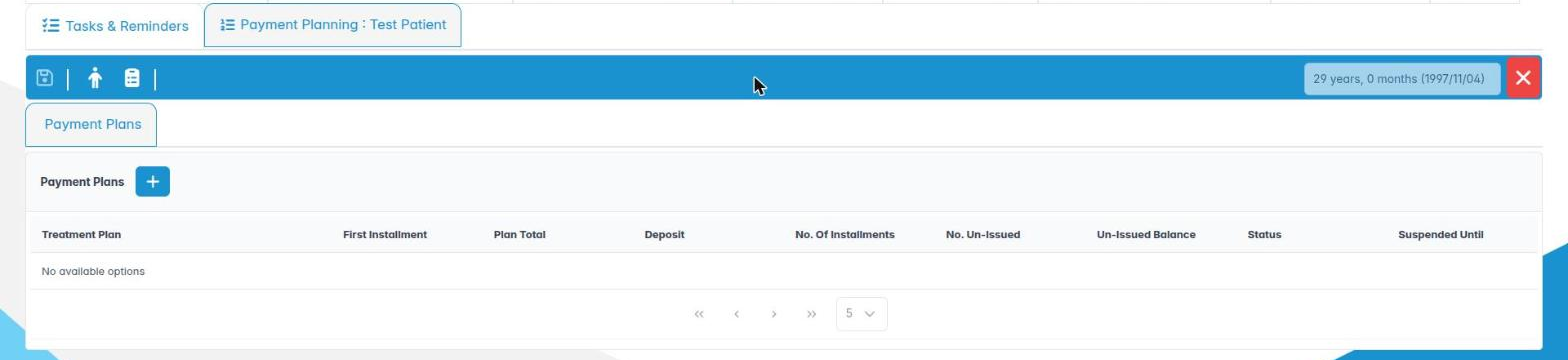
Where to find it Patient record › toolbar › Patient Payment Plans › Add Plan. Or from a treatment plan, Create a patient payment plan.
How to
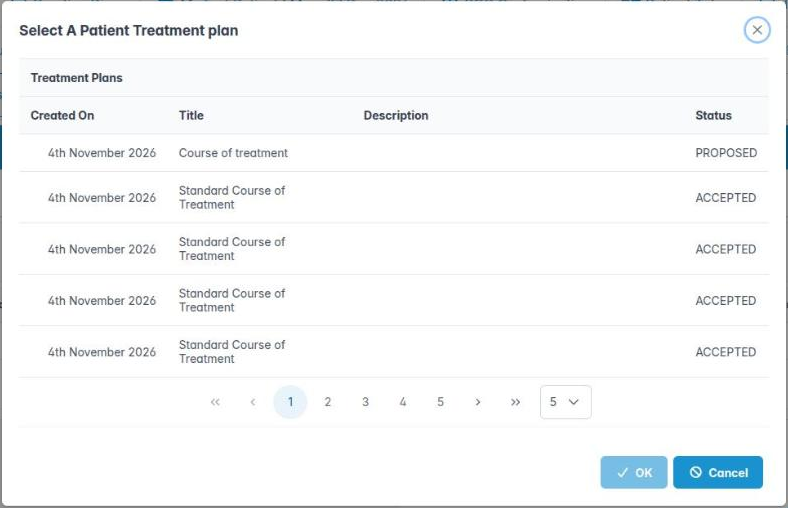
- Click Add Plan. In Select A Patient Treatment plan, pick a proposed or accepted plan (Created On, Title, Description, Status) and click OK.
- A new plan opens with status Proposed. In Payment Plan Details, check the Account Group and Total Treatment Fee.
- Set the Deposit, or a Pre-procedure Payment as an amount or percentage (5% to 50%).
- Set the Number of Installments (up to 72) and the Installment Interval (Weekly, Monthly, Quarterly, Every 2 Months, Every 4 Months, Every 6 Months).
- ChiralCloud works out the Installment Amount, Final Installment Amount and Payment Plan Total Fee.
- Choose the Proposed Payment Method (for example Debit Card, Standing Order, Cash).
- Set Payment Plan Start Date, Deposit Payment Date and Date of First Installment. Date of Last Installment is calculated.
- Add Comments (you can pick a template note) and click Save.
Good to know
- The schedule appears in Payment Plan Installments (Due On, Amount, Invoice, Invoiced On, Amount Paid, Closed On, Balance).
- Membership or capitation schemes (Denplan, practice plans) are different: those are usually collected by direct debit outside ChiralCloud and recorded with Upload Payments.
2. Accept a plan and invoice the deposit
You can choose the instalment charge code, accept the plan and issue the deposit invoice.
Why this matters A proposed plan is only a quote. Once the patient has signed the agreement, you accept it. Acceptance locks the figures so they cannot be changed by accident, and lets you invoice the deposit and later the instalments.
Where to find it Open the plan from Patient Payment Plans (double-click, or right-click › Edit plan).
How to
- In the Installment Charge Code panel, choose a Favourites list and select the charge code instalments will be invoiced under (search with Payment Plan Charge Code Search).
- Change Status to Accepted. If you forgot the charge code you will see The payment plan installment charge code must be set before accepting payment plan.
- Click Save. The plan’s figures are now locked.
- Click the cash register button Issue Deposit Invoice. The Payment Plan, Plan Deposit sale opens with the deposit.
- Complete the sale and choose Issue Receipt if the patient pays now, or Issue Invoice.
Good to know
- Issue Deposit Invoice is greyed out until the plan is accepted, and after the deposit has been invoiced once.
- Proposed plans can be changed with Edit plan or removed with Delete plan (Are you sure you want to delete this payment plan). Accepted plans cannot be deleted.
- Use Patient Details and Patient Treatment Plans on the toolbar to move between the patient, the treatment plan and the payment plan.
3. Create, view and print the payment plan agreement
You can create the patient’s payment plan document from a template and view or print it.
Why this matters The patient should sign a written agreement showing the total cost, deposit, number and amount of instalments, dates and what happens if a payment is missed. It protects both sides and is what you will rely on if the plan is ever disputed. Store the signed copy in the patient’s documents.
Where to find it Open the plan › toolbar: Create a payment plan document, View Payment Plan, Print payment plan.
How to
- Click Create a payment plan document.
- In Patient Payment Plan, choose a template from Templates (Template Name, notes).
- Under Document Details, give a Document Name and Notes, then click OK. The document is saved to the patient’s Documents.
- View Payment Plan opens the plan as a PDF tab (Payment Plan PDF). Print payment plan prints it.
- Print, have the patient sign, then scan or upload the signed copy.
Good to know
- Templates are set up under Utilities › Patient Templates or System Templates.
- Send To Tablet is shown but not yet available.
4. Issue the instalment invoices that are due
You can select due instalments and issue their invoices in one run, and pause the run.
Why this matters Each instalment becomes a real invoice on the patient’s account only when it is issued. Issuing on time keeps balances accurate and makes the Outstanding Accounts report meaningful. Most practices do this weekly or on the same day each month, before the standing orders or card payments are taken.
Where to find it Patients › Issue Plan Invoices. You need the Issue Payment Plan Installments permission.
How to
- The Payment Plan Installments Due list shows Due On, Amount Due, Patient, Plan Total and Notes.
- Tick the instalments to issue, or tick the header box for all. The toolbar shows how many are selected.
- Click Issue instalments. ChiralCloud issues them one after another; each disappears from the list when done.
- Click Pause instalments to stop part-way, then Issue instalments to carry on.
- Right-click a row for Patient Payment Plans (open the plan) or Issue Installment Invoice (issue that one).
Good to know
- Issued instalments are invoiced under the plan’s Installment Charge Code and account group.
- Suspended plans do not offer instalments until resumed.
- Show instalments and Print instalments are not yet available.
5. Suspend, resume or write off a payment plan
You can suspend a plan until a date, resume it, or write it off with a narrative.
Why this matters Life happens: a patient loses their job, goes on maternity leave, or treatment pauses for healing. Suspending a plan stops instalments without cancelling the agreement. If the patient stops paying altogether and recovery is not realistic, the plan can be written off so the loss is recorded.
Where to find it Patient Payment Plans › right-click the plan. The same options are on Reports › Revenues › Payment Plans.
How to
- For an accepted plan, right-click and choose Suspend Payment Plan or Write Off Payment Plan.
- To suspend: pick the Date to suspend until (it must be in the future), add a Narrative and click OK. The plan shows Suspended Until.
- For a suspended plan, right-click and choose Resume Payment Plan (Are you sure you want to resume this payment plan?) or Write Off Payment Plan.
- To write off: add a Narrative explaining why and who authorised it, and click OK.
Good to know
- Writing off a plan writes off the un-issued balance of that plan only. Already-issued instalment invoices stay on the account — chase or correct them separately.
- Record the conversation with the patient in their notes.
- A finished plan (all instalments issued and paid) moves to Finished automatically.
6. Monitor payment plans across the practice
You can use the Payment Plans report tabs and the Payment Plan Dashboard to track collection.
Why this matters Payment plans are money the practice is owed in future. The owner needs to know how much is out on credit, how much has been collected and which plans are in trouble. Reviewing this monthly catches problems early and supports the practice’s cash-flow forecast.
Where to find it Reports › Revenues › Payment Plans and Reports › Revenues › Payment Plan Dashboard. You need Payment Plan Reporting.
How to
- Payment Plans has four tabs: Active, Finished, Suspended, Written Off. Columns include Patient Name, First Installment, Plan Total, Deposit, No. Of Installments, No. Un-Issued, Un-Issued Balance, and (as relevant) Suspended Until, Write Off Date, Narrative, Final Payment Date, Outstanding Balance and Journey Code.
- Right-click a row for Patient Payment Plans, and on Active or Suspended rows Suspend, Resume or Write Off Payment Plan.
- Click Download the payment plans Excel file Report for a spreadsheet.
- Payment Plan Dashboard shows Total Plans, Total Plan Value, Collected (with collection rate), Outstanding and Total Deposits, plus charts by status, monthly creation trend, outstanding balance ranges and a Status Summary Details table.
Good to know
- Without Allow PPP Full Access you only see plans for your own patients. With it you see every clinician’s plans.
- The dashboard always covers the whole practice.