
Turn completed treatment into charges, collect NHS and private fees, sell items, and catch missed charges.
Who it is for: practice managers and administrators, clinicians, dental nurses, receptionists.
In this guide:
- Mark treatment complete so it can be charged
- Charge a private patient at the end of an appointment
- Commit an NHS appointment and collect the patient charge
- Sell items or services without an appointment
- Find charges that were never billed or never completed
- Invoice many patients at once from a spreadsheet
1. Mark treatment complete so it can be charged
You can tick treatments complete in the appointment, choose the account group and move charges between appointments.
Why this matters Nothing reaches a patient’s account until the treatment is marked as done. In a busy surgery the nurse often ticks items as the dentist finishes them, and reception then takes the money. If a charge is left unticked the patient walks out without paying and the item shows up later on the Incomplete Charges report.
Where to find it Open the appointment from the Practice Diary (double-click), then the Appointment Treatments tab.
How to
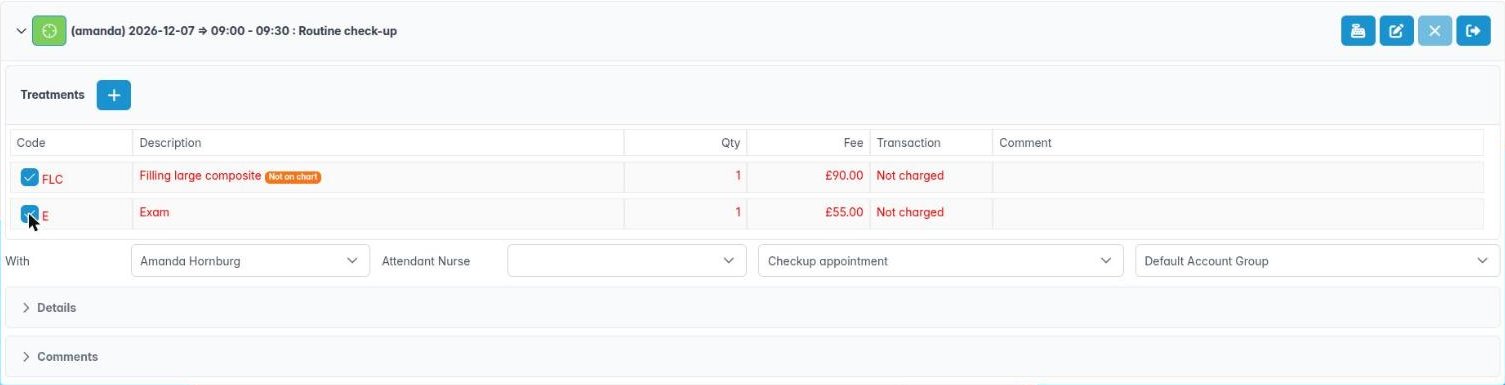
- Each treatment row starts with a tick box and its code. Tick the box when the item is done. The row text stays red and its transaction column reads Not charged — it is now waiting to be paid or invoiced.
- Untick it if you ticked by mistake; the charge goes back to saved (incomplete).
- Check the account group drop-down beside With and Attendant Nurse. It lists the groups the clinician belongs to. Changing it re-points every charge that has not yet been completed.
- To move a treatment to another appointment in the plan, drag its row onto that appointment. Drag it back to the unassigned list if it is not happening today.
- When at least one charge is complete, the sales button on the toolbar becomes available (see the next steps).
Good to know
- Rows that are already invoiced or receipted turn black, cannot be dragged and cannot be edited or deleted.
- Scheduled charges (payment plan instalments) show in green.
- If the only completed item is a discount code, ChiralCloud refuses the sale with Single Discount Code — add the treatment it discounts.
More detail: Patient treatment history 2.
2. Charge a private patient at the end of an appointment
You can open the sales dialog from the appointment and choose to take payment now or issue an invoice.
Why this matters For a private patient the fee is due when the treatment is done, unless your practice has agreed credit terms. You decide at the desk whether to take the money now (a receipt) or bill the patient (an invoice) — for example when a company or insurer pays, or a deposit has already been taken.
Where to find it In the appointment editor, the cash register button Patient Sales, Credit and Cash Sales on the toolbar. The Commit Appointment / Patient Sales, Credit and Cash Sales button on the appointment in the plan list does the same. Both stay greyed out until a completed charge exists.
How to
- Click Patient Sales, Credit and Cash Sales.
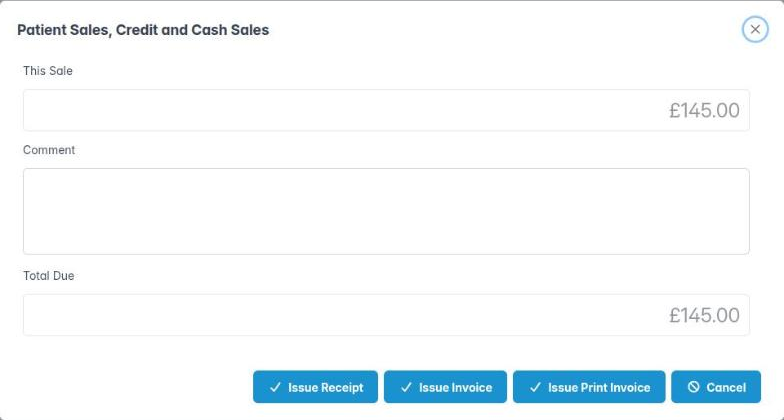
- The dialog shows This Sale (the total of today’s completed charges, after any discount code), a Comment box and Total Due.
- Choose one:
– Issue Receipt — the patient pays now. You move on to the payment pages (see Taking payments).
– Issue Invoice — bill the patient; the amount is added to their account balance.
– Issue Print Invoice — as above, and the invoice prints straight away. - A message Invoice successfully issued (or Receipt successfully issued) confirms it. The charge rows turn black and show the invoice or receipt number.
Good to know
- Save any edits in the appointment first; ChiralCloud saves and then issues.
- An issued invoice can only be undone by an administrator (void or credit), so check the total with the patient before you click.
- The money is booked to the account group shown on the appointment.
More detail: Patient treatment history 2.

3. Commit an NHS appointment and collect the patient charge
You can commit a completed NHS course, choose a performer if asked, and collect the correct band charge or record an exemption.
Why this matters In England the practice collects the NHS patient charge on behalf of the NHS. The charge depends on the band of the course (Band 1, 2, 3 or urgent), not on the individual items, and exempt patients (under 18, under 19 in full-time education, pregnant or had a baby in the last 12 months, or on qualifying benefits or an HC2) pay nothing. The course must then be claimed on an FP17. Getting the charge wrong means either the patient is overcharged or the practice loses money when the NHS deducts the charge it expected you to collect.
Where to find it In the appointment editor of an NHS patient, the toolbar button reads Commit Appointment instead of the private sales button.
How to
- Make sure today’s treatment is ticked complete and the exemption details on NHS Registration are up to date.
- Click Commit Appointment.
- If the clinician has no NHS performer number of their own, a Performers list appears. Pick the performer the work is claimed under and click OK.
- ChiralCloud works out the patient charge for the course.
– If the charge is £0.00 (exempt, or a free item), a nil receipt is issued automatically.
– Otherwise Make an NHS Receipt Payment opens. Take the payment, or choose to invoice. - When the course is complete, the claim is stacked for submission and Claim successfully stacked confirms it.
Good to know
- The completion reason (for example abandoned or assessed and refused) is worked out from the NHS 9000 codes charted.
- Mixed treatment: private items in an NHS appointment are charged through the private flow.
- The April 2026 contract changes affect the bands and charges; ChiralCloud uses the current charge table.
More detail: Patient treatment history 2.
4. Sell items or services without an appointment
You can raise a sale from the patient record for retail items, fees or deposits and finish it as a receipt or invoice.
Why this matters Not every charge comes from the chair. Practices sell interdental brushes, whitening top-up gels, sports mouthguards, replacement retainers, missed appointment fees and report fees. The patient sale lets you charge for these without making a fake appointment, and still books the money to the right clinician and account group.
Where to find it Patient record › toolbar › Patient Sales, Credit and Cash Sales (cash register icon).
How to
- Click Patient Sales, Credit and Cash Sales. The dialog title shows the running total.
- Choose a Provider — the person the sale is credited to.
- Pick a Favourites list, then click the item in the list (it shows Description, Code and £/%).
- Set the Quantity and add a Comment if needed. For a discount code, enter the Discount; the Applied Discount is shown. For a priced item you see Cost and Applied Cost.
- Click Sale Item (plus) to add it to the Items table. Use Sale Item (minus) to remove a selected row.
- Click Complete Sale. If the provider belongs to more than one account group, the Account Groups list appears — pick one and click OK.
- Choose Issue Receipt, Issue Invoice or Issue Print Invoice as for an appointment.
Good to know
- Missed appointment (FTA) fees can only be charged to private patients. NHS patients cannot be charged for a missed appointment.
- The same dialog, titled Payment Plan, Plan Deposit, is used to invoice a payment plan deposit.
More detail: Account history.
5. Find charges that were never billed or never completed
You can use the Uninvoiced and Incomplete Charges reports to catch missed income.
Why this matters Every week some treatment slips through: the dentist ticks it complete but the patient leaves before reception charges, or the treatment is done but never ticked. These two reports are your safety net. Checking them weekly is one of the easiest ways for a practice to recover lost income.
Where to find it Reports › Charges › Uninvoiced and Reports › Charges › Incomplete.
How to
- Uninvoiced Charges lists treatment marked complete but not yet receipted or invoiced. Incomplete Charges lists treatment saved on an appointment but never marked complete.
- Each row shows whether it is part of a plan, the Date, Qty, Code, Description, Fee, Status and Patient.
- Right-click a row and choose Show this patients summary to open the patient and put it right — usually by opening the appointment and charging, or asking the clinician whether it was done.
- Use Show un-invoiced Charges / Show incomplete Charges to view a PDF, the print buttons to print, and the download buttons for a spreadsheet.
Good to know
- An incomplete charge from months ago may be treatment that was planned but never happened. Ask the clinician before charging; never guess.
- For NHS courses, an uncharged completed course may also be an unclaimed FP17 — check NHS Management too.
6. Invoice many patients at once from a spreadsheet
You can import a PatNo and Account Balance spreadsheet and issue one invoice per ticked patient.
Why this matters When a practice migrates from another system, takes over a list, or reconciles balances held elsewhere (for example an old finance provider), you may need to raise opening balances for hundreds of patients. Invoice Bulk Issue does this in one controlled run instead of one sale at a time.
Where to find it Patients › Invoice Bulk Issue. You need the Invoice Bulk Update permission.
How to
- Prepare an .xlsx file with columns headed exactly PatNo, Account Balance and Action. The file is refused if any of the three is missing.
- Under Patient List (.xlsx), choose the file. Imported File shows its name. Unmatched PatNos and unreadable amounts are listed in a warning.
- Choose the Account Group and type a Comment. It starts empty: Bulk Invoice Update is only a hint. Add an Invoice Narrative if you want text on each invoice.
- Under Reconciling Charge Code, pick a Favourites list and select the charge code to post against.
- Tick the patients to invoice. The panel header shows how many are matched and selected, and the total.
- Click Invoice Bulk Issue on the toolbar. Confirm Bulk Update states the number of invoices and the total. Click Process.
- Right-click any row and choose Patient Details to check a patient first.
Good to know
- Each patient is invoiced for their own balance from the sheet.
- Untick rows with a zero balance unless you really mean to invoice zero.
- The button stays greyed out until patients are ticked and the comment, account group and charge code are set.