
Cash up daily and use the cash, transaction, revenue share, cost centre, debt, credit, void and write-off reports.
Who it is for: practice managers and administrators, receptionists.
In this guide:
- Cash up and bank at the end of the day
- Use the Daily Cash Book
- Review everything that happened on an account group today
- Check monthly and yearly cash
- Work out associate pay with the revenue share reports
- Produce the cost centres report
- Chase outstanding accounts by age
- Review accounts in credit
- Audit voided transactions and write-offs
1. Cash up and bank at the end of the day
You can follow a simple end-of-day routine that reconciles the till and card terminal to ChiralCloud.
Why this matters Cashing up every day is the single most effective control against error and fraud at reception. Small differences found today are easy to explain; differences found at the month end are not. Your accountant and, for NHS charges, NHS England expect the money you collected to match the receipts you issued.
Where to find it Reports › Revenues › Daily Cash Book (and Daily Transactions for the detail).
How to
- Run the card terminal’s end-of-day (Z) report and count the cash and cheques in the drawer.
- Open Daily Cash Book, choose the account group (repeat for each group) and make sure the date is today.
- Compare the Receipt and Payment Totals By Type panel with your counts: Cash with the drawer, Credit Card and Debit Card with the terminal, Cheque with the cheques.
- If a figure is out, look in Receipts and Payments for the cause — usually a payment recorded under the wrong type (fix with Change payment type) or a payment not entered at all.
- Check Refunds against any money handed back.
- Print the day (Print the days cash), sign and date it with whoever counted, and file it with the banking slip.
- Record any unexplained difference in your cash discrepancy log and tell the practice manager. Never “balance” it with an adjustment.
Good to know
- Two people should count cash wherever possible.
- Don’t leave cash in the building overnight beyond your practice’s insurance limit.
2. Use the Daily Cash Book
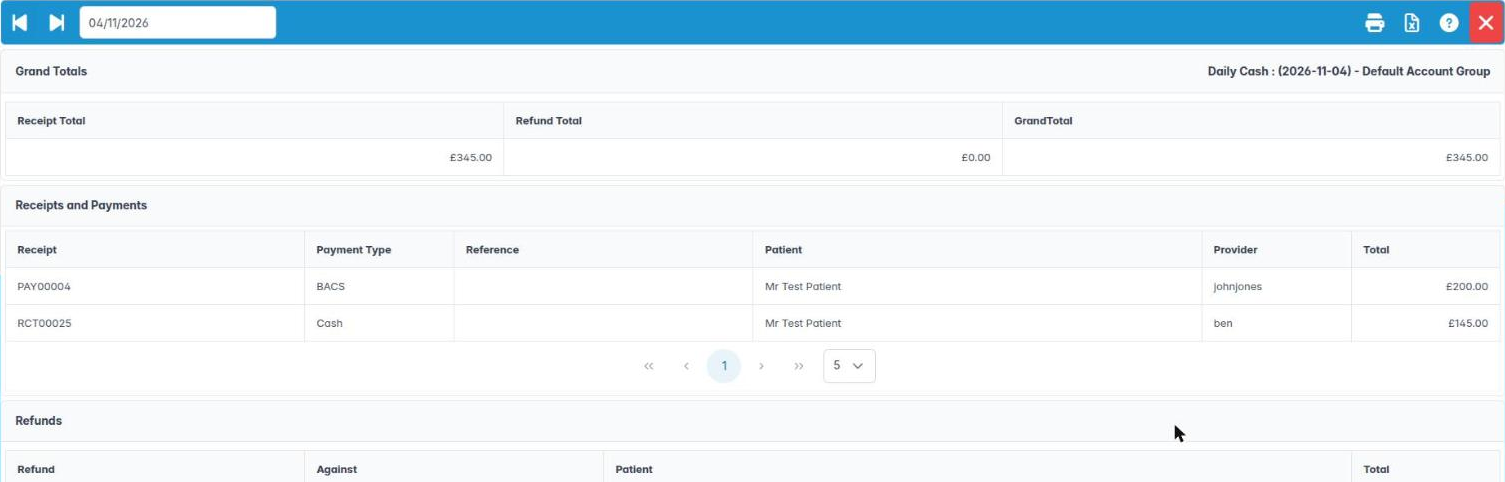
You can open the Daily Cash Book for an account group and day, open items from it and print or download it.
Why this matters The Daily Cash Book shows money actually received and refunded in a day — not what was invoiced. It is the report you bank from, and the one a practice manager checks first when something looks wrong.
Where to find it Reports › Revenues › Daily Cash Book. You need the Daily Income Report permission.
How to
- When it opens, pick the account group from Account Groups and click OK (double-click works too).
- Move between days with Back a day and Forward a day, or pick a date.
- Read the panels: Grand Totals (Receipt Total, Refund Total, GrandTotal), Receipts and Payments (Receipt, Payment Type, Reference, Patient, Provider, Total), Refunds (Refund, Against, Patient, Total) and Receipt and Payment Totals By Type.
- Right-click a receipt or payment for Show Receipt / Show Payment, Print Receipt / Print Payment, or Show this patients account. Right-click a refund for Show Refund or Print Refund.
- Use Print the days cash or Download the days cash Excel file for your records.
Good to know
- Each account group has its own cash book. An associate who banks separately will only see their own group’s money.
- Account adjustments never appear here because no money moved.
3. Review everything that happened on an account group today
You can read Daily Transactions — invoices, receipts, payments, refunds and adjustments — and open the patient behind any line.
Why this matters Daily Transactions is the full picture of the day: work billed as well as money taken. Comparing Invoice Total with Receipt Total shows how much went on credit. It is also the place you see account adjustments, which never touch the cash book.
Where to find it Reports › Revenues › Daily Transactions. You need the Daily Transaction Report permission.
How to
- Choose the account group, then move with Back a day / Forward a day.
- Grand Totals shows Invoice Total, Receipt Total, Payment Total, Refund Total, Adjustment credits and Adjustment debits.
- The panels list Invoices (Invoice, Patient, Provider, Code, S.Total, Total), Receipts and Payments, Refunds and Adjustments (Type, Number, Patient, By, Comment, Amount).
- Right-click an invoice for Print Invoice; a receipt or payment for Print Receipt / Print Payment; any row for Show this patients account.
- Print daily transactions and Download the days transactions Excel file Report produce copies.
Good to know
- Adjustments show as Adjustment (Credit) or Adjustment (Debit). Review them daily — who made them and why.
- A Monthly Transactions report with the same layout exists under the practice-specific reports menu for some practices.
4. Check monthly and yearly cash
You can use Months Cash Book and Yearly Cash to see takings by period for an account group.
Why this matters Monthly and yearly cash totals feed your management accounts, VAT-exempt income records and the self-assessment or company accounts your accountant prepares. Looking at the month trend also tells you quickly whether the practice is on target.
Where to find it Reports › Revenues › Months Cash Book (Monthly Cash permission) and Reports › Revenues › Yearly Cash (Yearly Cash).
How to
- Choose the account group from Account Groups.
- Months Cash Book shows a day-by-day grid for the month with totals. Use Back a month / Forward a month.
- Yearly Cash shows the year to the selected month. Use Back a month / Forward a month to move the end point.
- Print or download: Print the account groups monthly cash, Download the account groups monthly cash Excel file Report, Show the account groups yearly cash, Print the account groups yearly cash, Download the account groups yearly cash Report.
Good to know
- Most dental treatment is exempt from VAT, but some cosmetic-only work (for example tooth whitening for purely cosmetic reasons) may be standard-rated. Your accountant will tell you how to treat it; separate account groups or codes make this easier.
- Run month-end after all the month’s banking is reconciled.
5. Work out associate pay with the revenue share reports
You can read the weekly, monthly and yearly share reports to see each clinician’s invoices and receipts for associate pay.
Why this matters Most UK associates are self-employed and paid a percentage of what they earn — commonly 40–50% of private fees received, and an agreed rate per UDA for NHS work, often less a share of lab fees. The BDA model associate agreement bases pay on fees received, not billed. The share reports split invoices and receipts by clinician so the practice can calculate each associate’s pay accurately and show them how it was worked out.
Where to find it Reports › Revenues › Weekly Share, Monthly Share (Monthly Income) and Yearly Share (Yearly Account Revenue Share Report).
How to
- Choose the account group.
- Each clinician has an Invoice and a Receipt column. The group then has Refunds, Credits, Payments and Cash Subtotal columns, with a Subtotal and Total row.
- Move with Back a week / Forward a week or Back a month / Forward a month.
- Download: Download the account groups weekly revenue shares Excel file Report, Download the account groups monthly revenue shares Excel file Report; Yearly Share also has Show, Print and Download the account group yearly revenue.
- Apply the associate’s agreed percentage to their Receipt column (or as the contract says), deduct agreed lab fees, and keep the spreadsheet with the pay statement.
Good to know
- Refunds and credit notes reduce what is due; agree in the contract whose share they come from.
- NHS UDA pay comes from the contract figures in NHS Management, not these reports.
6. Produce the cost centres report
You can produce the monthly cost centres report by account group as a PDF.
Why this matters Cost centres group treatment codes by the part of the business they belong to — for example general dentistry, hygiene, orthodontics, implants, cosmetics, retail. Seeing income by cost centre helps the owner decide where to invest, price fees, and agree specialist or hygienist revenue shares.
Where to find it Reports › Revenues › Cost Centers. You need the Cost Centre Report permission. Cost centres themselves are set up in Utilities › Housekeeping › Cost Centers.
How to
- Choose the month with Back a month / Forward a month or the month picker.
- Click Show the cost centres by account group to open the PDF, Print the cost centres by account group to print it, or Download the cost centres by account group Report to save it.
- Compare months to spot trends.
Good to know
- The on-screen panel reads Cost Centers : Not Implemented. The figures are only in the PDF and download.
- A treatment code that is not linked to a cost centre will not be counted under one. Ask your administrator to check new codes when fees change.
7. Chase outstanding accounts by age
You can use Outstanding Accounts to find overdue invoices by account group and age and contact the patients.
Why this matters Debt gets harder to collect the older it is. A simple routine — a friendly reminder at 30 days, a firmer letter at 60, a final notice at 90 — recovers most of it. The Outstanding Accounts report gives you the list and the contact numbers in one place.
Where to find it Reports › Outstanding Accounts. You need the Outstanding Accounts Report permission.
How to
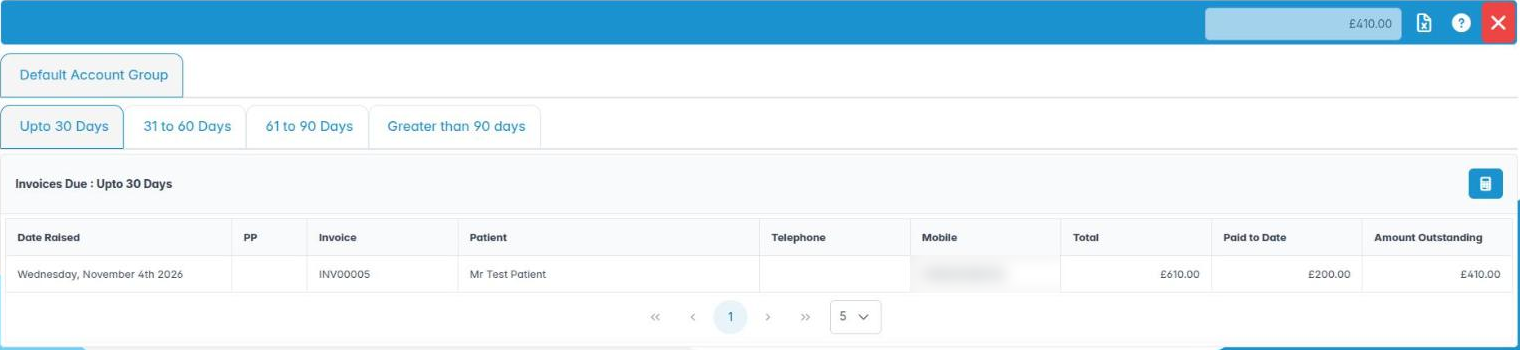
- Choose the account group tab across the top.
- Choose the age tab: Upto 30 Days, 31 to 60 Days, 61 to 90 Days or Greater than 90 days.
- Each row shows Date Raised, PP (a tick if the invoice is part of a payment plan), Invoice, Patient, Telephone, Mobile, Total, Paid to Date and Amount Outstanding. The toolbar shows the total outstanding.
- Right-click a row for Show Invoice, Print Invoice, Email Invoice or Show this patient’s account.
- Download the outstanding patient account list Excel file Report gives you a list for mail-merging letters.
Good to know
- Recalculate the list first (administrators) so nobody is chased in error.
- Follow your practice’s debt policy and be polite; never discuss a debt with anyone other than the patient or their principal payer.
- Show this invoice’s appointment is shown but not yet available.
8. Review accounts in credit
You can find patients whose accounts are in credit and decide whether to hold or refund the money.
Why this matters A credit balance is the practice holding the patient’s money: a deposit for treatment not yet invoiced, an over-payment, or a mistake. Large or old credits should be reviewed — either the treatment is coming and the money will be used, or it should be refunded. Unexplained credits can also hide a payment taken on the wrong patient.
Where to find it Reports › Accounts In Credit. You need the Accounts In Credit Report permission.
How to
- The list shows Patient Name, Telephone, Mobile, Email and Amount in Credit.
- Right-click a row and choose Show this patients summary to open the patient.
- On the patient’s Account tab, look for an uninvoiced deposit, a duplicate payment, or a payment that belongs to someone else.
- Refund it, invoice the treatment it was for, or leave it with a note explaining why.
- Download accounts in credit Report gives you a spreadsheet for your review.
Good to know
- Review monthly. Credits more than a year old with no treatment planned should normally be refunded or written back after contacting the patient.
9. Audit voided transactions and write-offs
You can review the Voided Transactions and Write Offs reports as a regular audit.
Why this matters Voids and write-offs are where errors and, rarely, fraud show up. A practice manager who looks at these lists every month — and asks about anything unusual — protects the practice and the team. It is also good evidence of financial governance for your accountant, and of good management if you are ever inspected.
Where to find it Reports › Revenues › Voided Transactions (Voided Transactions) and Reports › Revenues › Write Offs (Written Off Accounts).
How to
- Choose the account group.
- Voided Transactions is by month (Back a month / Forward a month). Columns: Voided On, Type, Transaction, Patient, Voided By, Narrative, Total.
- Write Offs is by year (Back a year / Forward a year). Columns: Write Off Date, Patient, Written Off By, Total.
- Right-click any row and choose Show this patients summary to look at the account.
- Download or print: Download the account groups voided transactions Report; Show, Print and Download the written off accounts.
Questions to ask each month
- Are voids spread across staff, or concentrated on one person?
- Do the narratives explain the reason?
- Were cash receipts voided after the day was banked?
- Was each write-off approved under the debt policy?