
Choose and apply the right correction – void, credit note, refund, adjustment, write-off or recalculation – with a clean audit trail.
Who it is for: practice managers and administrators.
In this guide:
- Choose the right correction and keep the audit trail
- Void an invoice, receipt, payment or other item
- Issue a credit note against an invoice
- Refund money to a patient
- Make an account adjustment
- Write off a patient’s account or reactivate it
- Recalculate account balances
1. Choose the right correction and keep the audit trail
You can pick between void, credit note, refund, adjustment and write-off, and know why nothing is ever deleted.
Why this matters Patient accounts are financial records. HMRC, your accountant, NHS England (for patient charges) and, in a dispute, the GDC or a court may all need to see exactly what happened. That is why ChiralCloud never deletes a transaction. Every correction is a new, dated entry by a named user with a reason, and it shows on the Voided Transactions, Daily Transactions or Write Offs reports.
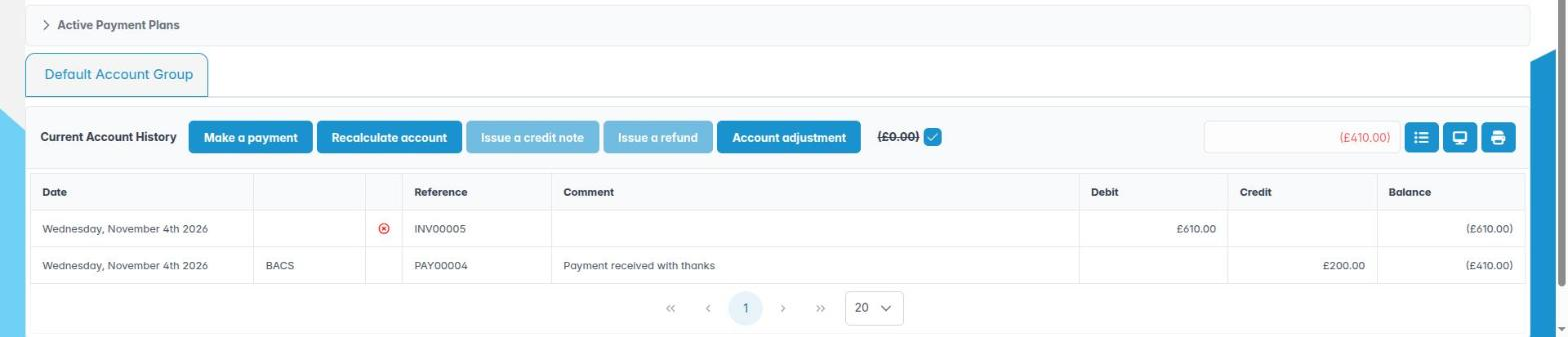
Where to find it All the tools are on the patient’s Account tab, in the account group header or on the right-click menu of a row.
How to choose
- Void — the item should never have existed (raised on the wrong patient, duplicate, wrong amount keyed). Best used the same day, before banking.
- Issue a credit note — an invoice was right when issued but the patient should now pay less (treatment not completed, fee reduced).
- Issue a refund — money really goes back to the patient (over-payment, cancelled course).
- Account adjustment — a one-off correction to the balance not linked to one item (goodwill discount, a migration difference, small-balance tidy-up).
- Write Off Account — the debt will not be collected (patient untraceable, debt not worth pursuing, deceased).
- Recalculate account — the items are right but the displayed balance looks wrong.
Good to know
- Always type a clear reason. “Error” is not a reason; “Duplicate receipt — card taken twice, see R1234” is.
- Separate who records from who approves where you can: a receptionist spots the problem, the practice manager makes the correction.
- These permissions are given per user under Utilities › User Capabilities: Invoice Voiding, Issue Credit Notes, Issue Refunds, Make Account Adjustments, Recalculate Patient Balances.
More detail: Account history.
2. Void an invoice, receipt, payment or other item
You can void a mistaken account item with a narrative and know it will appear on Voided Transactions.
Why this matters A void cancels an item as if it had not been raised, while keeping the original visible and marked as voided. It is the right tool for keying mistakes, and the wrong tool for anything that genuinely happened — if a patient really paid and you are giving money back, that is a refund.
Where to find it Patient record › Account tab › right-click the row › Void Invoice, Void Receipt, Void Payment, Void Credit Note, Void Refund or Void Adjustment.
How to
- Select the account group and right-click the item.
- Choose the matching Void… entry.
- In the dialog, type a Void Narrative that explains the reason and, if relevant, which item replaces it.
- Click OK. The row is marked voided and the balance updates.
- If ChiralCloud refuses (for example you do not have the permission, or it is already voided), a message explains why.
Good to know
- Voiding an invoice does not untick the treatment. The charge can then be invoiced or receipted again correctly.
- Voiding an NHS receipt does not change the FP17 claim. Correct the claim in NHS Management too.
- Voiding an adjustment needs the Make Account Adjustments permission; its narrative becomes the void reason on the report.
- Every void appears on Reports › Revenues › Voided Transactions with who did it, when and why.
More detail: Account history.

3. Issue a credit note against an invoice
You can reduce what a patient owes on a specific invoice with a credit note.
Why this matters Sometimes an invoice was correct but circumstances change: a crown was invoiced at the prep visit and the patient then chose a cheaper option, or the dentist agrees to reduce the fee after a complaint. A credit note reduces the amount owed on that invoice and leaves a clear link between the two.
Where to find it Patient record › Account tab › click an invoice (or an adjustment) row to select it › Issue a credit note in the header. The button is greyed out until a suitable row is selected.
How to
- Select the invoice in the history.
- Click Issue a credit note.
- Check Invoice to Credit Against, Invoice Total and Invoice Total Outstanding(£).
- Enter the Credit Amount. New Balance shows the result.
- Add a Comment giving the reason.
- Click OK. The credit note appears as a credit row and can be shown, printed, emailed or voided like any other item.
Good to know
- If the item has nothing outstanding you will see There is nothing to refund, or This payment has been fully refunded already.
- A credit note reduces the debt; it does not give money back. If the patient has already paid in full, use a refund.
- At the time of writing this dialog has a known fault and OK may not complete. If it does not, record a Credit the patient account adjustment with the invoice number in the reason, and report it.
More detail: Account history.

4. Refund money to a patient
You can issue a refund against a receipt or payment, up to the amount not already refunded.
Why this matters Refunds happen when a deposit is returned for a cancelled course, a patient over-paid, or a complaint is settled. Under the Consumer Rights Act a patient may be entitled to some or all of their money back for a service not delivered with reasonable care. A refund must be recorded against the payment it reverses, so the cash book and the bank agree.
Where to find it Patient record › Account tab › select a receipt or payment row › Issue a refund. The button is greyed out until one is selected.
How to
- Select the receipt or payment.
- Click Issue a refund.
- Check Payment to Refund Against, Payment Total and Un-refunded Total.
- Enter the Refund Amount. You cannot enter more than the un-refunded total.
- Check Date Taken and add a Comment with the reason.
- Click OK. Then actually return the money — ideally the same way it was paid (refund to the same card).
Good to know
- There is nothing to refund means the item is zero; This payment has been fully refunded already means the whole amount has gone back.
- Refunds show in the Refunds panel of the Daily Cash Book, so the day’s takings are reduced.
- Refunding an NHS charge? Only do so if the claim is being corrected or withdrawn — the NHS will still deduct the charge from the contract value otherwise.
More detail: Account history.
5. Make an account adjustment
You can credit or debit a patient’s account group with a dated, reasoned adjustment and preview the new balance.
Why this matters Some corrections do not belong to any one invoice: a goodwill discount after a complaint, writing off a few pence of rounding, or matching an opening balance brought over from a previous system. An adjustment does this openly, with a reason, and appears on Daily Transactions under Adjustments — never inside the cash totals, because no money moved.
Where to find it Patient record › Account tab › choose the group › Account adjustment. You only see the button with the Make Account Adjustments permission.
How to
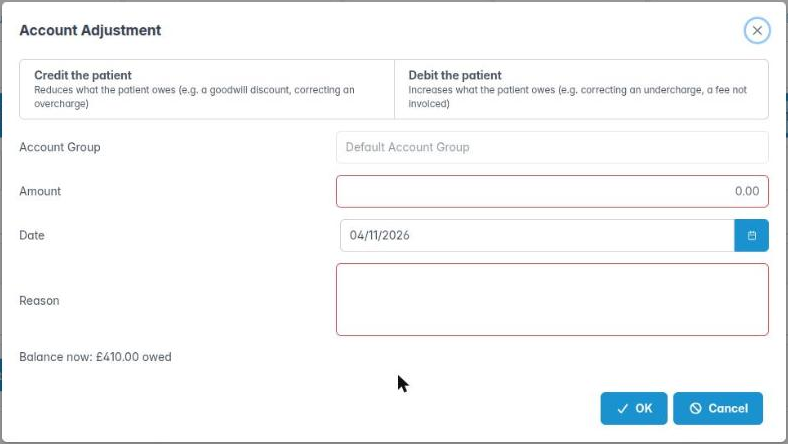
- Click Account adjustment. The Account Group is the one you are viewing.
- Choose the direction: Credit the patient (reduces what they owe) or Debit the patient (increases it). There is no default — you must choose.
- Enter a positive Amount and the Date.
- Type the Reason.
- Check the preview: Balance now … → after this adjustment ….
- Click OK, then confirm Record Account Adjustment. A message confirms the adjustment number.
Good to know
- If the server refuses, the dialog stays open with your entries and shows why.
- Adjustments can be shown, printed, emailed and voided from the right-click menu.
- Do not use an adjustment to hide a missing payment. If cash is short, record it as a cash discrepancy in your banking log.
More detail: Account history.
6. Write off a patient’s account or reactivate it
You can write off a debt with a narrative and reactivate the account later.
Why this matters When a debt cannot reasonably be recovered — the patient has moved away without a forwarding address, has died, or the cost of chasing exceeds the debt — the practice writes it off. That removes it from the outstanding accounts list and records the loss for your accountant. Follow your practice’s debt policy first: usually reminder letters at 30, 60 and 90 days.
Where to find it Patient record › toolbar › Write Off Account (circle-cross icon). On a written-off patient the same button reads Reactivate Account.
How to
- Make sure you have tried to collect and recorded those attempts in the patient’s notes.
- Click Write Off Account.
- In Write Off Account, type the Write Off Narrative (reason, attempts made, who authorised it).
- Click OK. The patient’s status becomes Written Off.
- To undo, click Reactivate Account. The status returns to Active.
Good to know
- Written-off accounts are listed on Reports › Revenues › Write Offs by year, with who wrote them off and the total.
- A written-off patient can still be seen clinically; your practice decides whether to accept new bookings.
- A single payment plan can be written off on its own instead (see the payment plans module).
More detail: Account history.
7. Recalculate account balances
You can recalculate one patient’s account group, or every patient on an outstanding accounts tab.
Why this matters A balance is a running total kept alongside the items. Very occasionally — after an import, a void done while the network dropped, or a fix by support — the total and the items disagree. Recalculating rebuilds the balance from the items. It changes nothing in the history, so it is safe, but it can move a patient on or off the outstanding accounts list.
Where to find it
- One patient: patient record › Account tab › choose the group › Recalculate account.
- Many patients: Reports › Outstanding Accounts › choose the account group and age tab › calculator button Recalculate patient accounts in the panel header.
How to
- For one patient, click Recalculate account and answer Are you sure you want to recalculate this patient account with Yes.
- For a list, open the age tab (for example Greater than 90 days) and click Recalculate patient accounts. A progress dialog shows Recalculating and each patient’s name.
- When it finishes, the list reloads with the corrected balances.
Good to know
- Run a list recalculation before sending reminder letters, so you do not chase someone whose true balance is zero.
- The capability is Recalculate Patient Balances (AID_FixBalances); the report button is intended for Recalculate Patient Accounts holders.
