
Search for patients every way ChiralCloud allows, act on search results, set up family groups and register new NHS or private patients without creating duplicates.
Who it is for: practice managers and administrators, clinicians, dental nurses, receptionists.
In this guide:
- Find a patient’s record quickly
- Act on a patient straight from the search results
- Set up a family billing group
- Register a new patient
- Register a patient for NHS or private care
- Record who referred the patient and their GP
- Avoid duplicate patient records
- Return to a patient you opened recently
1. Find a patient’s record quickly
You can find any patient by surname, first name, date of birth, phone, postcode, email, reference, invoice number or clinician.
Why this matters. Almost every job at the desk starts with finding the right patient: a phone call, a walk-in, a payment, a referral letter. Picking the wrong “J. Smith” is one of the commonest data protection slips in a dental practice, so always confirm a second identifier (date of birth or first line of address) before you discuss anything.
Where to find it. Patients › Find Patients. The search panel is headed Patient Search and shows Matching Patients (n).
How to
- Choose how you want to search from the drop-down. The options are Search by surname (the default), Search by first name, Search by alternate reference, Search by email, Search by postcode, Search by home, work or mobile telephone number, Search by date of birth, Search by date of birth #, Search by Invoice number, Search by provider and Show all.
- Type in the box. Text searches start after three characters and update as you type.
- Tick Include Inactives if the patient may have left or been marked inactive.
- Double-click a row in the results to open the patient record.
Shortcuts
- In the surname or first name box, type a number to search by Patient ID instead (you’ll see (ID) beside the box).
- Type # followed by the date of birth as eight digits (for example #15031984) to jump straight to a date of birth search without touching the mouse.
- Search by provider lists every patient assigned to a chosen clinician.
Good to know
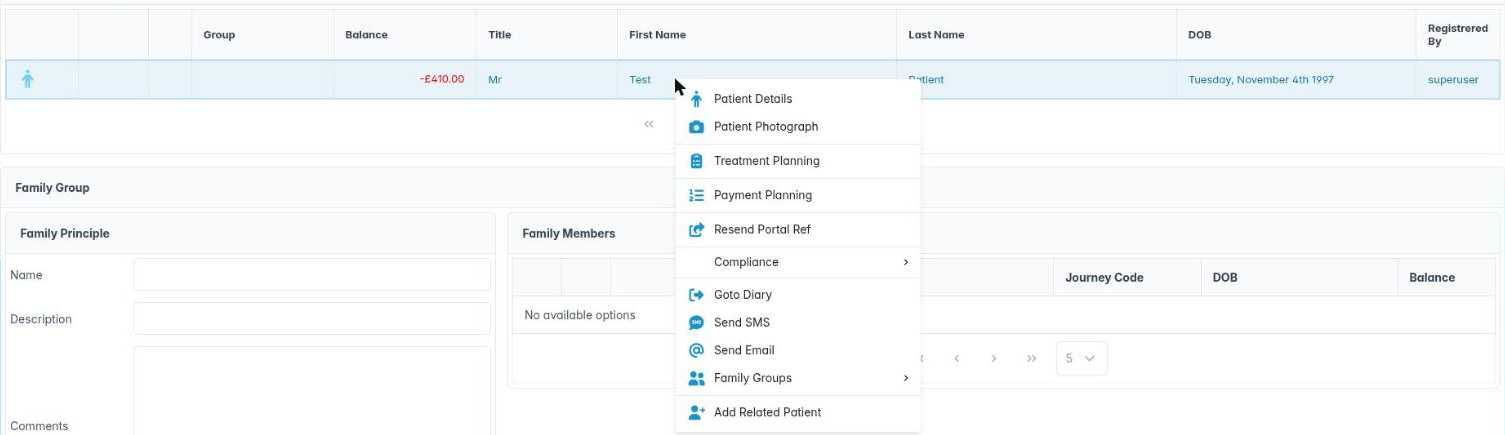
- The NHS logo in the second column marks an NHS patient. The Group and Balance columns show any family group and the current account balance.
- A blue row is the principal payer of a family group; a green row is a member billed to that payer.
More detail: Find patient.

2. Act on a patient straight from the search results
You can open plans, send a message, resend a portal reference or start a related registration without opening the full record.
Why this matters. Many front desk jobs only need one action: text a patient back, check their treatment plan, or register a child who has come in with a parent. The right-click menu in the search results saves you opening the full record each time.
Where to find it. Patients › Find Patients, then right-click any row in the results.
How to
- Search for the patient and right-click their row.
- Choose from:
– Patient Details opens the full patient record.
– Patient Photograph shows the photo stored for the patient, so you can check you have the right person at the desk.
– Treatment Planning and Payment Planning open that patient’s plans directly.
– Resend Portal Ref re-sends the patient their patient portal reference. Confirm with Yes at Are you sure you want to resend this patients portal reference?
– Send SMS and Send Email open the message dialogs (see the Communications module). If there is no mobile number you’ll see No Mobile Number.
– Add Related Patient opens Add Patient with the address and contact details copied from the selected patient, which is ideal for registering a child or partner. - Compliance and Family Groups open sub-menus, covered in their own steps.
Good to know
- Goto Diary is in the menu but is not yet working; it shows This feature is not yet implemented. Use the patient’s Summary tab or the diary search instead.
- Before resending a portal reference, check the email address on the Personal tab is current, or the reference goes to the wrong inbox.
More detail: Find patient.
3. Set up a family billing group
You can create a family group, add members and remove them, so one person pays for the family.
Why this matters. Families often want one parent to receive and pay all the bills, especially for children’s private treatment or a family membership plan. A family (billing) group links the members to a Family Principle (the payer) so balances and statements make sense.
Where to find it. Patients › Find Patients, right-click a patient, then Family Groups.
How to
- Search for the person who will pay. Right-click them and choose Family Groups › Create Group.
- In Add Family Group, check the Principle, add a Description (for example “Smith family”) and any Comments, then OK.
- Search for each family member, right-click and choose Family Groups › Add Member. This is only available once a group is selected and the patient is not already in a group.
- To take someone out, right-click them and choose Family Groups › Remove From Group. On the principal this reads Remove Group and removes the whole group.
- The Family Group panel under the results shows the Family Principle and Family Members, with each member’s journey code, date of birth and account balance. Double-click a member to open their record, or right-click for Remove Member and Show this members account.
Good to know
- A patient can only belong to one family group at a time, so Create Group is greyed out for someone already in one.
- Once a group exists, the patient record gains a Family Group tab.
- Agree in writing who is responsible for payment, particularly for adults in the group: you are sharing financial information between family members.
More detail: Patient billing group.
4. Register a new patient
You can complete every mandatory field on Add Patient and save a new record.
Why this matters. A complete, accurate registration protects the patient and the practice. You need reliable contact details for recalls and reminders, a correct date of birth for NHS charges and exemptions, and a named clinician so the patient appears on the right lists.
Where to find it. Patients › Add Patient, or the + button beside Patient Search on Find Patients. You need the Add Patient permission (AID_AddPatient).
How to
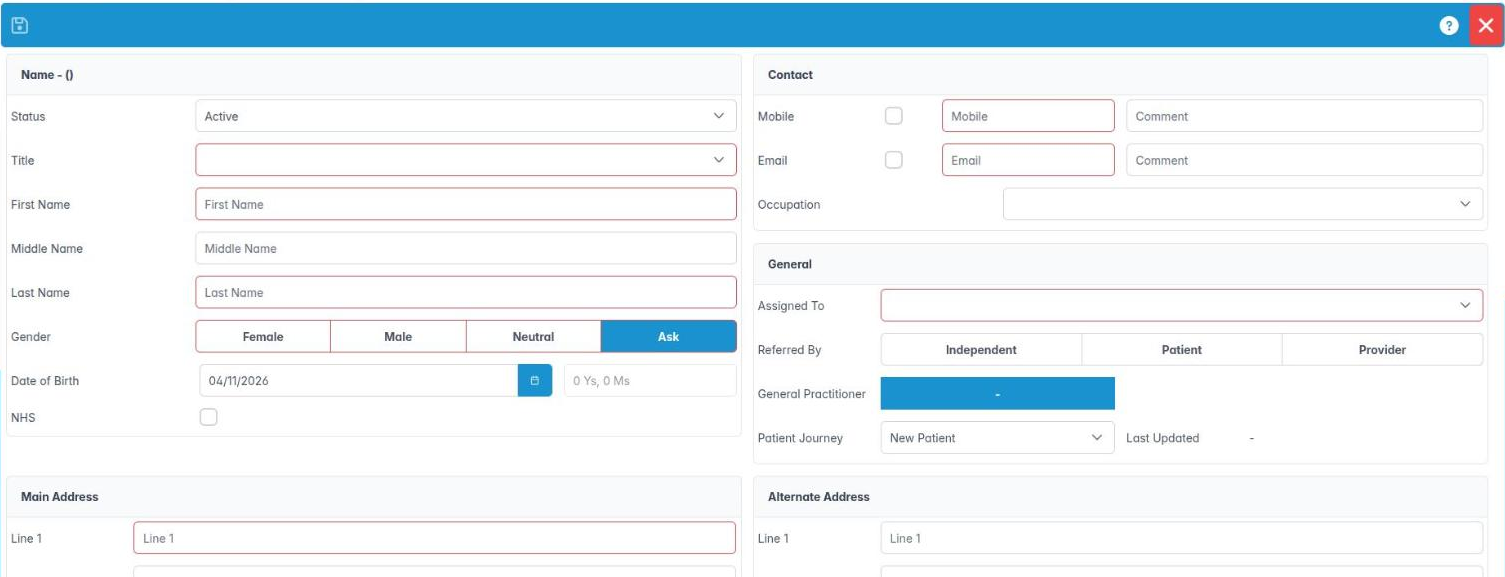
- In the Name panel choose a Title (this also sets Gender), then enter First Name, Last Name and Date of Birth. The patient’s age appears next to the date.
- Set the Status (usually Active).
- In Contact enter a Mobile number (UK or international, spaces are removed automatically) and an Email.
- In Assigned To pick the patient’s clinician. Optionally set Referred By, General Practitioner and Patient Journey.
- Complete the Main Address: Line 1, City, County and Postcode are required. Add an Alternate Address and Next of Kin if you have them.
- Tick NHS if the patient is joining for NHS care (see the next step).
- The save button (Add new patient) only turns active when every required field is filled. Click it, then Save & Exit to close.
Good to know
- Required: title, first name, last name, a valid mobile, email, a gender other than “Ask”, assigned clinician, address line 1, city, county and postcode. If an NHS number is entered it must be 10 digits.
- If you try to close with unsaved changes you’ll be asked whether to save.
- You’ll see This patient was successfully added when it works.
More detail: Add a new patient.
5. Register a patient for NHS or private care
You know when to tick NHS and which NHS details to collect at registration.
Why this matters. In England, NHS dental patients are not “registered” with a practice the way they are with a GP: each course of treatment is a separate contract, claimed on an FP17 (or FP17O for orthodontics). But ChiralCloud needs to know the patient is NHS so it can apply NHS charge bands, track exemptions and remissions, and prepare claims. Private patients are charged from your fee scale or plan instead. In a mixed practice the same patient can have private items alongside NHS care.
Where to find it. Patients › Add Patient, the NHS tick box at the bottom of the Name panel.
How to
- Tick NHS. An extra NHS details panel appears.
- Enter the NHS Number if the patient knows it (exactly 10 digits, or leave blank).
- Enter any Previous Surname and choose an Ethnic Origin (choose Patient declined if they prefer not to say). Ethnicity is reported on NHS claims.
- Check the date of birth carefully. For a patient under 18, the under-18 exemption is ticked automatically.
- Save as normal.
Good to know
- If a patient is marked NHS but has no NHS number, the record shows a pop-up NHS Number Missing each time it opens, as a reminder to collect it.
- Exemption evidence (for example a maternity exemption certificate or HC2) should be checked and recorded at every course of treatment, not just at registration. That is done on the NHS Registration tab.
- Untick NHS for purely private patients; you can change this later on the Personal tab.
More detail: Patient nhs registration details.
6. Record who referred the patient and their GP
You can set Referred By (independent, clinician or another patient), the patient’s GP and their journey stage.
Why this matters. Knowing how a patient found you helps the practice manager see which referrers and marketing work, and lets you thank a patient who recommended a friend. Recording the GP matters clinically: you may need to write to them about medical conditions, medication or suspicious lesions.
Where to find it. Patients › Add Patient, in the panel under Contact. The same fields appear on the patient record’s Personal tab.
How to
- Assigned To: choose the clinician who will look after the patient.
- Referred By: pick the type of referrer and a dialog opens:
– Independent Referrer to choose an external dentist or specialist from your referrer list.
– Provider Referrer to choose one of your own clinicians.
– Patient Referrer to search for the existing patient who recommended them. - General Practitioner: click to open General Practitioner and choose the GP (right-click a row to select it, or double-click). If the GP is missing, an administrator can add them under Referrers › Add GP.
- Patient Journey: choose the stage the patient starts at (for example a new patient or consultation stage your practice uses).
Good to know
- Journey stages are set up by an administrator in Housekeeping › Patient Journey Stages and are used for reporting and bulk updates.
- The Personal tab shows Reg. Date/By and Ref. Date, so you can always see who registered the patient and when.
More detail: Add a new patient.
7. Avoid duplicate patient records
You check for an existing record before registering, and know what happens if a duplicate is detected.
Why this matters. Duplicate records split a patient’s history in two: medical history on one, X-rays on the other, an unpaid balance on a third. That is a clinical risk and a GDPR accuracy problem (personal data must be kept accurate and up to date). Most duplicates happen when a returning patient rings and nobody searches first.
Where to find it. Patients › Find Patients before Patients › Add Patient.
How to
- Always search first. Try Search by surname, then Search by date of birth, and tick Include Inactives: a patient who left five years ago is usually still on file.
- Also try Search by home, work or mobile telephone number or Search by postcode. Names are often misspelt, but phone numbers rarely are.
- If you find the patient, reactivate them by changing Status to Active on their Personal tab and update their details, instead of creating a new record.
- If you genuinely need a new record, use Add Patient. If a patient with the same first name, last name and date of birth already exists, ChiralCloud stops you with This patient already exists.
Good to know
- Twins share a surname and date of birth but have different first names, so they can still be registered.
- If you do find two records for the same person, don’t delete either. Tell your practice manager, who can arrange for them to be merged.
- Use Add Related Patient from the search results when registering a family member, so the address is copied exactly.
More detail: Add a new patient.
8. Return to a patient you opened recently
You can use Patient Access to reopen the patients you have worked on recently.
Why this matters. On a busy day you might open a patient, answer the phone, deal with two walk-ins and then need to get back to the first patient to finish a payment or a note. Patient Access is your own list of the patients you have recently opened, so you don’t need to search again.
Where to find it. Patient Access in the left-hand menu. The panel is headed Patient Access.
How to
- Open Patient Access. You’ll see the patients you have opened, with the NHS logo where it applies, Title, First Name and Last Name. Click a column heading to sort.
- Double-click a row to open that patient’s record.
- Or right-click a row and choose:
– Patient Details to open the record,
– Treatment Planning to go straight to their treatment plans,
– Payment Planning to go straight to their payment plans. - Click Save & Exit to close the list.
Good to know
- The list is personal to your login, so colleagues see their own list.
- Opening a record is part of the practice’s access audit trail. Only open records you need for your job: looking up a neighbour or a celebrity patient is a data protection breach even if you never change anything.