
Set performer UDA and UOA allocations, track delivery against the contract year, and use journey stages and reports to find activity that hasn’t been claimed.
Who it is for: practice managers and administrators, clinicians.
In this guide:
- Understand the contract year and activity targets
- Set a performer’s UDA and UOA allocation
- Monitor delivery month by month
- Use patient journeys and reports to find unclaimed activity
1. Understand the contract year and activity targets
You can explain how UDA and UOA targets work across the NHS contract year.
Why this matters An NHS England contract commits the practice to deliver a set number of UDAs (and UOAs for orthodontics) each contract year, which runs from 1 April to 31 March. The practice is paid in monthly instalments based on the contract value. If it delivers too little, the commissioner can recover money. Delivering more than the contract doesn’t usually earn extra. Most practices give each performer a share of the contract target. Tracking that share month by month is how you avoid an end-of-year shock.
The key ideas
- Contract target: the yearly UDAs or UOAs in the contract, set out in Compass (moving to the NHS Dental Services Portal).
- Performer allocation: the share each clinician is expected to deliver. This is an arrangement inside the practice. NHSBSA pays the contract, not the individual.
- Delivery: units on NHSBSA’s schedules, for claims received within the time limit. Claims sent more than two months after the course ended may not count.
- Year end: claims for courses finished in March must still reach NHSBSA in time to count. Check the current year-end deadline each year.
- Mid-year review: commissioners look at delivery part-way through the year, and may ask a provider that is behind for a plan.
The 2026 reform From April 2026, some activity is valued differently. Unscheduled care courses have their own value. Some contracts must deliver a set share as unscheduled care, and complex care pathways earn monthly credits. Check how your contract counts these with your commissioner. ChiralCloud’s own unit figures use the older band values (1, 3 and 12 UDAs, and 1.2 for urgent care), so they may not match NHSBSA’s figures for the new course types.
Good to know
- Tolerances, carry-forward rules and recovery rules are set nationally and in your contract. They have changed in recent years, so confirm the current rules with your commissioner rather than relying on last year’s.
2. Set a performer’s UDA and UOA allocation
You can enter and update a performer’s target, start date and usage figures.
Why this matters ChiralCloud shows each performer’s progress against the allocation you enter here. If the target is wrong or out of date, the progress figures mean nothing.
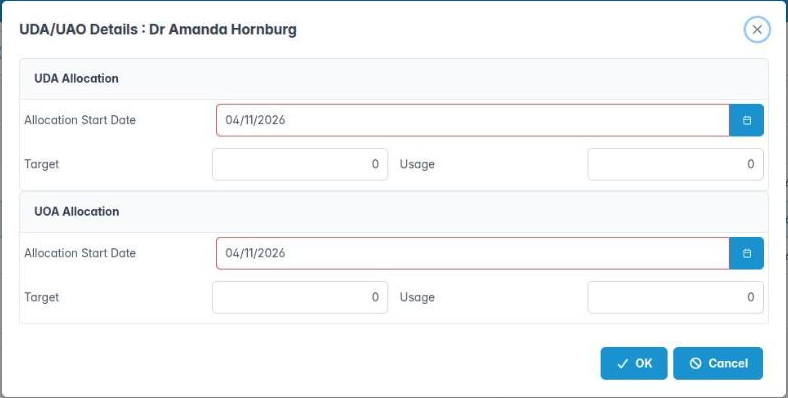
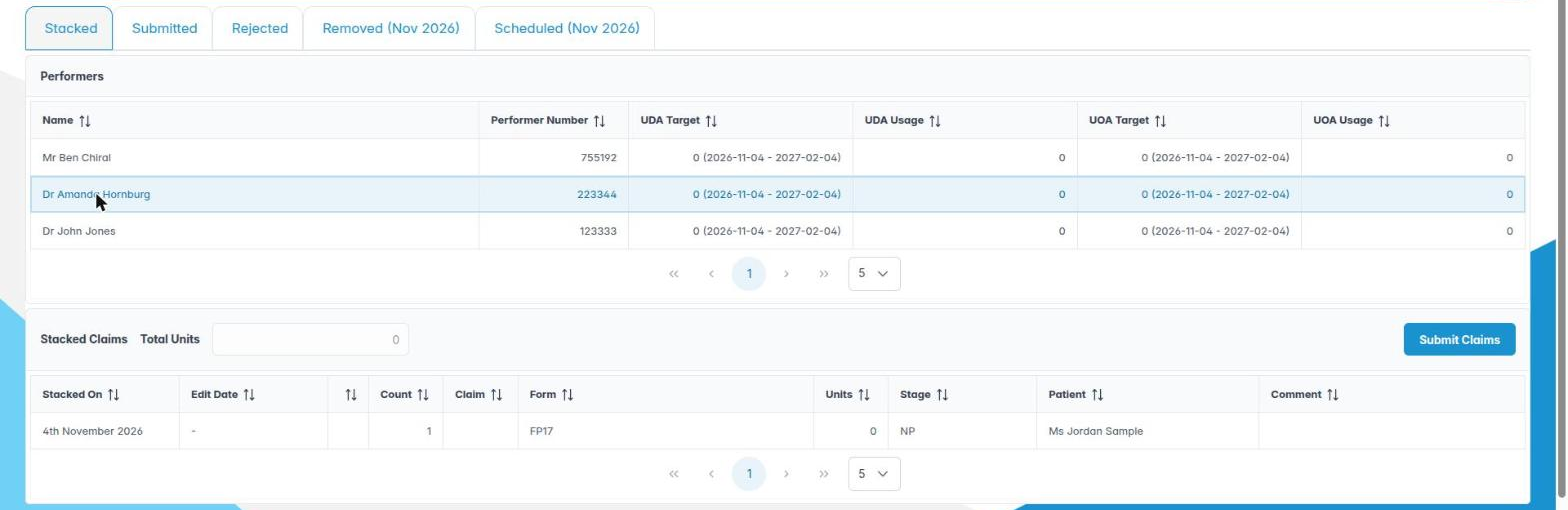
Where to find it NHS Management › Stacked. Right-click the performer in the Performers table and choose UDA/UAO Details. You need the UDA claims permission. This menu item only opens on the Stacked tab.
How to
- The dialog title reads UDA/UAO Details : and the performer’s name.
- In UDA Allocation, set the Allocation Start Date, the Target and the Usage (the units delivered so far in this period).
- In UOA Allocation, do the same for orthodontic units, if the performer provides NHS orthodontics.
- Click OK. The Performers table updates: UDA Target, UDA Usage, UOA Target, UOA Usage.
- The target column shows the period it covers: three months from the start date, for example “1500 (2026-04-01 – 2026-07-01)”. Many practices enter the quarter’s share of the yearly allocation and roll the start date on each quarter.
Good to know
- Agree each performer’s allocation in their contract with the practice, and update it here whenever it changes, for example when a clinician joins or leaves part-way through the year.
- Usage is updated from NHSBSA responses. If it ever looks wrong compared with the Scheduled totals, correct it here and tell Chiral Systems.
- Sort the Performers table by UDA Usage to see who is furthest behind.
More detail: User uda management.

3. Monitor delivery month by month
You can use NHS Management’s totals and downloads to track each performer’s delivery.
Why this matters A shortfall is easy to fix in October and almost impossible in March. A short monthly routine shows who is on track, what is waiting to be sent, and what NHSBSA has actually credited.
How to (monthly routine)
- On Stacked, check each performer’s Total Units. That is activity done but not yet claimed. Submit it.
- On Rejected, clear the backlog. Rejected units are delivered work you haven’t been paid for.
- On Scheduled, go to the month (Back a month or Forward a month). Note Total Scheduled Units for each performer and compare it with Total Claimed Units.
- Add the month to your running total for the year. Compare it with the performer’s allocation. Over a year, a steady pace is about one-twelfth of the allocation per month, allowing for holidays.
- Download each performer’s Scheduled tab with the spreadsheet button to keep a monthly record.
- Share the figures with each clinician. Agree actions early if anyone is behind, such as more NHS sessions or fewer failed appointments.
Good to know
- Look at Removed too. Lots of cancelled or duplicate claims can point to a workflow problem at Commit Appointment.
- NHSBSA’s own reports, in Compass (and in the NHS Dental Services Portal once it launches), are the official delivery figures. Use ChiralCloud to plan and chase, and reconcile against NHSBSA.
- Ten minutes each month on this routine is usually enough for a small practice.
4. Use patient journeys and reports to find unclaimed activity
You can use journey stages and reports to find NHS courses that are open, stalled or not yet claimed.
Why this matters UDAs are only earned when a course is completed and claimed. Courses that are started but never finished, because the patient stopped booking or the treatment plan wasn’t followed up, are a quiet source of lost activity. Patient journey stages let you mark where each patient is, so you can find them again.
Where to find it
- NHS Management › Stacked: right-click a claim and choose Update Patient Journey Stage.
- Reports › Patient Journey and Patient Journey Snap Shot.
- Reports › Utilisation › Clinician Usage.
How to
- Agree a small set of NHS journey stages with your team in Housekeeping › Patient Journey Stages, for example “NHS course open”, “Course complete – claim stacked” and “Claim submitted”.
- When you review stacked claims, use Update Patient Journey Stage to move the patient on. The Stage column then shows it on every claim.
- Each month, run Reports › Patient Journey for the “course open” stage. Look at Date of status change and Next Appointment. Patients with an old status change and no next appointment need a recall or a call.
- Where treatment can’t go ahead, close the course and claim it as incomplete. Don’t leave it open.
- Use Clinician Usage to compare each performer’s booked chair time with their UDA delivery. Low delivery with full diaries may point to coding or claiming problems.
Good to know
- Under the GDS contract, a patient’s course should be finished or closed within a reasonable time. Talk to your commissioner about long-open courses.
- Journey stages are shared with the rest of ChiralCloud, so keep the names clear for reception.