
For clinicians: chart NHS treatment so it bands correctly, record the NHS KPIs and NICE recall, understand what the FP17 says in your name, and read a patient’s claims history.
Who it is for: practice managers and administrators, clinicians, dental nurses, receptionists.
In this guide:
- Chart treatment so it counts towards the NHS band
- Record the NHS KPIs and NICE recall
- Complete the course and stack the claim
- Check a patient’s NHS claims history
1. Chart treatment so it counts towards the NHS band
You can tell which charted items count towards an NHS claim and how the band is set.
Why this matters ChiralCloud builds the claim from the treatment you chart. Only treatment codes linked to an NHS Code (a 9000-series code) count towards the claim. The highest band among those codes becomes the course’s band. That band sets the patient charge and the UDAs: 1 for Band 1, 3 for Band 2 and 12 for Band 3. An item with no NHS code is treated as private and doesn’t count towards the band.
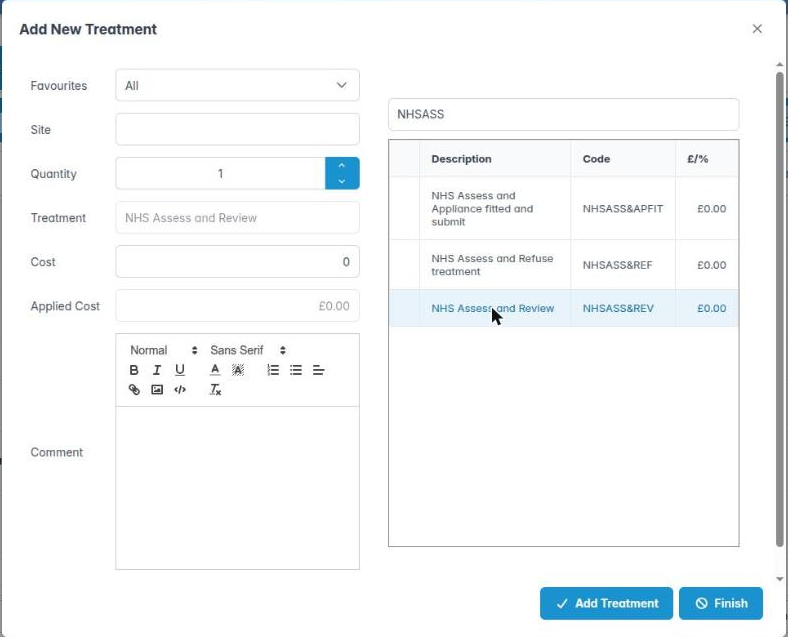
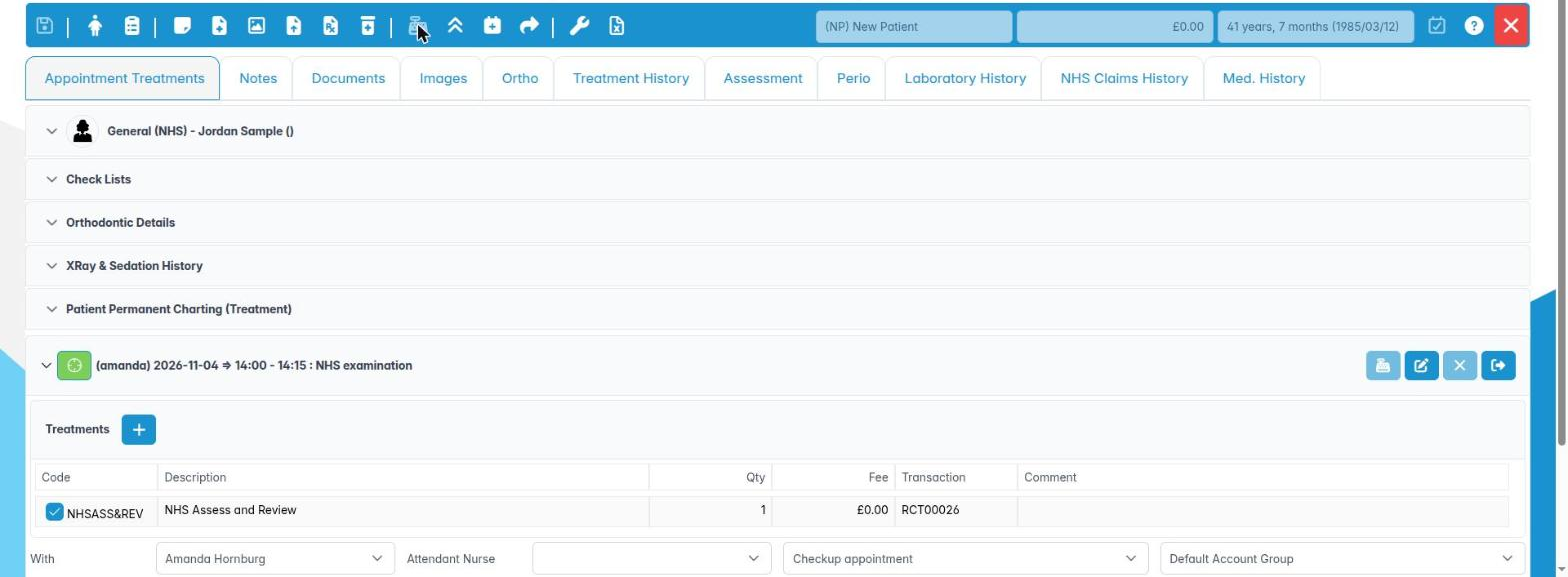
Where to find it Open the appointment from the diary. Treatment is added on Appointment Treatments, by charting on the tooth chart or by right-clicking the treatment list and choosing Add Treatment.
How to
- Chart each item of NHS treatment as usual, such as an examination, radiographs, fillings or extractions.
- Charting an item adds it to the course. Treatment completed today counts as complete on the claim. Items still planned for later visits count as incomplete.
- Before you commit, look at the charges. Check that each NHS item uses the NHS version of the treatment code your practice has set up.
- When the course is complete, use Commit Appointment (see Taking the NHS charge).
Good to know
- The practice manager links a treatment code to its NHS code in Housekeeping › Treatment Codes using the NHS Code drop-down. If an item is missing from the claim, ask them to check that mapping.
- Treatment completed in the course and treatment left incomplete are recorded separately, so a patient who stops attending can still have an incomplete claim.
- Orthodontic appointments (an appointment type marked as ortho) make an FP17O instead. See NHS orthodontic claims.
- Some items have their own category instead of a band, such as denture repairs, arrest of bleeding, removal of sutures, prescription only and Regulation 11 replacement. The 2026 reform changed how some of these are claimed. Check with Chiral Systems before relying on them.

2. Record the NHS KPIs and NICE recall
You can complete the NHS KPIs tab for the course of treatment.
Why this matters NHS England collects clinical data about each course of treatment, such as whether a basic periodontal examination was done, whether smoking status was recorded, and what recall interval was recommended. These indicators support contract monitoring and quality reporting. The recall interval also feeds the claim’s NICE declaration. Accurate KPIs show the care your team actually gives.
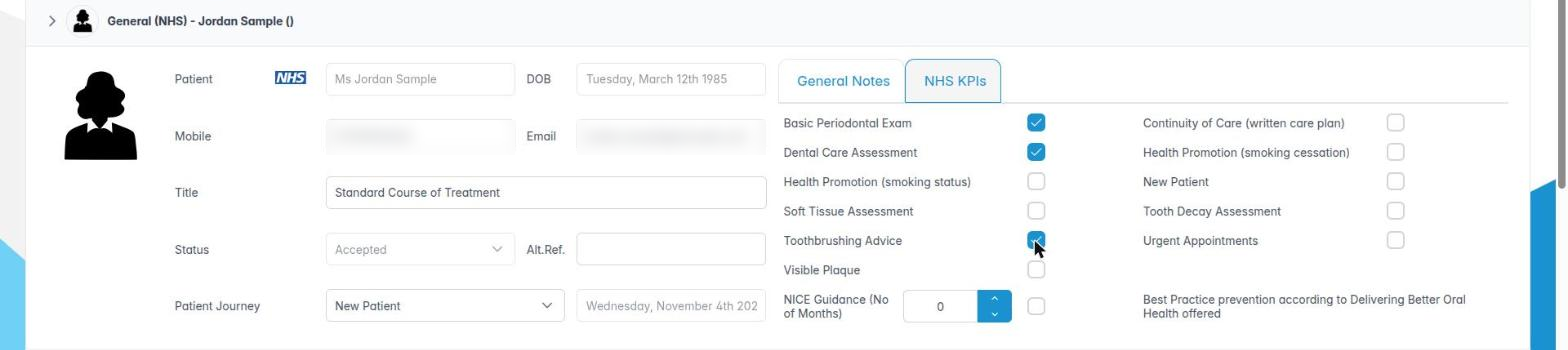
Where to find it Open the appointment for an NHS patient. In the General panel, choose the NHS KPIs tab next to General Notes. The tab only appears for NHS patients.
How to
- Tick each item you have done in this course:
– Basic Periodontal Exam, Dental Care Assessment, Tooth Decay Assessment, Soft Tissue Assessment, Visible Plaque
– Health Promotion (smoking status), Health Promotion (smoking cessation), Toothbrushing Advice
– Continuity of Care (written care plan), New Patient, Urgent Appointments - Set NICE Guidance (No of Months) to the recall interval you have agreed with the patient, from 0 to 24. Follow NICE CG19: base it on the patient’s risk, from 3 months up to 24 months for adults with good oral health. The maximum for under-18s is 12 months.
- Tick Best Practice prevention according to Delivering Better Oral Health offered when you have given that advice.
- Click Save.
Good to know
- Only tick what you have actually done and recorded in your notes. These items can be audited.
- Recall interval data matters more since 2026, because NHS England’s quality improvement programme looks at recall intervals.
- General Notes next to it is the free-text note for the treatment plan.
3. Complete the course and stack the claim
You know what ChiralCloud puts on the FP17 when you commit the appointment, and which declarations it makes for you.
Why this matters When you commit an NHS appointment, ChiralCloud builds the FP17 for you. It fills in the performer, the dates, the band, the treatment provided, the exemption code, the patient charge, the NICE recall and your declarations. The claim is made in your name under your performer number, so you are responsible for what it says.
What goes on the claim
- Performer: the appointment’s clinician, or the person chosen in Performers if they aren’t registered.
- Dates: the date of acceptance (when the course began) and the date of completion (this appointment).
- Band and UDAs: from the highest-banded NHS item.
- Incomplete band: set if any charted NHS item is still outstanding.
- Exemption code and Patient Charge: from the NHS Registration tab and the receipt.
- Declarations: the clinician’s statement that all the necessary care and treatment the patient is willing to undergo has been carried out (or will be provided), and the NICE guidance statement.
How to
- Before you commit, check the course really is complete, or that the patient has stopped attending.
- Check the KPIs and NICE recall.
- Click Commit Appointment and take the charge (see Taking the NHS charge).
- When you see Claim Stacked: Claim successfully stacked, the claim is waiting on the Stacked tab in NHS Management.
Good to know
- Each Commit Appointment that includes NHS-coded treatment stacks a claim. For a course over several visits, ask your practice manager how your practice handles interim visits, so you don’t end up with two claims for one course.
- Your PIN is entered only at submission, so you can still correct a stacked claim.
4. Check a patient’s NHS claims history
You can read a patient’s past NHS claims, their status and any rejection message.
Why this matters Before you start a new course, it helps to know what the patient has had recently. A course completed in the last two months may mean any further Band 1 or Band 2 treatment is free continuation of care. An orthodontic patient may already have an assessment claim. A rejected claim may still need fixing. The claims history shows all of this in one place.
Where to find it
- In the patient record, the NHS Claims History tab.
- In the appointment editor, the NHS Claims History tab, without leaving the appointment.
How to
- Open the tab. The NHS Claims table lists every claim, oldest submission first.
- Read the columns:
– Submitted On and Status (Stacked, Submitted, Scheduled, Rejected, Removed and so on).
– Count: how many times the claim has been sent.
– Claim: NHSBSA’s claim reference.
– Form: FP17, or FP17O with its stage, for example “FP17O (Assess and Review)”.
– Units: the units NHSBSA scheduled, then ChiralCloud’s own estimate in brackets.
– Expected: the value and period from the schedule.
– Stage: the patient journey code when the claim was made.
– Provider/Message: the performer, or for an error the rejection reason. - Click a row to select it.
Good to know
- Units show “–” until NHSBSA schedules the claim.
- To edit or resubmit a claim, use NHS Management. That needs the UDA claims permission.
- Right-clicking a row here does nothing at present.
More detail: Patient nhs claim history.
