For practice managers: review, correct, submit, follow up and reconcile NHS claims across the Stacked, Submitted, Rejected, Removed and Scheduled tabs in NHS Management.
Who it is for: practice managers and administrators.
In this guide:
- Find your way around NHS Management
- Review stacked claims before you send them
- Correct a claim with Edit Claim
- Submit a performer’s claims to NHSBSA
- Cancel a claim that shouldn’t be sent
- Follow up, resubmit or delete a submitted claim
- Fix and resubmit a rejected claim
- Check NHSBSA’s schedule and removed claims each month
- Find a claim by number and download claims to a spreadsheet
1. Find your way around NHS Management
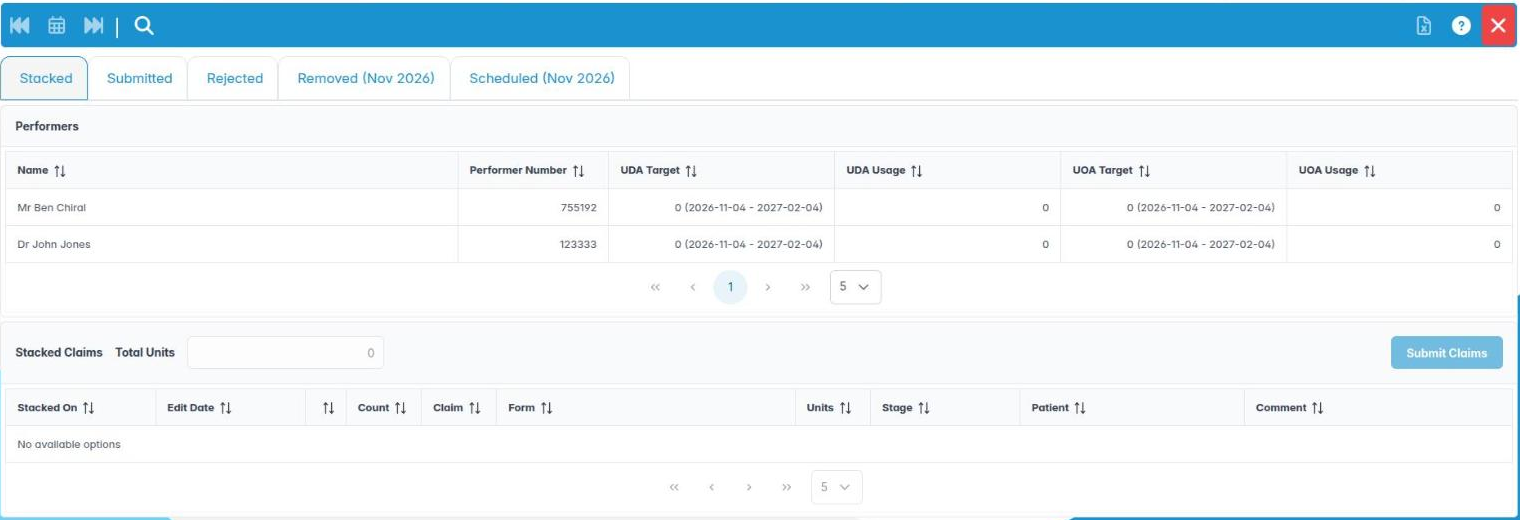
You can open NHS Management, choose a performer and move between the five claim tabs.
Why this matters NHS Management is where claims are checked, sent and followed up. Every claim belongs to a performer, so you always start by picking one. A claim left on the wrong tab, whether stacked and never sent or rejected and never fixed, is income the practice doesn’t receive.
Where to find it NHS Management in the left menu. You need the UDA claims permission (AID_UDACLAIMS).
How to
- Open NHS Management. Five tabs run along the top:
– Stacked: claims made at Commit Appointment and not yet sent.
– Submitted: sent to NHSBSA and waiting for a response.
– Rejected: returned with errors to fix.
– Removed (month): cancelled, duplicate or deleted claims for the month shown.
– Scheduled (month): accepted claims on NHSBSA’s schedule for the month shown. - On any tab, click a clinician in the Performers table (Name, Performer Number). Their claims load in the panel below.
- Right-click a performer for UDA/UAO Details (Stacked tab only) or Show Performer Details, which opens their user record.
- On Removed and Scheduled, use Back a month, Today and Forward a month on the toolbar to change month. The month shows in the tab name.
- Click Save & Exit to close.
Good to know
- If you have the Show only my claims permission (AID_NHS_SHOW_ONLY_MY_CLAIMS), the Performers table shows only you. This suits clinicians who submit their own claims.
- Clinicians appear here only once they are under UDA management with a performer number.
- The month buttons are greyed out on Stacked, Submitted and Rejected, because those tabs always show everything outstanding.
2. Review stacked claims before you send them
You can read the Stacked table and open the patient or their claims history from a claim.
Why this matters A quick check of stacked claims catches most errors before NHSBSA does: a missing NHS number, the wrong band, an adult orthodontic case without commissioning approval, or the same course stacked twice. Fixing a claim now is much quicker than fixing a rejection later.
Where to find it NHS Management › Stacked, then select a performer.
How to
- Read the Stacked Claims table. Its header shows Total Units for this performer.
– Stacked On and Edit Date (when it was last changed).
– An exclamation icon: the claim needs commissioning approval (adult orthodontics).
– Count, Claim (reference, if it has been sent before), Form (FP17 or FP17O stage) and Units.
– Stage (patient journey), Patient and Comment. - Click a column header to sort by it, for example Patient to spot two claims for the same person.
- Right-click a claim for:
– Show Claims History: opens the patient’s record so you can compare with earlier claims.
– Patient Details: opens the patient on their Personal tab to fix a name, date of birth or address.
– Edit Claim, Mark as Cancelled, Submit Claim and Update Patient Journey Stage (covered in the next steps). - To move the patient on in their journey (for example, to “Course complete”), choose Update Patient Journey Stage, pick from the Patient Journey list, and click OK. Every claim for that patient updates.
Good to know
- Two claims for one course usually mean the course was committed twice. Cancel the extra one.
- If Patient Details says “This claim is not linked to a patient record”, tell Chiral Systems.

3. Correct a claim with Edit Claim
You can correct a claim’s patient details, exemptions and declarations before sending it.
Why this matters Edit Claim shows the claim much as NHSBSA will see it, part by part. Most fixes are made here, without going back to the appointment.
Where to find it Right-click a claim on Stacked, Submitted, Rejected or Scheduled and choose Edit Claim. The title shows the claim reference, or the patient’s name and edit date.
How to
- Patient Information (Part 2): check NHS Number (red if it is missing), Title, Surname, Forename, the address lines, Previous Name, Gender, Date of Birth and Patient Charge.
- Exemptions and Remissions (Part 3): tick or untick the exemption and Exemption Shown. This opens the supporting details dialog where needed.
- For an FP17, Nice Guidance & Declaration (Part 7 & 9):
– set the NICE recall in months (0–48) for “I have given preventative advice and recommended a recall interval…”;
– tick “All the necessary care and treatment that the patient is willing to undergo will be provided” or “…has been carried out”. - For an FP17O, Parts 5 or 6 appear instead (see NHS orthodontic claims).
- Finish with the buttons at the bottom:
– On a stacked claim, click OK to save your changes. The Edit Date updates.
– On a sent claim, click Resubmit to send the corrected claim. You are asked for the performer PIN.
– Click Cancel to close without saving.
Good to know
- Corrections made here change the claim only. Fix the patient’s record as well, so the next claim is right.
- Use Mark as Cancelled, not Delete, to remove a stacked claim. On a stacked claim, Delete currently just saves it.
- On a submitted or scheduled claim, Delete only works when you have opened the claim through Claim Search.
4. Submit a performer’s claims to NHSBSA
You can send one claim, or all of a performer’s ready claims, using their PIN.
Why this matters Nothing is paid until a claim is submitted. Each submission is authorised with the performer’s PIN, which confirms the claim is theirs. NHSBSA expects claims within two months of the course finishing, so most practices submit at least weekly.
Where to find it NHS Management › Stacked, after selecting a performer.
How to
- To send everything that is ready for this performer, click Submit Claims in the Stacked Claims header. It is greyed out until you select a performer.
- To send one claim, right-click it and choose Submit Claim.
- The Performer PIN Validation dialog opens. Enter the 6-digit Performer PIN. OK only becomes active once six digits are entered.
- Click OK. The claims leave the Stacked tab and appear on Submitted.
- If you see Performer Pin Validation: The supplied performer PIN does not match that held by the system, check that you chose the right performer and re-enter the PIN.
Good to know
- Submit Claims sends every FP17 and every FP17O that has a final outcome. An orthodontic claim that is still waiting for the appliance to be fitted stays on Stacked.
- Ideally the performer enters their own PIN. If a manager submits for them, agree this in writing and keep the PIN private.
- Check the Total Units in the header before you submit. A sudden jump can mean duplicate claims.
- After NHSBSA processes the batch, claims move to Scheduled (accepted) or Rejected.
5. Cancel a claim that shouldn’t be sent
You can mark a stacked or rejected claim as cancelled, with a reason.
Why this matters Sometimes a stacked claim should never go to NHSBSA. For example, the course was committed twice, the patient turned out to be private, or a rejected claim can’t be fixed. Cancelling moves the claim to Removed with a written reason. That way your records show why the activity was never claimed.
Where to find it Right-click a claim on Stacked or Rejected and choose Mark as Cancelled.
How to
- Right-click the claim and choose Mark as Cancelled.
- The Narrative dialog opens. Its panel reads Removal Narrative : Not yet submitted for a claim never sent, or Removal Narrative for claim : with its reference.
- Type a clear reason in Comment, for example “Duplicate of claim stacked 3 March – course committed twice”.
- Click OK. The claim moves to the Removed tab for this month.
Good to know
- Cancelling doesn’t contact NHSBSA. To withdraw a claim NHSBSA has already received, use Delete Claim on the Submitted tab.
- You can’t undo a cancellation from the screen. If you cancelled by mistake, commit the course again or contact Chiral Systems.
- Write the reason for a colleague or an auditor reading it months later.
6. Follow up, resubmit or delete a submitted claim
You can track submitted claims, resend one, or ask NHSBSA to delete one sent in error.
Why this matters A submitted claim should be processed within days. One that sits on Submitted for weeks may never have arrived. A claim sent for the wrong patient or course must be withdrawn, or the practice is paid for activity it didn’t do.
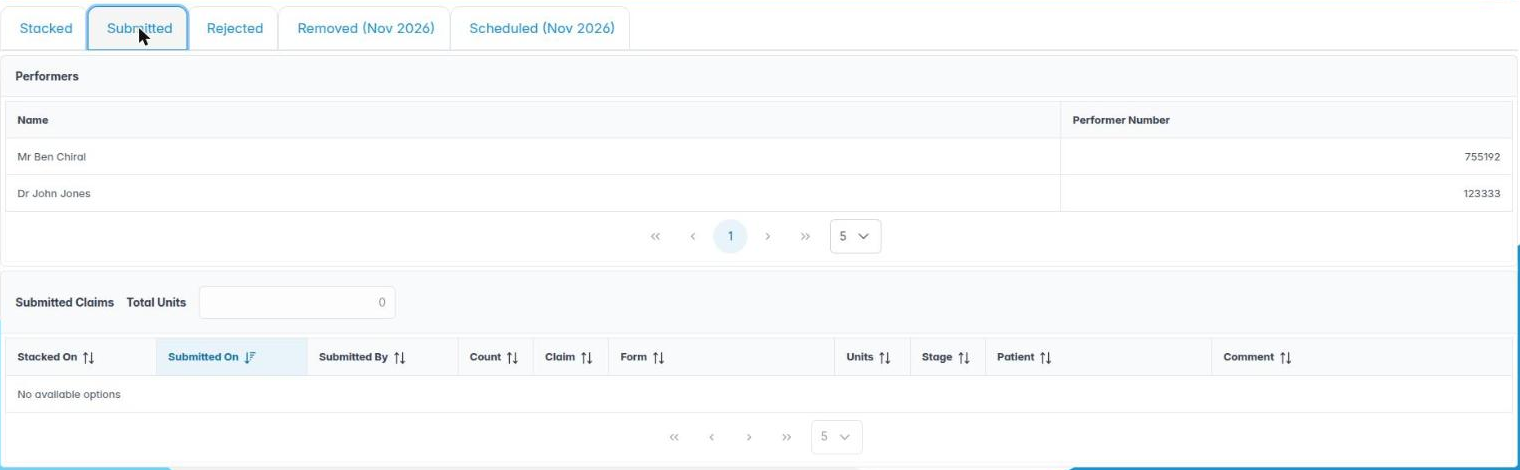
Where to find it NHS Management › Submitted, then select a performer.
How to
- Read the Submitted Claims table: Stacked On, Submitted On, Submitted By, Count, Claim, Form, Units, Stage, Patient and Comment.
- Sort by Submitted On to see the oldest first.
- Right-click a claim:
– Edit Claim: correct it, then click Resubmit in the footer to send the corrected version.
– Resubmit Claim: send it again as it is, after entering the Performer PIN. Use this when a claim seems to have gone missing.
– Delete Claim: ask NHSBSA to delete a claim sent in error. - For Delete Claim, the Narrative dialog shows Deletion Narrative for claim : and the reference. Type the reason in Comment, enter the Performer PIN, and click OK.
Good to know
- Each resubmission adds one to Count. A high count is worth looking into before you send again.
- Deleting a claim NHSBSA has accepted removes its UDAs or UOAs from the contract. Only do it when the claim really was wrong.
- A wrong PIN gives the “supplied performer PIN does not match” message, and nothing is sent.
7. Fix and resubmit a rejected claim
You can read a rejection, correct the claim and resubmit it, or close it as a duplicate or cancelled.
Why this matters A rejected claim earns nothing until it is fixed. NHSBSA still expects corrected claims to arrive within its time limits, so work through Rejected at least once a week.
Where to find it NHS Management › Rejected, then select a performer.
How to
- Read the Rejection Message column. It holds NHSBSA’s error codes and text, for example an invalid NHS number, a date order problem, or a missing exemption detail.
- Work out what needs to change. Often it is the patient’s record (NHS number, date of birth or address), not just the claim.
- Right-click the claim and choose Edit Claim. Correct the right part, then click Resubmit and enter the Performer PIN.
- If you only need to resend it unchanged (for example, after NHSBSA fixes something on their side), use Resubmit Claim.
- If NHSBSA rejected it because the same claim already exists, choose Mark As Duplicate, type the reason in the Narrative dialog, and click OK. It moves to Removed.
- If it can’t be fixed, choose Mark as Cancelled and record why.
Good to know
- Fix the source too. If an exemption was wrong, correct it on the patient’s NHS Registration tab.
- Keep a short practice list of common rejection codes and what fixes them. It speeds things up for everyone.
- Your practice can give the Enable claim duplicate marking permission (AID_CLAIM_DUPLICATE) to the people who should use Mark As Duplicate. At present the screen doesn’t check it.
8. Check NHSBSA’s schedule and removed claims each month
You can review the Scheduled and Removed tabs month by month and read a claim’s schedule details.
Why this matters NHSBSA’s monthly schedule is what the practice is actually credited with. Comparing it with what you sent shows lost claims, units NHSBSA has changed, and comments that need action. The Removed tab is your record of claims that were deliberately not paid.
Where to find it NHS Management › Scheduled (month) and Removed (month). Use Back a month, Today and Forward a month to change month.
How to
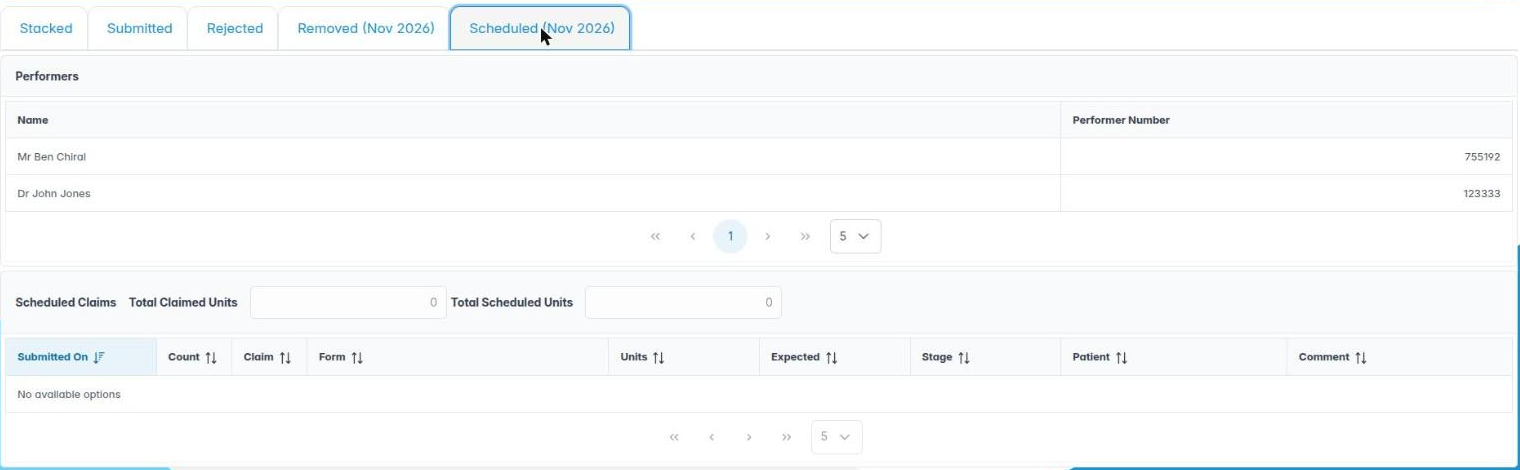
- On Scheduled, select a performer. The header shows Total Claimed Units and Total Scheduled Units.
- Read Units: NHSBSA’s figure first, then ChiralCloud’s own in brackets, for example “3 (3)”. Look for rows where the two differ.
- Expected shows the value and period from the schedule.
- Comment shows any schedule comments, such as “late claim” notes.
- Right-click a scheduled claim and choose Claim Schedule Details to read every schedule line for it in the NHS Scheduled Claim dialog. Click OK to close.
- If an accepted claim needs amending, right-click and choose Edit Claim, then Resubmit, or use Resubmit Claim.
- On Removed, check the Removed On, Removal Narrative and Status for each claim cancelled, deleted or marked as a duplicate that month.
Good to know
- Compare the month’s scheduled total with the performer’s monthly share of their target (see Monitoring UDA and UOA delivery).
- Right-clicking a removed claim shows no menu, because removed claims are a record only.
- Download the month’s figures with the spreadsheet button to keep your own copy.
9. Find a claim by number and download claims to a spreadsheet
You can open any claim from its reference and export a tab to Excel.
Why this matters NHSBSA letters, Compass and audits quote the claim reference, not the patient. Claim Search takes you straight to that claim. The spreadsheet download gives you a copy you can filter, share with an accountant, or keep for contract monitoring.
Where to find it The NHS Management toolbar.
How to
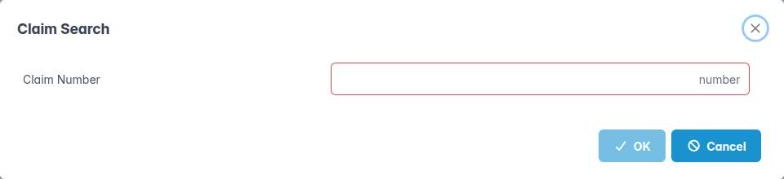
- Click Claim Search (the magnifier on the left). The Claim Search dialog opens.
- Type the Claim Number and click OK. OK stays greyed out while the box is empty.
- If the claim exists, Edit Claim opens on it, whichever tab it is on. You can correct it, Resubmit it, or Delete it there, with the performer’s PIN.
- If not, you see Claim Not Found: NHS Claim not found with supplied reference. Check the number.
- To download, go to the tab you want and select a performer. Then click the green spreadsheet button on the right of the toolbar. Its tooltip tells you what you will get, for example “Download the selected performer’s Scheduled claims for Mar 2026”.
- The file saves as nhs_<tab>_<performer>_<date>.xlsx.
- Knowledge Base opens the help article for this screen.
Good to know
- The download button is greyed out until you select a performer on the current tab. Its tooltip says “Select a performer to download…” to remind you.
- The spreadsheet contains patient data. Store it securely in line with your data protection policy, and delete copies you no longer need.
- If the download fails, you see “The claims spreadsheet could not be downloaded”. Try again.