
How NHS England dentistry works in ChiralCloud: NHS patients, contracts, performers, and how a course of treatment becomes a claim. Also covers the 2026 reform and the move from Compass to the NHS Dental Services Portal.
Who it is for: practice managers and administrators, clinicians, dental nurses, receptionists.
In this guide:
- Understand how NHS dentistry works in ChiralCloud
- Mark a patient as an NHS patient
- Set up the practice’s NHS contracts
- Register a clinician as an NHS performer
- Follow an NHS course from booking to paid claim
- Keep up with the 2026 contract reform and the NHS Dental Services Portal
1. Understand how NHS dentistry works in ChiralCloud
You can explain courses of treatment, bands, UDAs and UOAs, and how ChiralCloud turns NHS treatment into a claim.
Why this matters In an NHS England practice, the practice is paid for activity, not item by item. Treatment is grouped into a course of treatment. Each completed course is reported to the NHS Business Services Authority (NHSBSA) on an FP17 (general dental) or FP17O (orthodontic) claim. The claim earns Units of Dental Activity (UDAs) or, for orthodontics, Units of Orthodontic Activity (UOAs). These count towards the contract’s yearly target. Everyone on the team affects whether a claim is right: reception records exemptions, clinicians chart and declare, and the practice manager submits.
The key ideas
- Bands. A general course falls into Band 1 (examination, diagnosis, advice, scale and polish), Band 2 (adds fillings, root canal and extractions) or Band 3 (adds crowns, dentures and bridges). There is also urgent care. The band decides the patient charge and the UDA value.
- Patient charges. Adults pay one charge per course for the highest band reached, unless they are exempt.
- Performers. Each claim is made under a performer: a clinician with an NHS performer number and PIN, who works on one of the practice’s contracts.
How ChiralCloud does it
- The patient is marked as NHS, which adds the NHS Registration and NHS Claims History tabs.
- The clinician charts treatment. Treatment codes linked to an NHS code are what count towards the claim.
- At the end of the appointment, Commit Appointment takes the NHS charge and stacks a claim.
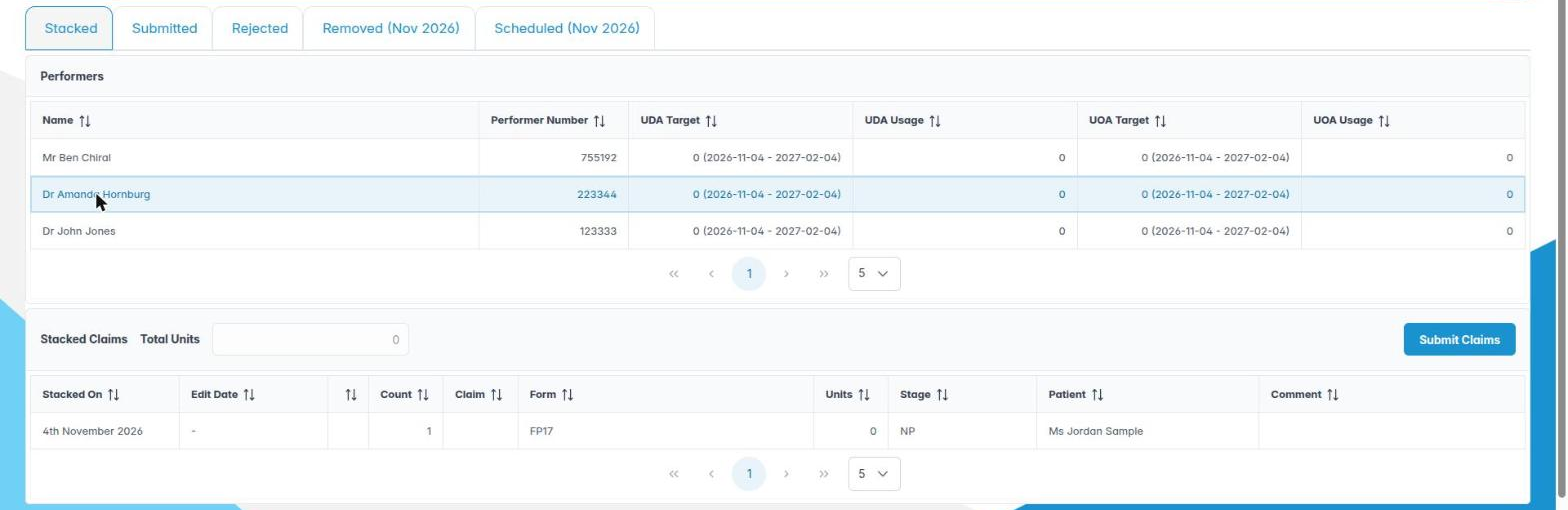
- The administrator checks stacked claims in NHS Management and submits them with the performer’s PIN.
- NHSBSA’s responses come back as accepted (scheduled) or rejected claims.
Good to know
- ChiralCloud’s NHS claims are built for NHS England contracts. Wales, Scotland and Northern Ireland use different forms and systems.
- The UDA figure ChiralCloud shows is its own estimate. NHSBSA’s schedule is the official figure.
2. Mark a patient as an NHS patient
You can switch on a patient’s NHS status so the NHS tabs and NHS charging appear.
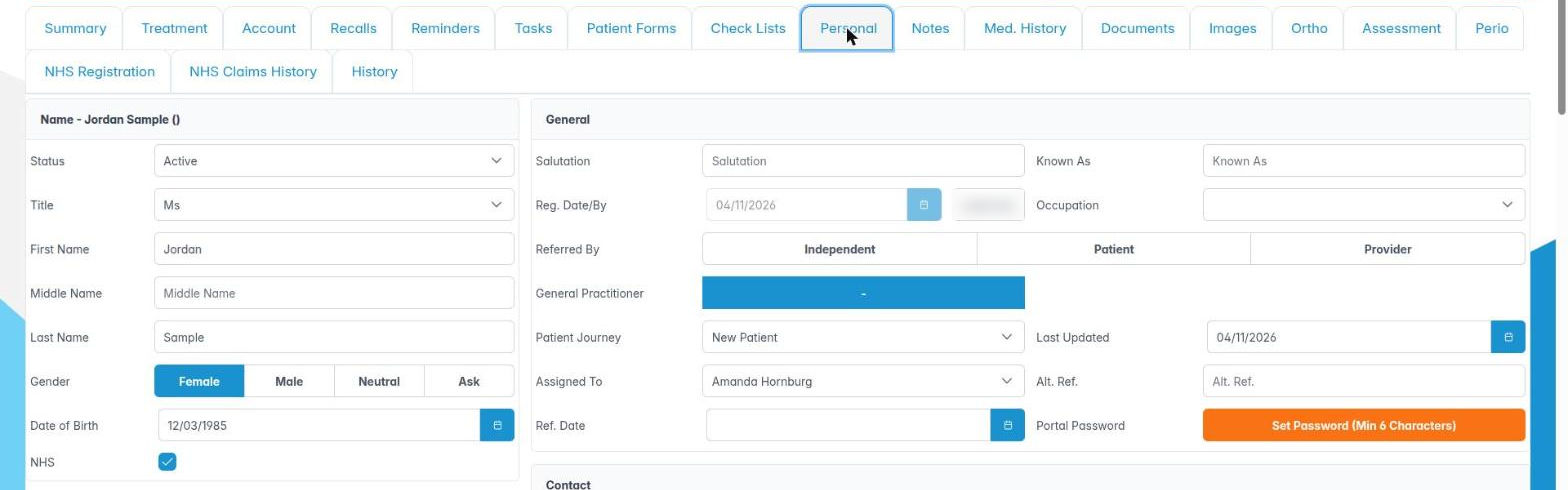
Why this matters ChiralCloud only treats a patient as NHS when the NHS box on their record is ticked. That one tick changes a lot. The patient record gains the NHS Registration and NHS Claims History tabs. The appointment editor shows the NHS KPIs tab and the NHS FP17(DC0) button. Most importantly, the payment button at the end of an appointment becomes Commit Appointment, which works out the NHS charge and stacks a claim. If the tick is missing, the patient goes down the private sales route and no claim is made.
Where to find it Patients › Find Patients, open the patient, then the Personal tab.
How to
- Open the patient’s record and go to the Personal tab.
- Find the NHS tick box next to the name details.
- Tick it for a patient you are seeing under your NHS contract.
- Click Save on the toolbar.
- Close and reopen the record. The NHS Registration and NHS Claims History tabs now appear.
- Go to NHS Registration and complete the details (see Registering NHS patients).
Good to know
- The NHS logo appears beside the patient’s name in the appointment editor. It is a quick visual check before you commit an appointment.
- Only tick the box once you have agreed with the patient that they are being seen on the NHS. Changing status part-way through a course has rules of its own (see NHS and private patients side by side).
- The NHS tick is not shown on tablet registration screens. Reception sets it on the full record.
More detail: Patient personal details.
3. Set up the practice’s NHS contracts
You can add, edit and delete the NHS contracts that claims are made under.
Why this matters Every NHS claim must name the contract it belongs to. NHSBSA checks the contract number and site details on each claim. Wrong details mean every claim from that contract is rejected. You set contracts up once, then link each performer to one.
Where to find it Preferences › NHS Registration. You only see this tab if you have the UDA manager permission (AID_UDAMANAGER).
How to
- Open Preferences and choose the NHS Registration tab. The NHS Contracts panel lists your contracts with Name, Site, Location and Contract No.
- To add one, click the + button (Add Contract) in the panel header. The Create New Contract dialog opens.
- Fill in:
– Description: a name your team will recognise, such as “Main GDS contract”.
– Site: the site number NHSBSA uses (up to 35 characters).
– Location: the 6-digit location number. Shorter numbers are padded with leading zeros.
– Contract No.: the contract number, 10 to 15 digits. - OK stays greyed out until every field is valid. Click OK.
- To change a contract, right-click its row and choose Edit Contract.
- To remove one, right-click and choose Delete Contract, then answer Yes to “Are you sure you want to delete this contract?”
- Click Save (or Save & Exit) on the Preferences toolbar to keep your changes.
Good to know
- Take the numbers from your contract paperwork or Compass. Don’t guess them.
- Don’t delete a contract that performers are still linked to. Move them to the new contract first in UDA Management.
More detail: Nhs registration.

4. Register a clinician as an NHS performer
You can place a clinician under UDA management with their contract, performer number and PIN.
Why this matters NHSBSA only pays for claims made by a registered performer under the right contract. In ChiralCloud a clinician becomes a performer when they are placed under UDA management and have a 6-digit performer number and PIN. Until then, they are not listed in NHS Management. When they commit an NHS appointment, ChiralCloud asks someone to pick a performer instead.
Where to find it Users › Find Users, open the clinician, then the UDA Management tab.
How to
- Open the clinician’s user record and choose UDA Management.
- In the NHS Registration Details panel, tick Place under UDA Management. The fields below become active.
- Choose the Contract from the drop-down. These are the contracts set up in Preferences › NHS Registration.
- Enter the 6-digit Performer Number.
- Enter the 6-digit Performer PIN. It is masked as you type.
- Click Save or Save & Exit.
Good to know
- ChiralCloud will not save or close the user while they are under UDA management unless both the performer number and PIN are exactly 6 characters. If nothing seems to happen when you click Save, check these two fields. The message “The NHS registration details are not complete” means the same thing.
- The PIN is what authorises claim submission. Treat it like a password. Clinicians should not share it beyond the person who submits claims for them.
- Dental care professionals who now open NHS courses (for example, dental nurses applying fluoride varnish under the 2026 reform) also need adding to the contract with NHSBSA before they can claim. Check that this is done before you register them here.
More detail: User uda management.

5. Follow an NHS course from booking to paid claim
You can describe each stage a claim passes through and who acts at each one.
Why this matters Most NHS claim problems start well before submission: a missing exemption, an unmapped treatment code or the wrong performer. If you know the whole journey, you can spot problems at your own stage.
How a course becomes a claim
- Book. Reception books the appointment. For a referred patient, tick Treatment On Referral and enter the Referral Date in the NHS panel of the booking dialog.
- Register. Reception checks the NHS Registration tab: NHS number, exemptions and evidence seen, and the signed patient declaration.
- Treat and chart. The clinician charts treatment in the appointment editor and ticks the NHS KPIs.
- Commit. At the end of the course, click Commit Appointment. ChiralCloud works out the band and the patient charge, takes the payment, then shows Claim Stacked – Claim successfully stacked.
- Check and submit. The administrator reviews the claim on the Stacked tab of NHS Management, corrects it with Edit Claim, and submits with the performer’s PIN.
- Response. The claim moves to Submitted. When NHSBSA processes it, it shows as Scheduled (accepted, with units and value) or Rejected (with a rejection message to fix).
- Reconcile. Each month, the administrator compares scheduled units with the performer’s target.
Good to know
- Submit claims promptly. NHSBSA expects claims within two months of the course finishing. Late claims may not count towards the contract year.
- A claim that never leaves Stacked earns nothing. Check the Stacked tab at least weekly.
- Cancelled claims go to the Removed tab, so there is always a record of why a claim wasn’t sent.

6. Keep up with the 2026 contract reform and the NHS Dental Services Portal
You know what has changed for NHS England dentistry in 2026, what is expected in 2027, and which UK nations ChiralCloud claims cover.
Why this matters NHS dental rules are changing faster than they have for years. Knowing what has changed, and what is still to come, stops your team relying on out-of-date habits.
The April 2026 reform (NHS England) NHS England began reforming the dental contract in April 2026, and further changes followed during the year. Published changes include:
- urgent courses replaced by a new unscheduled care course with its own value, instead of 1.2 UDAs;
- all fissure sealants moved into Band 2;
- fluoride varnish courses that a dental nurse can provide for children (the nurse must be on the contract);
- complex care pathways with monthly declarations, and new rules for denture work.
Your commissioner and NHS England guidance are the authority on how these apply to your contract. Some ChiralCloud screens still use the earlier band and urgent-care rules. Check with Chiral Systems before claiming any of the new course types.
Compass and the NHS Dental Services Portal NHSBSA plans to replace Compass with the NHS Dental Services Portal (NHSDSP). The target date is February 2027, subject to testing. Contract management, declarations, payments and performance dashboards will move into the portal. The way practice systems send claims is expected to change too. Chiral Systems will update ChiralCloud, and your practice may be asked to enter new connection details around go-live. To prepare:
- keep the primary email address held in Compass up to date, because portal registration is sent there;
- download any schedules you want to keep from Compass before it closes.
Other UK nations ChiralCloud sends claims to NHSBSA for NHS England contracts. Wales (FP17W and its own 2026 care packages), Scotland and Northern Ireland have different forms, charges and payment systems. Don’t use these screens for those contracts.