
Write complete clinical notes to FGDP standards, use template notes, manage past notes and maintain the practice’s templates and favourites.
Who it is for: practice managers and administrators, clinicians, dental nurses.
In this guide:
- Know what a good clinical note contains
- Write a clinical note from the appointment
- Find, edit, copy and print notes
- Create and maintain template notes
- Group template notes into favourites
1. Know what a good clinical note contains
You understand the FGDP standards for dental records and who is responsible for them.
Why this matters: the clinical record is the only evidence of what happened. GDC Standard 4.1 requires complete and accurate records, and the FGDP (UK) Clinical Examination and Record-Keeping guidance sets out what they should contain. In a complaint or claim, “if it isn’t written down, it didn’t happen”. Records must also meet UK GDPR: accurate, secure and kept for the right time (in England, typically at least 11 years for adults, and until age 25 or 11 years, whichever is longer, for children).
What a good note includes
- Date, and who was present (clinician, nurse, chaperone, parent).
- The presenting complaint in the patient’s words, and any medical history update.
- Examination findings: extra-oral, intra-oral, soft tissues, BPE, caries, charting changes.
- Radiographs: justification, grade and your report.
- Diagnosis and the options discussed, including risks, benefits, costs and doing nothing.
- The patient’s decision and consent (verbal or written).
- Treatment done: tooth, anaesthetic (type, dose, batch), materials, any complications.
- Advice given, prescriptions, referrals, and the next visit and recall interval.
Good to know
- Write notes at the time or as soon as possible afterwards. Never alter an old note to change its meaning; add a dated addition.
- Nurses often type the note while the clinician dictates. The clinician remains responsible for its content and should check it.
- Templates speed things up, but always edit them to match what actually happened. A copied template that does not match the visit is a poor record.
More detail: Patient notes.
2. Write a clinical note from the appointment
You can add a clinical note to today’s appointment and insert a template.
Why this matters: the clinical note written from the appointment is linked to that visit, so anyone reading it later sees exactly when and why it was made.
Where to find it: Create a patient note on the appointment editor toolbar, or the Notes tab › Add Patient Note.
How to
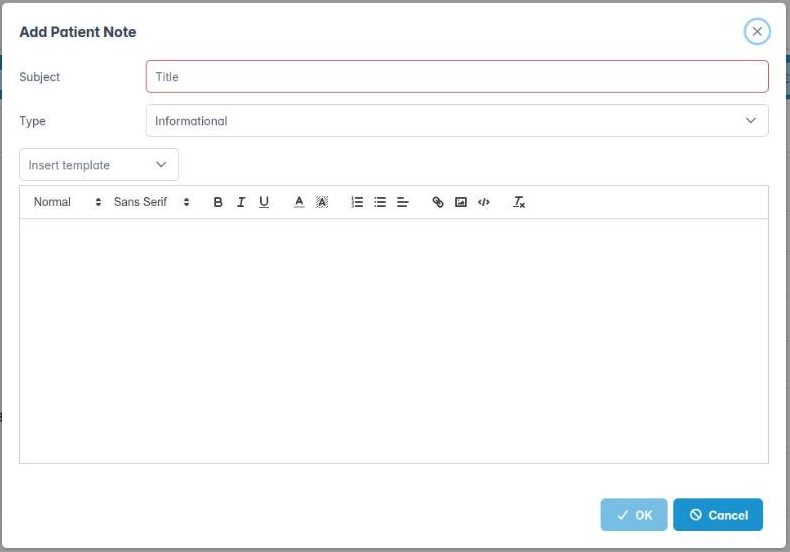
- Click Create a patient note. Add Patient Note opens.
- Enter a short Subject, for example Recall exam or LL6 MOD composite.
- Choose the Type: Medical (Dental) for clinical notes; Informational, Warning or Action for alerts that pop up on future appointments; Complaint for anything the patient raises as a complaint.
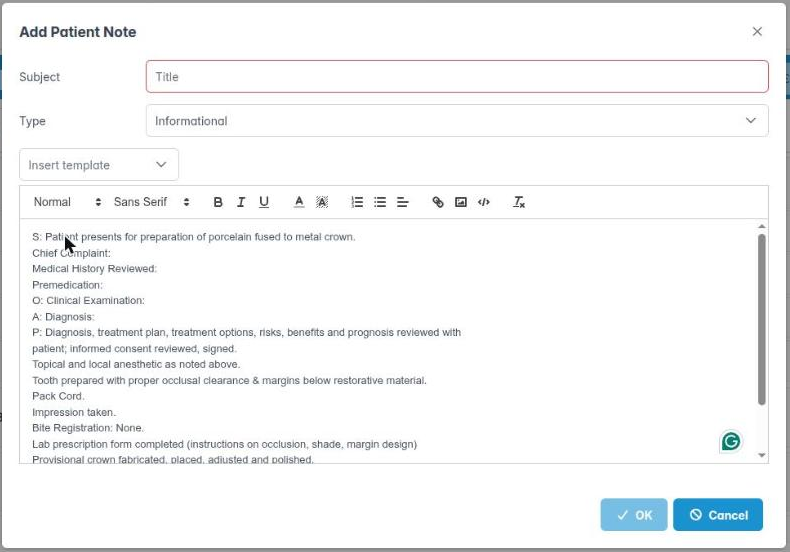
- Use Insert template to drop in one of your practice’s template notes at the cursor. Edit it so it matches what actually happened.
- Type the rest of the note in the editor.
- Click OK, then Save.
Good to know
- The Notes tab in the appointment only shows clinical (Medical (Dental)) notes. Patient and financial notes are on the patient record’s Notes tab.
- Use Warning sparingly, for things every team member must see (allergy, safeguarding flag, aggression). Too many pop-ups means people stop reading them.
- Complaints must also follow your practice complaints procedure (NHS complaints regulations allow 3 working days to acknowledge).
More detail: Patient notes.
3. Find, edit, copy and print notes
You can view past notes, edit or delete them (with permission) and print or copy them.
Why this matters: you’ll often need to read past notes before treating, copy a note into a referral, or print the notes for a patient’s subject access request. Under UK GDPR patients can ask for a copy of their records, and you must normally provide it within one month, free of charge.
Where to find it: the Notes tab (patient record or appointment editor).
How to
- The list shows Made on, By, Subject and Appointment. Click a note to read it.
- Use the copy icon on a note to copy its text to the clipboard, for example to paste into a letter.
- Show the patient note / Print the patient note shows or prints one note.
- Show the patient note(s) / Print the patient note(s) opens Patient Note History to show or print several.
- To correct a note, right-click and choose Edit Note. Change it in Edit Patient Note and click OK.
- To remove one, right-click and choose Delete Note, then confirm Are you sure you want to delete this note?
Good to know
- Edit Note and Delete Note need the Edit Patient Note permission. Most practices give it only to senior staff, because clinical records should be added to, not changed.
- Print Note and Show Note Appointment on the right-click menu are not available yet; use the print buttons instead.
More detail: Patient notes.
4. Create and maintain template notes
You can write, copy, edit and delete the practice’s template notes.
Why this matters: good templates make complete notes quick to write, for example an examination template that prompts for every FGDP item, or a consent template for extractions. Templates are shared across the practice, so a clear, agreed set raises the standard of everyone’s notes.
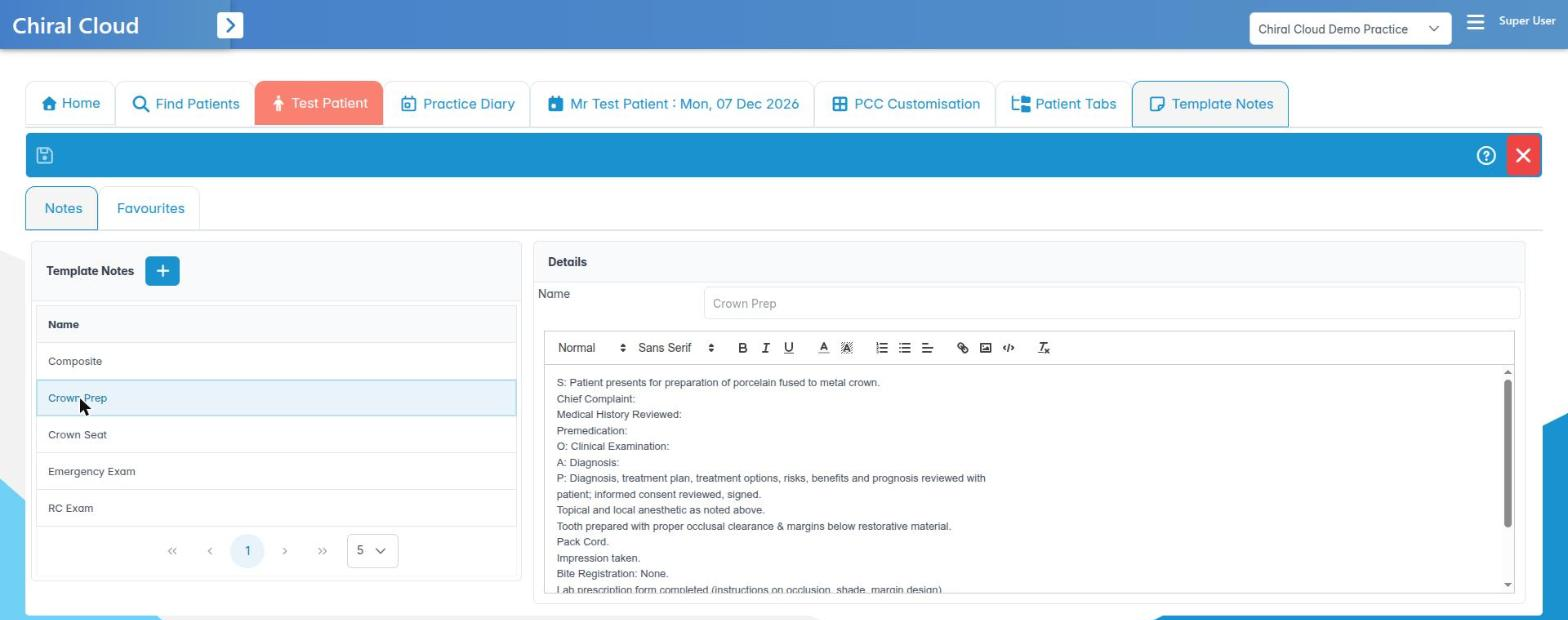
Where to find it: Utilities › Template Notes. You need the Edit Template Notes permission. The screen has two tabs: Notes and Favourites.
How to
- On Notes, click the add button (Add Template Notes). In Add Template Note, give it a Name and write the Content. Use clear prompts, for example BPE: __ __ __ / __ __ __.
- Click OK.
- To change one, right-click it and choose Edit Template Note.
- To make a variation, right-click and choose Copy Template Note, then edit the copy.
- To remove one, right-click, choose Delete Template Note and confirm.
- Click Save. If you close with unsaved changes, Save Resource asks whether to save.
- Save & Exit (or Exit).
Good to know
- Write templates as prompts to fill in, not as finished text. A note that reads the same for every patient is not a good record.
- Agree templates at a clinical team meeting and review them yearly.
- The Knowledge Base button opens help for this screen.
More detail: Template notes.
5. Group template notes into favourites
You can create favourite groups of template notes for a clinician or type of visit.
Why this matters: a hygienist, an orthodontist and a general dentist use different templates. Grouping templates into favourites keeps the right ones together, for example an Implant review set or a Hygiene visit set.
Where to find it: Utilities › Template Notes › Favourites. You need the Edit Template Notes permission.
How to
- Click Create New Template Note Favourite.
- Enter a Code and Description for the group.
- Use Code Search to find templates and move the ones you want into the group.
- Click OK. The group’s contents are listed under Template Note Favourite Members (Name, Description).
- To change a group, right-click it and choose Edit Template Note Favourite.
- To remove a group, right-click it, choose Delete Template Note Favourite and confirm Yes to Are you sure you want to delete this template note favourite?
- Save.
Good to know
- Deleting a favourite group does not delete the template notes in it.
- Keep group names short and obvious so colleagues can find them.