
Coming soon. Release 2.0.77 is being prepared and will reach your practice shortly. This page describes what’s in it.
This release covers all changes since 2.0.76.4.
New Features
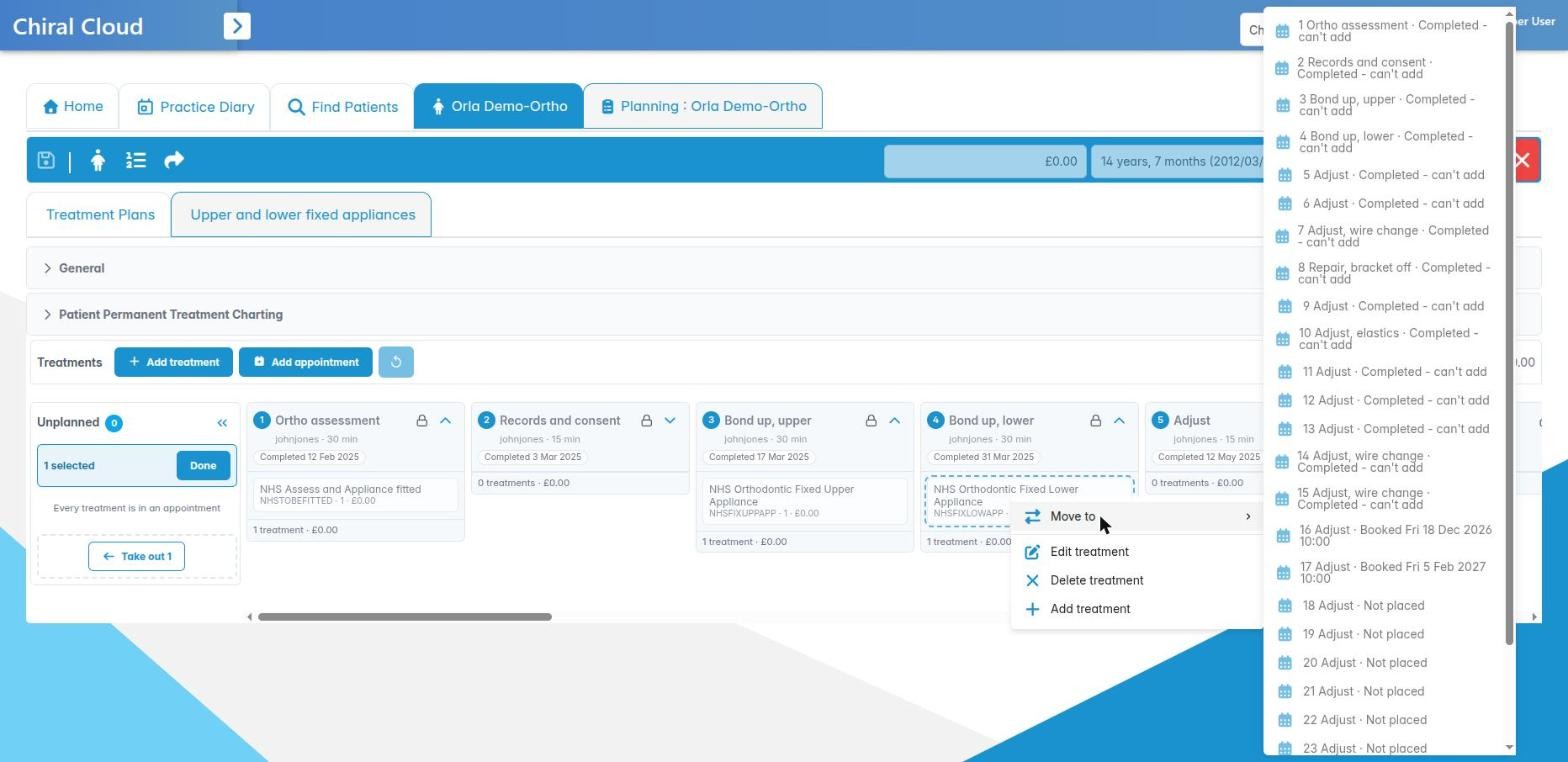
Treatment plans: appointment lanes and moving treatments
The Treatments section of a treatment plan has a new layout. Each appointment in the plan is a lane, side by side in plan order. The top of each lane shows its number, clinician, length, total and status, for example Not placed, Booked Thu 12 Nov 2026 10:00, Completed 28 Oct 2025 or Off the diary. Dates now include the year, which helps on long ortho courses. Completed appointments are greyed out and folded away.
Treatments that are not in an appointment yet sit in the Unplanned panel on the left. There are three ways to move treatments: drag them, right-click and choose Move to, or select them and press Move here on another lane (or Take out to send them back to Unplanned). Ctrl+click and Shift+click select several at once. A lane you cannot move into is greyed out and says why. Every move can be reversed with Undo (or Ctrl+Z) until you save.
Appointments that are not booked yet can be put in a different order by dragging the top of the lane, or by right-clicking it and choosing Move earlier or Move later. A + New appointment lane adds an appointment. If you press Place with unsaved changes, you are asked to save first. If you change an appointment’s With clinician, a warning reminds you which clinician it is now with.
Deleting a treatment plan appointment from the diary now asks “Take this appointment off the diary?”. The appointment stays in the plan, marked Off the diary, and can be placed again later.
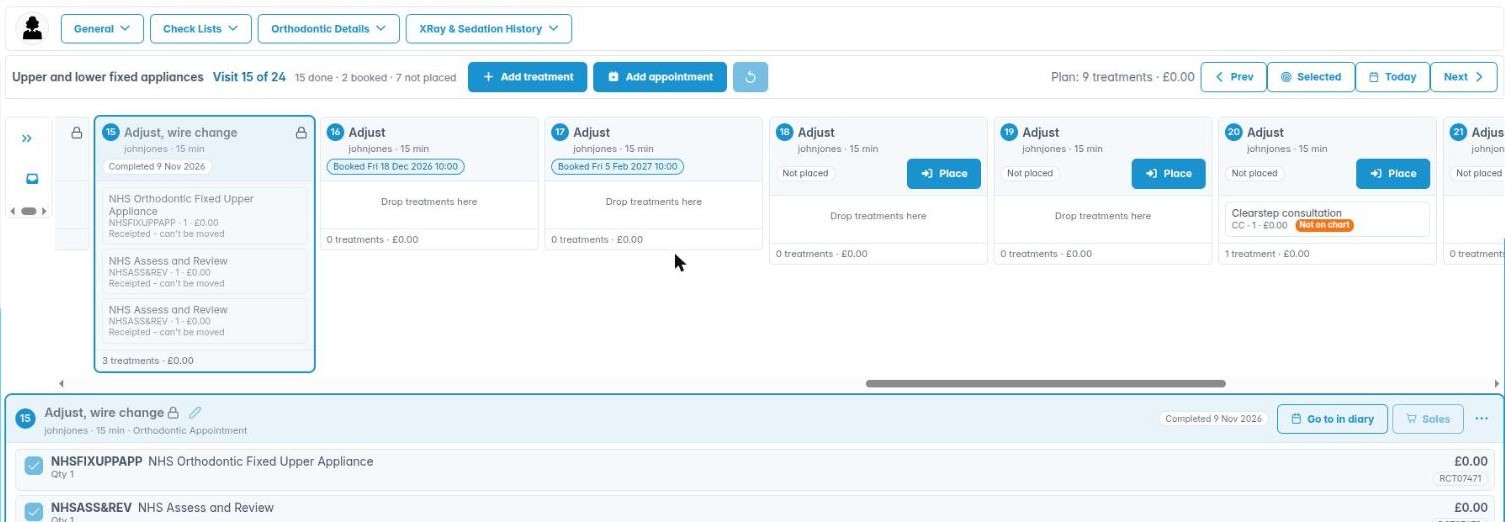
Appointment screen: new Visits tab
The appointment screen’s first tab, previously Appointment Treatments, is now called Visits. It shows the patient’s treatment plan as lanes in one row that scrolls sideways. It opens on the appointment you selected, and the heading shows which visit it is (for example “Visit 15 of 24”) and how many are done, booked and not placed. Use Prev, Selected, Today and Next (or Alt+Left and Alt+Right) to move along the course. Completed visits are folded into one strip, which Show done visits opens.
The selected appointment’s details show under the lanes. The bar across the top opens General, Check Lists, Orthodontic Details and XRay & Sedation History, and remembers which ones you leave open. Treatments can be moved between visits here in the same way as on the treatment plan. The dental chart now has its own Charting tab, next to Visits.
The NHS sales button now reads Stack Claim when the sale will stack an NHS claim, and Sales when it will not, so you can see before you press it whether a claim will be made. The toolbar’s NHS button tells you the same in its tooltip.
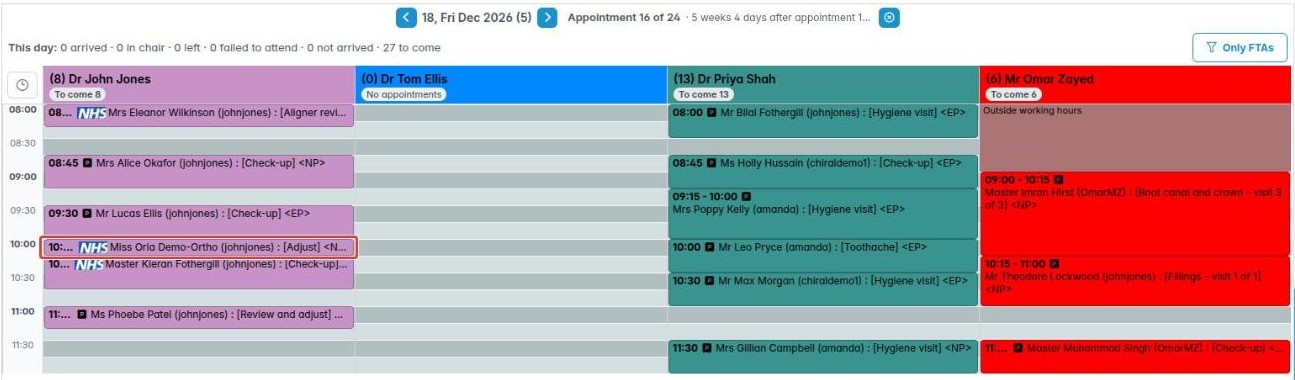
Diary: Prev planned and Next planned
When you place a treatment plan’s appointments in the Practice diary, two new buttons on the date line above the clinician columns, ‹ Prev planned and Next planned › (or Alt+Left and Alt+Right), step through the plan’s appointments in plan order. A booked appointment is shown and outlined in its clinician’s column. An appointment that is not in the diary yet becomes the next one to place, with a note such as “Appointment 3 is not in the diary yet”. A line shows the gap to the appointments either side, for example “3 weeks after appointment 1”.
The same buttons appear when you use Go to in the diary from a treatment plan lane, so you can move on to the plan’s other appointments without going back to the plan.
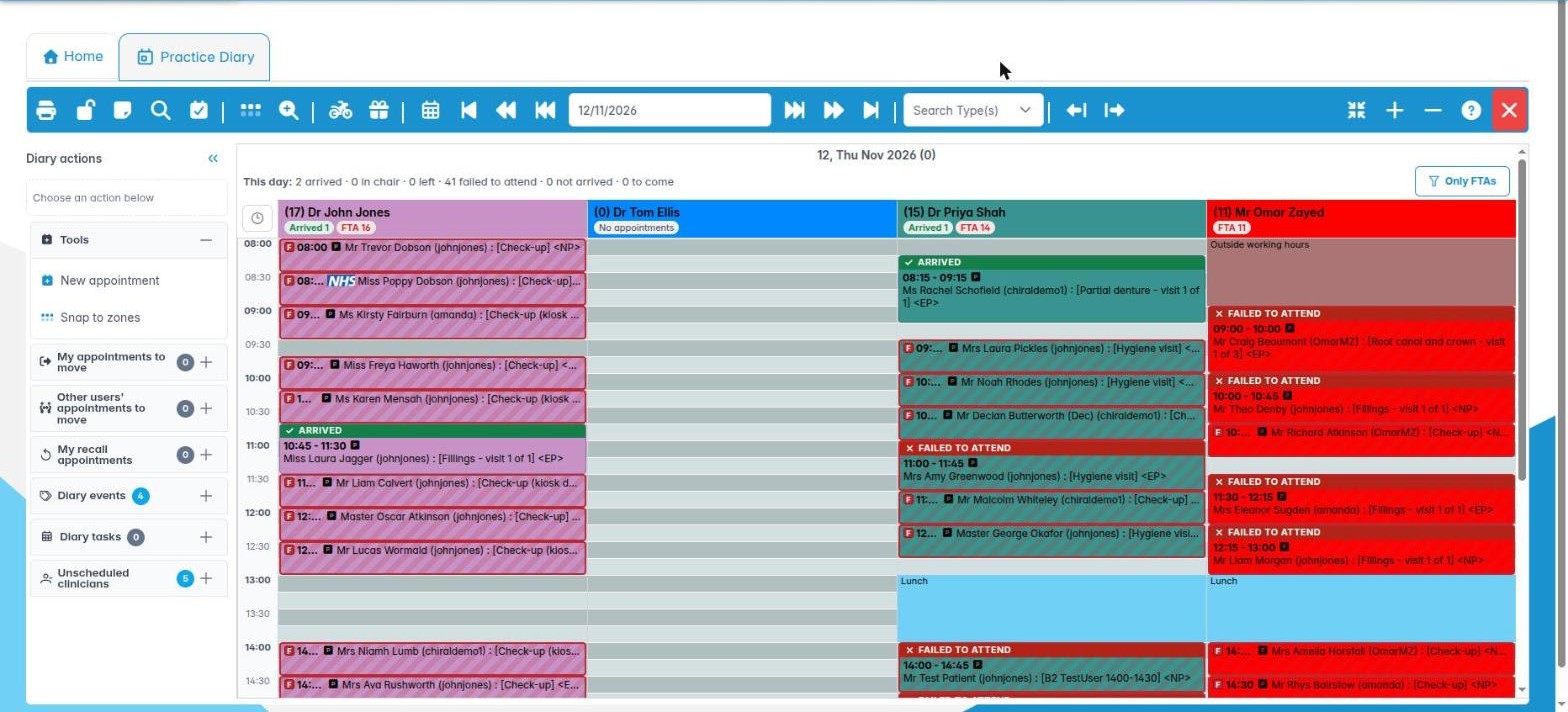
Diary: status styles and failed to attend
The practice can now choose how the diary shows each appointment’s progress through the day. In Preferences › Diary Settings › Diary status style, pick one of four styles: Classic (as before), Bold edge, Header band or Fade the past. A preview shows each one. The choice applies to the whole practice, and diaries already open on other computers change straight away.
Appointments now show when a patient has not arrived yet and when they failed to attend. In the Header band style, a failed to attend appointment keeps its colour and gets a red FAILED TO ATTEND band and hatching.
Two more settings in the same place:
- Show day counts adds a line under the date showing how the day is going, and counts under each clinician’s column.
- Show ‘Only FTAs’ filter adds an Only FTAs button above the diary. It fades every appointment except those that failed to attend.
If Arrival Time Monitoring is on in Diary Settings, an appointment that is past its end time and was never marked as arrived is shown as Failed to attend (not marked arrived). This works in the Practice diary, the Clinician diary and the Practice week diary. With Arrival Time Monitoring off, only appointments recorded as failed to attend are shown that way.
Diary magnifier shows arrival times
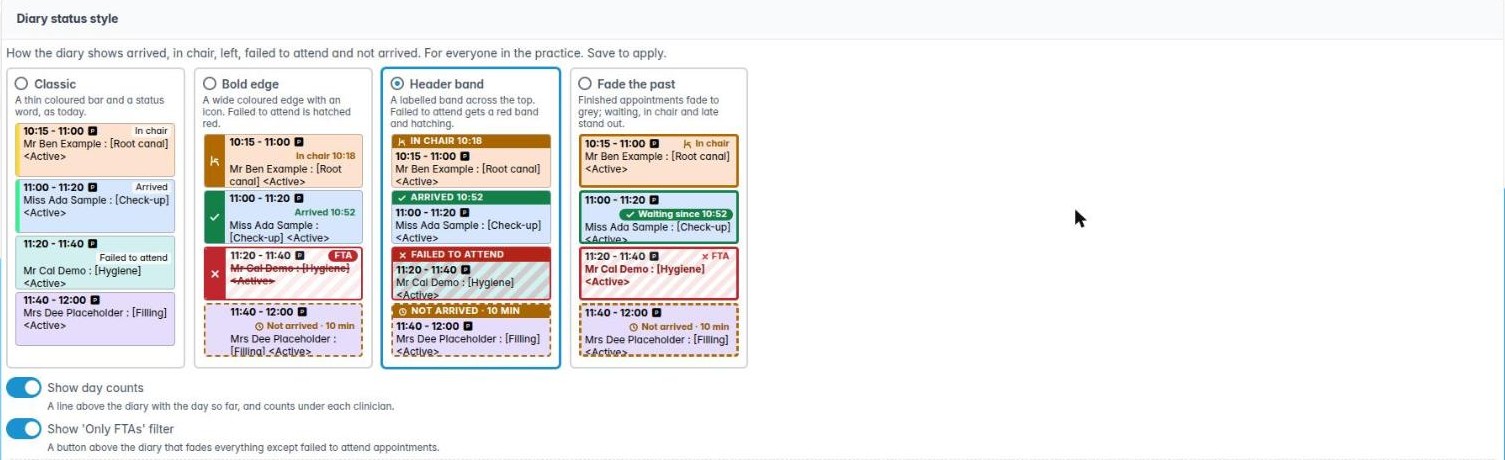
The diary magnifier and the appointment details popup now show Arrived, In chair and Left times as the patient reaches each stage. Each line stays as the appointment moves on, so the time the patient checked in is always shown. The old “Checked in” line is now called Arrived.
UK public holidays in the diary
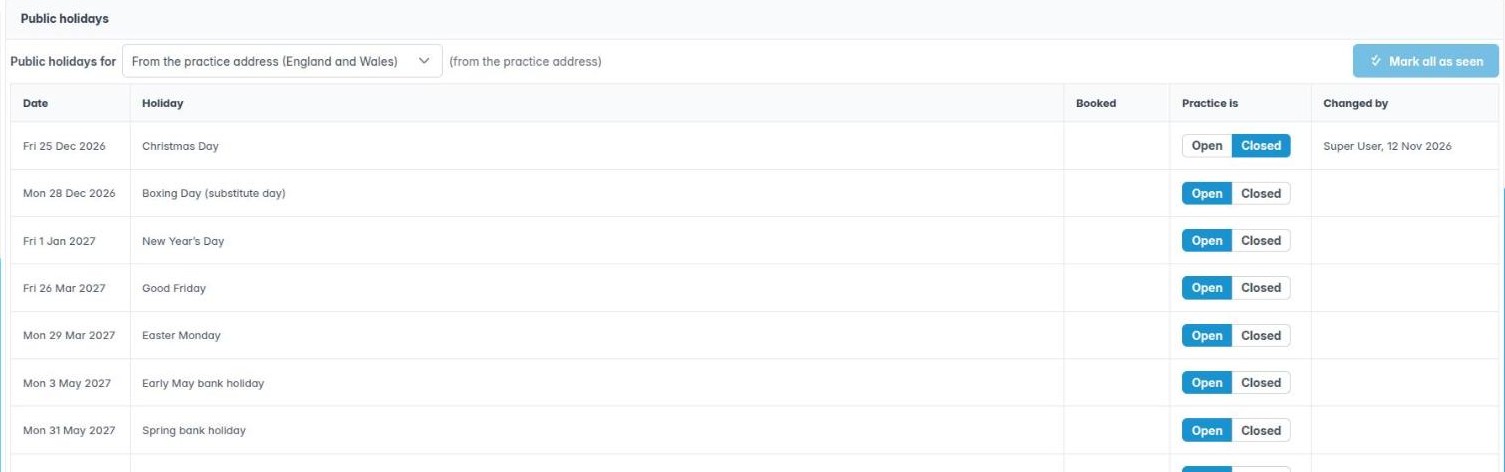
Chiral Cloud now knows the UK public holidays, and updates them from GOV.UK. A new Preferences › Public holidays section lists them. Use Public holidays for to choose England and Wales, Scotland or Northern Ireland, or leave it to follow the practice address.
Every holiday starts as Open. Set a holiday to Closed if the practice is shut that day. If appointments are already booked that day, you are asked first. Nothing is cancelled or moved. The table shows how many appointments are booked and who last changed each day.
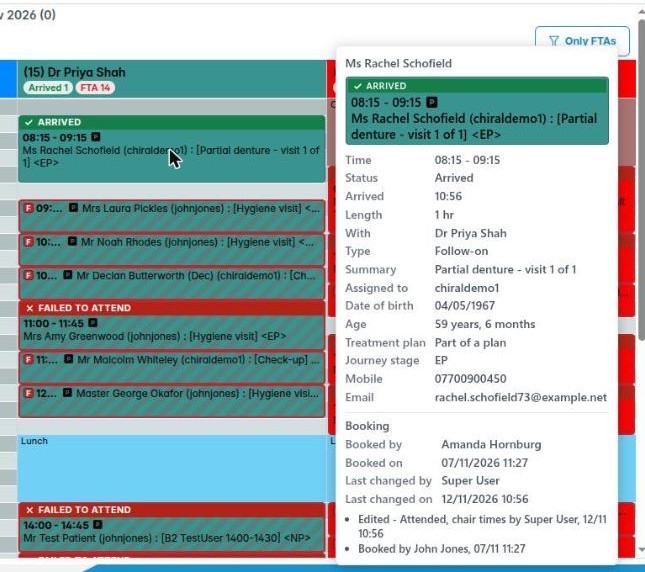
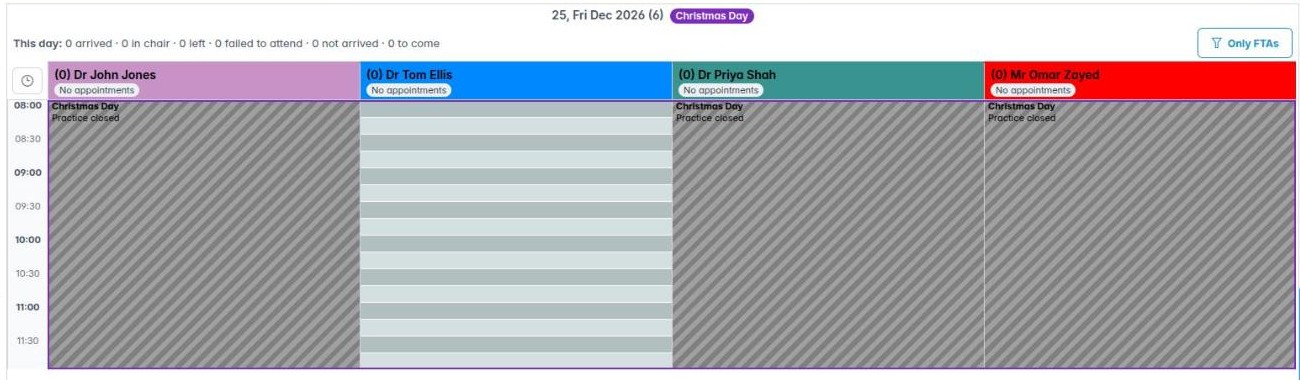
In the diary, a public holiday has a frame and its name next to the date, and the magnifier shows its details. A closed day shows a Practice closed band, and Find Available Slot and online booking skip it. When new holidays are published, the PCC shows a line asking you to review them in Preferences. Mark all as seen clears it.
Prices per clinician
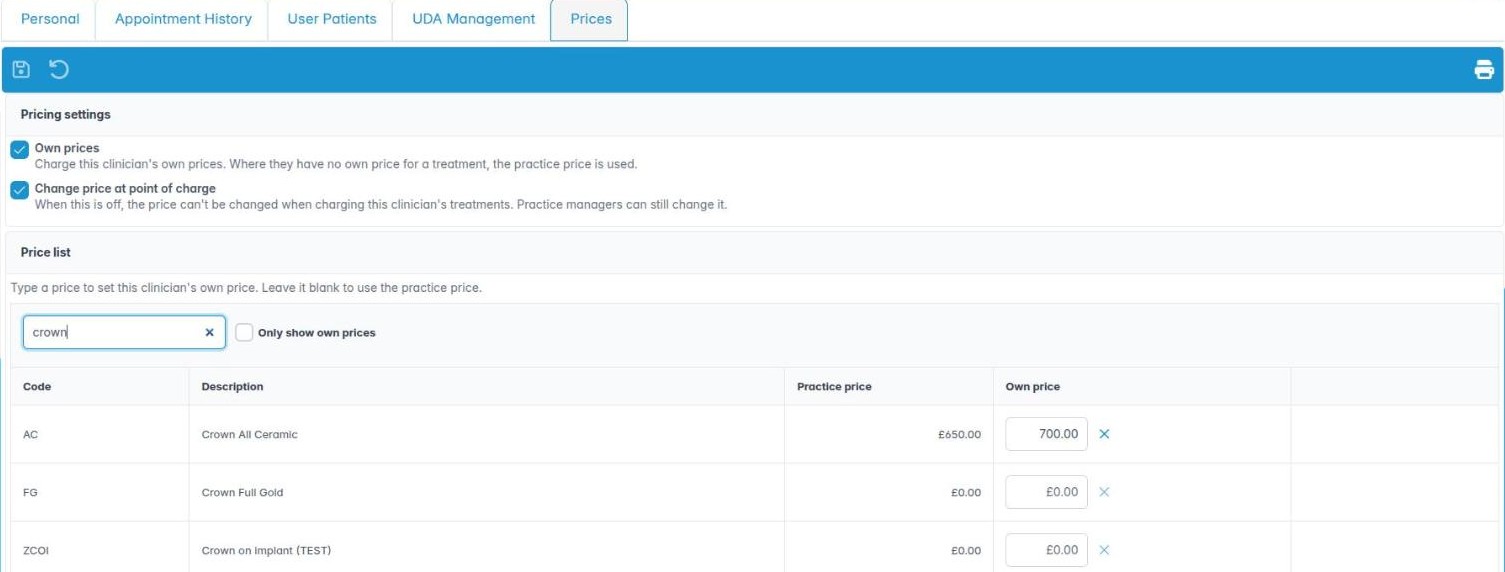
A clinician can now have their own prices. Their user details have a new Prices tab. Turn on Own prices, then enter the prices that differ from the practice’s. The practice price is shown beside each one, and clearing a price puts it back to the practice price. Price list (PDF) prints the clinician’s prices. In Housekeeping › Treatment codes, Price list for prints the practice’s prices or any clinician’s.
A treatment is priced at the clinician’s own price when they are the clinician for the appointment. This applies when charging, in Add Treatment, in Patient Sale and in the treatment plan. Moving a treatment to a visit with a different clinician, or changing a visit’s clinician, re-prices treatments that have not been charged yet. Prices typed in by hand, NHS and discount items, and treatments already invoiced or completed are not changed. Treatments in Unplanned use the practice price.
If Change price at point of charge is turned off for a clinician, their prices cannot be changed when charging. The price box says the clinician’s prices are fixed. Staff who can manage treatment codes can still change them.
Data Centre
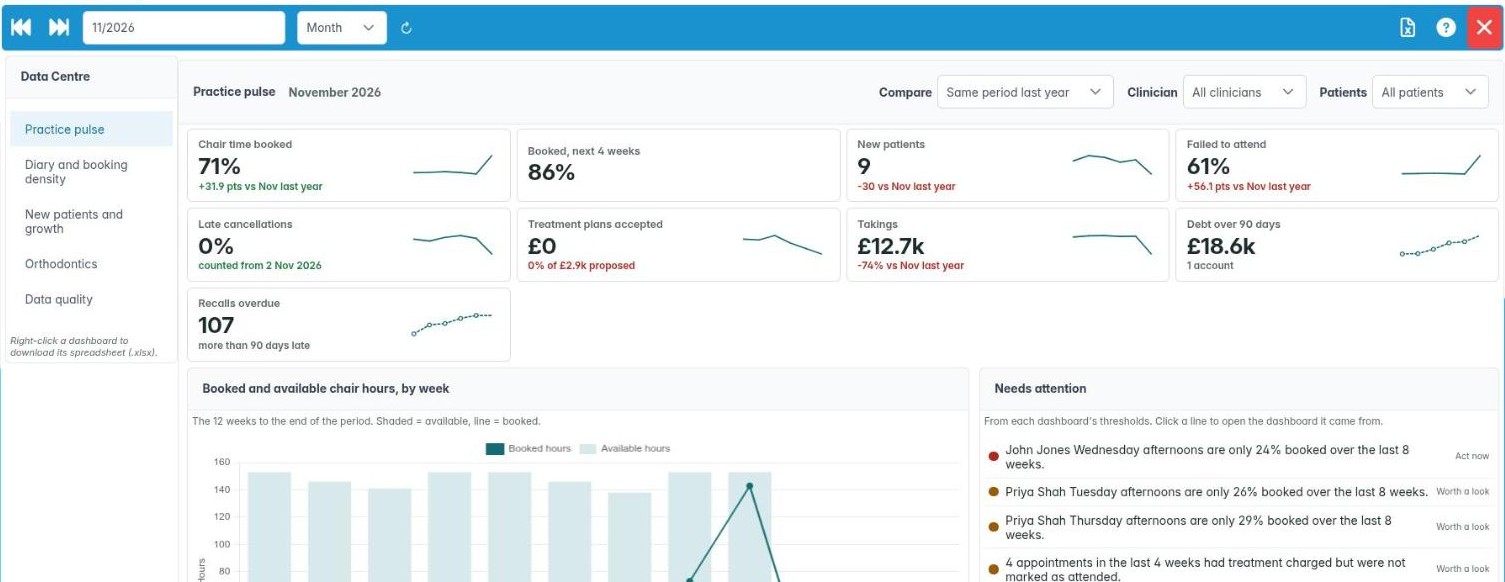
A new Reports › Data Centre screen shows practice dashboards:
- Practice pulse: key figures with six-month trends, booked against available chair hours, and a Needs attention list.
- Diary and booking density: how full the diary is, the wait to the next free slot, chair time by clinician, the next 8 weeks, and failed to attend and late cancellation rates.
- New patients and growth: new patients by month compared with last year, where they came from, active patients, age bands and postcode areas.
- Orthodontics (orthodontic practices only): case starts, assessments and finished cases, IOTN and PAR results, retention due and claim states.
- Data quality: checks on patient records, with Show patients to list the records that need attention.
The figures are updated overnight. The Excel button downloads the dashboard you are looking at as a spreadsheet.
Patient forms: Price / Code and expiry
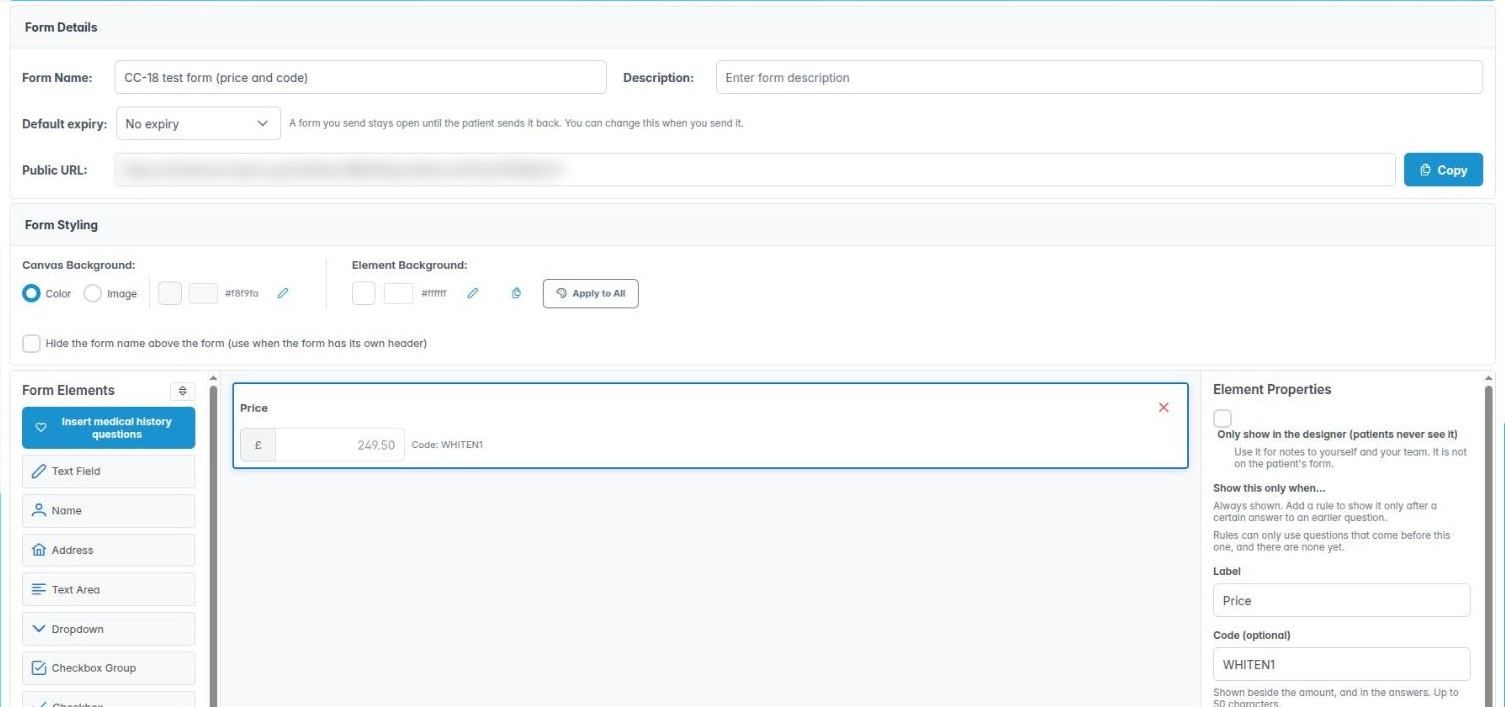
The Form Designer has a new Price / Code item. Give it a code and a price, and choose whether the patient can change the amount. A fixed price is greyed out on the patient’s form. The price and code show in the form’s responses.
You can now choose how long a form link stays open. Set a Default expiry in Form Details: No expiry, 7, 14, 30, 60 or 90 days, or a custom number of days. New forms default to No expiry. You can change it for each send with Expires, in the Send Email dialog and in a Patient Forms mail shot. The patient’s Patient Forms tab has an Expires column. A patient who opens an expired link sees “This form has expired”. Links sent before this release still expire after 72 hours.
Other changes
- PCC Customisation: Tasks & Reminders can now be chosen in Tabs to open when you log in.
- About Chiral Cloud: the Release Note button now opens the release note for the version you are running, rather than the list of all release notes.
What you need to do
- Data Centre: staff need the Reports – Data Centre permission. Staff who already have Housekeeping access are given it automatically. Grant it to anyone else who should see the dashboards.
- Prices per clinician: nothing changes until you turn on Own prices on a clinician’s Prices tab and enter their prices. Turn off Change price at point of charge there if their prices should be fixed.
- Diary status style: the diary looks as before (Classic) until you choose a style in Preferences › Diary Settings. To show missed appointments as failed to attend automatically, turn on Arrival Time Monitoring there too, and make sure staff mark patients as arrived.
- Public holidays: check that Preferences › Public holidays shows the right part of the UK, and set the days the practice is shut to Closed. All holidays are Open until you do.
Resolved Issues
Treatment plans
Saving a treatment plan could fail with an error, for example when pressing Sales on an ortho visit that is linked to other visits. The plan now saves.
Deleting a plan appointment that still had treatments in it was refused until the treatments were removed, and closing that message could close the wrong window. The treatments now go back to Unplanned after you confirm, and this can be undone.
Other fixes
- Patient forms: pressing Publish on a new form that had not been saved did nothing. It now saves and publishes the form in one click.
- Patient forms: a form you had just sent did not appear on the patient’s Patient Forms tab until you changed tab. It now appears straight away.