
Reach your practice’s ChiralCloud address, sign in safely with two-step sign-in, manage your own account, and lock or log out properly.
Who it is for: practice managers and administrators, clinicians, dental nurses, receptionists.
In this guide:
- Open your practice’s sign-in page
- Sign in with your user name and password
- Enter your two-step sign-in code
- Set up an authenticator app
- Replace your app or get new recovery codes
- Get back in after a forgotten password or lock-out
- Use the Settings menu: My account, Help and About
- Switch between your group’s practices
- Lock, time out and log out safely
1. Open your practice’s sign-in page
You can reach your own practice’s ChiralCloud sign-in page and recognise when an address is wrong.
Why this matters ChiralCloud runs in your web browser, so there is nothing to install. Every practice has its own web address. It looks like https://chiralcloud.com/ followed by your group’s code and your practice number, for example https://chiralcloud.com/<group code>/<practice number>/. That address is what tells ChiralCloud which practice’s patients and diary to open, so it must be exactly right.
Where to find it Your practice administrator gives you the address when your account is created. Bookmark it on every computer you use.
How to
- Open Chrome, Edge or Safari and type or paste your practice’s address, or use your bookmark.
- Check the sign-in panel. Under Welcome you will see Sign in to Chiral Cloud (or Sign in to Chiral Cloud (two-step) if your practice uses a code as well as a password).
- Check the line below it shows your practice’s name and telephone number. If it shows another practice, stop and check the address.
- If a Chiral Cloud Update box appears saying An update is available. Press OK to install, press OK. The page reloads with the newest version. This is normal after Chiral Systems releases an update.
Good to know
- A page headed Chiral Cloud Portal that asks you to contact them for the correct web address means the address is wrong or incomplete. Check it with your administrator.
- If that page says this subscription is not active, nobody at the practice can sign in. Your practice owner should contact Chiral Systems support (the button Chiral Systems Ltd opens the Chiral Systems website).
- Patients use a different address for the patient portal. Never give patients your staff address.
More detail: Chiraldocs.hopto.org.
2. Sign in with your user name and password
You can sign in with your own account and understand what each sign-in message means.
Why this matters Everything you do in ChiralCloud is recorded against your login: appointments booked, notes written, payments taken. Under UK GDPR and the GDC’s standards, patient records must only be opened by the person who is signed in. So always sign in as yourself, and never let a colleague work under your name.
Where to find it Your practice’s sign-in page.
How to
- Type your User Name exactly as your administrator gave it to you.
- Type your Password. It is case sensitive.
- Press Sign In.
- If your practice uses two-step sign-in, you are now asked for a code (see the next step). Otherwise the Practice Control Centre opens.
What the messages mean The User Name label changes to tell you what went wrong:
- The username or password is not recognised. Check for typing errors and Caps Lock, then try again.
- Please enter your password. The password box was empty.
- This account is not active. Please contact your practice administrator. Your account has been switched off, for example after you left or before your start date.
- Too many attempts. Please wait 15 minutes and try again. Your account is locked for 15 minutes after repeated wrong attempts. Waiting is the only way to unlock it, so do not keep guessing.
Good to know
- Tablet and check-in kiosk accounts sign in on this same page, but they open the patient tablet or kiosk screen instead of the full system.
- You can only be signed in once with each account. Signing in somewhere else ends your other session.
More detail: Chiraldocs.hopto.org.
3. Enter your two-step sign-in code
You can complete two-step sign-in with an authenticator app code, a recovery code or a text message code.
Why this matters A password alone can be guessed or stolen. Two-step sign-in means nobody can open your practice’s records without your phone as well. It is a key part of Cyber Essentials and the NHS Data Security and Protection Toolkit, so many practices switch it on.
Where to find it It appears straight after you press Sign In, if your practice uses it.
How to: authenticator app code
- The prompt reads Enter the 6-digit code from your authenticator app.
- Open the app (for example Microsoft Authenticator or Google Authenticator), find Chiral Cloud and type the current code into Code from your app.
- Press Verify. There is no Resend: the app makes a new code every 30 seconds.
Lost your phone? Click Use a recovery code, type one of your eight-character codes (shown as xxxx-xxxx) into Recovery code and press Verify. Each code works once. Click Use a code from my app to go back.
How to: text message code Only if your practice uses SMS codes and you have not set up an authenticator app.
- Read the prompt Enter the 6-digit code we sent to your mobile.
- Type the six digits from the text into Code (your phone may offer to fill it in).
- Press Verify, or press Enter.
- No text? Press Resend for a new code. The old code stops working.
Good to know
- That code is not right. Check the time on your phone is correct… means your phone’s clock is wrong or the code changed. Wait for a fresh code.
- Your code has expired. Please sign in again. You took longer than 10 minutes. Start again from your password.
- There is no mobile number on your account (text message codes only) means your administrator must add your mobile before you can sign in.
More detail: Two step sign in guide.
4. Set up an authenticator app
You can link an authenticator app to your account and keep your recovery codes safe.
Why this matters An authenticator app is the most secure way to sign in and needs no phone signal. If your practice has chosen Authenticator app required, you must set one up before you can get in. You can also choose to use one even when your practice only asks for text codes.
Where to find it
- At sign-in: if your practice requires an app and you have none, you see Set up your authenticator app straight after your password.
- At any time: Settings › My account › Two-step sign-in › Set up authenticator app. You type Your password and press Continue first.
How to
- Install a free authenticator app on your phone, such as Microsoft Authenticator or Google Authenticator.
- In the app, add an account and scan the QR code on screen.
- Can’t scan it? Press Copy key and type the key into the app by hand.
- Type the 6-digit code your app now shows and press Confirm.
- Your recovery codes appear. Press Copy or Download (saves chiral-cloud-recovery-codes.txt) and keep them somewhere safe, away from your phone.
- Press I’ve saved these. You won’t see these codes again.
Good to know
- From now on you type the app code after your password every time.
- That code is not right. Wait for a new code in your app and try again. means the code changed while you typed. Use the next one.
- Press Cancel to stop. At sign-in this takes you back to the password step.
- If the set-up stalls, Please sign in again to finish setting up your authenticator app. means start again from your password.
More detail: Two step sign in guide.
5. Replace your app or get new recovery codes
You can replace your authenticator app on a new phone, refresh your recovery codes, or remove the app when allowed.
Why this matters Phones get upgraded, lost and broken. If you plan ahead, a new phone never locks you out of the diary on a busy morning.
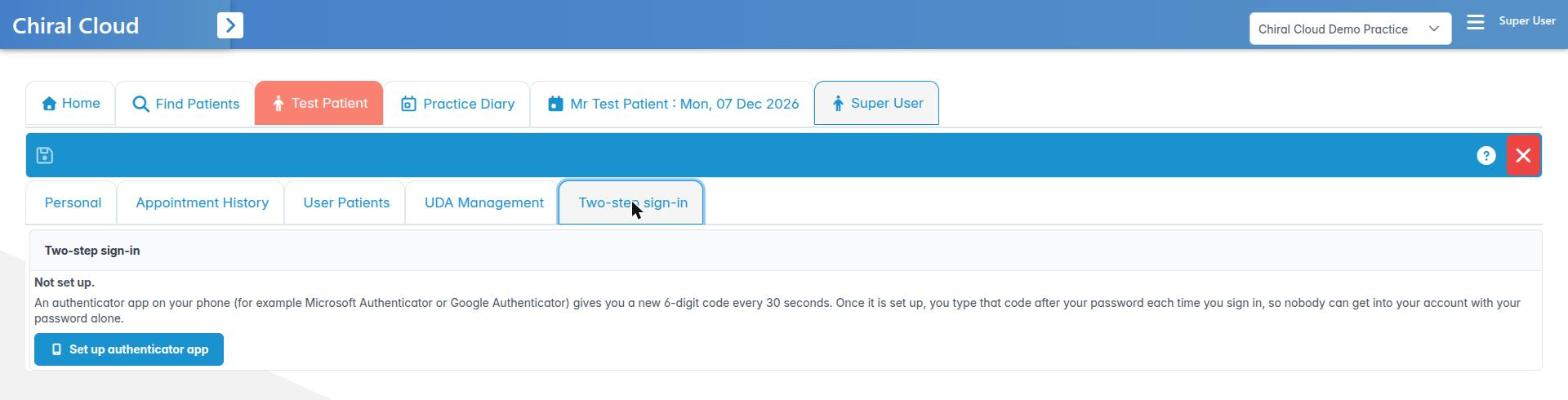
Where to find it Settings › My account, then the Two-step sign-in tab. This tab only appears on your own account.
How to The panel shows Authenticator app set up on (date) and Recovery codes left.
- New phone: press Replace app. Type Your password and the 6-digit code from your app (or click Use a recovery code), then press Continue. Your old app stops working straight away, so finish setting up the new one at once.
- Running low on codes: if you see You are running low on recovery codes, press New recovery codes, confirm with your password and a code, and press Get new codes. You get ten new codes and the old ones stop working. Save them as before.
- Stop using an app: press Remove, confirm with your password and a code, then press Remove. If your practice requires an app, Remove is greyed out. You can replace the app but not remove it.
Lost your phone and your codes? You cannot reset your own app. Ask another administrator to use Reset authenticator app on your account in Users › Find Users (they need the Reset another user’s authenticator app permission). You then set up a new app the next time you sign in.
Good to know
- Too many attempts. Please wait 15 minutes and try again. applies here too.
- Tablets and check-in kiosks never use authenticator apps, so this tab doesn’t appear for them.
More detail: Two step sign in guide.
6. Get back in after a forgotten password or lock-out
You know who to ask and what to do when you can’t sign in.
Why this matters Being unable to sign in at 8.30am stops the front desk. Knowing the right fix saves time and avoids risky workarounds such as borrowing a colleague’s login, which breaks your audit trail and data protection rules.
Where to find it Most fixes are done by your practice administrator in Users › Find Users.
How to: forgotten password
- Don’t keep guessing. After several wrong tries you are locked out for 15 minutes.
- Ask your practice administrator to set a temporary password. They open your record from Users › Find Users, press Set Password on the Personal tab, type it in the User Password (Min 6 characters) box, press OK and then Save.
- Sign in with the temporary password, then change it straight away (see Use the Settings menu).
How to: other lock-outs
- Too many attempts. Please wait 15 minutes and try again. Wait 15 minutes, then try once, carefully.
- This account is not active. Your administrator must make your account active again.
- There is no mobile number on your account. Your administrator adds your mobile number to your record.
- Lost your phone? Use a recovery code. If you have none left, an administrator uses Reset authenticator app.
Good to know
- The sign-in page has a Forgot Password? link, but it does not yet reset staff passwords. It opens a Chiral Cloud Portal page instead. Ask your administrator.
- Administrators can’t see your password, only replace it. Choose one you don’t use anywhere else.
More detail: User details personal.
7. Use the Settings menu: My account, Help and About
You can open your own account, change your password, and find help and version details from the top bar.
Why this matters The top bar is always on screen, whatever you are doing. It holds your own account, help and sign-out, so it’s worth knowing well from day one.
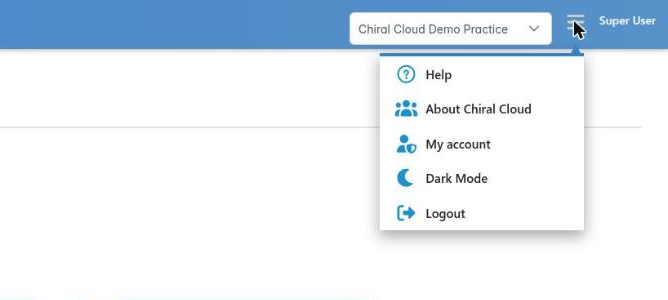
Where to find it At the top right: your name, then Settings. Clicking either opens the same menu.
How to
- Help opens the ChiralCloud knowledge base in a new browser tab.
- About Chiral Cloud shows the version number, whether the practice’s Gateway Active link is running (used for local devices such as X-ray software), and the support address support@chiralsystems.com. Press Release Note to read what changed in this version. Support may ask you for the version number.
- My account opens a tab with your own details. Its tabs are Personal, Appointment History, User Patients, UDA Management and Two-step sign-in.
- To change your password: on Personal, press Set Password, type a new password of at least 6 characters, press OK, then press Save on the toolbar.
- Keep your mobile and email up to date on Personal. Your mobile is used for text sign-in codes. Press Save, or Save & Exit to close the tab.
- Dark Mode / Light Mode switches the colour scheme (see Personalising ChiralCloud).
- Logout signs you out (see the last step).
Good to know
- Some fields, such as Role, are greyed out on your own account. Only an administrator can change your role.
- The ? (Knowledge Base) button on the toolbar opens the help article for the tab you are on.
More detail: User details personal.
8. Switch between your group’s practices
You can move to another practice in your group without signing out.
Why this matters In a group of practices, staff often cover more than one site. Each practice has its own patients, diary and money, so you must always know which practice you’re working in. Booking a patient into the wrong site’s diary is an easy mistake.
Where to find it At the far right of the top bar. Normally it just shows your practice’s name. If your account can switch practices, the name is a drop-down list instead.
How to
- Save any work you have open. Switching reloads the system for the new practice.
- Click the practice name in the top bar.
- Choose the practice you want from the list.
- ChiralCloud loads the new practice and returns you to its Practice Control Centre. The practice name in the top bar changes.
- Check the name before you book, charge or write notes.
Good to know
- You need the Clinic Switching permission, and the practices must be set up by Chiral Systems as shared. If you only see a plain name, you can’t switch. Ask your administrator if you think you should.
- Your Practice Control Centre layout and Patient Tabs choices are kept separately for each practice.
- Your sign-in history records you leaving one practice and joining the other.
9. Lock, time out and log out safely
You can log out properly, unlock a timed-out screen, and understand why you were signed out.
Why this matters Reception screens are often in view of patients, and surgery computers are shared. Leaving patient records open breaks confidentiality. ChiralCloud protects you by locking itself, but you should still log out when you leave a shared computer.
Where to find it Settings › Logout in the top bar.
How to: log out
- Save your work.
- Choose Settings › Logout. You return to the sign-in page.
How to: unlock a locked screen After a period of inactivity (15 minutes unless your practice changes it), a Locked screen covers everything, saying Session locked due to inactivity. Your open tabs and unsaved work are kept underneath.
- Check the screen says Signed in as you.
- Type your Password and press Log Back In. You are back exactly where you were.
- If it’s not your session, press Logout. This signs that person out and throws away their unsaved work.
Why you might be signed out
- Your session has expired. Please log out and sign in again. appears on the lock screen at two-step practices after a long time away. Press Logout and sign in again with your code.
- A User Account Multiple Login message means This login session has been logged out due to the user’s account being used else where. Press Logout. If it wasn’t you, tell your administrator, as someone may know your password.
- Chiral Systems may sign everyone out for maintenance, with their own message.
Good to know Administrators set the lock time in Preferences › Practice Details › Session Security › Inactivity Lock (mins).
More detail: Chiraldocs.hopto.org.