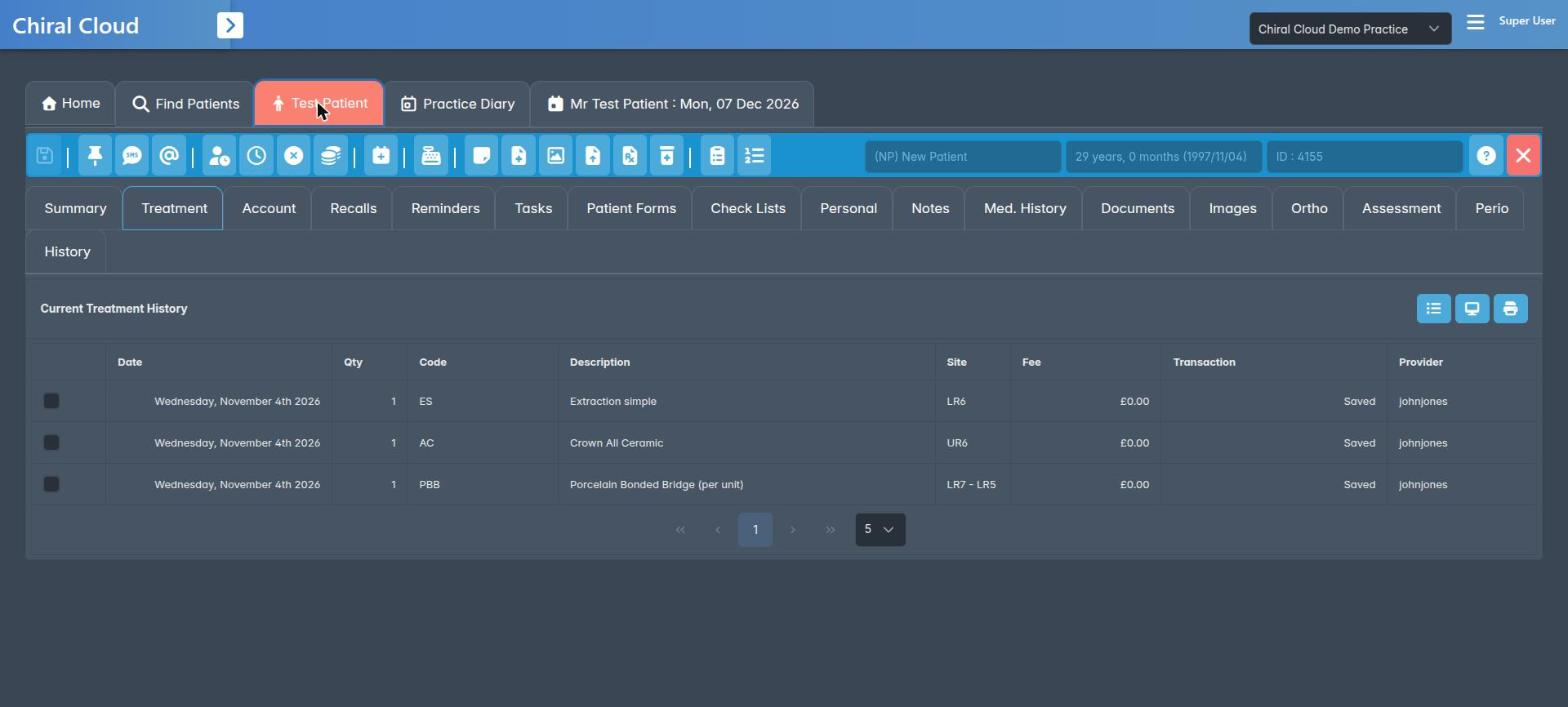
Make ChiralCloud fit your job: choose your Practice Control Centre buttons, hide and reorder patient record tabs, and switch dark or light mode.
Who it is for: practice managers and administrators, clinicians, dental nurses, receptionists.
In this guide:
- Choose your own Practice Control Centre buttons
- Hide and reorder the tabs on patient records
- Switch between dark and light mode
1. Choose your own Practice Control Centre buttons
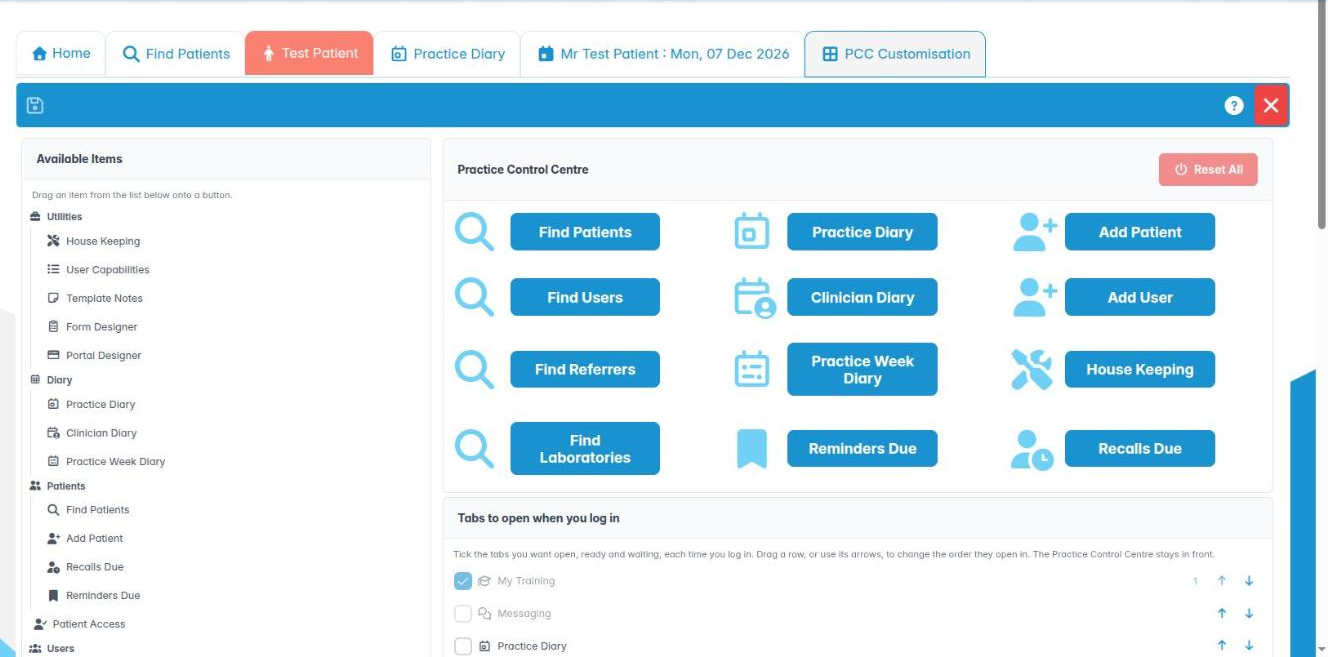
You can replace, empty and restore buttons on your Practice Control Centre so it matches your job.
Why this matters The standard twelve buttons suit a front desk. A practice manager may want Daily Cash Book and NHS Management, and a nurse may never use Add User. Putting your own daily screens on the home page saves clicks all day.
Where to find it Utilities › PCC Customisation. You need the PCC Customisation permission.
How to
- On the left, Available Items lists every screen you’re allowed to use, grouped the same way as the left menu. On the right is a preview of your Practice Control Centre.
- Drag an item from Available Items onto the button you want to replace. You can also drag an entry straight from the left-hand menu.
- On a tablet, or without dragging: click an item to select it (… selected – now choose the button to replace), then click the button to replace.
- Under each button: the ↺ button (Restore this slot’s default) puts back the standard button, and the red × (Empty this slot) leaves it blank.
- Reset All (with Restore all Practice Control Centre buttons to their default allocation?, answer Yes) puts all twelve back.
- Press Save. Practice Control Centre layout saved. confirms it. Exit closes the tab. If you haven’t saved, it asks The form has been modified, save these changes?
Good to know
- Your layout is yours alone, for this practice, and is remembered by this browser. On another computer you’ll see the standard layout until you set it up there too.
- If you see could not be saved to this browser, cookies are blocked. The layout lasts only until you log out.
- If you lose a permission, its button goes blank. If you lose PCC Customisation, you go back to the standard layout.
2. Hide and reorder the tabs on patient records
You can hide patient record tabs you never use and put the rest in your preferred order.
Why this matters A patient record has up to twenty tabs, from Summary and Account to Perio and NHS Claims History. A receptionist rarely needs Perio, and a hygienist rarely needs Account. Hiding the tabs you don’t use makes records quicker to read.
Where to find it Utilities › Patient Tabs. Anyone can use it.
How to
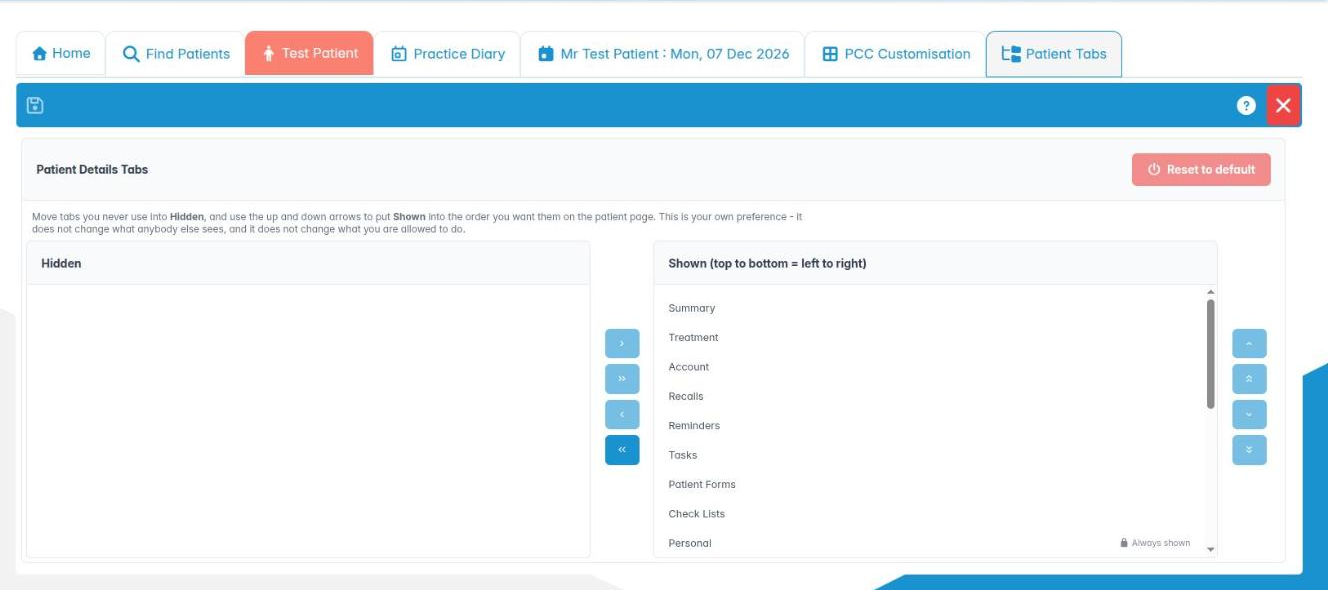
- The screen shows two lists: Hidden on the left and Shown (top to bottom = left to right) on the right.
- Select a tab in Shown and use the arrow between the lists to move it to Hidden. Move it back the same way.
- Use the up and down arrows beside Shown to change the order. The top of the list is the left-most tab on the record.
- Tabs marked Some patients (Family Group, NHS Registration, NHS Claims History) only appear for patients they apply to.
- Personal is marked Always shown. If you try to hide it, it comes back with the message Personal cannot be hidden – it identifies the patient every other tab belongs to. You can still move it up or down.
- Reset to default (answer Yes to Show every Patient Details tab again, in its default order?) undoes everything.
- Press Save (Patient Details tabs saved.). Open patient records update straight away.
Good to know
- This only changes what you see. It doesn’t hide information from anyone else, and it doesn’t change what you’re allowed to do.
- Like the Practice Control Centre, your choice is remembered for this practice in this browser.
3. Switch between dark and light mode
You can switch ChiralCloud’s colour scheme to suit your surgery lighting or your eyes.
Why this matters Surgeries are often dimly lit around the chair, and a bright white screen can be tiring over a long clinical session. Dark mode gives a darker screen that is easier on the eyes and doesn’t light up the room. Some people also find one scheme easier to read.
Where to find it Settings in the top bar.
How to
- Click Settings (or your name) in the top bar.
- Choose Dark Mode (the moon icon). The whole system changes straight away and your work isn’t affected.
- To go back, open Settings again and choose Light Mode (the sun icon).
Good to know
- The choice is remembered on this computer and browser, so a shared reception PC stays in whatever mode was last chosen there.
- Colours that carry meaning, such as NHS and private patient tabs and diary appointment colours, still show in dark mode.
- If something is hard to read in dark mode, switch back to light mode and tell Chiral Systems support which screen it was.