
Learn the ChiralCloud screen: the Practice Control Centre, the left menu, tabs, built-in help and the badges that tell you something needs attention.
Who it is for: practice managers and administrators, clinicians, dental nurses, receptionists.
In this guide:
- Get to know the ChiralCloud screen
- Use the Practice Control Centre buttons
- Find any screen from the left menu
- Work with several tabs at once
- Get help: the ? button, tooltips and the knowledge base
- Notice tasks, messages and alerts
1. Get to know the ChiralCloud screen
You can name the four parts of the ChiralCloud screen and say what each is for.
Why this matters Every job in ChiralCloud, from booking a check-up to submitting an NHS claim, starts from the same screen. Once you know its four parts, you can find almost anything.
Where to find it It appears as soon as you sign in.
The four parts
- The top bar. Chiral Cloud on the left. On the right are your name, the Settings menu and your practice’s name (or the practice switcher). The small arrow button next to them hides or shows the left menu.
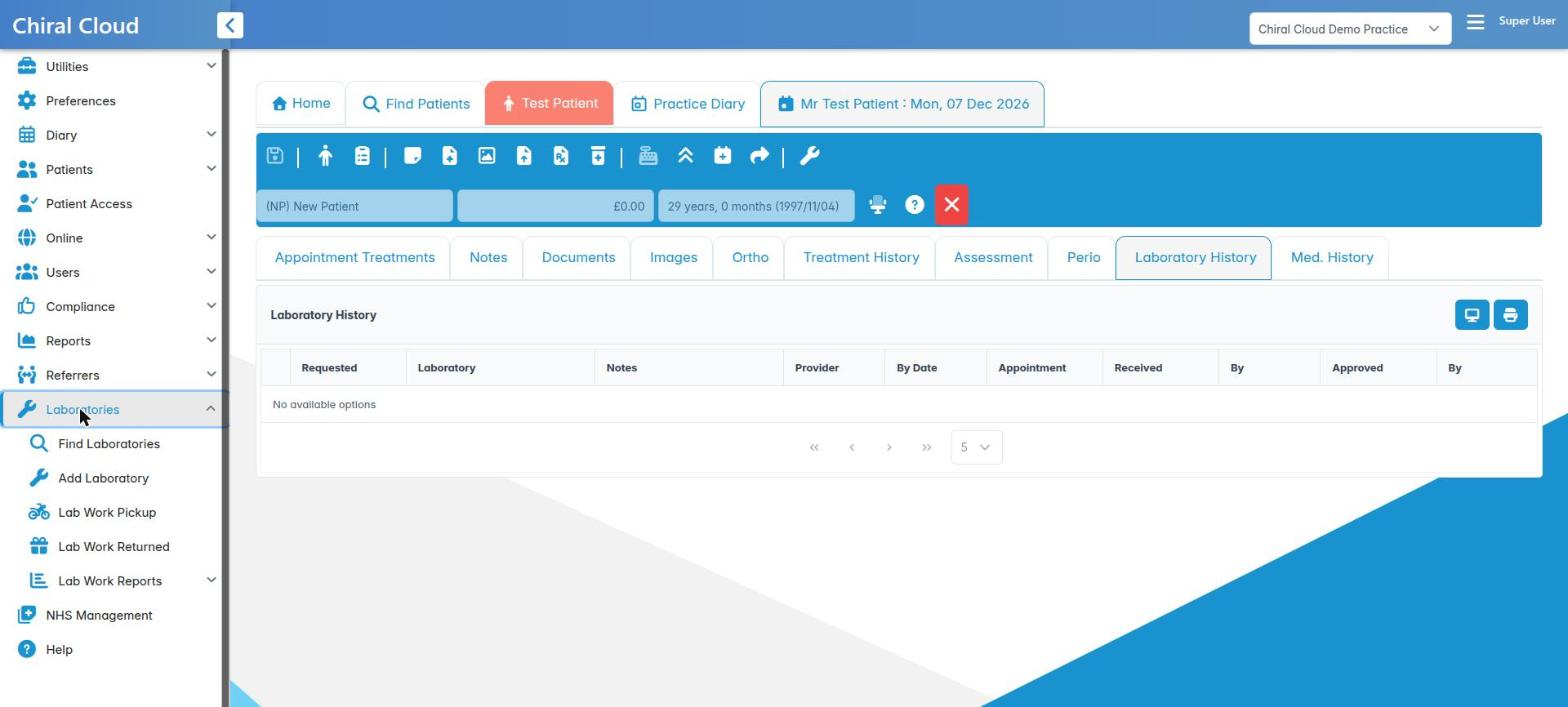
- The left menu. Every area of the system, grouped into headings such as Diary, Patients, Users and Reports. You only see entries you have permission to use.
- The tab strip. Across the top of the main area. The first tab is always Home. Each screen you open gets its own tab, so you can keep a patient’s record, the diary and a report open at once.
- The work area. The content of the selected tab. Most screens have a toolbar along their top with icon buttons for that screen’s actions, such as Save, the ? help button and Exit.
How to
- Sign in. You land on the Home tab, which shows the Practice Control Centre.
- Hover over any icon button. A tooltip tells you what it does.
- Click the arrow button in the top bar to hide the left menu when you need more room, for example in the diary. Click it again to bring the menu back.
Good to know
- ChiralCloud works on tablets as well. Where this course says right-click, press and hold instead on a touch screen.
- Two people with different jobs may see different menus. That is because of permissions, not a fault.
More detail: Chiraldocs.hopto.org.
2. Use the Practice Control Centre buttons
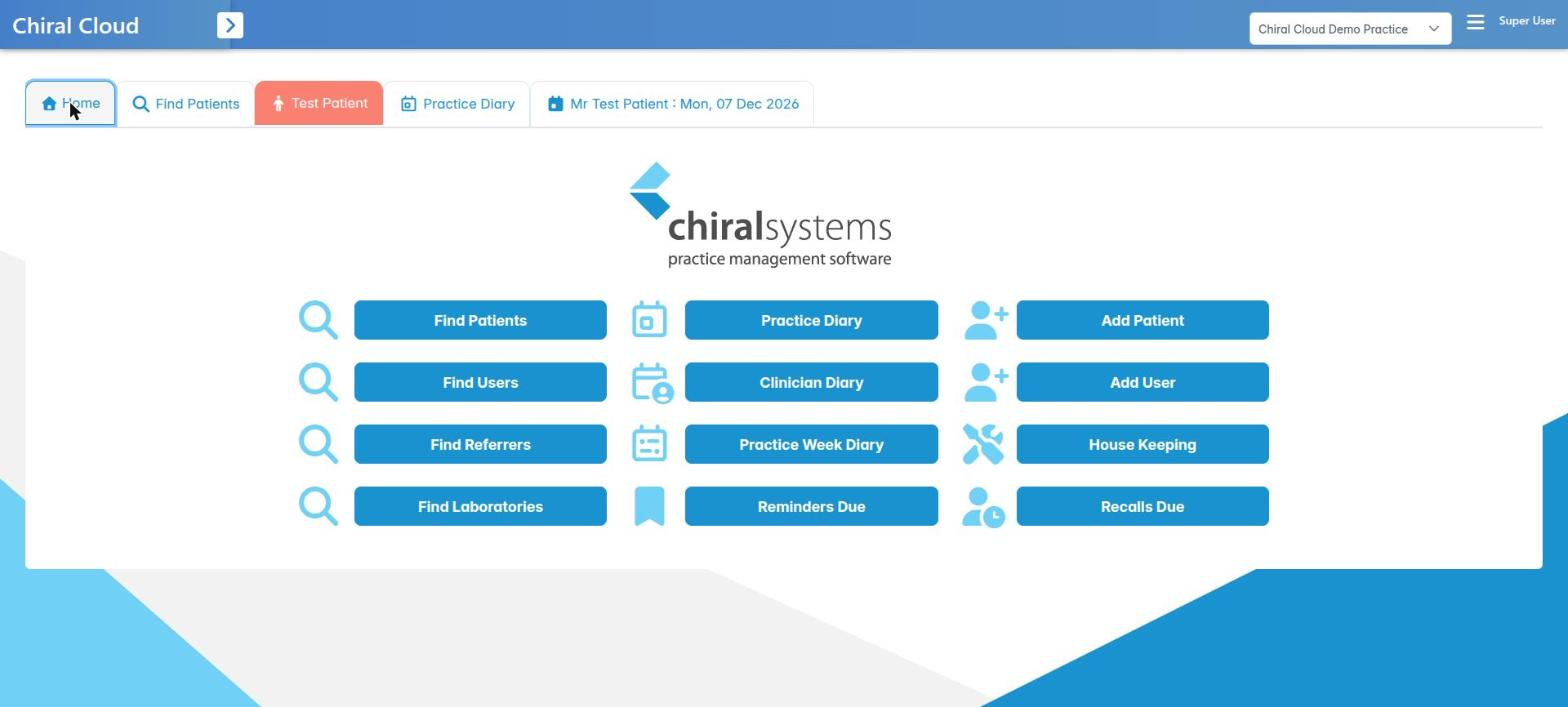
You can open the most-used screens in one click from the Practice Control Centre.
Why this matters The Practice Control Centre is your home page. It puts the twelve screens most practices use every day one click away, so you don’t need to hunt through the menu while a patient waits at the desk.
Where to find it The Home tab, always the first tab on the strip.
The standard buttons In rows of three:
- Find Patients, Practice Diary, Add Patient
- Find Users, Clinician Diary, Add User
- Find Referrers, Practice Week Diary, House Keeping
- Find Laboratories, Reminders Due, Recalls Due
How to
- Click Home on the tab strip at any time to get back here.
- Click a button to open that screen in its own tab. If it’s already open, ChiralCloud simply switches to it.
- Clinician Diary first opens a Clinicians list. Type in Search to filter, select the clinician and press OK. The diary tab is named after them, for example Clinician Diary (jsmith).
- Add Patient and Add User open a new blank tab every time, so you can add two patients side by side.
Good to know
- A blank, greyed-out button means you don’t have the permission it needs. For example, Add User needs Add New System User and House Keeping needs House Keeping.
- Your practice may have changed some buttons, and with the PCC Customisation permission you can change your own (see Personalising ChiralCloud).
- Messages from Chiral Systems, such as planned maintenance, appear in a banner under the buttons. Press the × (Dismiss this message) once you’ve read it. A notice also pops up in the corner if it arrives while you’re working.
More detail: Chiraldocs.hopto.org.
3. Find any screen from the left menu
You can find any part of ChiralCloud from the left-hand menu and know roughly what lives under each heading.
Why this matters The Practice Control Centre only holds twelve buttons. Everything else, from Recall Management to the Daily Cash Book, is in the left menu. Knowing which heading holds what saves a lot of clicking.
Where to find it Down the left side of the screen. If it’s hidden, click the arrow button in the top bar.
How to
- Click a heading to open it, and click it again to close it. Headings with a small arrow have entries inside.
- Click an entry to open it in a new tab.
What’s under each heading
- Utilities: Housekeeping, screen customisation, templates and form designers (mostly administrators).
- Preferences: the practice’s settings.
- Diary: Practice Diary, Clinician Diary, Practice Week Diary and Diary Sort Order.
- Patients: Find Patients, Add Patient, Recalls Due, Reminders Due, mail shots and bulk tools.
- Patient Access and Messaging (if your practice uses it).
- Online: online registrations and bookings, and email problems.
- Users: staff, Show With, Tasks & Reminders and Account Groups.
- Compliance: questionnaires, X-ray and sedation reports, check-in and check-out.
- Reports: money, cancellations, missed appointments and diary use.
- Referrers, Laboratories and, at NHS or mixed practices, NHS Management.
- Help: opens the online knowledge base.
Good to know
- You only see what your permissions allow. If you need something you can’t see, ask your administrator.
- A number in a small badge next to an entry, for example Tasks & Reminders, tells you something is waiting for you.
More detail: Chiraldocs.hopto.org.
4. Work with several tabs at once
You can switch between, close and tidy up your open tabs without losing unsaved work.
Why this matters A typical morning means the diary, two or three patient records and a report open at once. Tabs let you jump between them instantly. Closing tabs carefully stops you losing notes or charges you haven’t saved yet.
Where to find it The tab strip across the top of the main area.
How to
- Switch: click any tab’s name.
- Spot unsaved work: a tab with changes you haven’t saved shows a \* after its name, for example Jane Smith \*.
- Spot NHS and private patients: patient tabs are coloured. NHS patients’ tabs are in the main theme colour and private patients’ tabs are salmon pink, so you always know which kind of patient you have open.
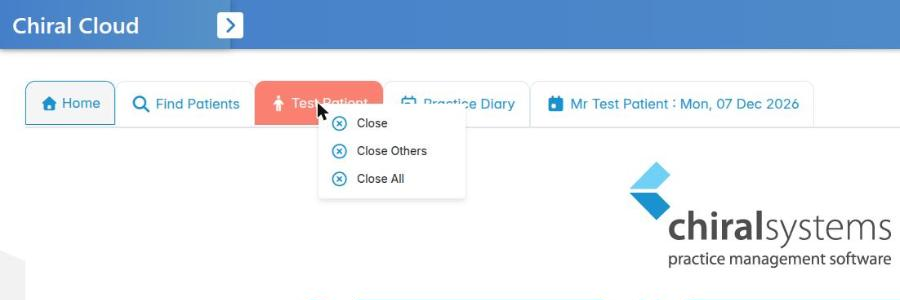
- Close one tab: use that screen’s own Exit or Save & Exit button (the × at the right of its toolbar), or right-click the tab name and choose Close.
- Close many: right-click a tab name and choose Close Others (keeps only that tab and Home) or Close All (keeps only Home). Right-click a tab other than Home: the menu on the Home tab doesn’t close anything.
- If you have unsaved work: a single changed tab asks its own question, such as The form has been modified, save these changes?. Answer Yes to save or No to discard. If several tabs have changes, an Unsaved Changes box lists them. Press Review each to go through them one by one, or Cancel to leave them open.
Good to know
- The Home tab can never be closed.
- Opening a screen that’s already open switches to its tab instead of opening a second copy.
- Some screens, such as reports, open a PDF in a further tab. Use Download to save it and the × to close it.
More detail: Chiraldocs.hopto.org.
5. Get help: the ? button, tooltips and the knowledge base
You can find the right help article for the screen you are on, and know how to contact support.
Why this matters Nobody remembers every screen. ChiralCloud’s help is built in, so you can check how something works in the middle of a task rather than guessing, which is how mistakes get into patient records and accounts.
Where to find it
- The ? button near the right of most toolbars. Its tooltip says Knowledge Base.
- Settings › Help in the top bar, and Help at the bottom of the left menu.
How to
- On the screen you need help with, press the ? button. The knowledge base article for that exact screen opens in a new browser tab. On a patient record or user record it opens the article for the tab you’re on.
- For general help, use Settings › Help or the Help menu entry. Both open the knowledge base home page, where you can search or browse.
- Hover over any icon button to see its tooltip, a short name for what it does.
- Many knowledge base articles include short videos. For example, two-step sign-in and diary schedules both have video series.
- Still stuck? Settings › About Chiral Cloud shows the version number and the support email address, support@chiralsystems.com. Quote the version when you contact support.
Good to know
- Your administrator can book training with Chiral Systems through Users › Book Training.
- ChiralAcademy, this course, is the place to learn a whole job from start to finish. The knowledge base is the place to look up one screen.
More detail: Chiraldocs.hopto.org.
6. Notice tasks, messages and alerts
You can recognise the badges and pop-up notices ChiralCloud uses to tell you something needs attention.
Why this matters Things happen while you work. A colleague sets you a task to phone a patient, a message arrives from the surgery, or a patient checks in at the kiosk. ChiralCloud tells you without interrupting what you’re doing, but only if you know where to look.
Where to find it
- Users › Tasks & Reminders in the left menu.
- Messaging in the left menu, if your practice uses it.
- Pop-up notices in the corner of the screen.
What to look for
- Tasks & Reminders badge. A number next to Tasks & Reminders shows how many task reminders you haven’t read. ChiralCloud checks every minute. A new one also pops up as a Task reminder notice for a few seconds.
- Messaging badge. When you open Messaging, its tab shows how many unread messages you have (up to 99+).
- Pop-up notices. They appear in the corner. Most fade after a few seconds. Important ones, such as maintenance messages from Chiral Systems or EDI Claims In Error after an NHS submission, stay until you close them.
- Arrival chime. Some practices hear a sound when a patient checks in.
How to
- When you see a badge, open the entry and deal with the oldest item first.
- Read pop-up notices before closing them. If one is about a patient, open their record and act on it.
Good to know
- Tasks are taught in full in the Team tasks and messaging module.
- If Messaging isn’t in your menu, your practice hasn’t switched it on.