A clinician’s session in ChiralCloud, from your own diary through charting, plans and consent, to completing treatment, NHS claims and referrals.
Who it is for: clinicians.
In this guide:
- What ChiralCloud does for a clinician
- Open your diary and your first appointment
- Examine, chart and write your notes
- Plan treatment, give estimates and get consent
- Complete treatment and, at NHS practices, the claim
- Refer patients and write letters
1. What ChiralCloud does for a clinician
You can describe how ChiralCloud supports your clinical day, whatever your specialism.
Why this matters Whether you’re a general dentist, a hygienist or therapist, an orthodontist or a specialist, ChiralCloud holds the clinical record you’re responsible for under GDC standards. That covers the chart, notes, medical history, radiographs, treatment plans and consent, referrals, and at NHS or mixed practices, your claims and UDA or UOA delivery. It also runs your diary, so the front desk books you correctly.
Where to find it Your practice’s ChiralCloud web address. Sign in as yourself in every surgery you work in.
What you’ll do most days
- Check your own diary.
- Open each appointment and review the medical history.
- Chart findings and treatment, and write notes.
- Write treatment plans with estimates, and get consent.
- Complete treatment so reception can charge it, and at NHS or mixed practices, complete the NHS claim.
- Refer patients and write letters.
How this course is organised The next steps follow a clinical session. Each part names the module that teaches it. Some steps are only for certain specialisms: orthodontists will see ortho assessment steps, and hygienists perio steps.
Good to know
- Your specialism, set on your user record, shapes what you’re offered, for example IOTN and orthodontic claim forms for orthodontists.
- Your permissions decide what you can change, such as editing older notes or medical history entries.
More detail: Chiraldocs.hopto.org.
2. Open your diary and your first appointment
You can open your own diary and the appointment editor, and know what each editor tab is for.
Why this matters Seeing your session at a glance helps you run to time. The appointment editor is where nearly all clinical recording happens, so knowing its tabs saves time at the chair.
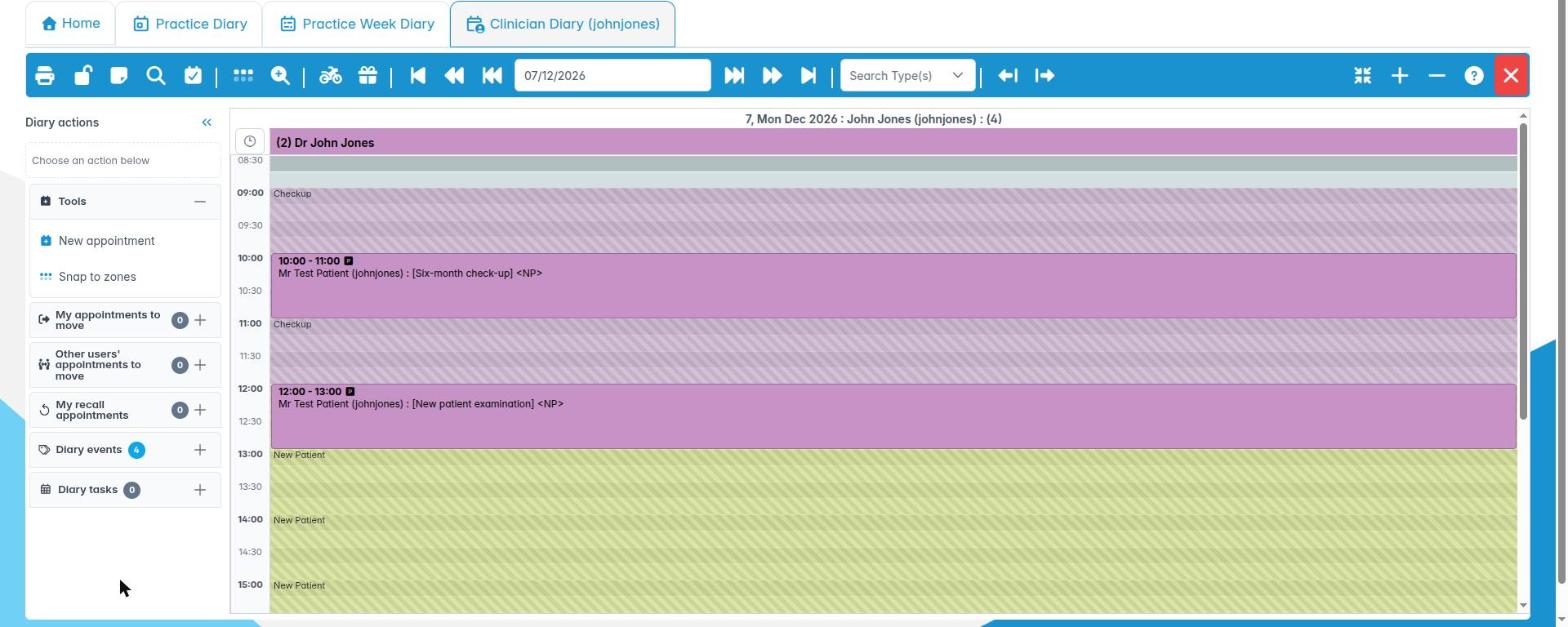
Where to find it Home › Clinician Diary. Choose yourself, then right-click an appointment and choose Goto Appointment.
How to
- Open Clinician Diary and pick yourself from Clinicians. Taught in: Finding your way around the diary.
- Your working hours and booking zones come from your diary schedule, set by your practice. The knowledge base has a video series on how schedules are set up. Taught in: Diary schedules (housekeeping).
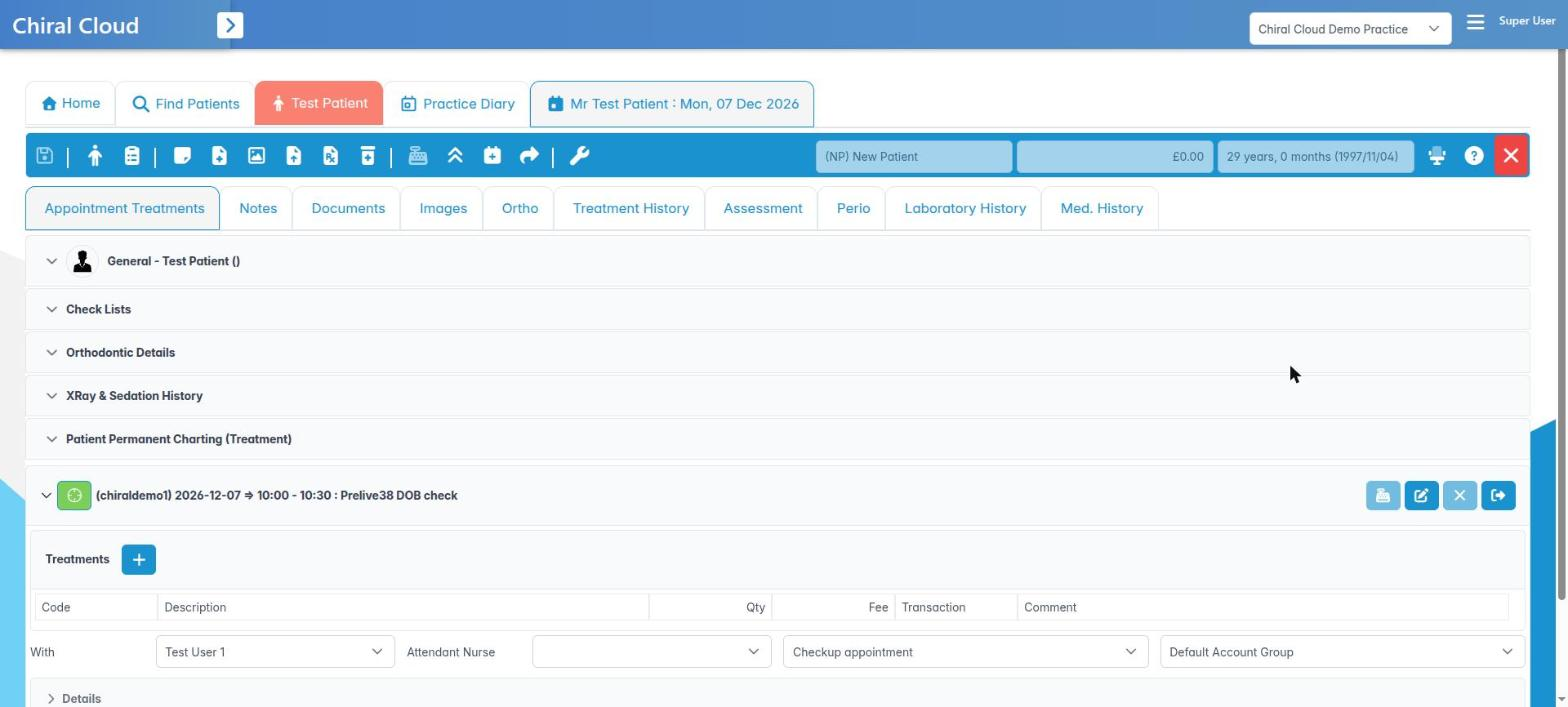
- Right-click an appointment and choose Goto Appointment. The appointment editor opens on Appointment Treatments, which shows the chart with panels for existing work, General Notes, Check Lists, Orthodontic Details and XRay & Sedation History.
- Other tabs: Notes, Documents, Images, Ortho, Treatment History, Assessment, Perio and Laboratory History. NHS patients also have NHS Claims History. Video appears for video consultations, and Med. History if your practice shows it there. Taught in: The appointment editor.
- Patient Record on the same right-click menu opens the full patient record if you need their account, recalls or documents. Taught in: Finding your way round the patient record.
Good to know
- Check the Med. History before every course of treatment and update it at each visit. Taught in: Medical history and consent.
- An appointment with unsaved changes shows \* on its tab.
More detail: The clinician diary.
3. Examine, chart and write your notes
You know where charting, perio, assessments and clinical notes are recorded.
Why this matters Your record must show what you found, what you did, what you discussed and the patient’s decisions, written at the time. FGDP record-keeping guidance and the Montgomery consent standard both depend on it. ChiralCloud’s chart, templates and favourites make that fast enough to do at the chair.
Where to find it The appointment editor.
How to
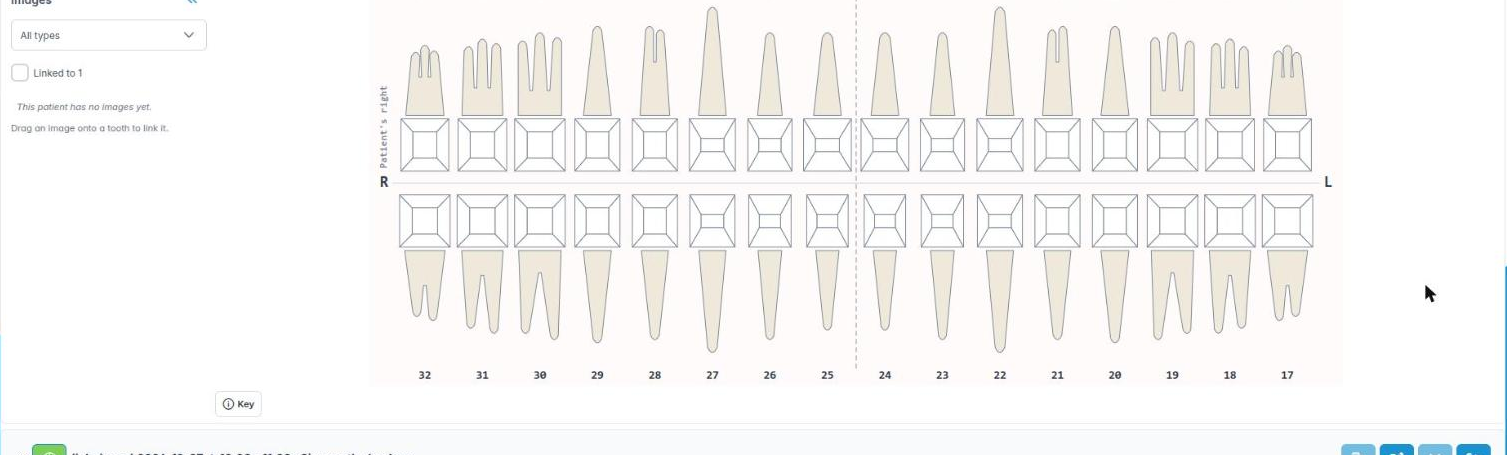
- Chart. Record existing restorations (Existing work) and planned or completed treatment on the adult or child chart. Click a tooth to open the Tooth Dial and choose what to chart. Taught in: Charting.
- Perio. Record BPE and full perio charting. This is especially important for hygienists and therapists. Taught in: Periodontal charting.
- Assessments. Complete practice assessment forms on the Assessment tab. Taught in: Assessments and orthodontics.
- Orthodontists: record IOTN and orthodontic details on the Ortho tab and the Orthodontic Details panel. Taught in: Assessments and orthodontics.
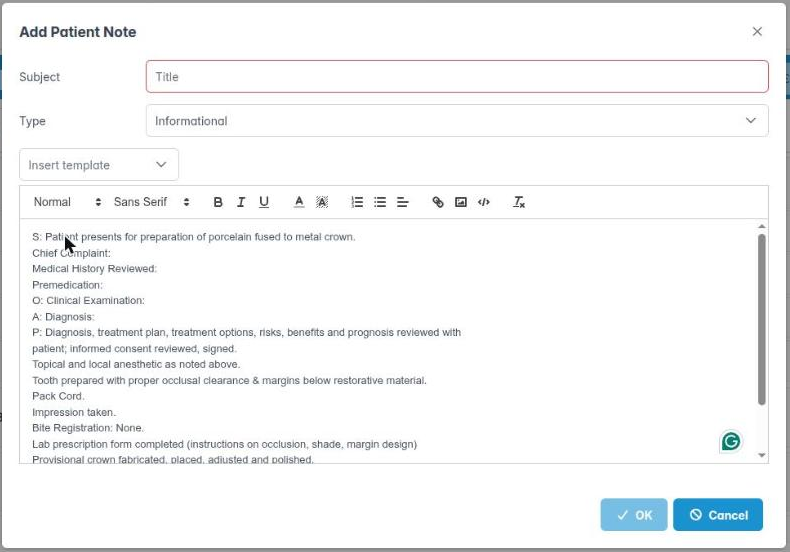
- Notes. Use Template Notes for consistent examination, consent and treatment notes, then add the detail of this visit. Taught in: Clinical notes and templates.
- Images and X-rays. Record radiographs with justification and grading, and add photos. Taught in: X-rays and sedation, and Notes, documents and images.
Good to know
- Your nurse can scribe for you, but you remain responsible for the record. Check it before you save.
- Practice-wide note templates are set up by your administrator.
More detail: Patient notes.
4. Plan treatment, give estimates and get consent
You know how treatment plans, estimates and consent fit together in ChiralCloud.
Why this matters Patients must understand their options, risks and costs before agreeing to treatment. That is valid consent under Montgomery and GDC standards. A written plan and estimate also prevents disputes about fees later, and is required for NHS courses above Band 1. Private patients should always have a written estimate before treatment.
Where to find it The patient’s treatment plans, opened from the appointment or the patient record.
How to
- Create a plan. Use Add Plan, or Copy Plan to start from an existing one. Add treatments with Add New Treatment or by charting them. Taught in: Treatment plans and estimates.
- Split it into visits. Use Add new Appointment and drag treatments onto each visit, so reception can book them in order. Taught in: Treatment plans and estimates.
- Fees. Private fees come from your practice’s fee scale. NHS and mixed practices only: NHS treatment shows under the NHS band. Never mix NHS and private for the same item. Taught in: Treatment plans and estimates, and NHS and private patients side by side.
- Give the estimate. Create the treatment plan document from your practice template, then print or email it. Taught in: Treatment plans and estimates.
- Consent. The patient can sign the plan on a practice tablet, and consent forms can be completed online or on the tablet. Taught in: Tablets and the check-in kiosk, and Medical history and consent.
- Payment plans (mainly private): spread the cost with a payment plan. Taught in: Payment plans.
Good to know Record the options discussed and the patient’s choice in your notes, not just the plan.
More detail: Chiraldocs.hopto.org.
5. Complete treatment and, at NHS practices, the claim
You know how finished treatment reaches reception for charging, and how NHS claims start.
Why this matters Treatment you’ve done only earns the practice money once it’s marked complete. Reception can then charge private fees or collect the NHS patient charge. For NHS work, the completed course becomes a claim, and claims drive the practice’s contract delivery and your own UDA or UOA figures.
Where to find it The appointment editor and, for NHS patients, the NHS Claims History tab.
How to
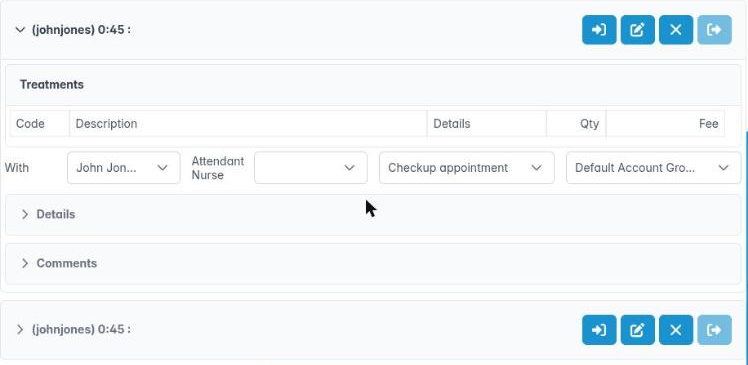
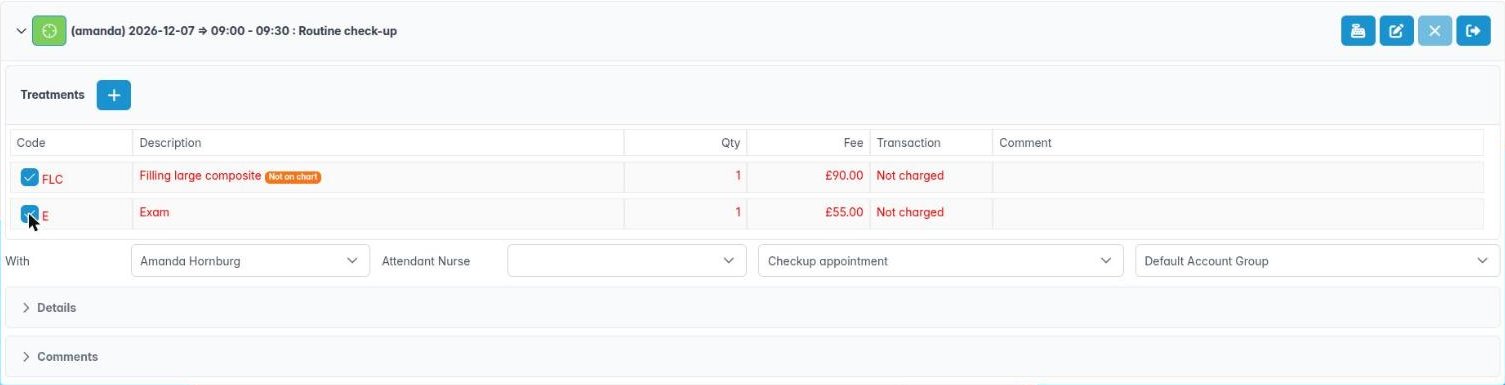
- Mark today’s treatment complete on the chart or plan before the patient leaves, so it shows as a charge. Taught in: Charging for treatment and issuing invoices.
- Private patients: reception completes the sale and takes payment. Taught in: Taking payments.
- NHS and mixed practices only: when a course of treatment ends, complete the claim with the correct band and details, including exemptions recorded at reception. Taught in: Courses of treatment and NHS claims.
- NHS and mixed practices only, orthodontists: complete FP17O assessments, treatment starts and completions. Taught in: Orthodontic NHS claims.
- Recall. Set the patient’s recall interval for their risk (NICE CG19). Reception books from it. Taught in: Recalls and reminders.
- Lab work for crowns, dentures and appliances: raise it from the appointment. Taught in: Lab work.
Good to know
- NHS and mixed practices only: the NHS contract is changing in 2026, and Compass is being replaced by the NHS Dental Services Portal. Taught in: NHS dentistry in ChiralCloud.
- If something can’t be completed today, leave it open in the plan rather than deleting it.
More detail: Patient nhs claim history.
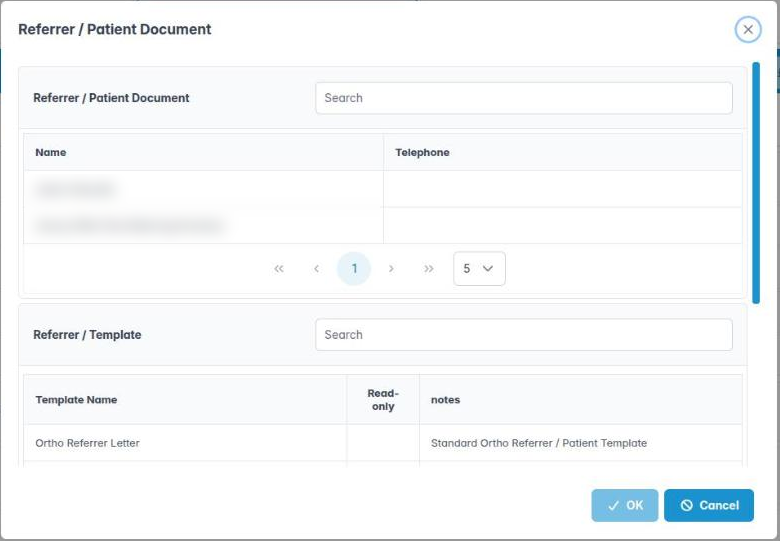
6. Refer patients and write letters
You know where referrals, referral letters and patient letters are produced.
Why this matters Referrals to specialists, hospitals or other practices must be clear, complete and sent securely, and a copy must stay on the patient’s record. Letters and documents created from templates save time and keep the practice’s letters consistent.
Where to find it Referrers in the left menu (if you have the Referrers Menu permission), and the patient’s Documents tab.
How to
- Find or add the referrer or GP in Referrers › Find Referrers or Add Referrer. Taught in: Referrals.
- Record who referred a patient to you on the patient’s record, so the referrer can be kept informed. Taught in: Finding and registering patients.
- Write a referral letter from a template on the patient’s Documents, then email or print it. Taught in: Referrals.
- Other letters, such as treatment summaries and fit-to-work notes, are created from patient document templates. Taught in: Notes, documents and images.
- Your own patients. Users › Find Users and your record’s User Patients tab show patients assigned to you. At NHS or mixed practices, UDA Management shows your activity. Taught in: Monitoring UDAs.
Good to know
- Use your practice’s secure email for referrals that contain clinical details.
- Template wording is managed by your administrator. Ask them if a template needs changing.
More detail: Find referrer.