What an administrator sets up and watches in ChiralCloud: practice settings, staff and permissions, money, NHS delivery and compliance, with pointers to the modules that teach each part.
Who it is for: practice managers and administrators.
In this guide:
- What ChiralCloud does for a practice owner or manager
- Set up the practice: preferences and housekeeping
- Add staff and give them the right permissions
- Keep an eye on the money and the diary
- Manage NHS claims and contract delivery
- Stay compliant: audits, questionnaires and data protection
1. What ChiralCloud does for a practice owner or manager
You can describe what ChiralCloud manages for the practice and what an administrator is responsible for.
Why this matters As the practice owner, practice manager or administrator, you decide how ChiralCloud works for everyone else. ChiralCloud has no separate practice manager role: the Administrator role covers owners, managers and senior administrators. You set up the practice’s details, staff and their permissions, fees, diaries and templates. You also watch the money, the diary’s performance and, at NHS or mixed practices, NHS contract delivery.
Where to find it Mainly Utilities, Preferences, Users, Reports and NHS Management in the left menu.
What you’ll look after
- Practice set-up: details, locations, opening hours, preferences and housekeeping lists.
- Staff: accounts, roles, permissions and two-step sign-in.
- Diaries: clinician schedules and appointment types.
- Money: fee scales, daily takings, outstanding accounts and corrections.
- NHS and mixed practices only: contracts, performers, claims and UDA or UOA delivery.
- Compliance: questionnaires, X-ray and sedation audits, data protection.
How this course is organised The next steps walk through setting up and then running a practice. Each part names the module that teaches it. You may also do the receptionist or clinician day-one modules if you work on the desk or in surgery.
Good to know
- Every change to Preferences and Housekeeping affects the whole practice. Make changes outside surgery hours where possible.
- ChiralCloud records who did what, so give everyone their own login.
More detail: Chiraldocs.hopto.org.
2. Set up the practice: preferences and housekeeping
You know which practice-wide settings exist and in what order to set them up.
Why this matters The practice’s settings decide what everyone sees. Opening hours shape the diary, treatment codes and fee scales set what patients are charged, and recall types drive recall letters. Getting them right before go-live saves a lot of rework.
Where to find it Preferences (each tab needs its own permission) and Utilities › Housekeeping (needs House Keeping).
How to
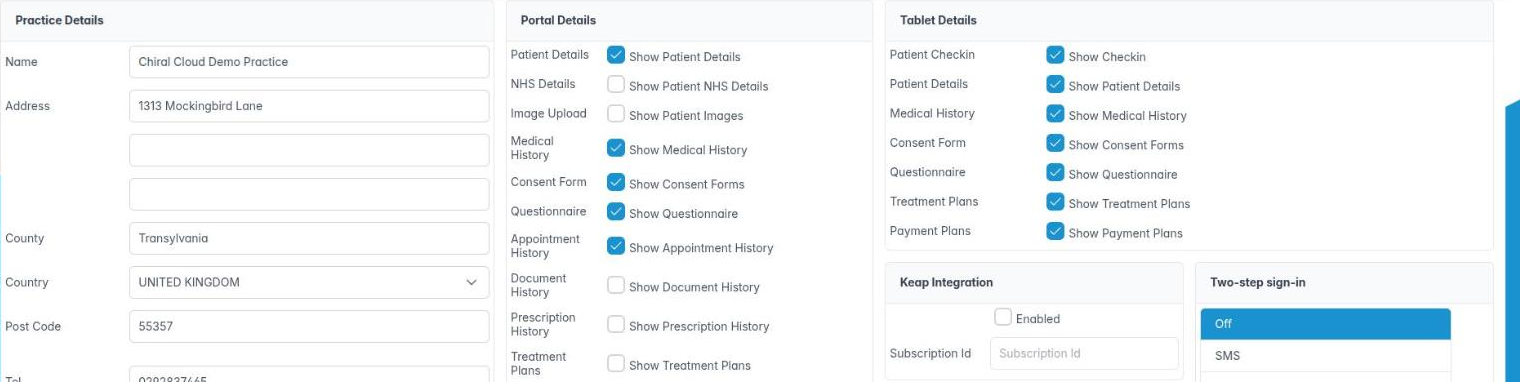
- Preferences. Set up Practice Details (including two-step sign-in policy and inactivity lock), Practice Locations, Practice Opening Hours, Diary Settings and colours, Accounting, Email Account Settings, Esendex (your SMS account), Recalls & Reminders and Reports / Emails / SMS. NHS and mixed practices only: complete NHS Registration. Taught in: Practice preferences.
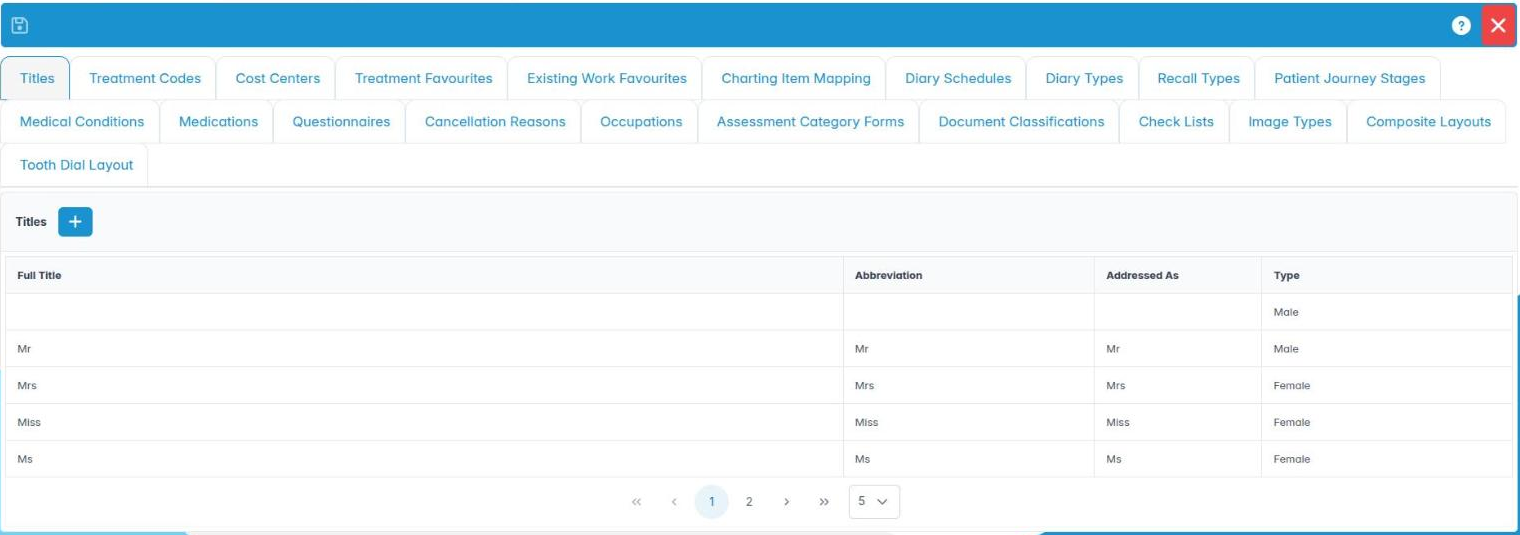
- Housekeeping. Work through Treatment Codes and Cost Centers (fee scales), Diary Types and Diary Schedules, Recall Types, Cancellation Reasons, Medical Conditions, Medications, Questionnaires and the rest. Taught in: Housekeeping.
- Templates and forms. Set up letter templates, Template Notes for clinicians, and online forms in Form Designer. Taught in: Templates and forms.
- Patient portal. Brand the patient portal in Portal Designer. Taught in: Templates and forms.
- Check go-live readiness with the ordered checklist. Taught in: Go-live checklist.
Good to know
- Diary Schedules has its own video series in the knowledge base.
- Treatment code prices for private patients are your fee scale. NHS and mixed practices only: NHS charges follow the national patient charge bands, which change each April.
More detail: House keeping.
3. Add staff and give them the right permissions
You know how staff accounts, roles and permissions work and where each is taught.
Why this matters Under UK GDPR each person should only see and change what their job needs. This is called least privilege. Each user also needs their own login so the audit trail is accurate. When someone leaves, their account must be switched off on their last day.
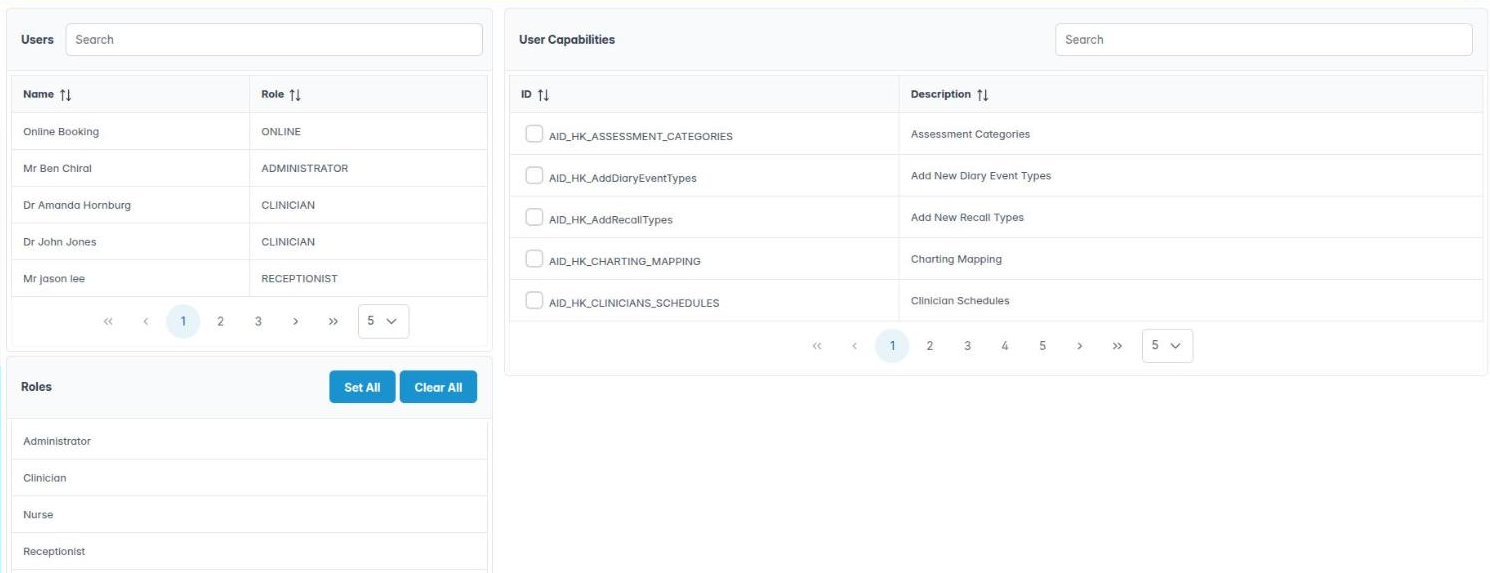
Where to find it Users › Add User and Find Users (needs Add New System User), and Utilities › User Capabilities (needs Change User Capabillites).
How to
- Add a user with the right role: Administrator, Clinician, Nurse or Receptionist. Clinicians also get a specialism, such as General, Orthodontics or Hygiene. Practice tablets, check-in kiosks and online booking use special device accounts. Taught in: Managing staff accounts.
- Set permissions. A role gives a starting set of permissions (capabilities), which you can then adjust for each person. Taught in: Roles and permissions.
- Diary order. Use Diary Sort Order and Show With to control how clinicians appear in the diary. Taught in: Managing staff accounts.
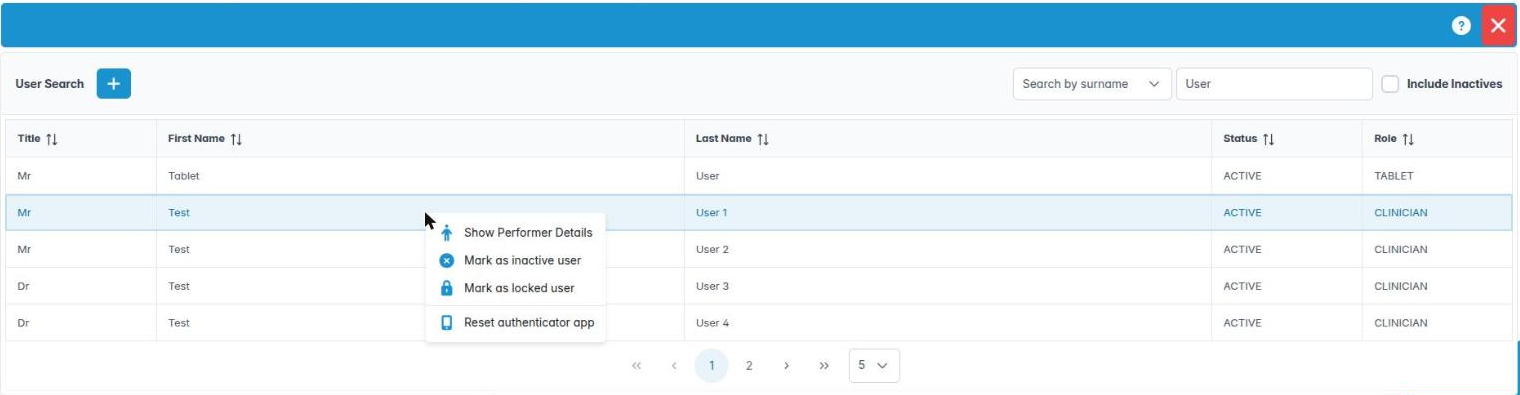
- Two-step sign-in. Choose the practice policy, and reset a user’s authenticator app if they lose their phone. Taught in: Managing staff accounts, and Practice preferences.
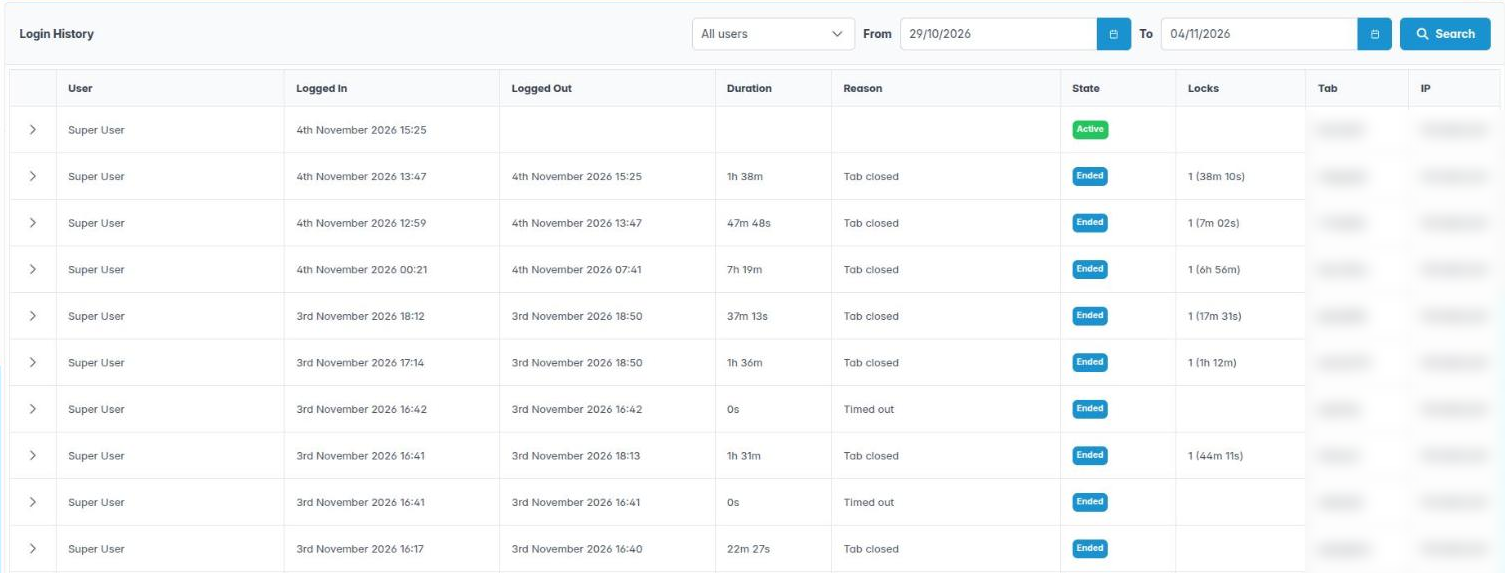
- Leavers. Make the account inactive and check Login History. Taught in: Managing staff accounts.
- Training. Book Chiral Systems training through Users › Book Training, and point new staff to their Your first day in ChiralCloud module.
Good to know
- Changing a role’s default permissions doesn’t change people who already have that role.
- You can’t change your own role or reset your own authenticator app. Ask another administrator.
More detail: Add a new user.
4. Keep an eye on the money and the diary
You know which reports an administrator checks daily, weekly and monthly.
Why this matters A practice can be busy and still lose money: unbilled treatment, unpaid balances, empty chair time, and patients who fail to attend. Regular reports catch these early. Associate dentists are often paid a share of their fees, so share reports must be right too.
Where to find it Reports in the left menu. Each report needs its own permission.
How to
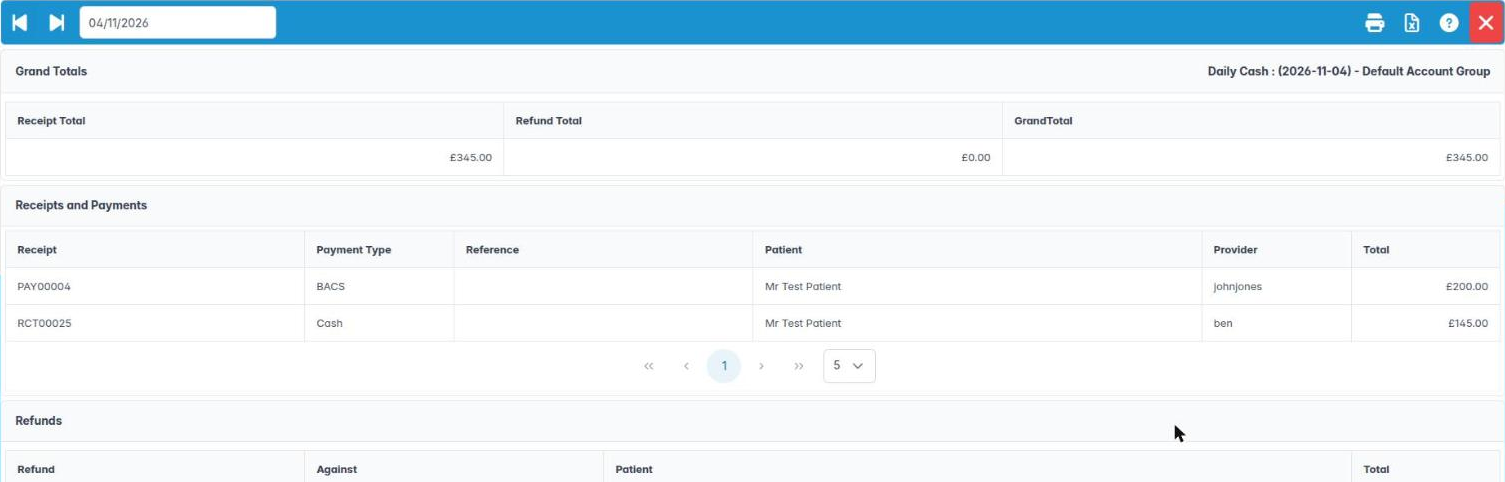
- Daily: Daily Cash Book and Daily Transactions, checked against the card machine and banking. Taught in: Daily and period financial reports.
- Weekly: Charges › Uninvoiced and Incomplete, to find treatment that was never billed. Taught in: Charging for treatment and issuing invoices. Also Cancellations and Non Attendance › Weekly FTAs. Taught in: Activity reports.
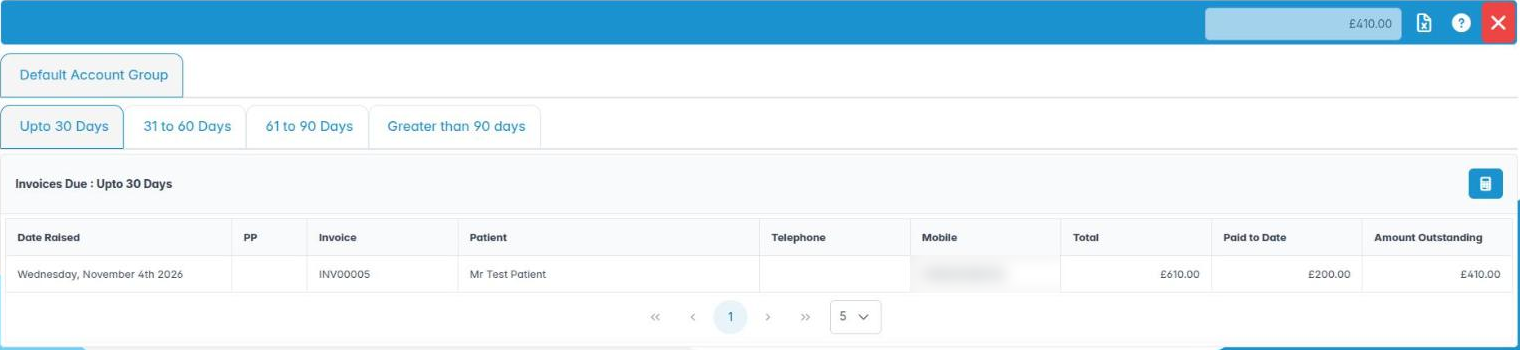
- Monthly: Months Cash Book, Monthly Share (associate pay), Outstanding Accounts, Accounts In Credit and Write Offs. Taught in: Daily and period financial reports.
- Diary use: Utilisation › Clinician Usage, Bookings Made By and Bookings Made On show how well each clinician’s time is used. Taught in: Activity reports.
- Payment plans (mainly private): Payment Plans and Payment Plan Dashboard, and issuing plan invoices each month. Taught in: Payment plans.
- Corrections: voids, credit notes, refunds, adjustments and write-offs. Taught in: Correcting accounts: voids, credits, refunds and adjustments.
Good to know
- Keep an eye on SMS credit under Reports › SMS Limits. When it runs out, reminders stop.
- Pin the reports you use most to your Practice Control Centre. Taught in: Personalising ChiralCloud.
More detail: Chiraldocs.hopto.org.
5. Manage NHS claims and contract delivery
You know how an administrator at an NHS or mixed practice manages claims and contract delivery in ChiralCloud.
Why this matters NHS and mixed practices only. An NHS contract pays the practice for delivering a set number of Units of Dental Activity (UDAs), or Units of Orthodontic Activity (UOAs) for orthodontics. Claims must reach the NHS Business Services Authority within the deadline, rejected claims must be fixed, and delivery must be tracked through the year. Missing delivery can mean paying money back. The contract is being reformed from April 2026, and Compass is being replaced by the NHS Dental Services Portal.
Where to find it NHS Management (needs UDA Claims), Preferences › NHS Registration (needs UDA management), and each clinician’s UDA Management tab.
How to
- Set up contracts and performers in Preferences › NHS Registration and on each clinician’s record. Taught in: NHS dentistry in ChiralCloud.
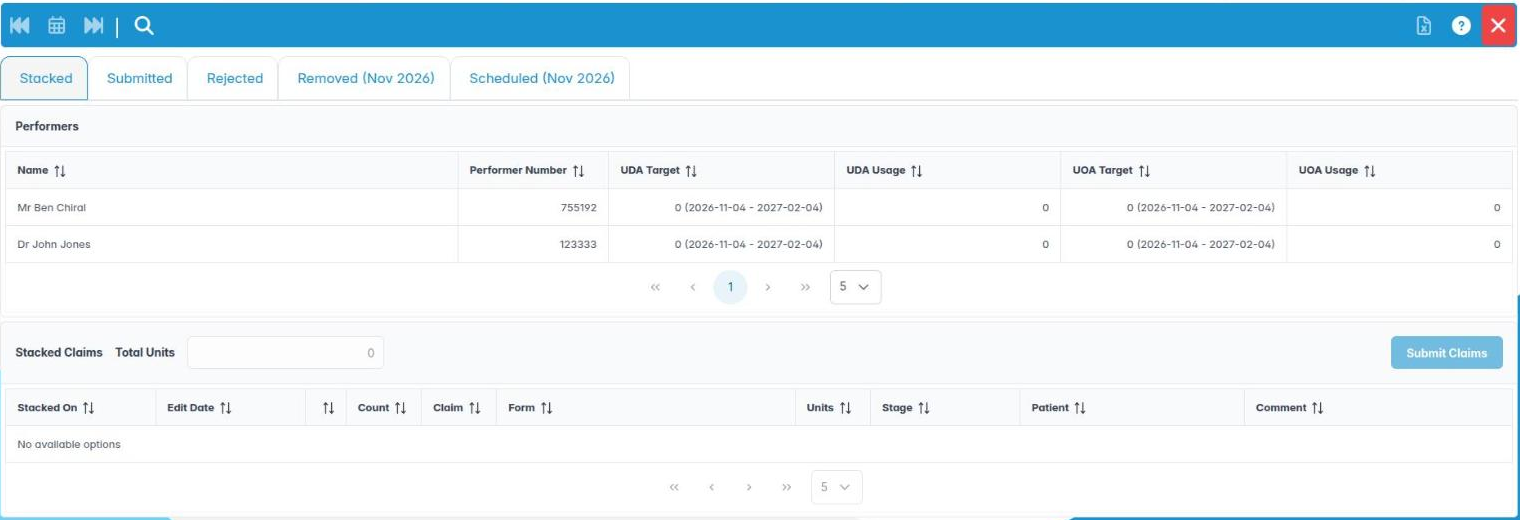
- Submit claims. Claims wait in Stacked until they are sent. Watch Submitted and Rejected, and correct and resubmit rejected claims. Taught in: NHS Management.
- Reconcile. Use Removed and Scheduled for each month to check what the NHS paid against what you claimed. Taught in: NHS Management.
- Track delivery. Check each performer’s UDA Management against their target through the year. Taught in: Monitoring UDAs.
- Mixed practices. Make sure NHS and private items are kept separate and that patients understand their options. Taught in: NHS and private patients side by side.
Good to know EDI submission results pop up as notices, for example EDI Claims Submitted or EDI Claims In Error, and stay until you close them.
More detail: Patient nhs claim history.
6. Stay compliant: audits, questionnaires and data protection
You know which ChiralCloud screens support CQC, IRMER and GDPR compliance.
Why this matters CQC inspectors expect evidence that care is safe and well led: up-to-date medical histories, radiograph audits, sedation records, and staff who only access what they need. As the data controller under UK GDPR, the practice must protect patient data and be able to show who accessed it. ChiralCloud gives you that evidence.
Where to find it Compliance and Users in the left menu.
How to
- Questionnaires. Compliance › Questionnaires shows Incomplete, Pre-completed and Completed medical history questionnaires, so you can chase missing ones. Taught in: Medical history and consent.
- Radiographs and sedation. Compliance › XRay Reports and Sedation Report give the summaries and detail you need for IRMER audits. Taught in: X-rays and sedation.
- Attendance. Compliance › CheckIn – CheckOut shows daily and monthly check-in times. Taught in: Activity reports.
- Access. Users › Login History shows who signed in, when, and how they left. Combine it with sensible permissions and two-step sign-in. Taught in: Managing staff accounts, and Roles and permissions.
- Consent and communications. Record patients’ GDPR consent and contact preferences. Taught in: Medical history and consent.
- Email Problems. Online › Email Problems lists bounced emails, so patients still get their reminders. Taught in: Online registrations and email problems.
Good to know
- Data protection requests, such as a patient asking for a copy of their records, are answered from the patient record’s documents and history.
- Keep your Cyber Essentials and Data Security and Protection Toolkit evidence up to date. Two-step sign-in helps with both.