
A composite layout is the grid the composite editor fills with a patient’s images. Chiral Cloud comes with four built-in layouts; you can make your own in Housekeeping. See also Patient images: upload, edit and composites.
1. The layouts
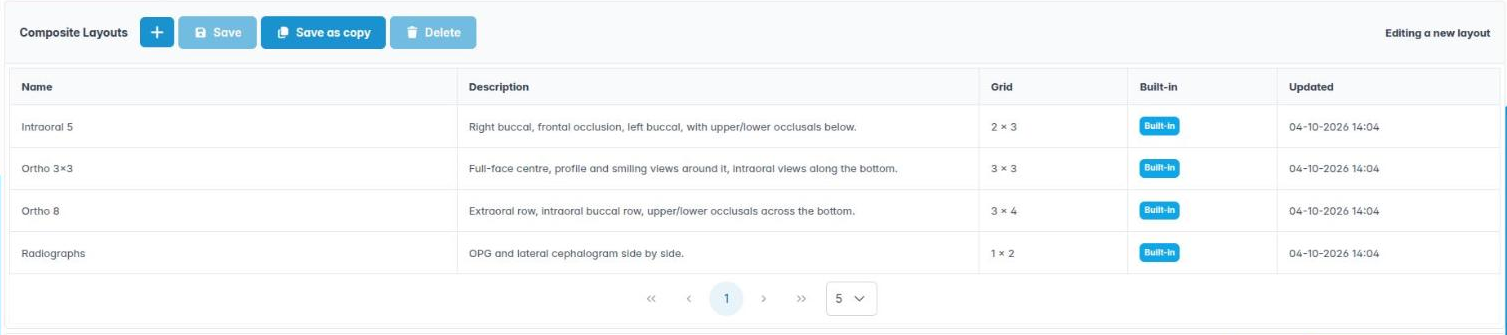
Go to Housekeeping › Composite Layouts. The list shows each layout’s name, description, grid size and whether it is Built-in. Built-in layouts can’t be changed or deleted, but you can copy one with Save as copy and change the copy. Click + to start a new layout.
2. Designing a layout
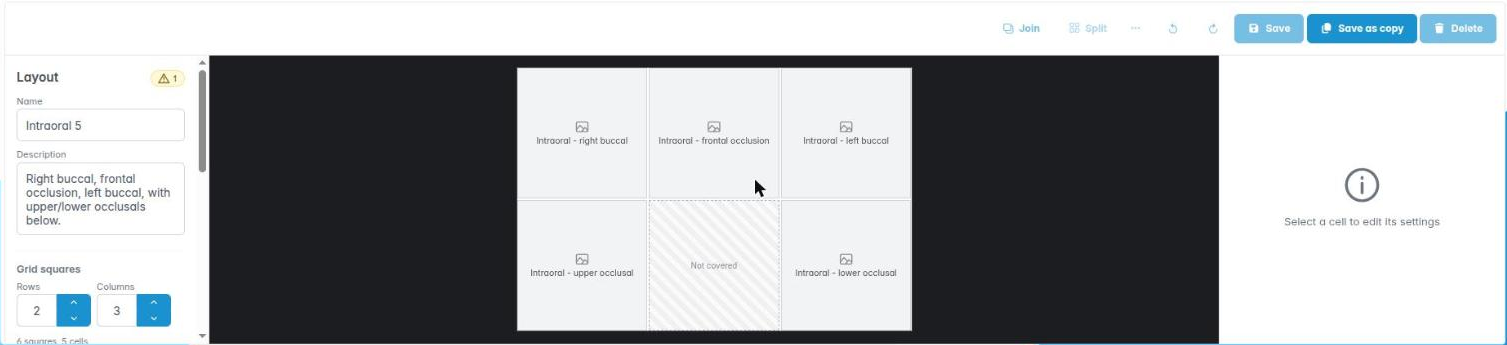
- Give the layout a Name and Description.
- Set the Grid squares: rows and columns, each from 1 to 8.
- To make a bigger cell, click a cell and Ctrl-click or Shift-click its neighbours, then click Join. Split divides a cell again.
- Under Output, set the picture’s size, the gap and border between images and the background colour; under Caption, choose whether to print a caption under each image.
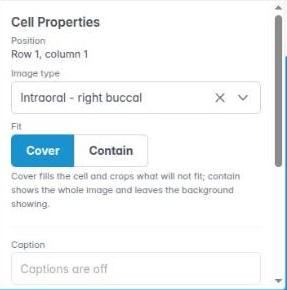
Click a cell to set its Cell Properties. The Image type names what goes there, for example Intraoral – right buccal; the composite editor’s Auto-place uses it to fill the cell. Fit chooses Cover (fill the cell, cropping the edges) or Contain (show the whole image).
A square with no cell over it is marked Not covered and left blank. The warning badge lists anything to check.
Click Save to keep your layout (or Save as copy for a new one). Delete removes a layout; composites already made with it are not affected.