Once a treatment plan’s appointments are set up, you can book them all from the diary in one go: the plan’s appointments are listed beside the diary, and you tap a slot for each or let Chiral Cloud find a free time. The pictures use a made-up test patient in a demo practice.
1. Starting from the treatment plan
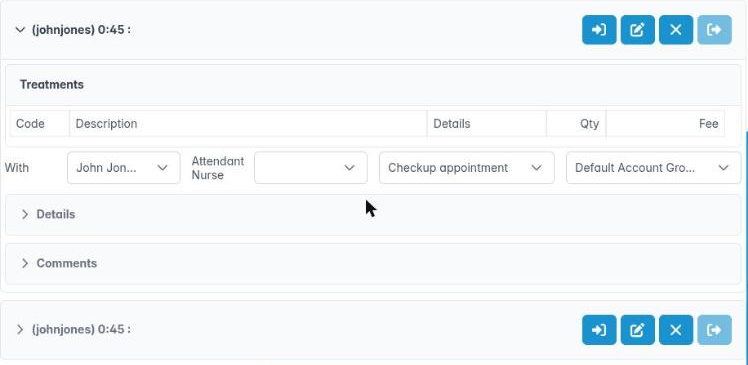
Open the treatment plan. Each appointment on it needs a clinician and an appointment type. Save the plan, then click Place appointment in diary on one of its appointments.

2. The Plan appointments list
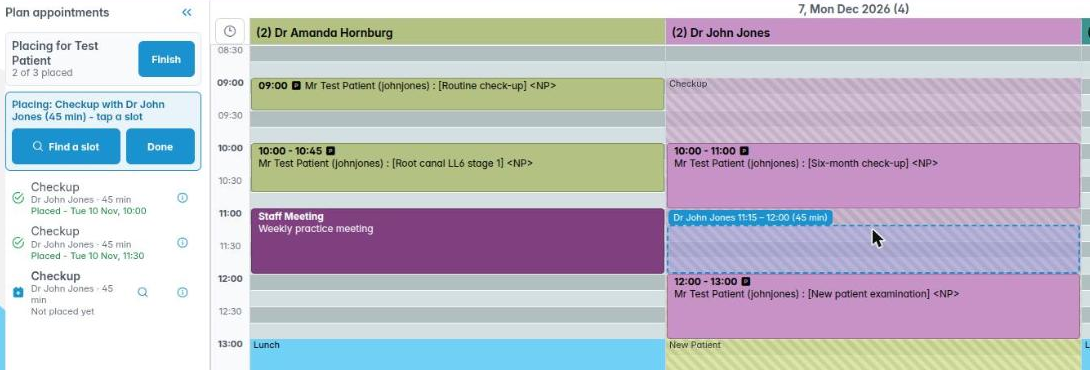
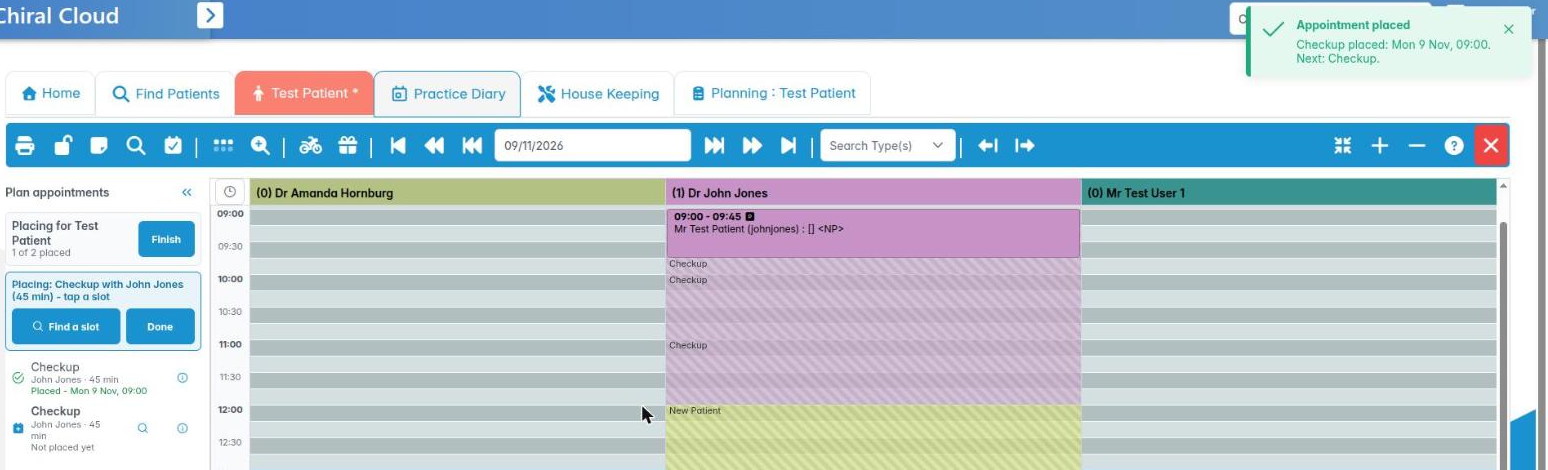
The diary opens with Plan appointments on the left: Placing for the patient, how many are placed, and each appointment with its clinician, length and state (Not placed yet, Placed with the date, or Off the diary).
The appointment being placed is shown at the top, for example Placing: Checkup with John Jones (45 min) – tap a slot. Click another row to place that one instead.
3. Placing an appointment
- Tap a slot to book the appointment there at its planned length, or drag across slots for a different length. The outline shows where it will go.
- After each one, a message confirms it and the next appointment is picked for you.
- Placing it in another clinician’s column asks Book with another clinician?; Yes books it with them and changes the plan to match.
4. Finding a free time
Click Find a slot (or the magnifying glass on a row). Find Available Slot searches the clinician’s booking zones for the appointment’s length, starting from the Preferred date, and lists the free times by day. Use Show more days or Next week to look further.
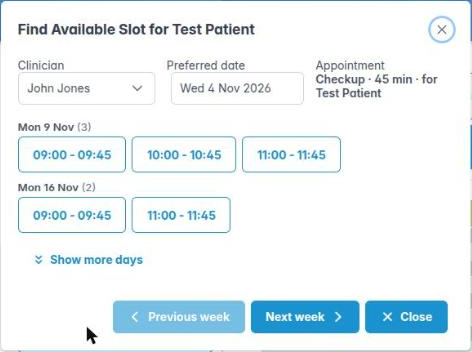
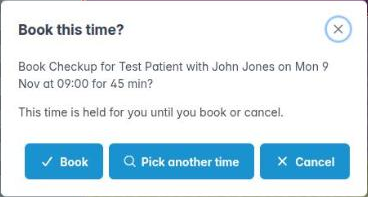
Click a time. The diary moves to that day and the time is held for you while you decide. Click Book to book it, Pick another time to search again, or Cancel.
5. Changing your mind and finishing
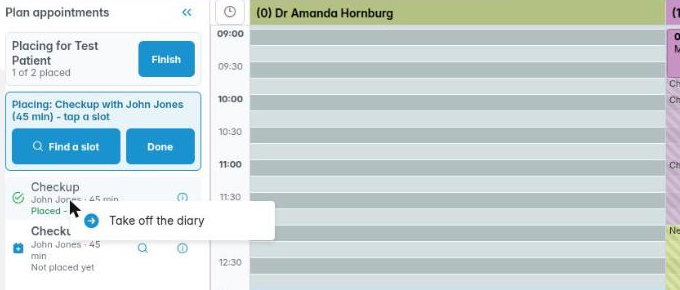
To move a placed appointment back off the diary, right-click its row and choose Take off the diary. It can then be placed again.
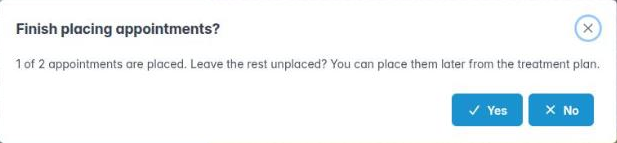
Click Finish when you are done. If some are not placed, you are asked whether to leave them; they stay on the treatment plan for later. Done just stops placing the current one.