
Keep track of practice jobs with Tasks & Reminders, link them to patients, and talk to colleagues with Messaging and voice calls.
Who it is for: practice managers and administrators, clinicians, dental nurses, receptionists.
In this guide:
- Find your tasks in Tasks & Reminders
- Create and share a task list
- Add, assign and complete a task
- Raise and track tasks from a patient’s record
- Message colleagues in Messaging
- Make and answer a voice call to a colleague
1. Find your tasks in Tasks & Reminders
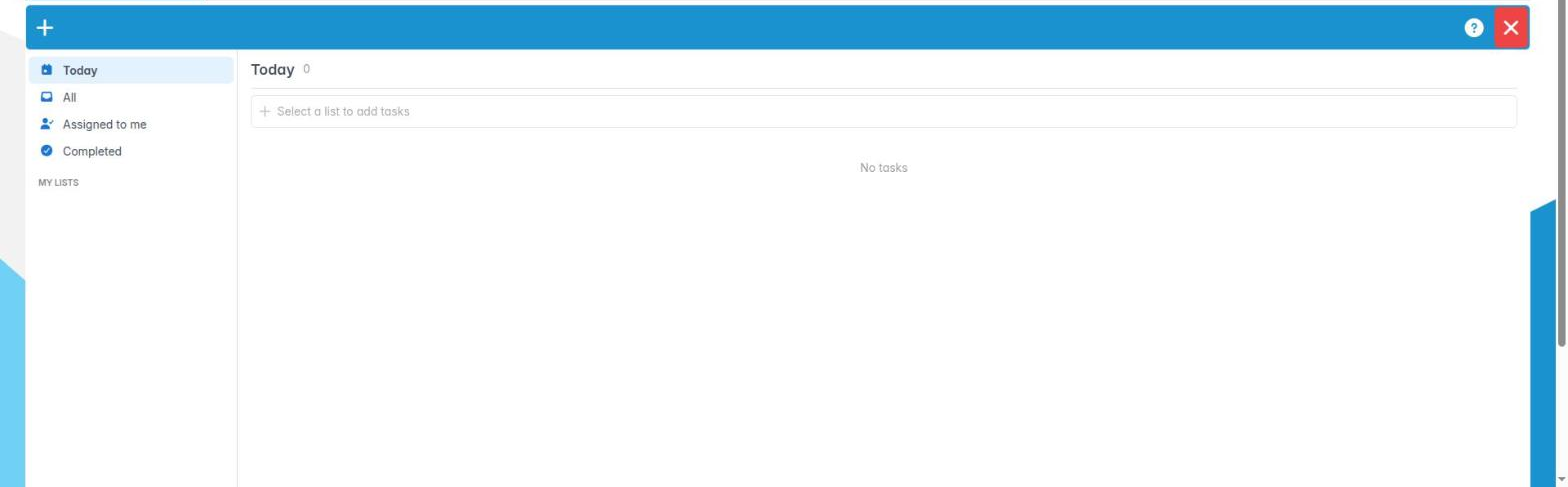
You can open Tasks & Reminders, move between Today, All, Assigned to me and Completed, and pick a list.
Why this matters A dental practice runs on small jobs that must not be forgotten: chase a lab case, call a patient back about an estimate, order stock, check a referral letter was received. Sticky notes get lost. Tasks & Reminders keeps these jobs in one place, with due dates, reminders and an owner, and links them to the patient when there is one.
Where to find it Users › Tasks & Reminders. A number next to the menu item shows how many task reminders you have not seen yet.
How to
- Click Users › Tasks & Reminders. Opening it marks your reminders as read, so the number disappears.
- The left side has four views:
– Today – tasks due today (the default).
– All – every open task you can see.
– Assigned to me – tasks someone has given you.
– Completed – finished tasks, 25 to a page. - Under My Lists are your task lists, each with a coloured dot and a count of open tasks. Click a list to see its tasks.
- The right side shows the view or list name, how many tasks it has, and the tasks themselves.
- Each task row shows a tick box, the title, the patient’s name (if linked), the due date (red when overdue), a bell if a reminder is set, a coloured priority dot and the assignee’s initials.
- Click Save & Exit to close.
Good to know
- When a reminder is due, a Task reminder pop-up appears wherever you are in ChiralCloud. The app checks about once a minute.
- If you see “Unable to contact the task service”, try again later; your tasks are safe.
2. Create and share a task list
You can create, edit and delete task lists and decide whether only you or all staff can see them.
Why this matters Lists keep tasks organised. A practice might have a shared “Reception” list, a shared “Lab chasing” list and a private list for each person. Shared lists mean that when someone is off sick, their colleagues can see what is outstanding.
Where to find it Users › Tasks & Reminders, then New List on the toolbar.
How to
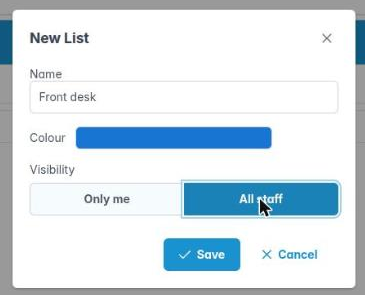
- Click New List. The New List window opens.
- Type a Name, such as “Reception” or “Lab chasing”.
- Pick a Colour. It shows as the dot beside the list.
- Choose Visibility: Only me keeps the list private; All staff shares it with everyone at the practice.
- Click Save. The list appears under My Lists.
- To change a list, select it and click the pencil (Edit list) next to its name. The Edit List window opens with the same fields.
- To remove a list, select it and click the bin (Delete list). Confirm in Delete List. Be careful: the list’s tasks are removed with it.
Good to know
- You cannot add a task until a list exists. On Today, All and Assigned to me, the quick-add box says “Select a list to add tasks”.
- If someone assigns you a task in their private list, you will see the task, but not the list, and you cannot delete that task.
- Agree a few shared lists as a team rather than everyone inventing their own.
3. Add, assign and complete a task
You can quick-add a task, open it to set a due date, reminder, priority, assignee and patient, then tick it off.
Why this matters A task is only useful if it says what, by when and who. A reminder makes sure it is not forgotten, and linking the patient means anyone can open the record and pick it up.
Where to find it Users › Tasks & Reminders, then click a list.
How to
- Type in the Add a task… box at the top of the list and press Enter. The task is added with just a title.
- Click the task to open Edit Task.
- Fill in what you need:
– Title and List (both required) and Notes.
– Due date. Untick All day to set a Due time.
– Reminder: None, At due time, 1 hour before, 9am on the day or Custom… (then choose Remind at).
– Priority: None, Low, Medium or High.
– Assignee: a colleague, or leave Unassigned.
– Patient: type at least two letters of the surname and pick from the list. - Click Save. Save is greyed out until there is a title and a list.
- When the job is done, tick the box at the start of the row. The task is crossed through and moves to Completed. Untick it to reopen.
- To delete a task, click the bin at the end of its row.
Good to know
- The assignee gets a Task reminder pop-up at the reminder time and sees the task under Assigned to me.
- Reminders need a due date to work from, except Custom….
- Clinical decisions belong in the patient’s notes, not in a task.

4. Raise and track tasks from a patient’s record
You can use the patient Tasks tab, the diary’s Create Task… and Create patient task to log work about a patient.
Why this matters Most practice tasks are about a patient: “Call Mrs Shah about her crown estimate”, “Chase referral to the hospital”, “Send ortho records”. Raising the task from the patient’s record links it automatically, so the whole team can see on the record what is still outstanding.
Where to find it Open the patient and click the Tasks tab. You can also right-click an appointment in the diary and choose Create Task….
How to
- Open the patient and click Tasks. The panel is headed Patient Tasks and shows their open tasks, soonest due first.
- Click Add Task. The New Task window opens with the patient already filled in.
- Choose a List, type a Title, and set a due date, reminder, priority and assignee as needed. Click Save.
- Tick a task to complete it. Click a task to edit it.
- Completed tasks are hidden. Click Show completed to see them, and Hide completed to hide them again.
- From the diary, Create Task… opens the same window, linked to that appointment and patient.
Create patient task (email) The patient toolbar also has Create patient task. This is different: it opens Send Email headed with your practice name, and sends a task email to the practice’s own email address. A copy is saved as a note on the patient. Use it if your practice prefers tasks by email.
Good to know
- If you see “No outstanding tasks for this patient”, there is nothing open.
- Tasks you add here also appear in Users › Tasks & Reminders in the list you chose.

5. Message colleagues in Messaging
You can start a direct message or a group room, send messages and emoji, and see who is in a room.
Why this matters Instant messaging saves walking between surgery and reception: “Mr Jones is here”, “Can you bring the next patient’s X-rays?”, “Lab on line 2”. Messages stay inside ChiralCloud rather than on personal phones, which is better for patient confidentiality under UK GDPR.
Where to find it Messaging in the main menu, if your practice has it switched on. The tab shows a number when you have unread messages.
How to
- Open Messaging. Top left shows the connection: Connected, Connecting…, Reconnecting… or Disconnected. Click it for Matrix Connection Diagnostics and Run Diagnostics if something is wrong.
- The left side lists your conversations, with unread counts. Use Search rooms… to find one.
- To message one person, click New DM, search by name, username or role, select them and click Start Chat.
- To message a group, click New Room, type a Room Name, tick the members under Select Members and click Create Room.
- Select a conversation, type in the box and press Enter to send (Shift+Enter for a new line). Use Insert emoji for emoji.
- Right-click a room and choose Show members to see the Members tab. The Add Member tab lets you add someone (Add to Room); Remove from room removes them.
- If you created a room, you can right-click it and choose Delete room. The default practice room cannot be deleted.
Good to know
- A pop-up appears when a message arrives; click it to jump to the conversation.
- Keep clinical detail to the minimum needed. Anything that matters for care belongs in the patient’s notes.
6. Make and answer a voice call to a colleague
You can call a colleague from a direct message and answer, mute, hold and end calls.
Why this matters Sometimes typing is too slow – a nurse needs the dentist to confirm something now, or reception needs a quick word with the practice manager in another building. Voice calls in Messaging let you talk through the computer’s headset without using the practice phone lines, which stay free for patients.
Where to find it In Messaging, open a direct message (not a group room). The call button sits next to the message box.
How to
- Open the direct message with the person you want to call.
- Hover over the call button. It says Call and their name when you can call. Otherwise it explains why, for example Already in a call or Voice calls not available.
- Click it to place the call.
- When someone calls you, a window appears with Answer and Decline.
- During a call, a call bar shows. Use Mute / Unmute, Hold / Resume and End Call. Expand shows the full call panel and Minimize shrinks it again.
Good to know
- You need a working microphone and speakers or a headset. Your browser will ask for permission to use the microphone the first time.
- Calls are only available in direct messages, not group rooms.
- Do not discuss patients where others can overhear, just as you would on the phone.