
Get back to today’s patients quickly, understand what patients can do in the portal, and help with emailed form links.
Who it is for: practice managers and administrators, clinicians, dental nurses, receptionists.
In this guide:
- Reopen patients you have looked at today
- Know what patients can do in the patient portal
- Help a patient with an emailed form link
1. Reopen patients you have looked at today
You can use Patient Access to get back to patients you opened earlier today and jump to their plans.
Why this matters On a busy day you open dozens of records and close the tabs again. When a patient rings back an hour later, searching from scratch wastes time. Patient Access is your own list of patients you have opened today. It also gives the practice a simple record of who was accessed, which supports good data-protection practice: staff should only open the records they need for their work.
Where to find it Patient Access in the main menu. The panel is headed Patient Access.
How to
- Click Patient Access. You see the patients you have opened today, with an NHS marker, Title, First Name and Last Name. Sort by clicking a column heading.
- Double-click a patient, or right-click and choose Patient Details, to reopen their record.
- Right-click and choose Treatment Planning to go straight to their treatment plans, or Payment Planning for their payment plans – handy when a patient calls about an estimate.
- The list updates itself as you open more patients.
- Click Save & Exit to close it.
Good to know
- The list is yours only, and it starts fresh each day.
- A patient appears once, however many times you opened them.
- If you open a record by mistake, close it. Never browse records out of curiosity – access can be audited.

2. Know what patients can do in the patient portal
You can explain the patient portal to a patient and know which Portal Details settings control it.
Why this matters The patient portal lets patients do things from home: update their details, complete their medical history before they arrive, sign consent forms, see appointments and documents, upload photos, and – if you allow it – book appointments or video calls. Every form completed at home is time saved at the desk. You will be asked about it, so it helps to know what your patients see.
Where to find it Patients reach the portal from the link in their portal email or text. What it offers is set by an administrator in Preferences › Practice Details, panel Portal Details.
How to
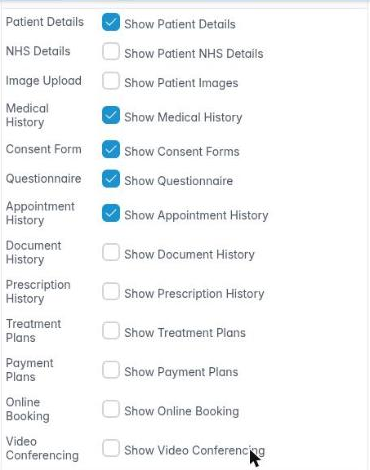
- In Portal Details, the administrator ticks what patients can use: Show Patient Details, Show Patient NHS Details, Show Patient Images (image upload), Show Medical History, Show Consent Forms, Show Questionnaire, Show Appointment History, Show Document History, Show Prescription History, Show Treatment Plans, Show Payment Plans, Show Online Booking and Show Video Conferencing.
- The patient’s dashboard then shows buttons such as Book An Appointment, Book A Video Call, Add Medical History, Complete Questionnaire, Sign Consent Forms and Upload an Image(s), and a menu with My Details, My Appointments, My Documents, My Prescriptions, My Treatment Plans and My Payment Plans.
- GDPR first: if the patient has not given GDPR consent, the portal asks them to Sign GDPR Consent Form before anything else (“Please Complete the GDPR consent form before continuing”).
- If you have asked for a medical history, questionnaire or consent, they must complete those before using other features (“Please Complete the requested forms before continuing”).
Good to know
- To get a patient into the portal, use Send portal reference & link in Online › Online Registrations, or Resend Portal Ref on their appointment.
- Online booking requests appear under Online › Online Bookings.
3. Help a patient with an emailed form link
You can explain how an emailed form link works and what the patient sees when a link is used or expired.
Why this matters Practices often email patients a single form to fill in – a new-patient questionnaire, a consent form or a medical history – without making them log in to the portal. The patient clicks a link and fills the form in the browser. When it is submitted, the answers come back to the patient’s record. Patients will phone when a link does not work, so it helps to know the messages.
Where to find it You send a form link from Send this patient an Email (choose a patient form) or in a mail shot. The patient opens it from their email.
How to
- The patient clicks the link. The page shows the form’s name and a banner such as “This form is for Sarah Jones. If that is not you, please do not complete it and contact the practice.”
- They fill in the form. Their answers are saved automatically every 30 seconds, so a dropped connection does not lose much.
- They click Submit Form. They see Form Submitted Successfully, a thank-you message, a confirmation number and View Submission to see what they sent.
- Their answers appear in the patient’s record under Patient Forms.
When a link does not work
- This link has already been used – the form was already submitted. If they need to change something, deal with it by phone or send a new form.
- This link has expired – links last a limited time. Send a new one.
- This link is not valid – usually a broken or partly copied link. Send a new one.
Good to know
- Check the email address before sending. A form link sent to the wrong person is a data breach.